Table of Contents
ChatGPT Search can help organize web information into an answer you can refine in conversation. It is most useful when you define the question, give the constraints, and check the cited sources. It is not automatically faster or more accurate than a conventional search engine for every task.
1. Ask for a direct answer with sources
State the question and the kind of evidence you need. For changing information, specify the country, product version, or relevant date. Ask the tool to search the web rather than assume that a response was retrieved from current sources.
Search for the current answer to [question]. Start with a short answer, cite the sources, and flag any conflicting information.
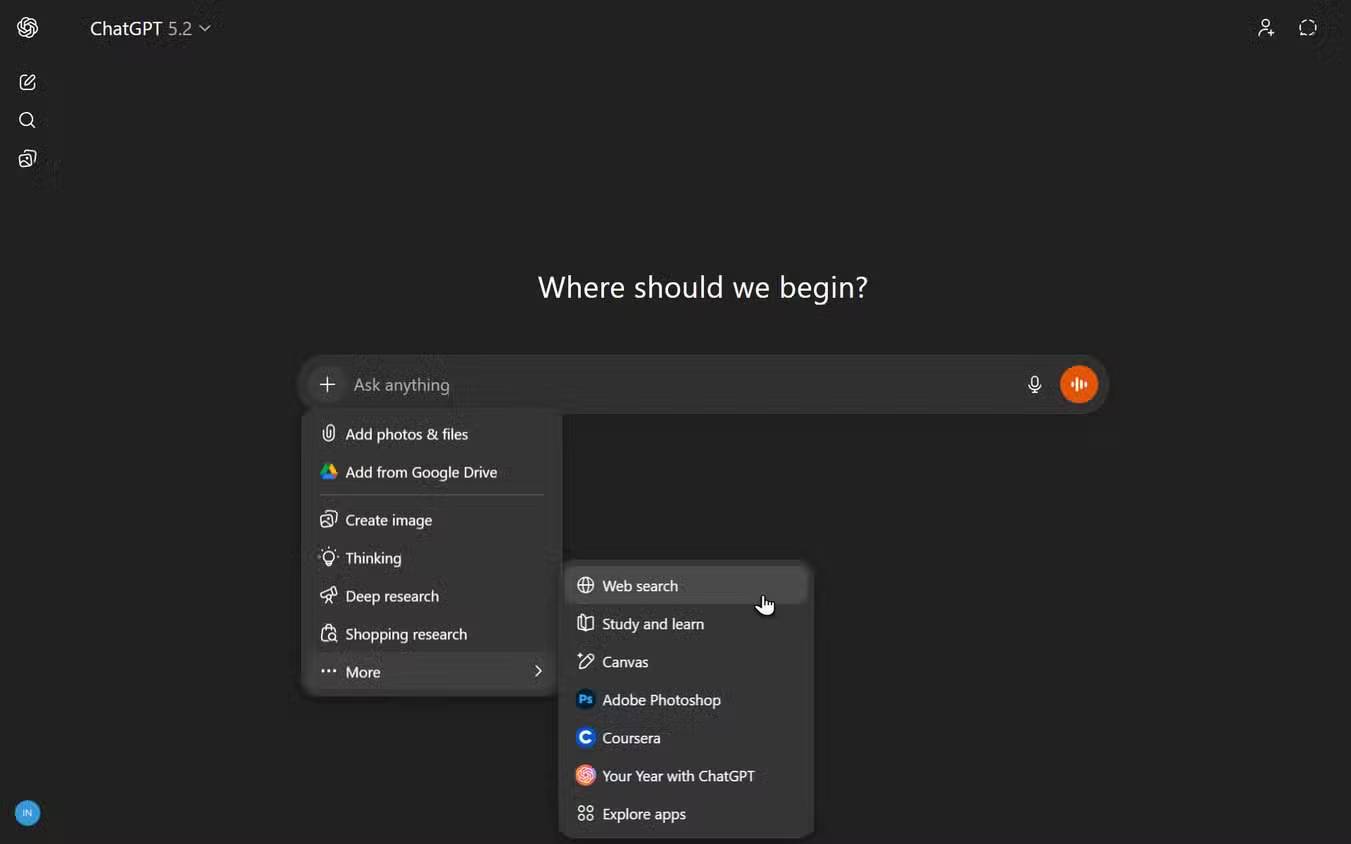
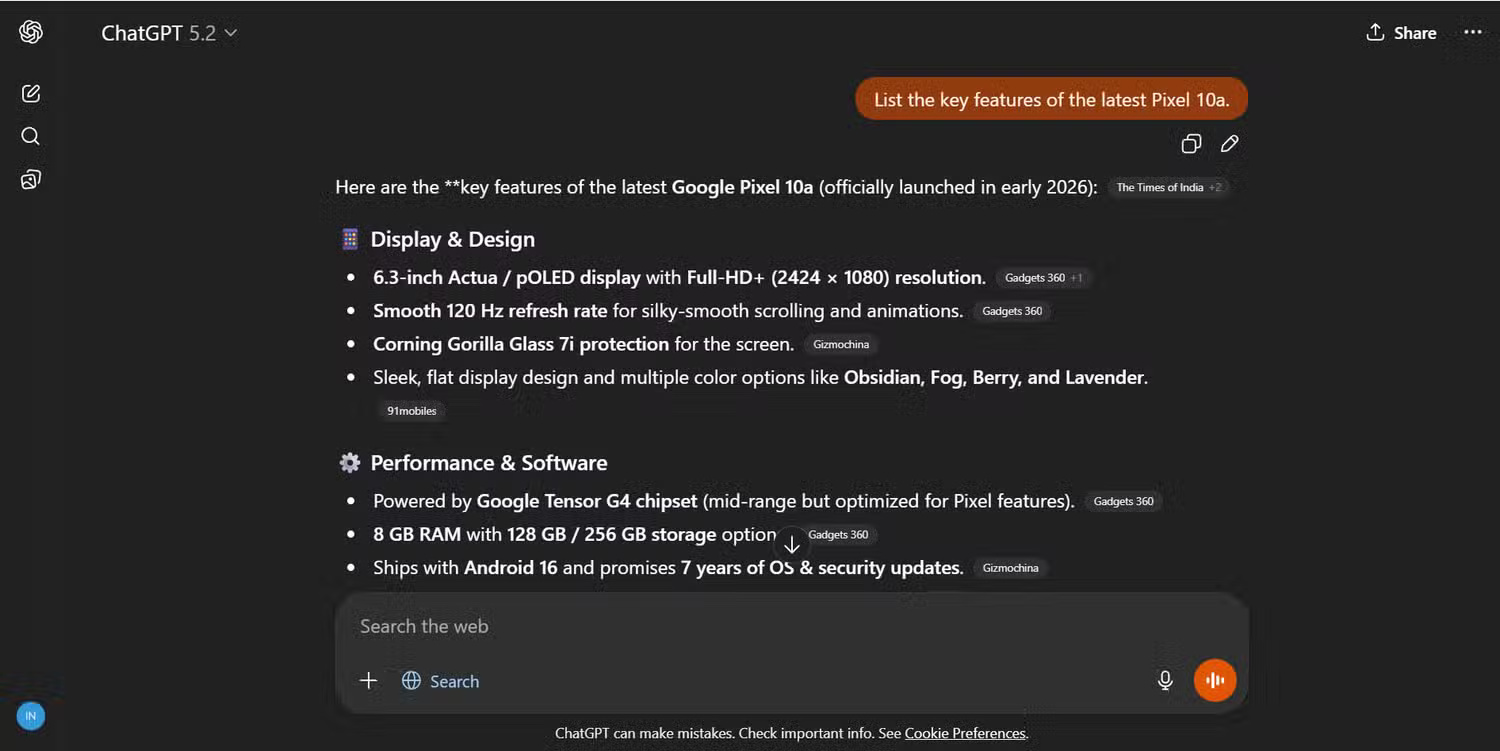
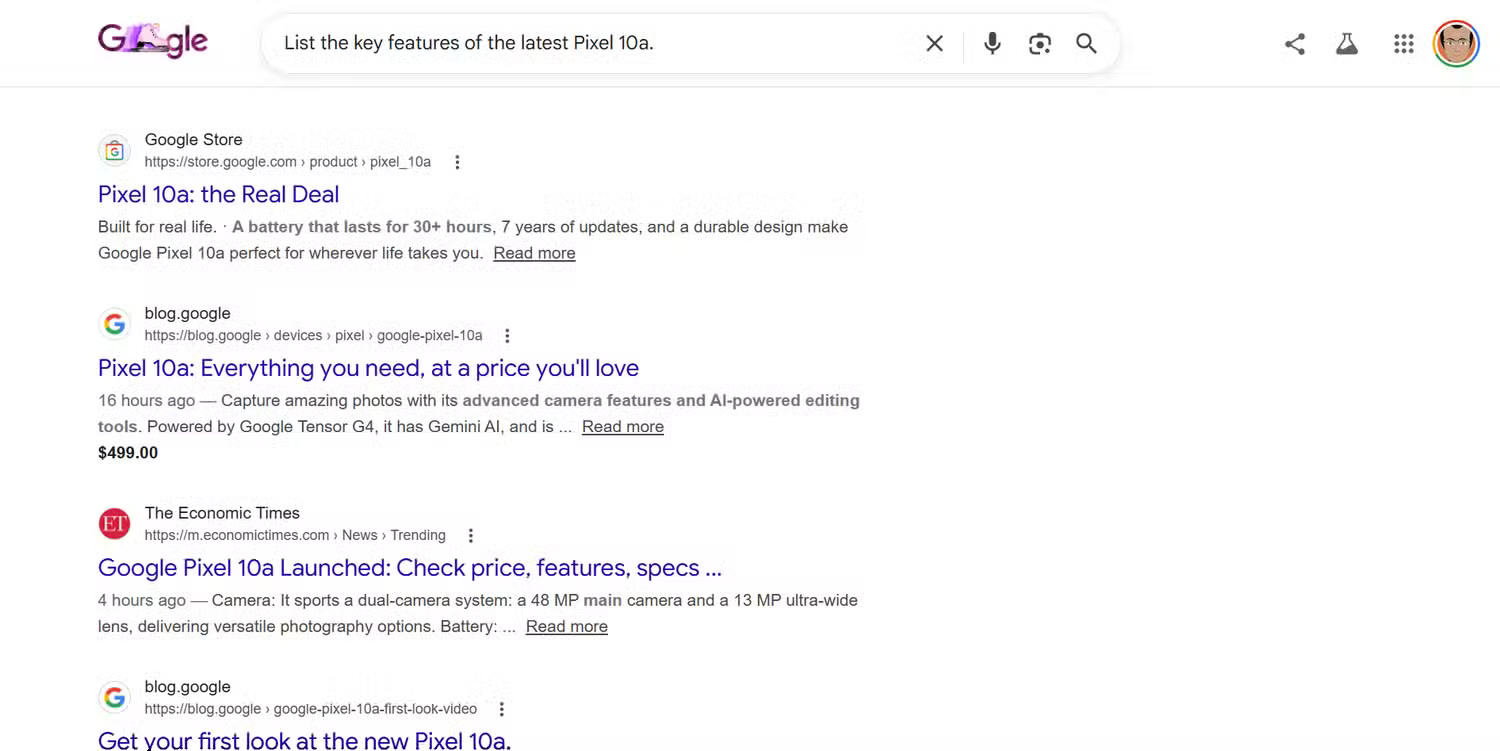
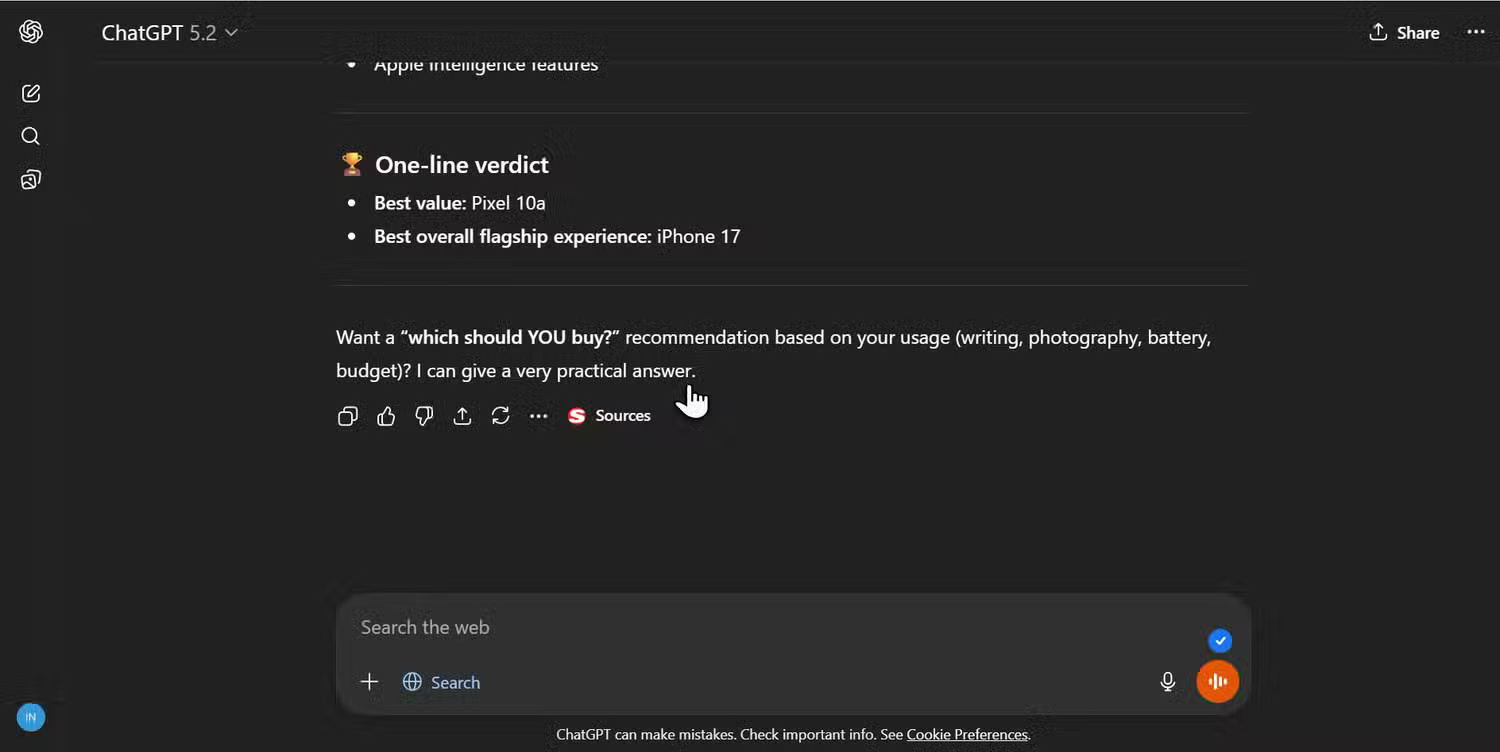
Read the citations behind important claims. A fluent summary can still omit qualifications or misunderstand a page; the presence of a link does not establish that every sentence is supported.
2. Put multiple constraints in one question
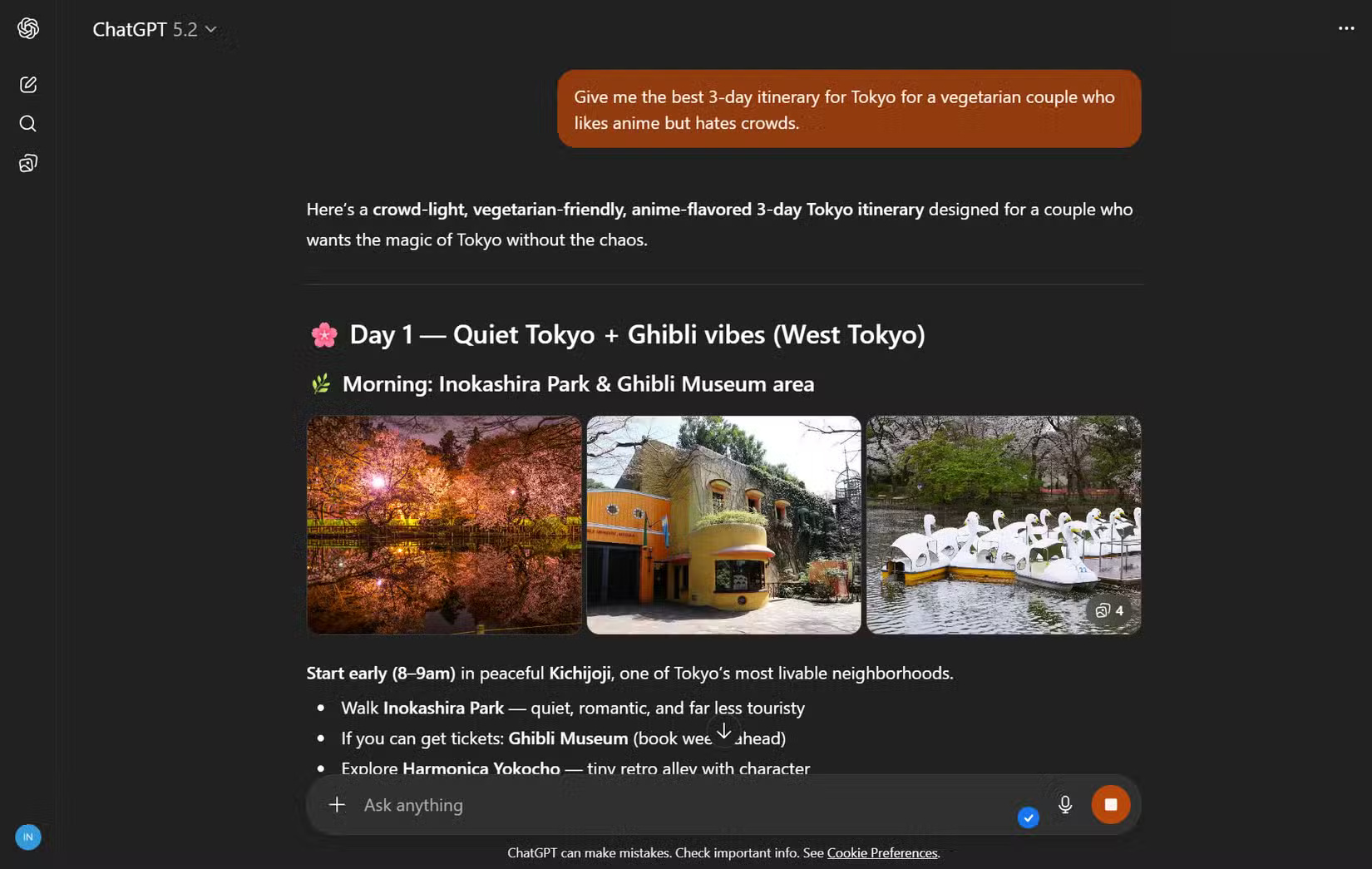
Describe the outcome you want rather than a string of broad keywords. For example, a trip-planning question can include the length of the visit, dietary needs, interests, and how much walking is acceptable. Ask for a draft plan, then verify opening hours and reservations on the venue's own website.
Draft a three-day Tokyo itinerary for two vegetarian travelers interested in anime. Favor quieter stops and keep travel between activities manageable. Cite current venue information and flag anything that needs confirmation.Follow up with one change at a time, such as reducing the budget or replacing a crowded stop. Keep the constraints in the conversation so you can check whether the revised plan still meets them.
3. Compare options in a consistent table
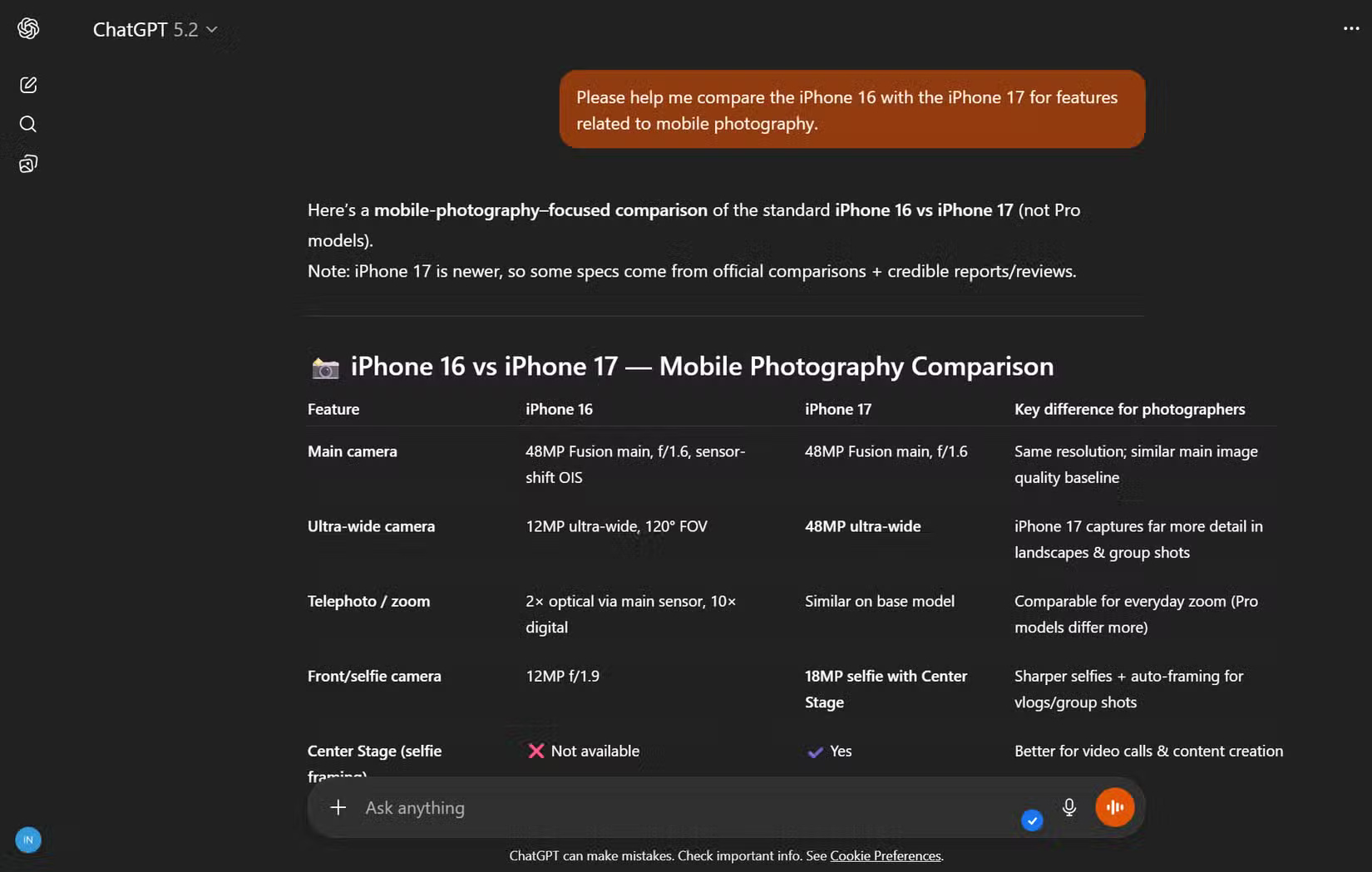
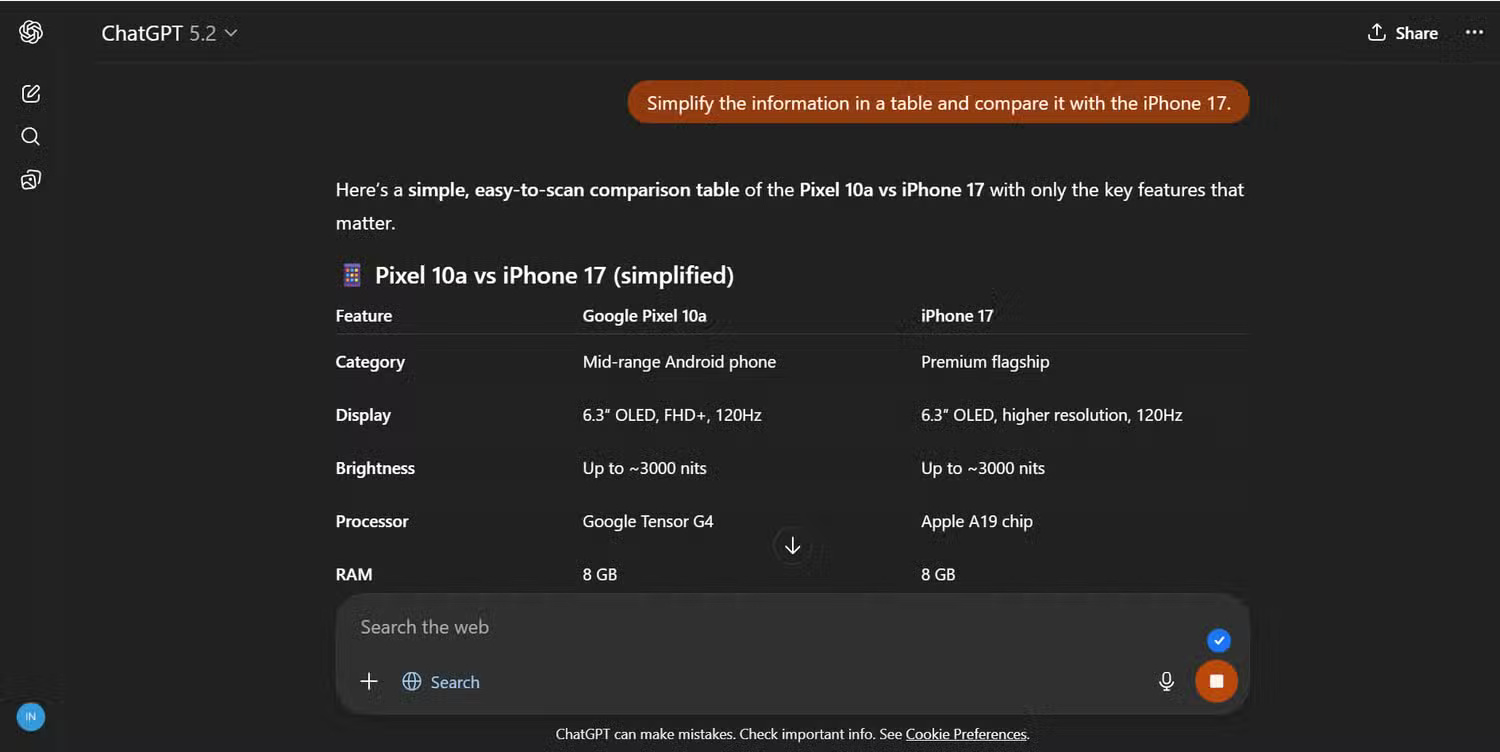
Choose the comparison criteria before asking for a recommendation. For software, include the operating system, required functions, and licensing needs. For hardware, specify the exact models and regional variants.
Compare [A] and [B] for [use]. Use a table covering [criteria]. Use current manufacturer documentation, link each source, and mark unavailable details as unknown.Verify prices, specifications, and plan limits before deciding. Avoid comparisons that mix an entry-level model with another product's premium edition. For a shopping-focused workflow, see using ChatGPT to compare products.
4. Summarize a topic without losing disagreements
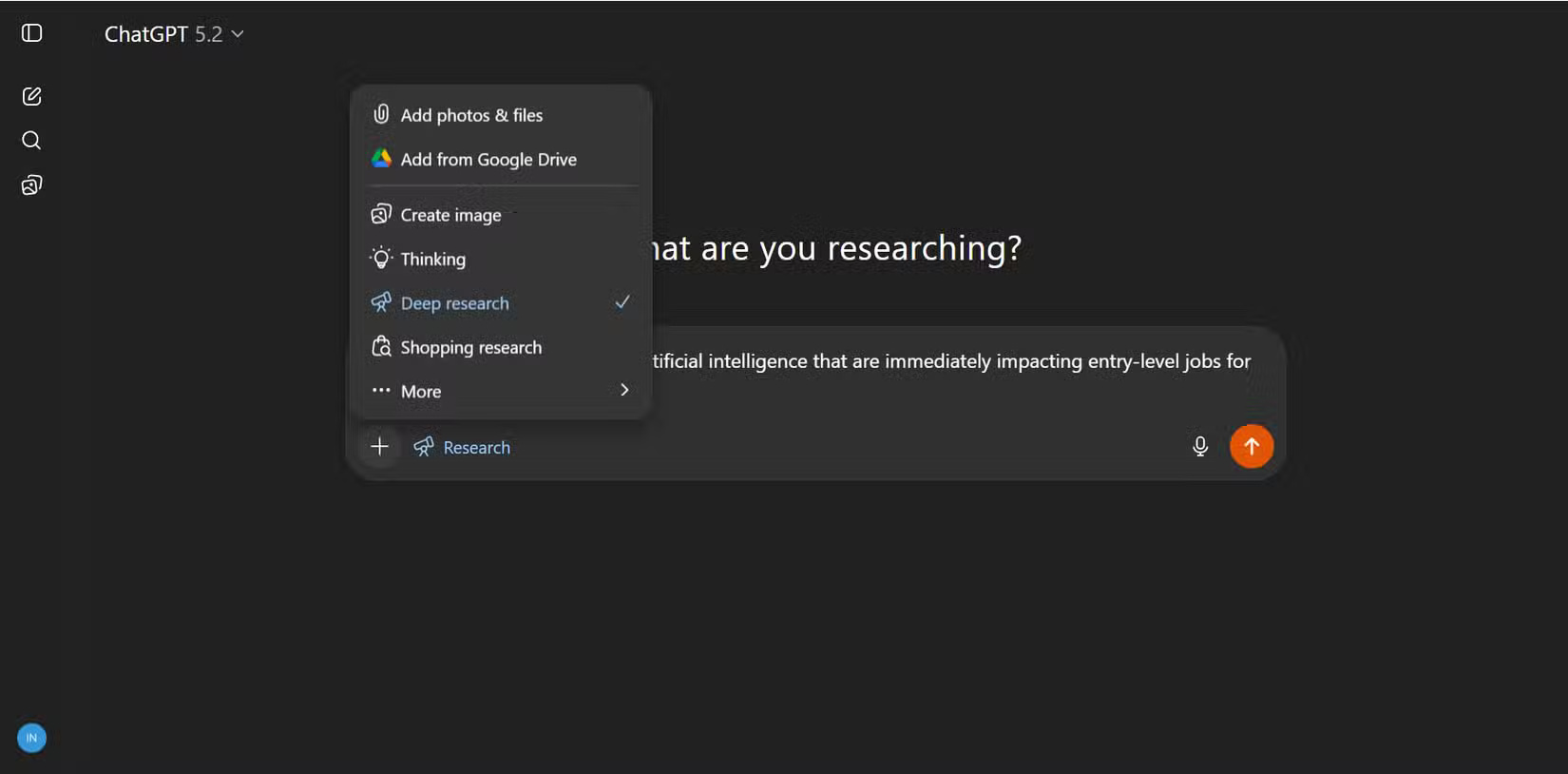
Ask for the points sources agree on, where they differ, and what remains uncertain. This is more useful than asking for a single confident conclusion on a disputed topic.
Summarize [topic] from reliable sources. Separate established information, differing interpretations, and unanswered questions. Include publication dates and links.Open the original sources when exact wording, a technical procedure, or a consequential decision matters. For additional query techniques, see TipsMake's ChatGPT Search guide.
5. Supply your context and refine the answer
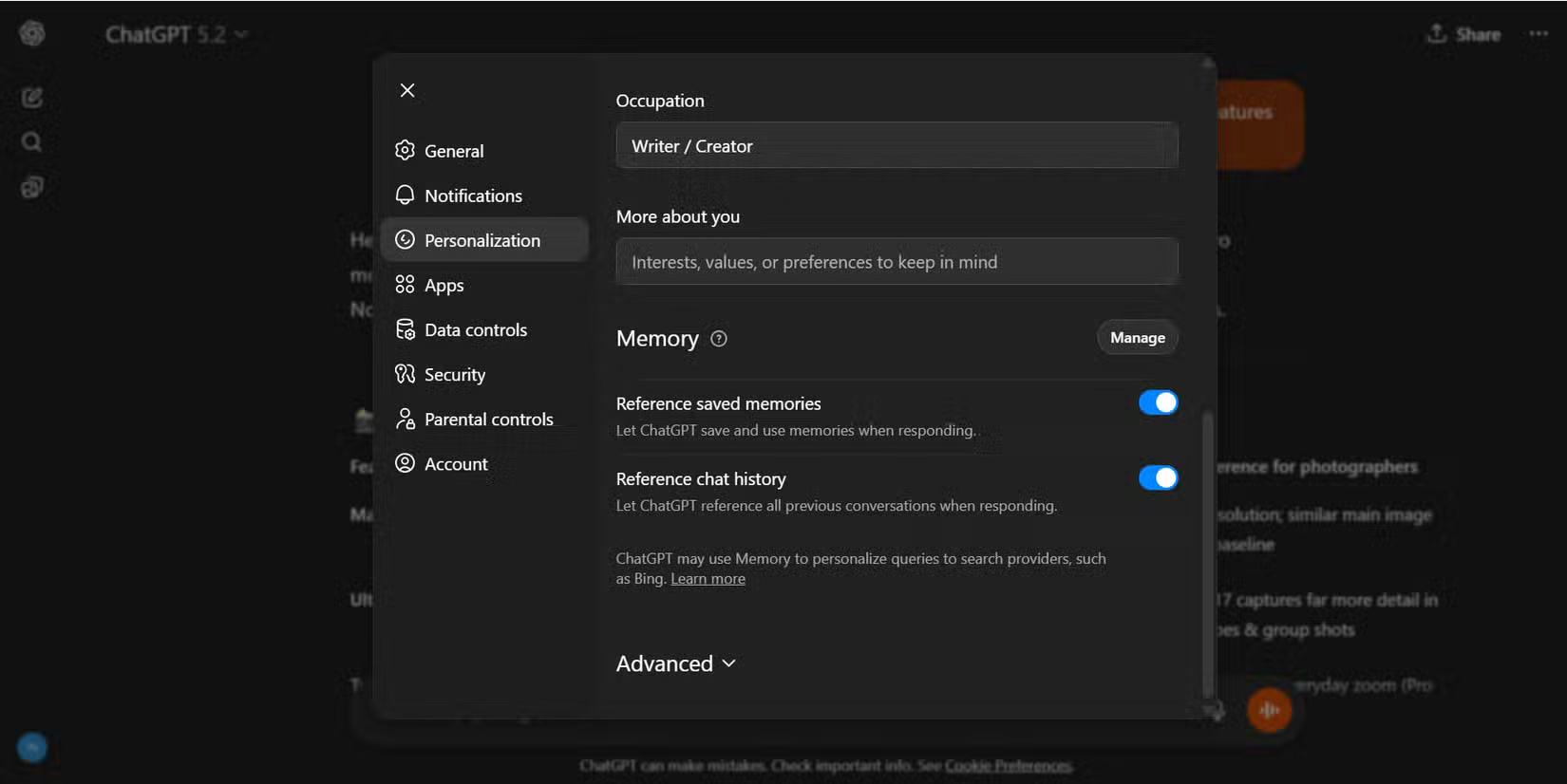
Tell ChatGPT your experience level, device, location when relevant, and what you have already tried. Do not assume it knows your entire chat history. Available memory and personalization settings can vary, and the important constraints belong in the current request.
For example, ask for an explanation suitable for a beginner, then request a worked example or a narrower search. Start a new conversation when the topic changes enough that earlier assumptions could become misleading.
OpenAI's web-search documentation and personalization guide describe the current controls.
When to open a search engine or the source directly
Use direct browsing when you need a specific website, a complete document, or to inspect a retailer or official service yourself. Use a conversational search when you want a synthesis or comparison. For either approach, confirm important facts at the source before acting on them.
Related Articles
 6 Ways to Search by Date on Google You May Not Know9 minutes read
 Search Race: Is ChatGPT Threatening Google's Throne?4 minutes read
 How to Use ChatGPT Search Like a Pro7 minutes read
 How to Block ChatGPT Conversations from Appearing in Google Search2 minutes read
 Google AI Mode or ChatGPT Web Search Is Where You Should Search the Web?12 minutes read
 Google Introduces a New Feature That Makes It Easy to Find4 minutes read
Reader Comments 0
Sign in with email or Google to join the discussion.