Table of Contents
Canvas in Google Search's AI Mode is a workspace for developing a plan, draft, study guide, or small website alongside a search conversation. You can ask follow-up questions to refine the same project instead of starting a new search each time.
How to start a Canvas project in AI Mode
- Open Google AI Mode and choose Canvas from the menu beside the prompt box.
- Describe the result you need and include constraints. For example: “Build a one-page expense calculator with three editable categories and a total. Explain the calculation.”
- Review the Canvas pane, then ask for a specific change, such as adding a reset button or making the page readable on a phone.
- Test the result yourself. Check calculations, links, accessibility, and any factual claims before sharing or using it.
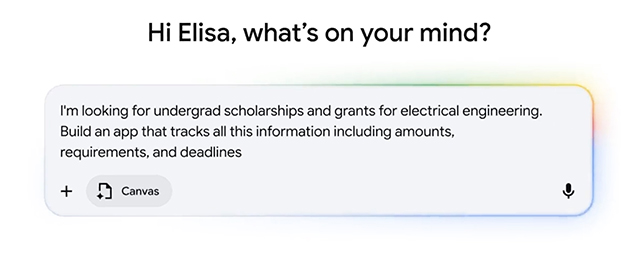
Google's Canvas help page also gives examples for trip plans, cover letters, study materials, and quizzes. The feature is available in English to users in the US on desktop and mobile; if you do not see Canvas, check your account, language, and region. For general use of conversational results, see how to use Google AI Mode.
Writing and coding in one workspace
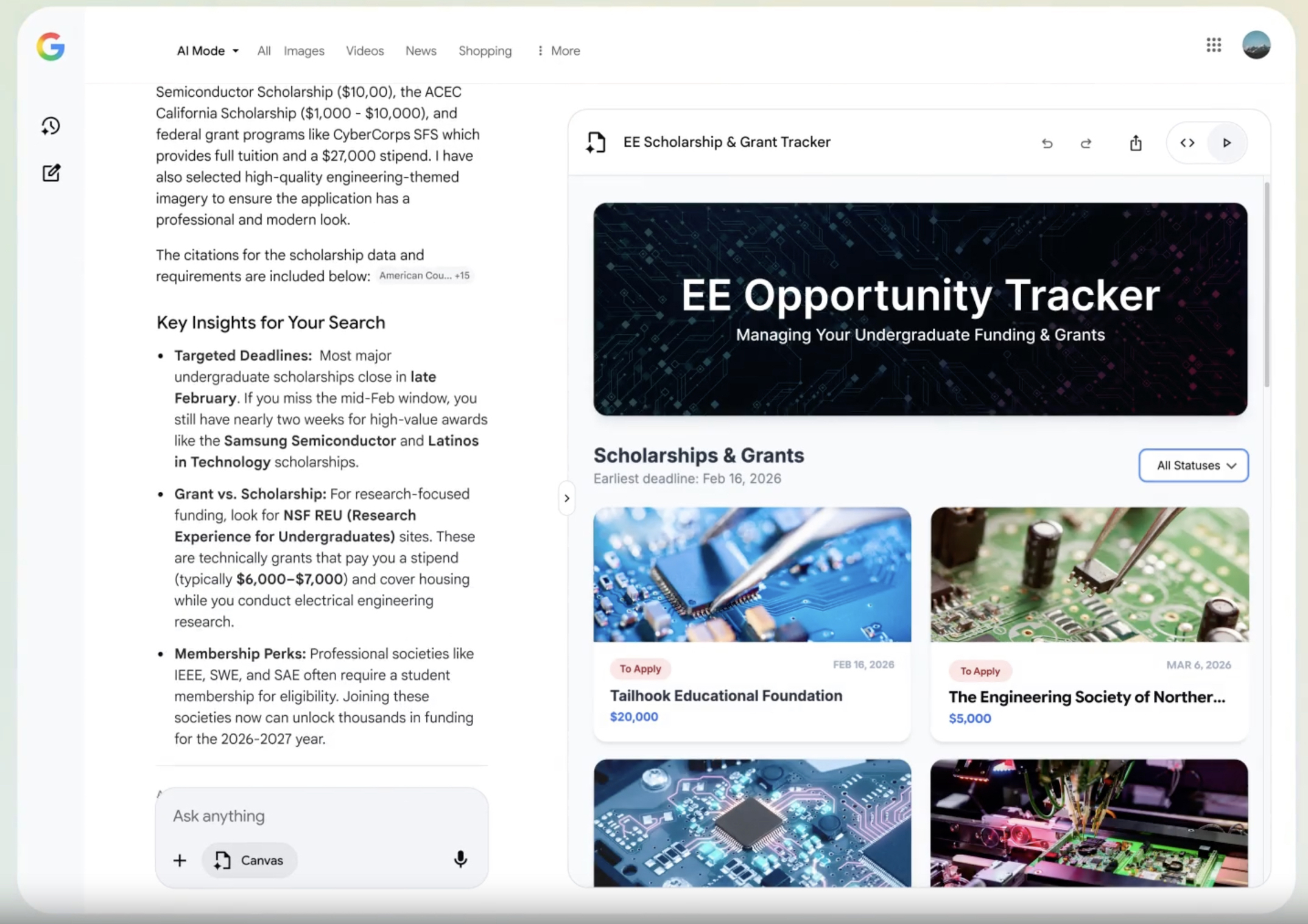
A writing task can begin with an outline and grow through focused requests such as “shorten the introduction” or “compare these options in a table.” For a coding task, specify the inputs, expected behavior, and layout. A generated calculator or web page is a starting prototype: try edge cases, inspect the code, and verify that any external data is current. Canvas can keep a project in AI Mode history, and Google provides options to edit and share it.
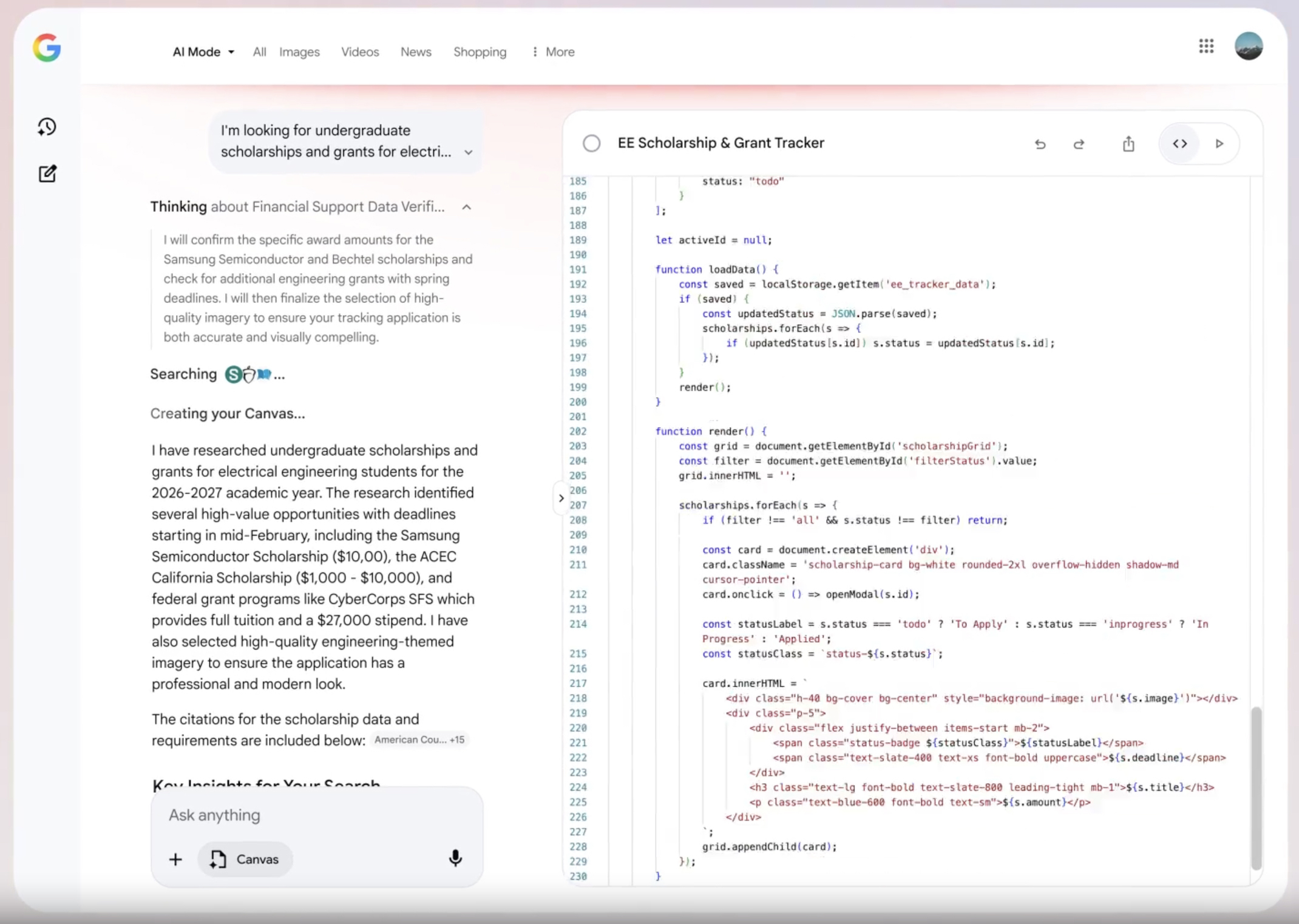
Canvas in Search is distinct from Gemini Canvas, which has its own workflow. Use whichever workspace fits your project, and avoid pasting sensitive information into a prompt unless you are comfortable with the service's data handling.
Related Articles
 What Is Plan Mode in Cursor?8 minutes read
 How to Enable AI Mode in Google Search3 minutes read
 Codex Plan Mode: Benefits, Workflow, and Best Uses8 minutes read
 How to Create Visual Lectures with Gemini Canvas4 minutes read
 Google Is Improving Overviews with AI Mode7 minutes read
 Canvas Element in HTML5: A Practical Guide5 minutes read
Reader Comments 0
Sign in with email or Google to join the discussion.