Table of Contents
Sometimes you come across IMG files and don't know how to deal with them. This guide explains you how to easily convert IMG files to ISO format.
In Linux, you often encounter files in the.ISO format. Most Linux distributions provide LiveCD downloads in the ISO format because it is easier to use on Linux. However, sometimes you encounter an IMG file and don't know what to do with it. This article will show you how to easily convert an IMG file to an ISO format.
Convert IMG to ISO
If you're comfortable with the command line, Linux offers a few simple ways to convert an IMG file to ISO format. Before converting, check what type of image you have with the following command:
File image.imgIf the output file shows an ISO 9660 CD-ROM file system, your IMG file already follows the ISO structure. In that case, all You should do is rename the file. Just open a terminal, navigate to the folder containing the file, and type:
Mv input.img output.isoAnd that's it! To confirm the conversion, try mounting or using the renamed file. If it mounts without any errors, you have a valid ISO file. This method works better than you might think, as many disk image creation tools are ISO compatible but save them with the.img extension.
If the output file shows Data , X86 boot sector , or DOS/MBR , then you are dealing with a raw disk image and need to use one of the conversion methods below.
Method 1: Using ccd2iso tool
The primary tool for converting CloneCD-style images (IMG combined with CCD/SUB) to ISO format is ccd2iso. Although it is a command line tool, it is quite easy to use. To install ccd2iso on any Ubuntu-based distribution, use:
Sudo apt install ccd2iso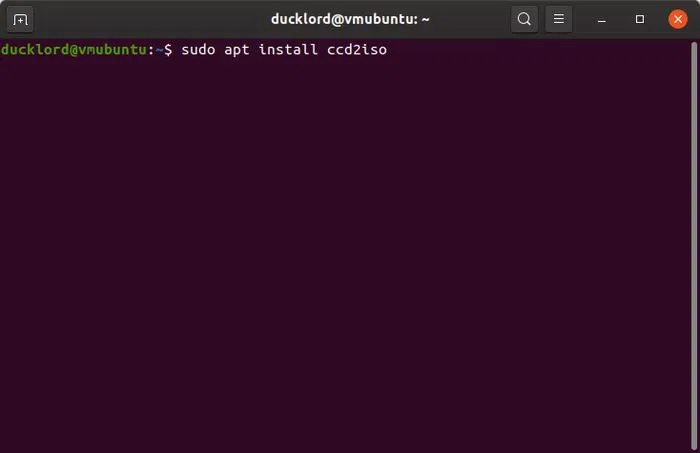
Then, to convert any IMG file to ISO format, use:
Ccd2iso source_file.img destination_file.iso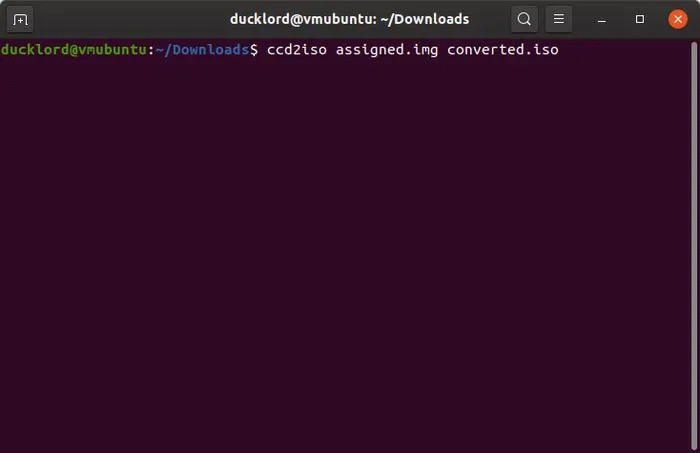
It's that simple!
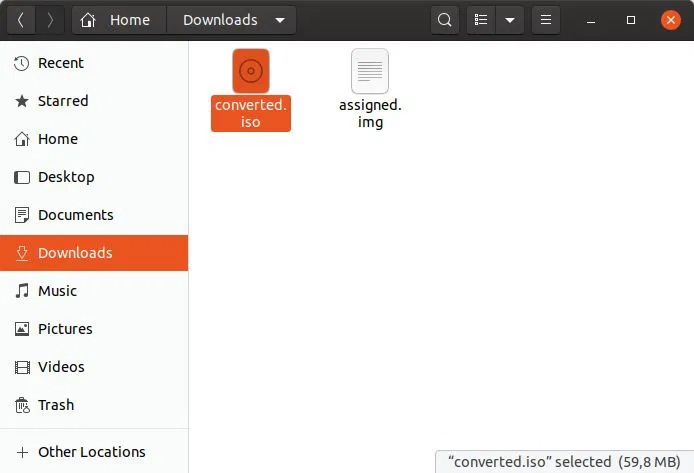
After a short while, you will see the converted ISO file next to your original IMG file.
Method 2: Convert using iat
A new and more flexible tool, iat, can read IMG files and many other CD image formats, then convert them to ISO files or burn them directly to the drive.
To install, use:
Sudo apt install iat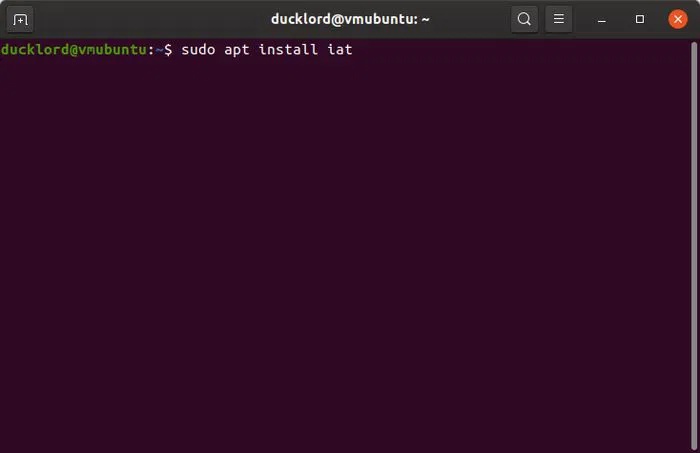
To start the conversion, use the following command:
Iat input_file.img output_file.iso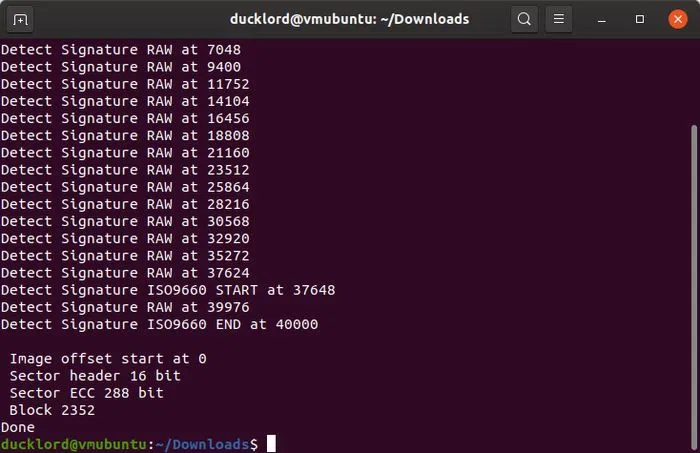
Method 3: Using genisoimage tool
If your.img file isn't a simple disk clone, but a full filesystem image that you want to extract, edit, and rebuild into a clean ISO, that's where Genisoimage (formerly known as mkisofs) comes in. Unlike simple renaming or copying methods, this tool doesn't just convert the image, it actually builds a completely new ISO from scratch using the files and folders you provide.
You typically use genisoimage when you want to create an ISO from a directory or from the contents of a mounted image. This tool is perfect for.img files formatted with file systems like ext4, FAT32, or other non-ISO types.
The process is pretty simple. First, mount the.img file so you can access its contents. Mounting essentially makes the image act like a mounted drive:
Sudo mkdir /mnt/img_contents sudo mount -o loop /path/to/your_file.img /mnt/img_contentsIf everything went well, you can open the '/mnt/img_contents' Folder and browse the files from the image.
Before continuing, make sure you have genisoimage installed. On Debian or Ubuntu, use:
Sudo apt install genisoimageOn Fedora, CentOS, or other Red Hat-based systems, run:
Sudo dnf install genisoimageOnce installed, it's time to create your new ISO. The command below will take all the files from the mounted image and neatly package them into a new.iso file:
Genisoimage -o /path/to/new_image.iso -R -J /mnt/img_contentsWhere -o Defines the output file name and location, -R Adds the Rock Ridge extension so Linux retains the long file name and permissions, and -J Also makes it compatible with Windows systems. Using both will give you a flexible ISO that will work across multiple platforms.
Once the ISO is created, you should unmount the original.img file for cleanup:
Sudo umount /mnt/img_contentsMethod 4: Using bchunk
Sometimes your.img file is actually part of a BIN/CUE pair, where the.img acts as a.bin file. In such cases, bchunk comes in handy. This tool specializes in converting BIN/CUE images to ISO format and can handle similarly structured.img files.
Install bchunk using your default package manager. On Ubuntu or Debian, run:
Sudo apt install bchunkOnce installed, the conversion is simple with the following command:
Bchunk input.img output.isoIf you have multiple.img files in the same folder, you can batch convert them as follows:
Bchunk *.img output.isoAnd if your.img file comes with a corresponding.cue file, use both together for a more precise conversion:
Bchunk -v image.img image.cue output.isoBchunk is really good at BIN/CUE conversions but also adapts well when you work with certain.img files, depending on how they were created.
GUI tool to convert IMG to ISO
If you prefer a graphical user interface (GUI), you should try acetoneiso. Install it with the following command:
Sudo apt install acetoneisoContinue by launching it and accepting the recommended settings. Don't try converting your IMG file to ISO with this tool right now - it won't work and the program will suggest you visit the PowerISO website and download the PowerISO Command Line Utility for Linux.
The example downloaded the file to the default Downloads folder. If you save the file elsewhere, remember to change the path.
Open terminal and move to the acetoneiso folder using the command:
Cd ~/.acetoneisoExtract PowerISO from the file you downloaded using the equivalent command:
Tar xvf /home/USERNAME/Downloads/poweriso-X.X.tar.gzReturn to AcetoneISO and from the Image Conversion menu, select Convert Image to ISO . Select the original IMG file, enter a path and name for the converted file in the next step, and after a short wait, your ISO will be available.
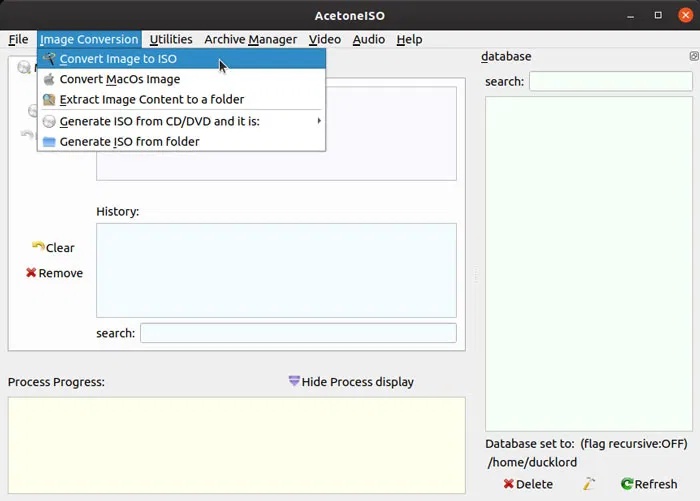
You can also try the K3b disc utility. This is a full-featured, user-friendly tool for creating and burning CDs, DVDs, and Blu-ray discs. It comes pre-installed on the KDE Plasma desktop but works seamlessly in almost any Linux environment.
Finally, if everything you see here doesn't seem right, you might want to consider the possibility that your IMG file isn't a CD or DVD image. As mentioned at the beginning, an IMG file can be many things, such as hard drive backups and partitions.
A good clue that you're dealing with this type of IMG file is its size: If it's larger than 4.5 GB, it's probably not an optical disc backup. Dual-layer DVDs, which can hold twice as much data as standard DVDs, are still relatively rare in the entire optical media era, so files that are close in size or larger are probably partition backups. That's a whole other story!
FAQ
How do you convert IMG file to ISO file in linux: step-by-step guide?
In practical terms, sometimes you come across IMG files and don't know how to deal with them. This guide explains you how to easily convert IMG files to ISO format.
What should you check before getting started?
Review the requirements, compatible device or software version, and any warnings described in the guide before making changes.
What should you do if the steps do not work?
Repeat the steps in order, confirm that your app or system is up to date, and review the troubleshooting details provided above.
Related Articles
 How to Use Pandoc to Convert Files on Linux10 minutes read
 How to Convert a PDF File to PNG5 minutes read
 How to Convert AI Files to PNG, JPG Without Software5 minutes read
 Convert Word File to Csv File: How to Convert Word to a Csv File4 minutes read
 Instructions for Converting Vieo File into Xvid / X264 Format with3 minutes read
 Convert Data, Applications from Windows to Linux in Minutes9 minutes read
Reader Comments 0
Sign in with email or Google to join the discussion.