Table of Contents
File History in Windows 11 saves versions of files in your libraries and several common folders to an external drive or network location. Open Control Panel > System and Security > File History, choose a backup drive and turn it on. It is useful for recovering a deleted or overwritten personal file, but it is not a full system image or a backup of every folder on your PC.
Set up File History
- Connect an external drive with enough space for repeated copies, or make sure your network backup location is available. Search Start for Control Panel and open System and Security.
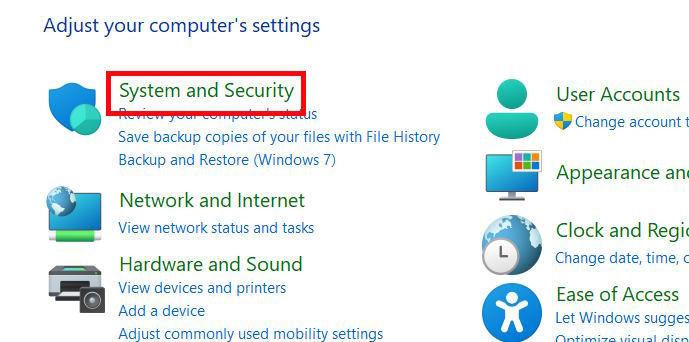
- Choose Save backup copies of your files with File History (the page may appear as File History). If the wrong drive is shown, select Select drive and choose the intended disk or network location.
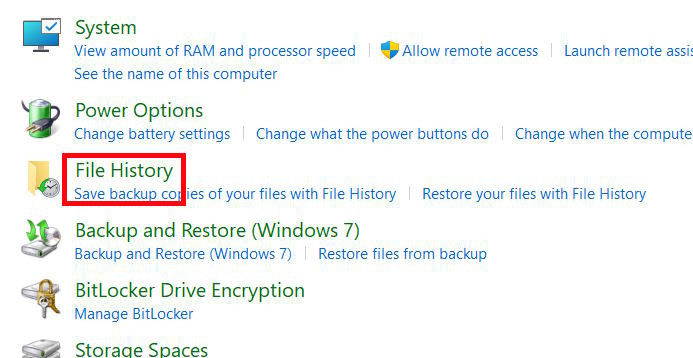
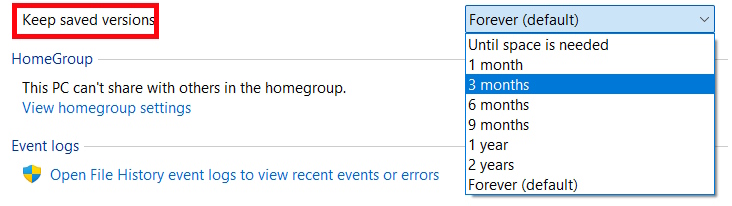
In Advanced settings, you can change how often File History saves copies and how long versions are retained. More frequent copies and longer retention require more drive space. The screens below show the settings and their controls.
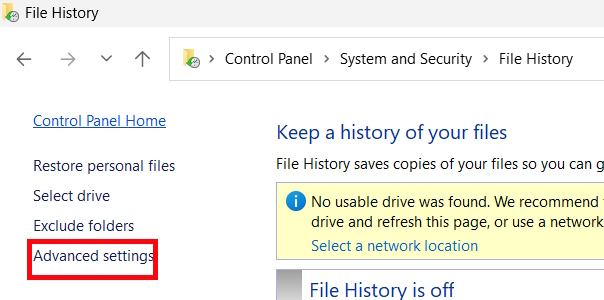
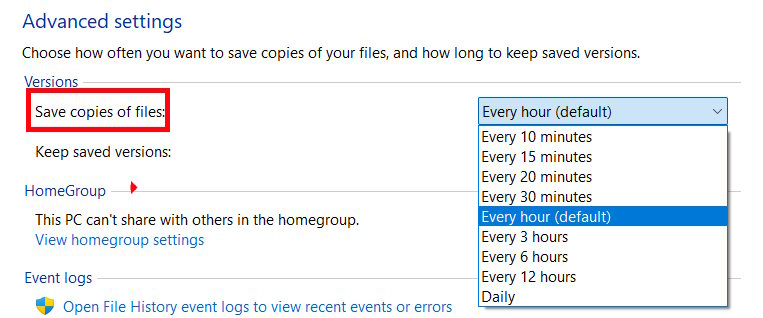
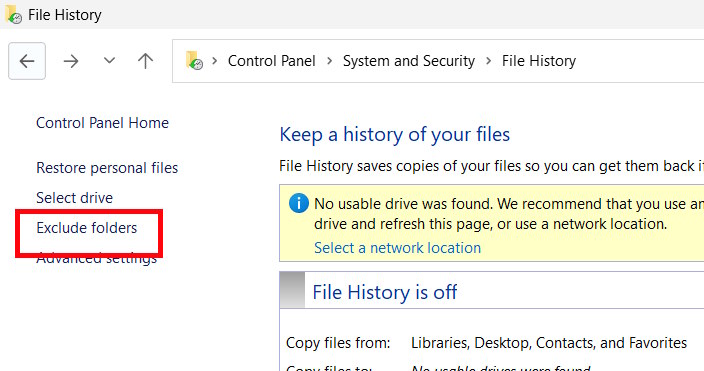
Use Exclude folders if there is a folder you deliberately do not want included. Verify the list before applying an exclusion.
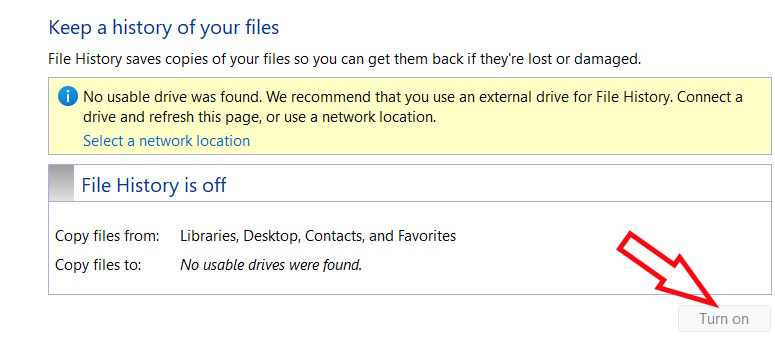
3. Turn on File History. Return to the main File History page and select Turn on. Leave the drive connected for the first backup and check the latest backup time. Reconnect a removable drive regularly; it cannot receive new copies while disconnected.
Check what is actually backed up
File History covers Windows libraries such as Documents, Pictures, Music and Videos, including custom libraries, as well as common locations such as Desktop. A folder elsewhere may need to be added to a library first. In File Explorer, right-click that folder, choose Show more options > Include in library, and select a library. Microsoft's File History guide describes the current setup and scope.
Check the backup by opening the restore browser and finding a recent file. Do not assume an application database, a folder outside the libraries, or Windows itself is protected. For account-linked settings and OneDrive file sync, see TipsMake's overview of Windows Backup; it serves a different purpose.
Restore a deleted or changed file
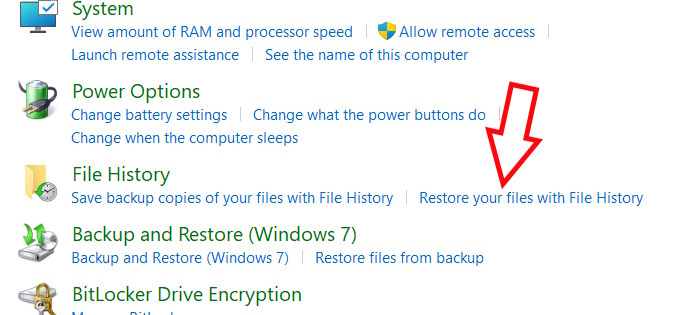
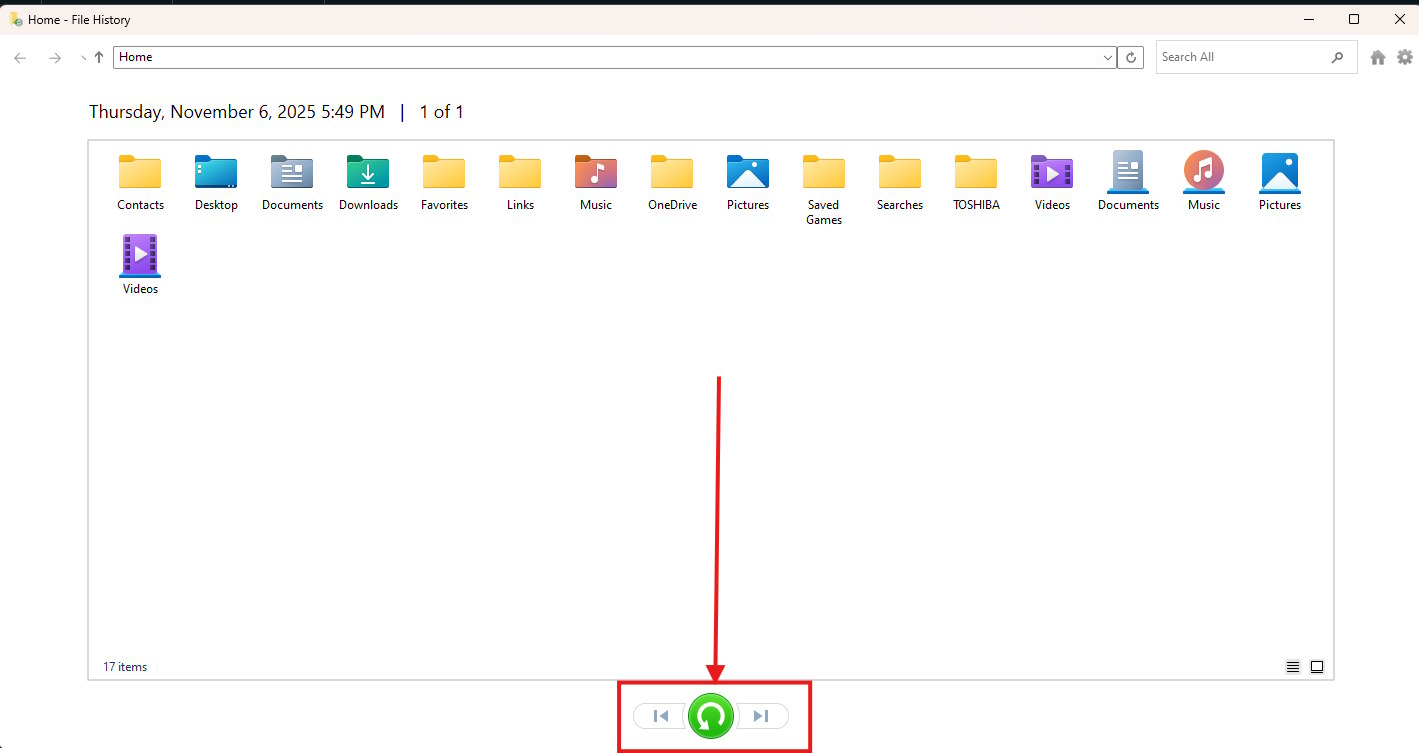
In Control Panel's File History page, select Restore personal files. Browse to the folder, use the arrows to choose a saved date and select the file or folder you want. The green Restore button restores the selected item to its original location; it does not automatically restore everything from that date. If a file with the same name exists, review the replacement prompt carefully.
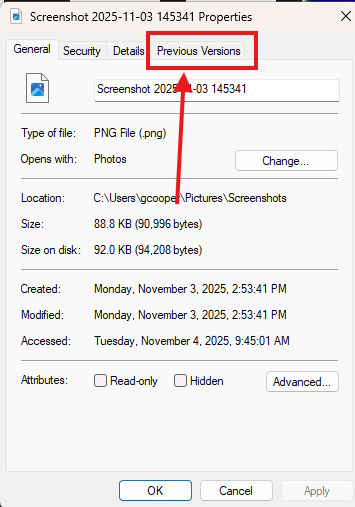
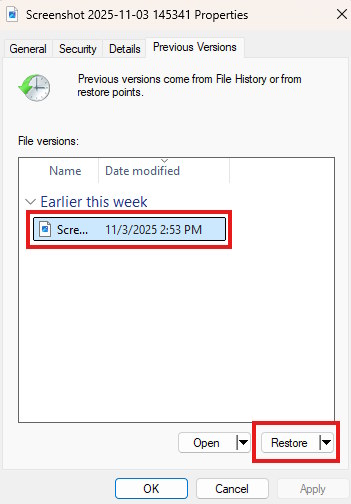
Alternatively, in File Explorer, right-click the file or its containing folder and open Properties > Previous Versions (or Show more options > Restore previous versions). Select a version, inspect it if available, then choose Restore. To keep the current copy, use Restore to... and choose another location when offered. For a deleted file, open previous versions of the folder that contained it.
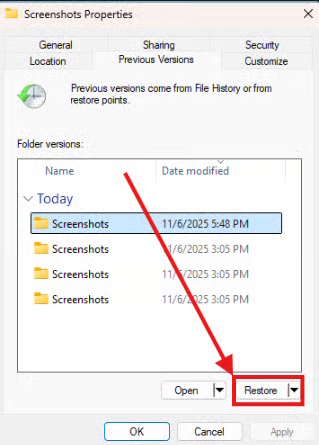
Restoring over an existing file replaces that copy. If File History shows no versions, check that the correct backup drive is selected, it was connected when the backup ran, and the folder was included. For another walkthrough, see TipsMake's File History backup and restore guide.
Related Articles
 Instructions for Using File History to Backup and Restore Data8 minutes read
 How to Delete the Old File History Version in Windows 103 minutes read
 Things to Keep in Mind When Backing Up Data on Your Computer6 minutes read
 Complete How to Use All Backup and Restore Tools on Windows 1012 minutes read
 How to Backup Outlook Email with File History on Windows 109 minutes read
 How to Delete Browsing History on Ios93 minutes read
Reader Comments 0
Sign in with email or Google to join the discussion.