Table of Contents
Right-click the Windows 11 Start button or press Windows + X to open the Quick Link menu. It gives you direct access to system tools you may need when an app freezes, a drive disappears, or a connected device stops working.
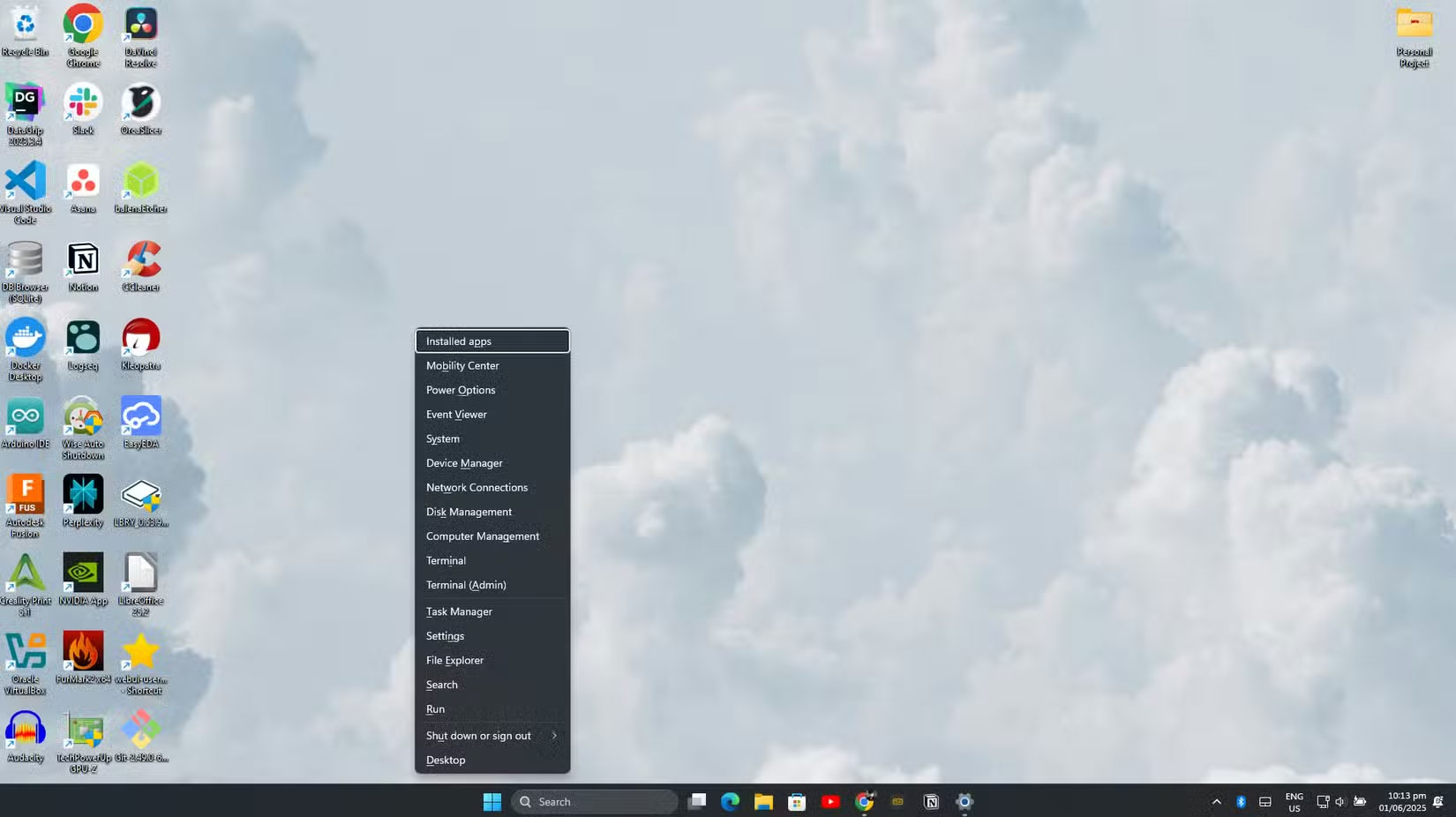
Choose the tool for the problem
| Menu item | When to open it |
|---|---|
| Task Manager | See which apps use CPU, memory, or disk resources. Learn how to read the key columns. |
| Device Manager | Check whether Windows detects a device or reports a driver error. |
| Disk Management | Check whether a connected drive appears and has a drive letter. Avoid formatting a drive that may contain data you need. |
| Installed apps | Find an app and review its available uninstall or repair options. |
| Terminal | Run a command. Use the Admin entry only if the task specifically needs elevated access. |
| Event Viewer | Look for events around the time an error occurred. |
| Shut down or sign out | Reach sign-out, sleep, shutdown, or restart options after saving your work. |
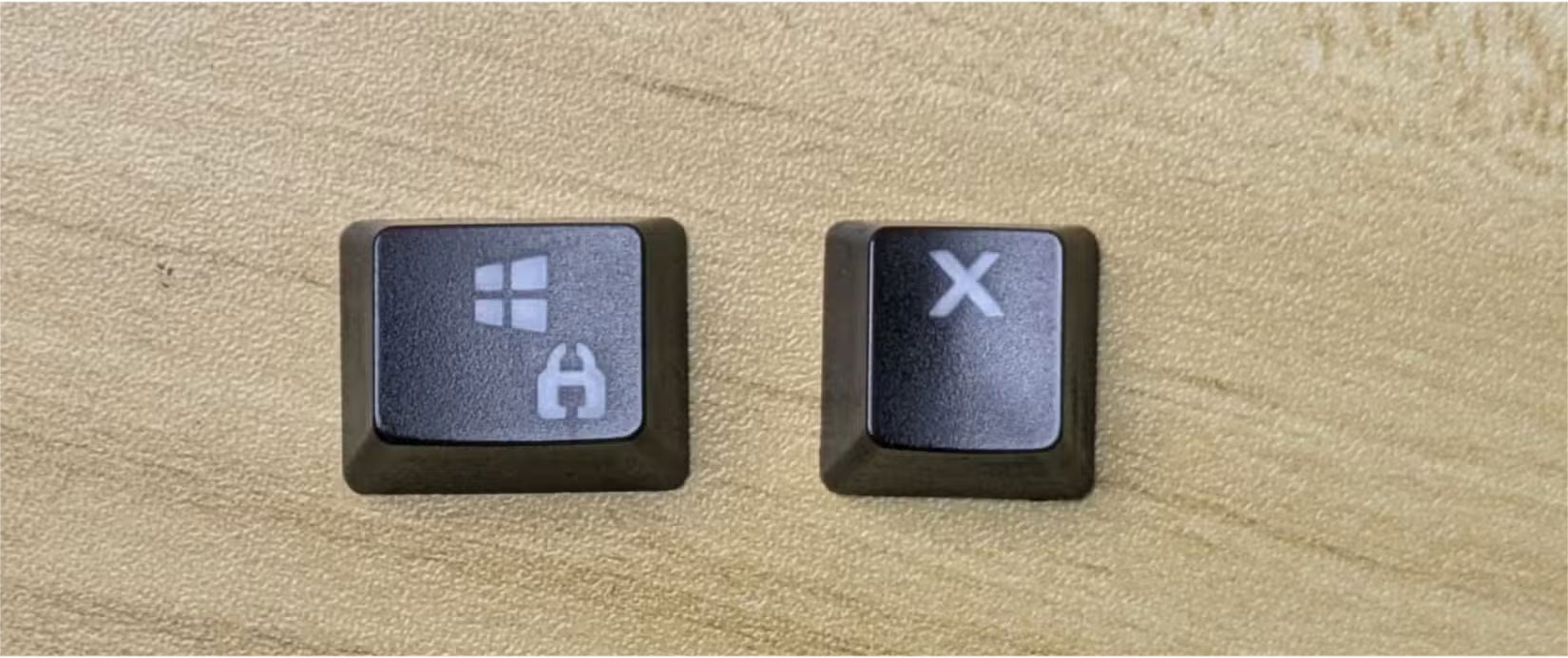
You can also open Settings, File Explorer, or Run from this menu. Some entries have different names depending on the Windows build. Microsoft lists Windows + X and related commands in its Windows keyboard shortcut reference.
Related Articles
 3 ways to fix Start Menu on Windows 10 stopped working
 How to hide the application list on the Windows 10 Start Menu
 How to pin any file to Start Menu on Windows 10
 How to Use the Windows 10 Start Menu
 How to Add or Remove Folder Shortcuts in the Windows 11 Start Menu
 Back up Start Menu settings on Windows 10
Reader Comments 0
Sign in with email or Google to join the discussion.