Table of Contents
You can hide the All apps list in the Windows 11 Start menu by adding the NoStartMenuMorePrograms value to your user account in the Registry. This is useful if you prefer to launch programs from pinned shortcuts or Windows Search.
Before you begin: Registry changes take effect at the user-interface level and should be made carefully. If you are unfamiliar with the tool, see how to open Registry Editor in Windows first. The exact appearance of Start can vary between Windows 11 builds, and hiding the list may leave unused space in some layouts.
Hide the All apps list with Registry Editor
Step 1: Press Windows + R, enter regedit, and select OK. Approve the User Account Control prompt if it appears.
In Registry Editor, navigate to:
HKEY_CURRENT_USERSoftwareMicrosoftWindowsCurrentVersionPolicies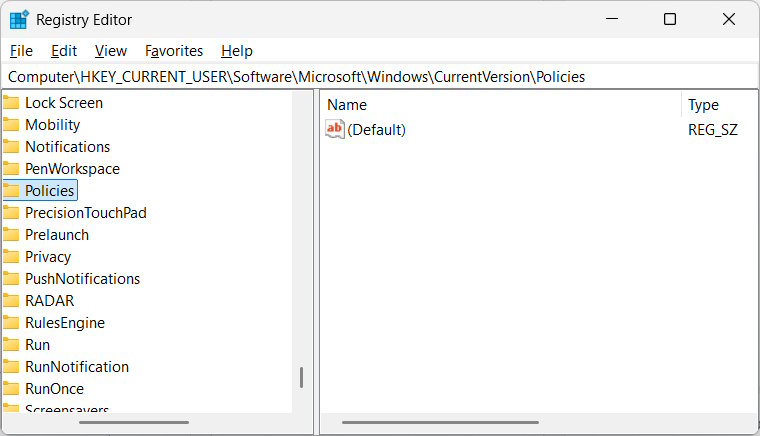
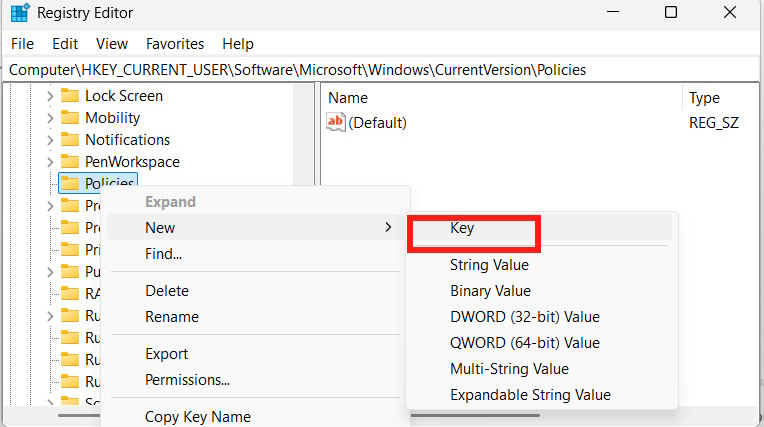
Step 2: If the Explorer subkey does not exist, right-click Policies, choose New > Key, and name the key Explorer.
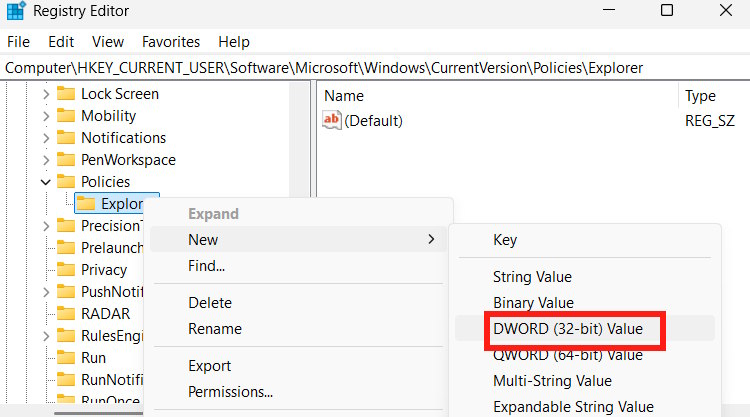
Step 3: Select the Explorer key. Right-click an empty area in the right pane and choose New > DWORD (32-bit) Value.
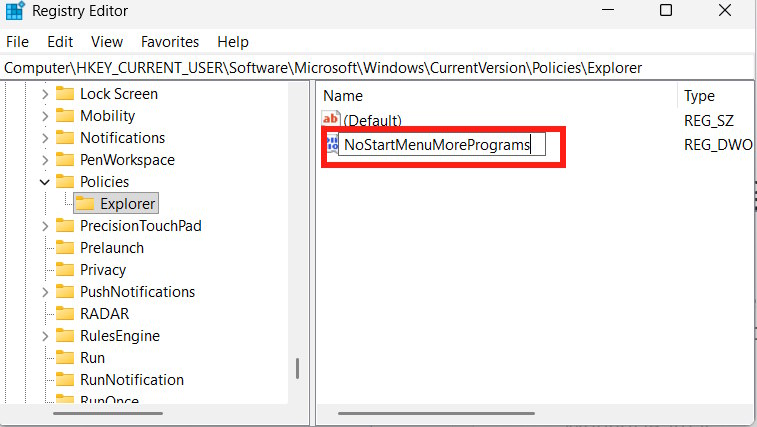
Name the new value NoStartMenuMorePrograms. The spelling must match exactly.
Step 4: Double-click NoStartMenuMorePrograms, set Value data to 1, and select OK.
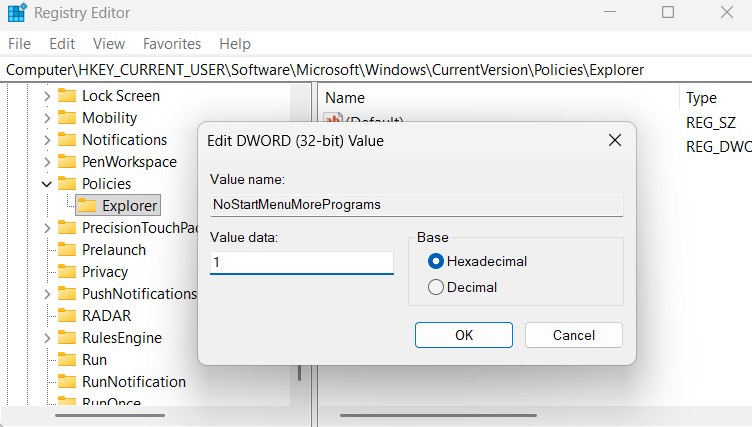
Restart the computer, or restart Windows Explorer from Task Manager, to apply the change. Start should then show your pinned area without the All apps list. Programs remain installed and can still be opened through Search, shortcuts, or File Explorer.
Show the All apps list again
Return to the same Explorer key and either delete NoStartMenuMorePrograms or change its value to 0. Restart Windows Explorer or sign out and back in. If the list does not change, install pending Windows updates and check whether your current Start layout still supports this policy.
Related Articles
 How to Hide the List of Most Used Applications in Windows 104 minutes read
 How to Hide the Application List on the Windows 10 Start Menu3 minutes read
 Instructions to Remove the All Apps Option on Windows 10 Start5 minutes read
 How to Hide Suggestions in Windows 11 Start Menu: Step-by-Step Guide3 minutes read
 Windows 11 Is Hiding a Second Start Menu: Why Should You Use It?8 minutes read
 How to Create a Folder and Hide the Start Menu Application List5 minutes read
Reader Comments 0
Sign in with email or Google to join the discussion.