Table of Contents
Many people have come across ExplorerPatcher, an open-source application designed to bring the best of Windows 10 back in Windows 11.
Many people have encountered enough problems with Windows 11 that they had to downgrade to Windows 10. But with Microsoft about to stop supporting Windows 10, you have no other choice but to upgrade (or rather, downgrade) to Windows 11.
The first few days are tough and only make you remember why you left in the first place. But then many people stumble upon ExplorerPatcher, an open-source application designed to bring the best of Windows 10 back to Windows 11.
Many of the biggest complaints disappeared as soon as they started using it, and for the first time, they didn't completely hate using Windows 11. It's still not the ideal setup, but ExplorerPatcher makes you feel closer to the operating system you actually want to use.
You can finally restore the old context menu
Just one click, all options will appear
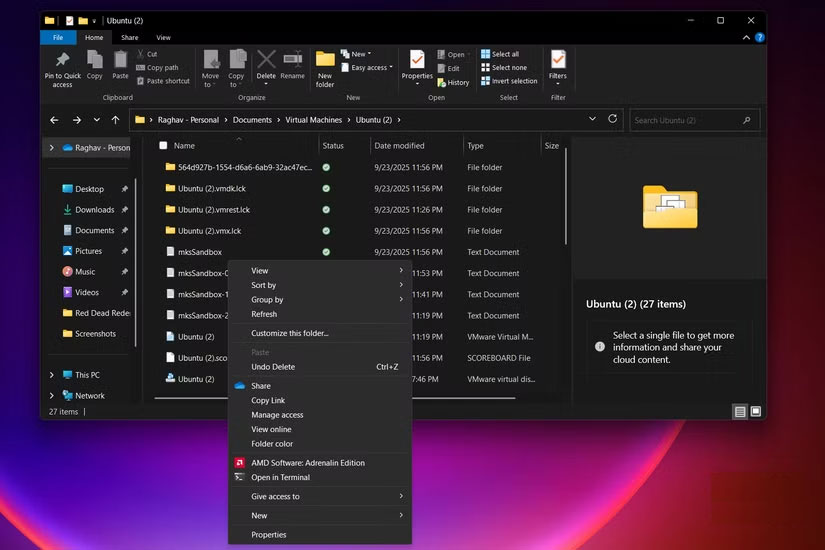
The thing people dislike most about Windows 11 is the new context menu. Not only is it stripped of options, but what really drives them crazy is that simple actions like copy, paste, or rename are replaced with small, blurry icons instead of plain text.
Additionally, since many options are hidden, you have to click 'Show more options' At the bottom multiple times to access the full menu. This form-over-function approach is completely inefficient.
Luckily, ExplorerPatcher solves this problem in the best possible way by restoring the classic Windows 10-style context menu. Everything is there, clearly labeled, and available with just a click. To restore it, make sure you open ExplorerPatcher first.
Then, just right-click on the Taskbar, select Properties , go to File Explorer And select Disable the Windows 11 context menu . Now you have the awesome context menu back. Likewise, you will find the rest of the options mentioned below in that same menu.
Taskbar and Start menu work as expected
Bottom, top, left; the choice is yours
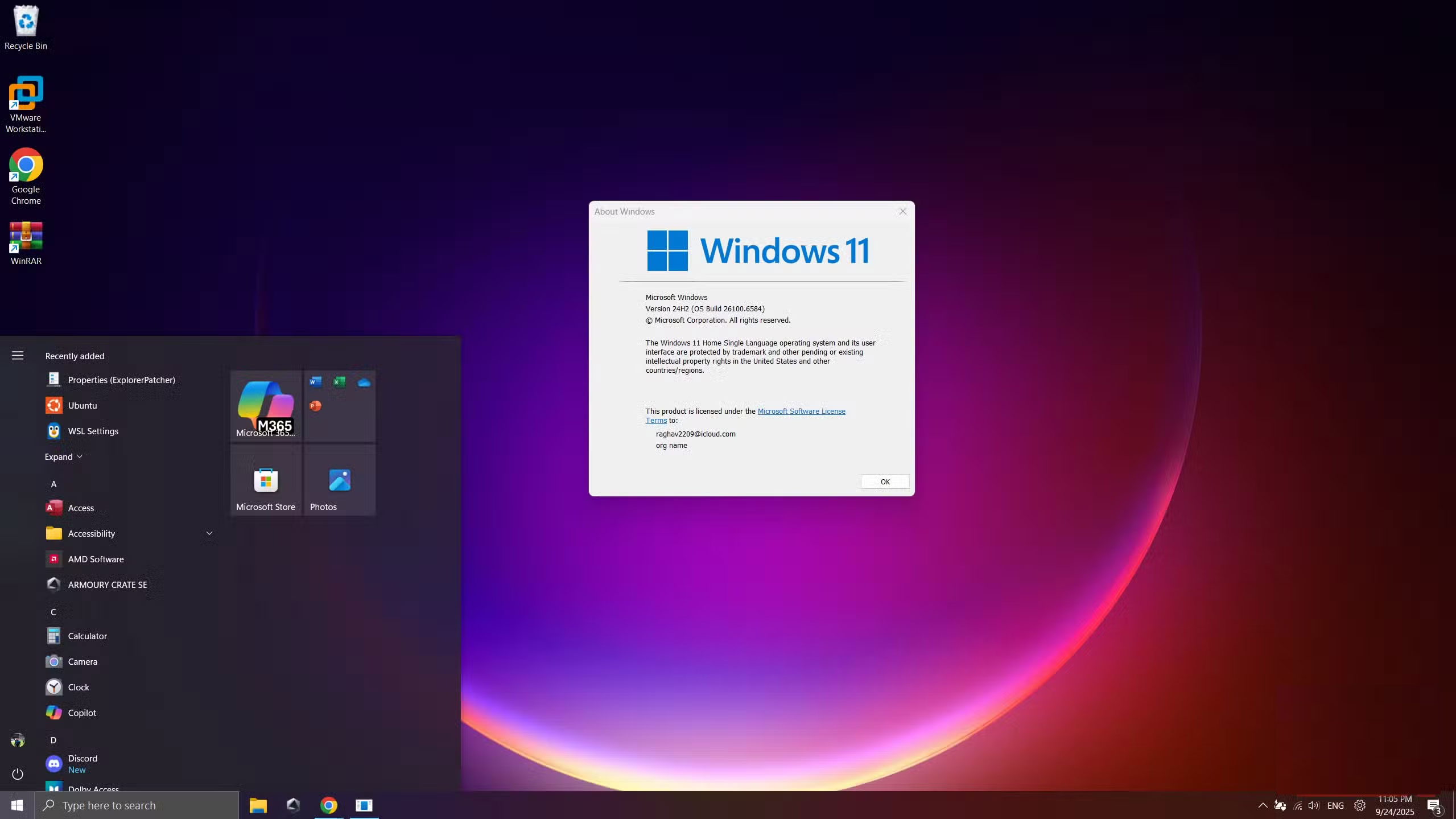
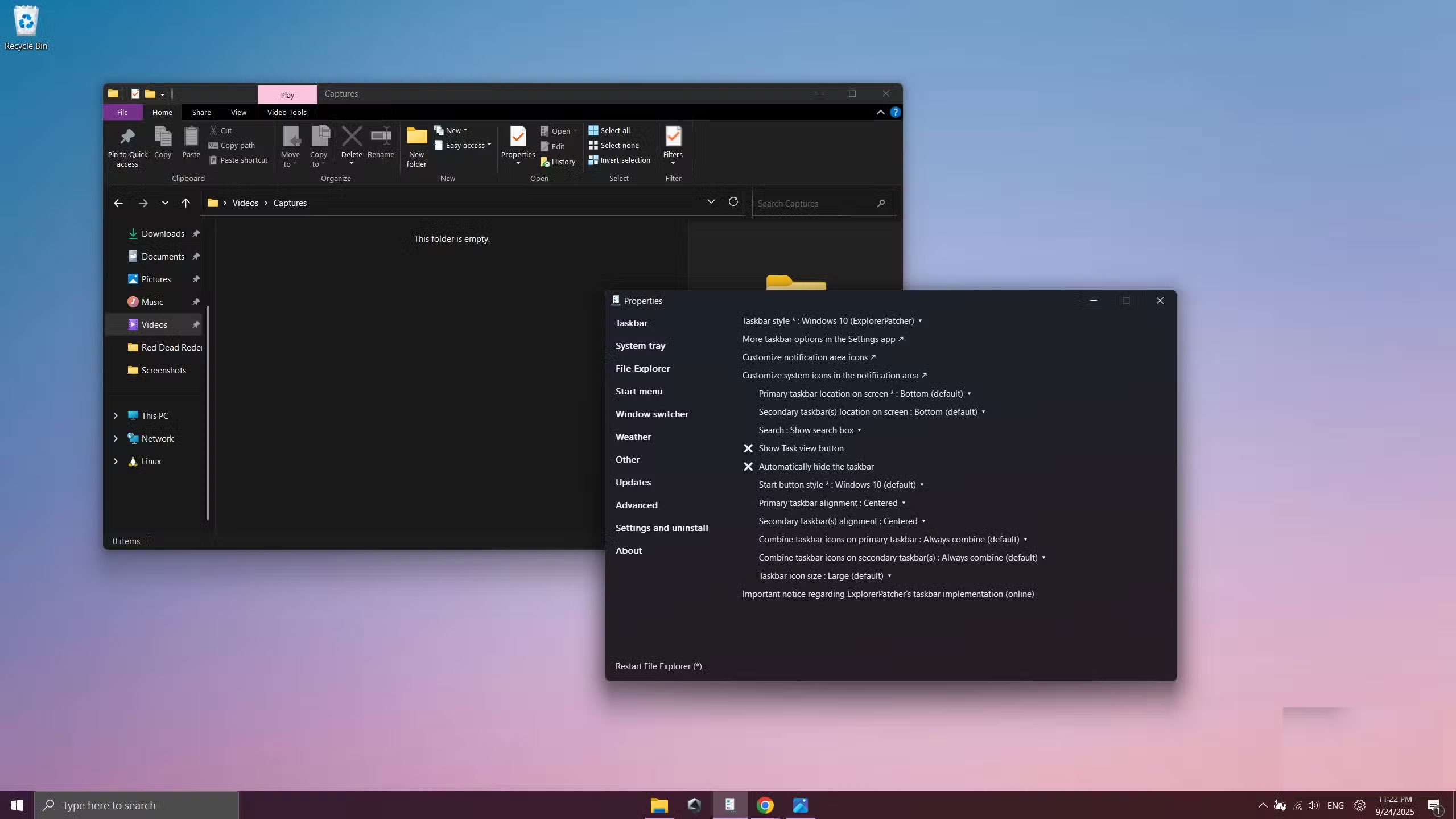
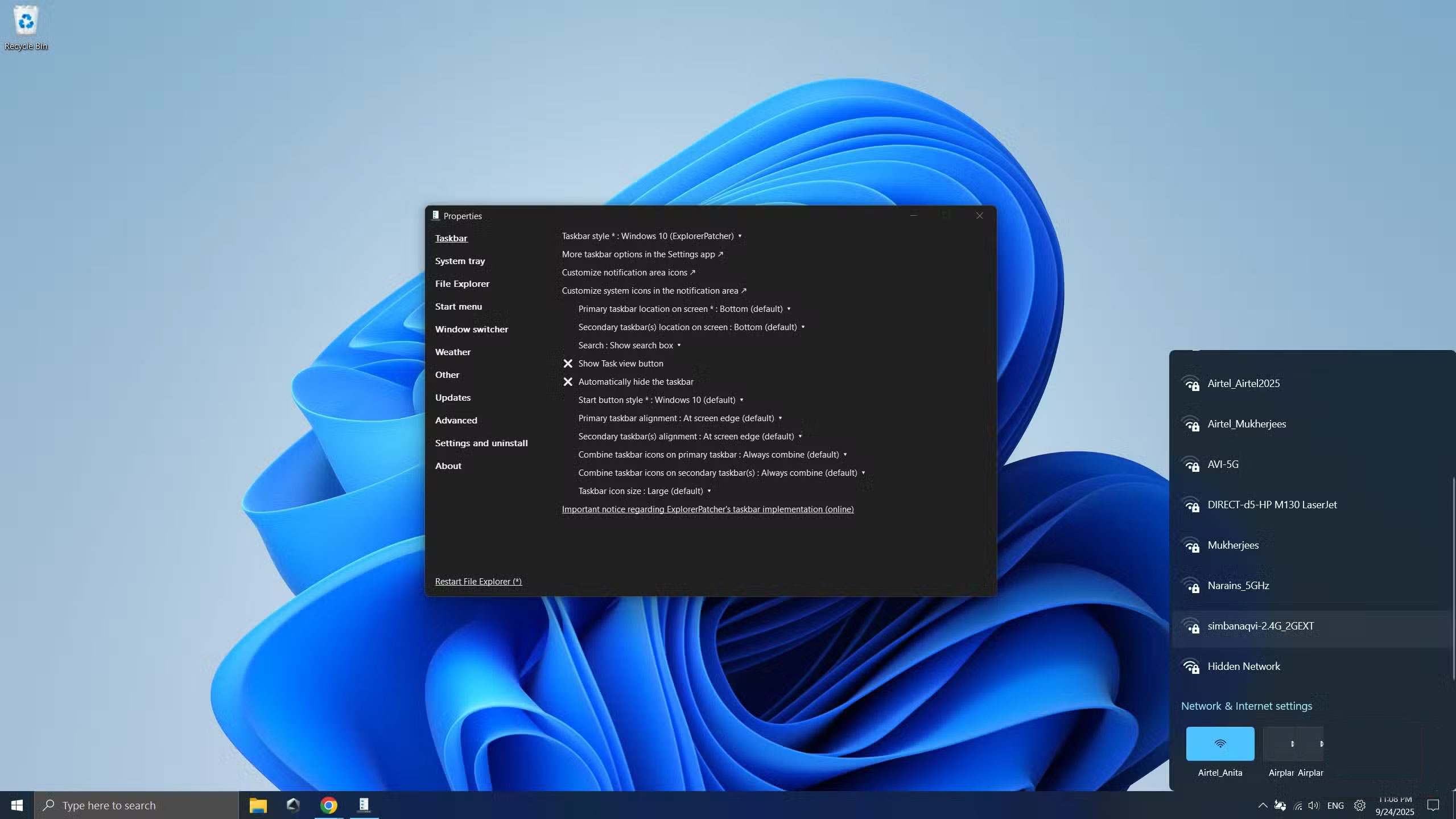
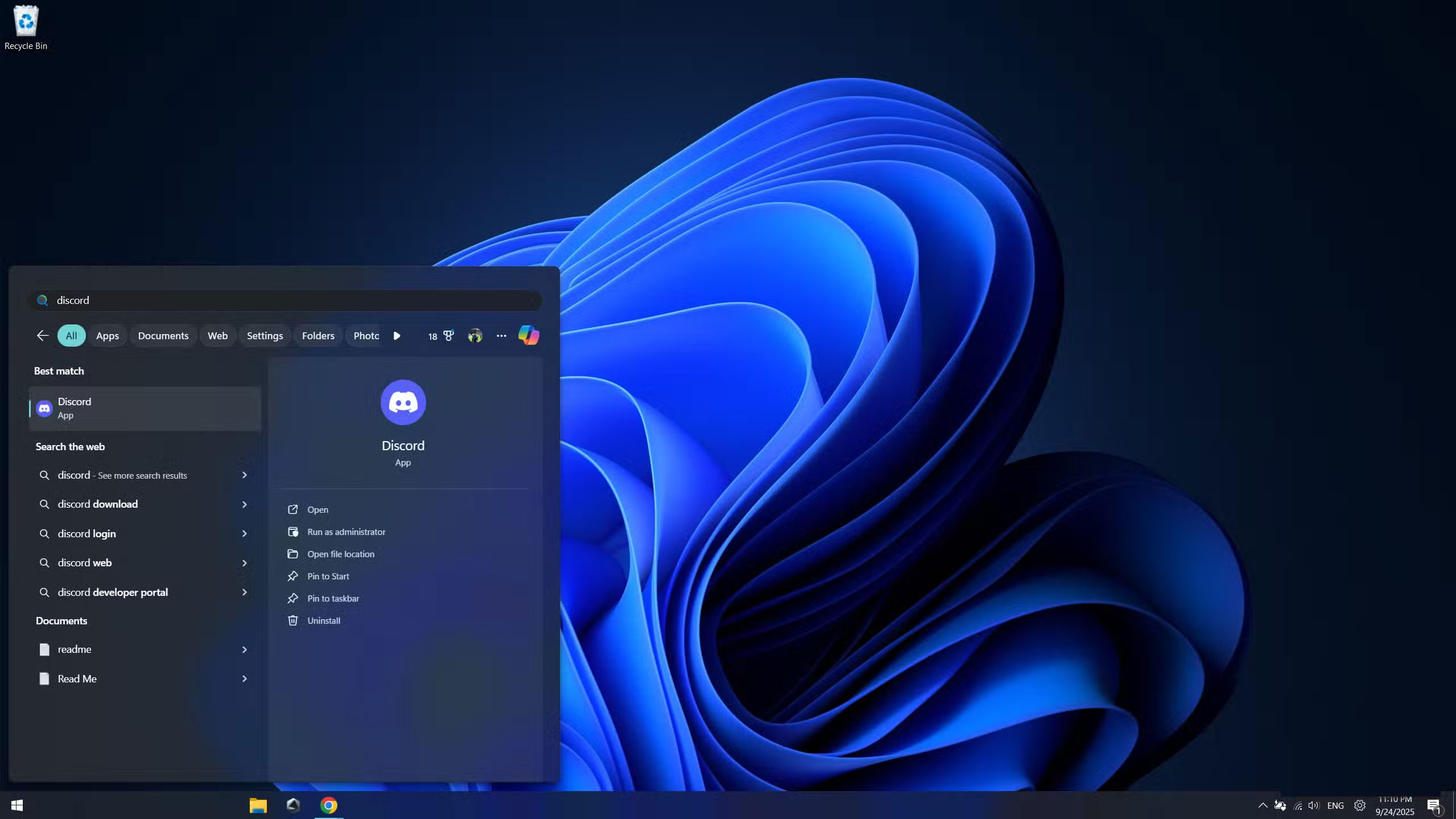
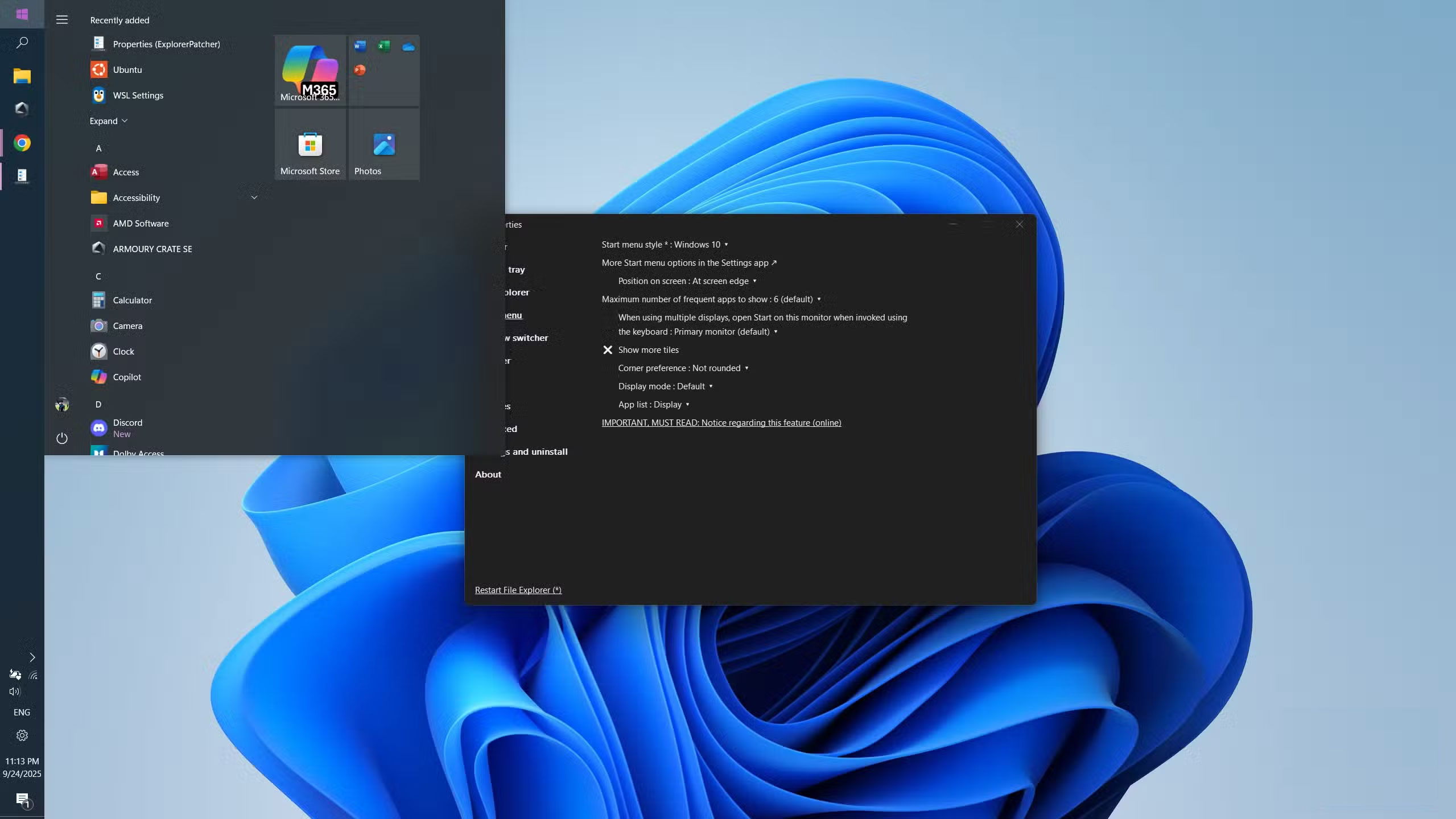
Just like the context menu, for some reason, even the Taskbar and Start menu have been removed without explanation. Once again, Microsoft is focusing on form over function, which means you have to click more to do the simplest things.
Starting with the Taskbar, ExplorerPatcher brings back the classic Windows 10 setup. You can move it to any side of the screen you like, something Windows 11 strangely removed. Some people like to keep the Taskbar at the bottom, but there are plenty of others who prefer it on the left, so if that's you, you're in luck.
The bigger plus, however, is the system icons. Wi-Fi, volume, and battery controls are no longer crammed into a single pop-up window. Tapping the icon you want opens the correct menu immediately, rather than having to go through the cumbersome Action Center.
Same goes for the Start menu. I get really fed up from the moment I boot up Windows 11, because the Start menu is cluttered with 'suggested apps' (which are basically ads) and other useless stuff that I don't care about. All I really want is a simple list of all my apps in alphabetical order right in front of me, not buried a click away.
ExplorerPatcher brings back the old Windows 10 Start menu, which was simple and actually useful. And if you were one of those people who liked live tiles, the good news is you can have them back too. It feels like the Start menu finally belongs to you, instead of just another place where Microsoft tries to push stuff you don't want.
The classic Ribbon Menu is truly outstanding
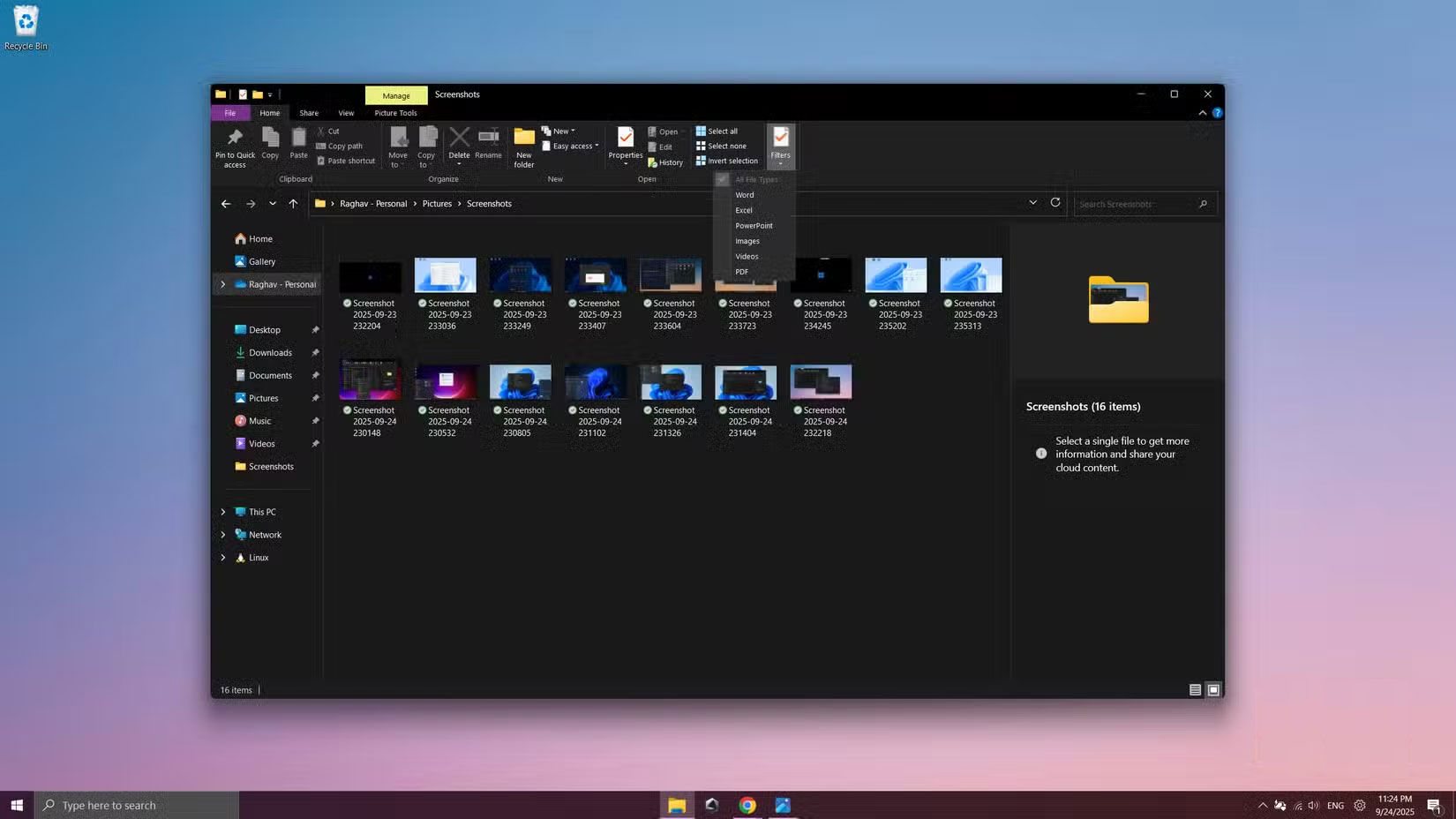
Similar to the context menu, the ribbon in File Explorer on Windows 11 suffers from the same problem: it condenses everything into small, vague icons and forces you to click multiple times for tasks like selecting filters or changing view options. It looks cleaner, but it's much less practical.
ExplorerPatcher solves this problem by bringing back the traditional Windows 10-style ribbon menu, and honestly, that's exactly what you've been missing. All the tools are right there, neatly organized, and accessible with just a click. Windows 11 prioritizes aesthetics over usability, and in doing so, you have to work harder to achieve the same results. This really makes us wonder what the real benefits are.
There is a pretty serious bug, though. If you enable the Windows 10-style ribbon with ExplorerPatcher, opening another tab in File Explorer won't work. So if you rely heavily on tabs, you might want to disable this option for now.
There are still a few headaches.
While ExplorerPatcher solves many of the major issues users have with Windows 11, some issues still remain, such as the mandatory Microsoft account setup, despite a workaround.
Ultimately, Windows 10 is still the best version of Windows ever made. It runs great, it's smooth, and it's easy to use. But if you need Windows on at least one device for a few specific apps, many people are reluctant to stick with it. Some people, however, have started to move to Linux whenever possible, especially because of all the complex features Microsoft introduced with Windows 11.
FAQ
What should you know about explorerpatcher?
In practical terms, many people have come across ExplorerPatcher, an open-source application designed to bring the best of Windows 10 back in Windows 11.
Why does explorerpatcher matter?
The article highlights that it's still not the ideal setup, but ExplorerPatcher makes you feel closer to the operating system you actually want to use.
What is the main takeaway?
The main takeaway is that luckily, ExplorerPatcher solves this problem in the best possible way by restoring the classic Windows 10-style context menu.
Related Articles
 This Windows 11 Mod Lets You Have Tons of Useful Information4 minutes read
 How to Play Pokémon GO on a Computer6 minutes read
 How to Play Pokémon GO on a Smartphone6 minutes read
 26 Types of Poké Balls Explained: Part 25 minutes read
 How to Earn and Use Stardust in Pokémon GO5 minutes read
 Pokémon GO Eggs: Incubation and Hatching Guide4 minutes read
Reader Comments 0
Sign in with email or Google to join the discussion.