Table of Contents
This practical guide explains how to enable parallel download in browser with clear steps and useful context. It also covers common requirements, potential problems, and the details that can help you get better results.
How to Enable Parallel Downloads in Google Chrome
Google Chrome is the default web browser on most devices. If you want to use parallel downloads in Chrome, follow the instructions below.
On the Computer
1. Launch Google Chrome, type chrome://flags in the search bar and press Enter.
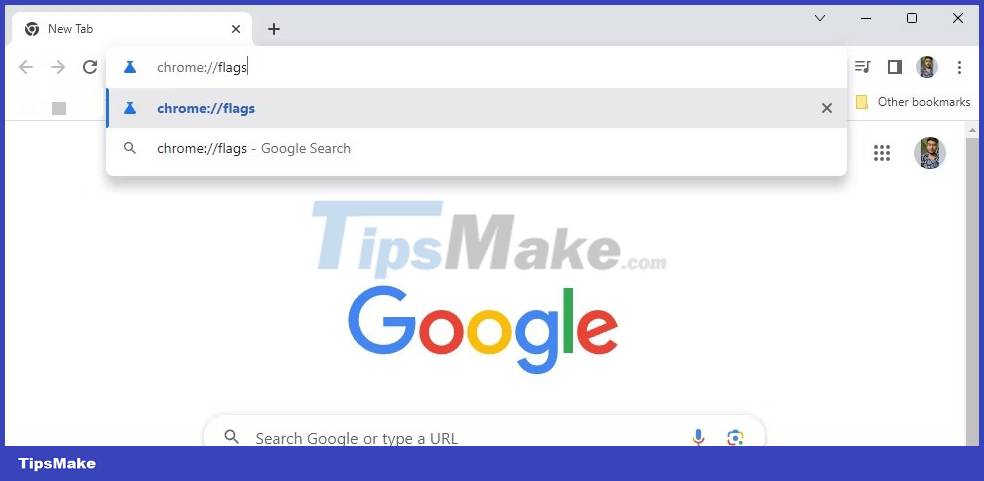
2. Type Parallel downloading in the search bar and press Enter.
3. Click the drop-down icon next to Parallel downloading and select Enabled from the context menu.

4. Click the Relaunch button.
After that, Google Chrome will restart with parallel downloading enabled. If you want to disable parallel downloading in Chrome, select Disabled from the drop-down menu and restart Chrome.
On Mobile
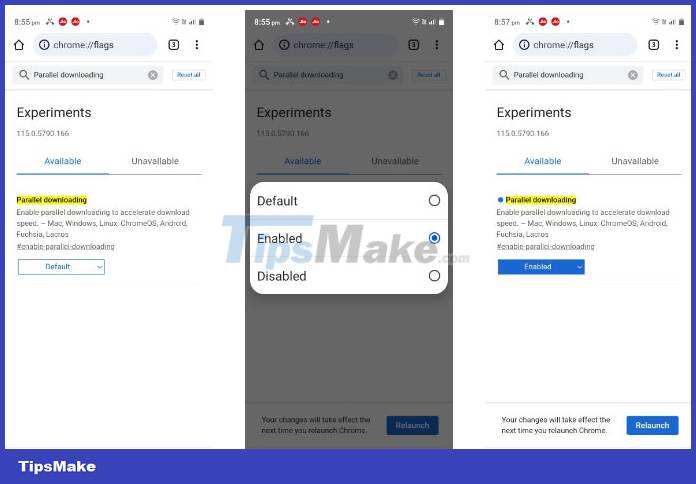
- Open Chrome, type chrome://flags in the address bar and press Enter.
- Type Parallel downloading in the search and press Enter.
- Select Enabled from the Parallel downloading drop-down menu.
- Press the Relaunch button.
After restarting, Google Chrome will use the parallel download feature every time you download a file from the Internet.
How to Enable Parallel Downloads in Microsoft Edge
Similar to Google Chrome, you will have to use the Microsoft Edge flag page to enable parallel downloads on this browser. Here's a step-by-step guide on how to do that.
On the Computer
- Open Edge on your computer.
- Type edge://flags in the search bar and press Enter.
- Type Parallel downloading in the Flags site search bar and press Enter.
- Select Enabled from the Parallel downloading drop-down menu.
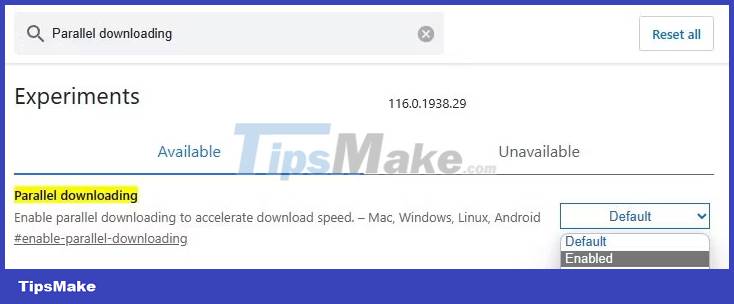
Then, click the Relaunch button that appears. To disable parallel downloading in Edge, select Disabled from the Parallel downloading drop-down menu and restart the browser.
On Mobile
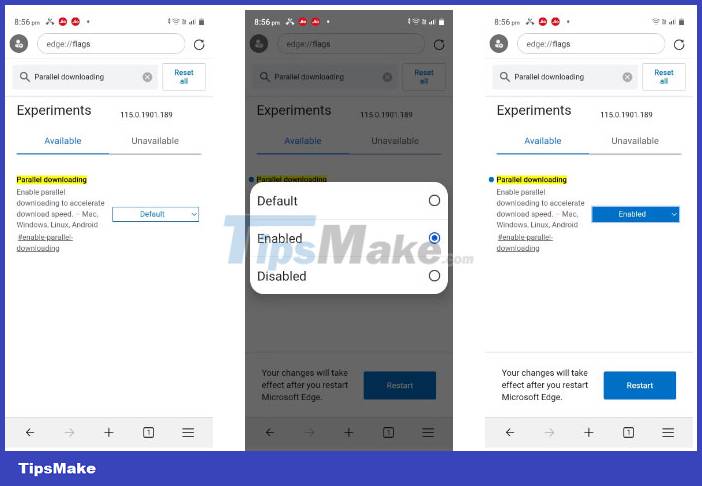
To enable parallel downloads in Edge on Android, type edge://flags in the search bar and press Enter. Then select Enabled from the Parallel downloading drop-down menu and press the Relaunch button.
How to Enable Parallel Downloads in Mozilla Firefox
It is very easy to enable parallel downloads in Mozilla Firefox. Follow the instructions below to do that:
1. Open Mozilla Firefox, type about:config in the search bar and press Enter.
2. Click the Accept the Risk and Continue button.
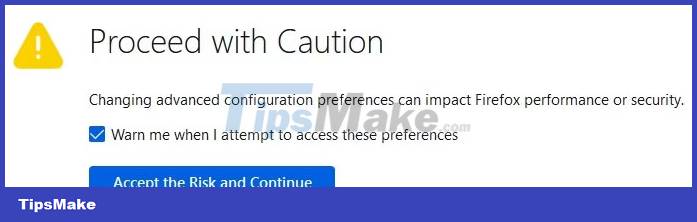
3. Type the following command in the search box and press Enter. This option controls the number of parallel connections allowed per server in Firefox.
network.http.max-persistent-connections-per-server4. Click the Pen icon next to the option to modify its value. By default, the value is set to 6 , but you can increase this value up to 20 to increase the number of parallel downloads allowed, ultimately increasing download speed.

5. Click the Check icon. Then, restart Firefox to save the changes.
Unlike Google Chrome and other Chromium-based browsers, you cannot use parallel downloads in Firefox on Android.
How to Enable Parallel Downloads in Brave
If you want more security, you must use Brave as your default web browser. However, if you want better download speeds, in addition to privacy, you must enable parallel downloads in Brave.
On the Computer
- Launch Brave, type brave://flags in the search bar and press Enter.
- Type Parallel downloading in the search bar, select Enabled from the Parallel downloading drop-down menu and click the Relaunch button.
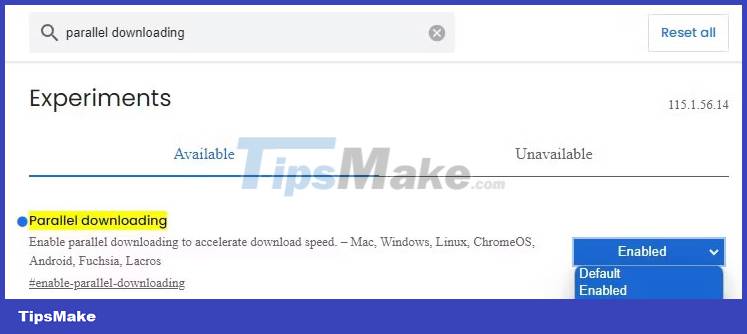
To disable parallel downloads in Brave, select Disabled from the drop-down menu and restart Brave.
On Mobile
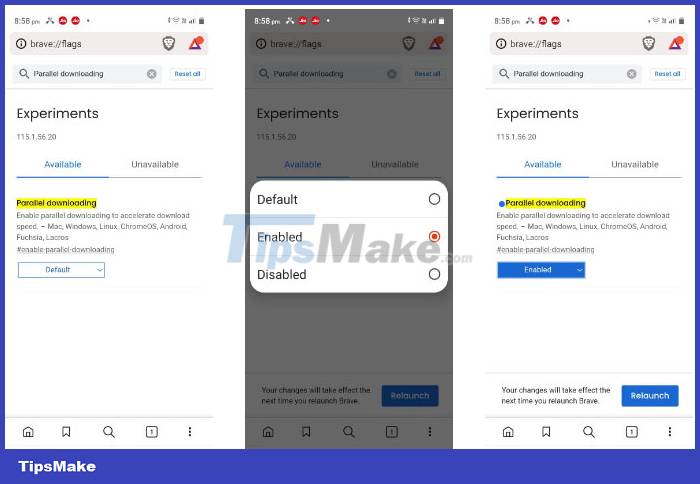
To enable parallel downloads in Brave on Android, type brave://flags in the address bar and press Enter. Then select Enabled from the Parallel downloading drop-down menu and press the Relaunch button.
Conclusion
Understanding Parallel Download makes it easier to compare options, avoid common mistakes, and apply the information in this guide more effectively. Review the relevant requirements before making changes or choosing a solution.
FAQ
How do you enable parallel download in browser?
Follow the steps in this guide in order, confirm the required settings or tools, and verify the result before making additional changes.
Is it safe to enable parallel download in browser?
It is generally safe when you follow the recommended instructions, use trusted tools, and avoid changing settings you do not understand.
What should you do if the process does not work?
Recheck the requirements, restart the device or application when appropriate, and review each step for missed settings or compatibility issues.
Related Articles
 How to Enable Download Acceleration on Chrome4 minutes read
 Parallels - Parallels Download and Installation Guide4 minutes read
 Zero Browser Download and Experience - Secure Browser on iOS, Free2 minutes read
 How to Enable Offline Browsing Mode on Firefox Browser?5 minutes read
 How to Enable Incognito Mode: Step-by-Step Guide9 minutes read
 How to Enable Site-Specific Browser (SSB) in Firefox4 minutes read
Reader Comments 0
Sign in with email or Google to join the discussion.