Table of Contents
- Excel 2016 Complete Guide (Part 1): Getting Started with Microsoft Excel
- Excel 2016 Complete Guide (Part 2): Understanding OneDrive
- Excel 2016 Complete Guide (Part 3): How to create new and open existing spreadsheets
- Excel 2016 Complete Guide (Part 4): How to Store and Share Spreadsheets
This updated guide explores excel 2016 - lesson 5: basic concepts of cells and ranges with practical details, clear explanations, and useful takeaways. In Excel, cells and ranges of cells are important concepts because this is the main function of the spreadsheet. When operating and working on Excel in general and Excel 2016 in particular, you cannot ignore cells (Cell) and spreadsheets (Workbook).
Introduction to Cells and Ranges
Whenever you work with Excel, You need to enter information - or content - into cells. Cells are the basic building blocks of a spreadsheet. You need to learn the basics of cells and cell content to calculate, analyze, and organize data in Excel.
Watch the video below to learn more about Basic Tasks when working with cells and ranges in Excel 2016 :
Learn About Cells in Excel
Every spreadsheet is made up of thousands of rectangles, called cells. A cell is the intersection of a row and a column —in other words, where a row and column intersect.
Columns are identified by letters ( A, B, C ), while rows are identified by numbers ( 1, 2, 3 ). Each cell has its own name — or cell address — based on the column and row. In the example below, the selected cell intersects column C and row 5, so the cell address is C5 .

Notice that the cell address also appears in the Name box in the upper-left corner, and the cell's row and column headings are highlighted when the cell is selected.
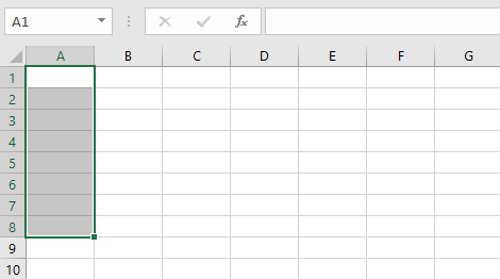
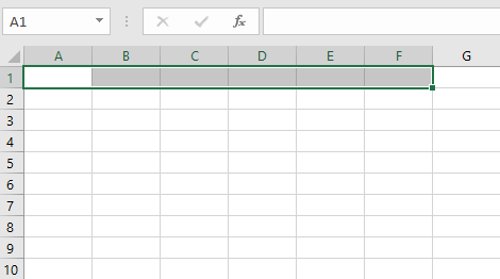
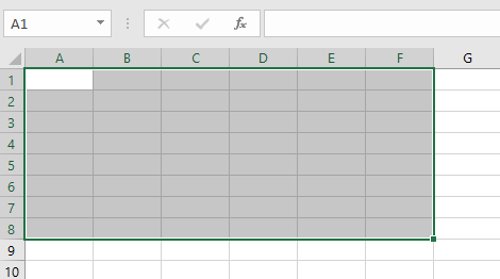
You can select multiple cells at once . A group of selected cells is known as a range. Instead of a single cell address, you'll refer to a range by using the addresses of the first and last cells in the range, separated by colons . for instance, a range that includes cells A1, A2, A3, A4, and A5 would be written as A1:A5. Take a look at the different ranges below:
- Cell range A1:A8
- Cell range A1:F1
- Cell range A1:F8
- If the columns in your spreadsheet are labeled with numbers instead of letters, you need to change the default reference style for Excel.
Select a Cell
To enter or edit cell contents, you first need to select the cell.
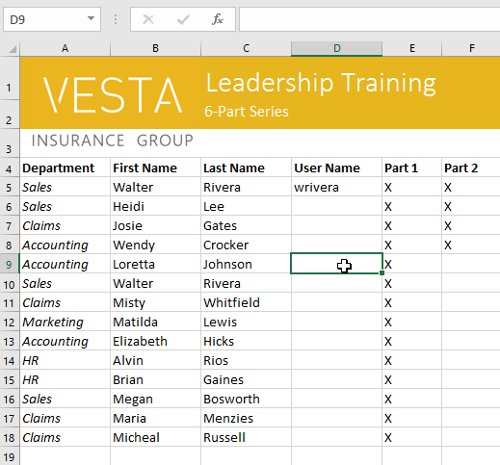
1. choose a cell to select it. In our example, we select cell D9 .
2. A border will appear around the selected cell and the column and row headers will be highlighted. The cell will remain selected until you choose another cell in the spreadsheet.
- Alternatively, you can select cells using the arrow keys on your keyboard.
Select a Range of Cells
Sometimes you may want to select a larger group of cells or a range of cells.
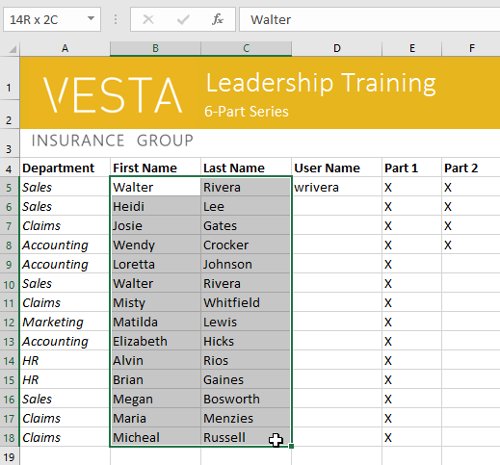
1. choose and drag your mouse until all the cells next to the one you want to select are highlighted. In our example, we select the cell range B5:C18 .
2. Release the mouse button to select the desired range of cells. The cells will remain selected until you choose another cell in the spreadsheet.
Content Types in Excel Cells
Any information you enter into a spreadsheet is stored in a cell. Each cell can contain different types of content, including text, formatting, formulas, and functions .
- Text : Cells can contain text, such as letters, numbers, and dates.
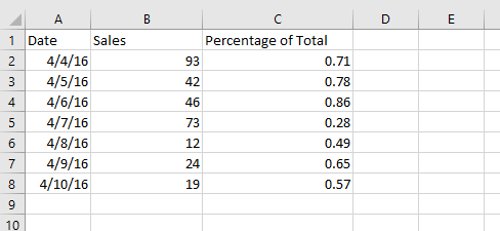
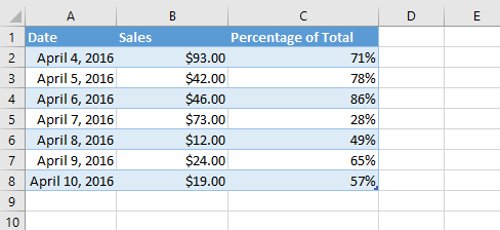
- Format properties : Cells can contain formatting properties that change how text, numbers, and dates are displayed. for instance, percentages can appear as 0.15 or 15%. You can even change a cell's text or background color.
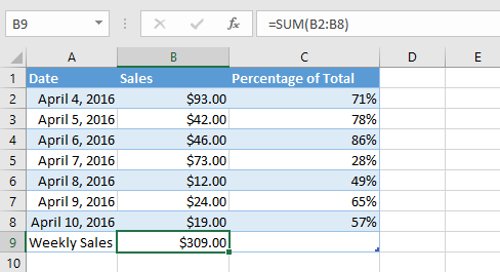
- Formulas and functions : Cells can contain formulas and functions that calculate cell values. In the example, SUM(B2:B8) adds the value of each cell in the range B2:B8 and displays the total in cell B9 .
Insert Content
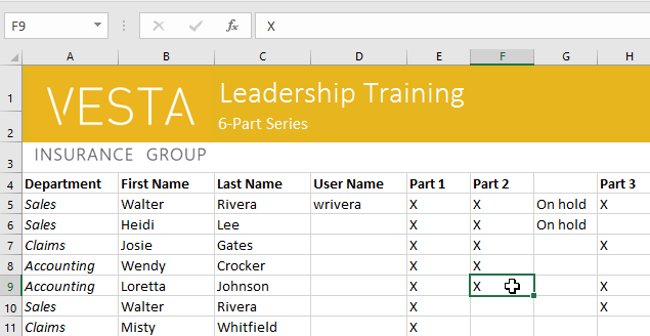
1. choose a cell to select it. In our example, we select cell F9 .
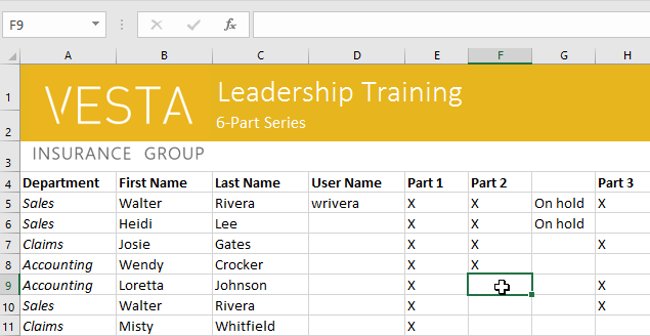
2. Type something into the selected cell, then press Enter on your keyboard. The contents will appear in the cell and the formula bar . You can enter and edit cell contents in the formula bar.
Clear Cell Contents
1. Select the cell(s) with the content you want to delete. In our example, we select the cell range A10:H10 .
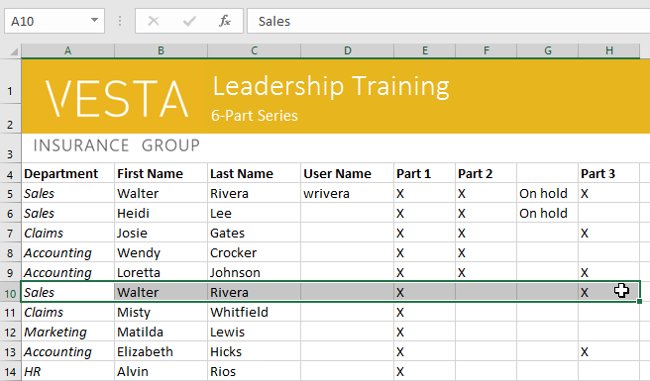
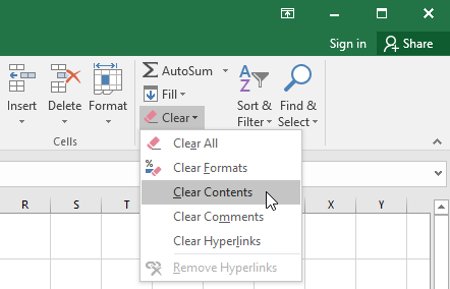
2. Select the Clear command on the Home tab, and then click Clear Contents.
3. The cell contents will be deleted.
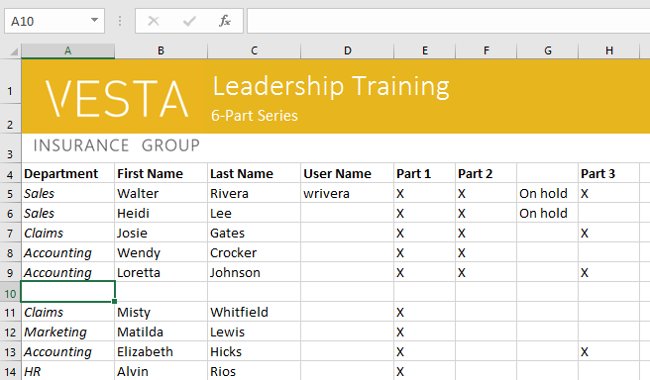
- Alternatively, you can use the Delete key on your keyboard to delete content from multiple cells at once. The Backspace key will only delete content from one cell at a time.
Delete Cell
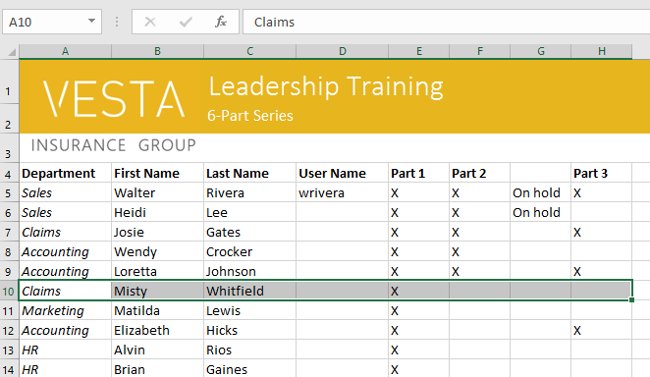
There is an important difference between clearing the contents of a cell and deleting the cell itself. If you delete an entire cell, the cells below it will shift to fill the empty space and replace the deleted cell .
1. Select the cell(s) you want to delete. In our example, we'll select the cell range A10:H10 .
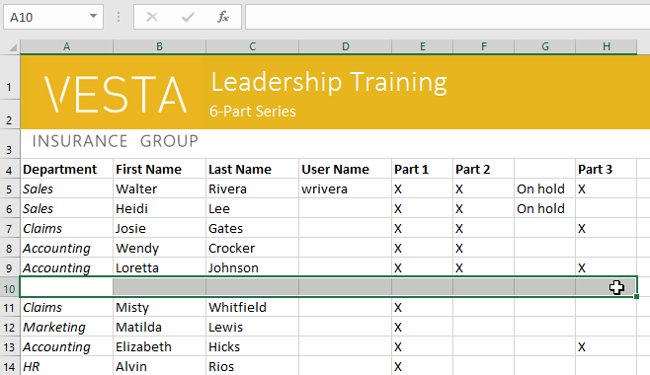
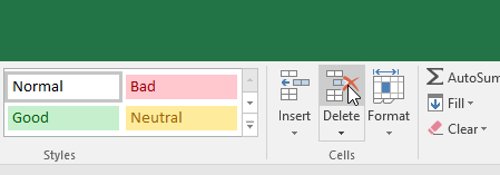
2. Select the Delete command from the Home tab on the Ribbon.
3. The cells below will change and fill the gaps.
Copy and Paste Cell Contents
Excel 2016 lets you copy content that has been entered into a spreadsheet and paste it into other cells, saving you time and effort.
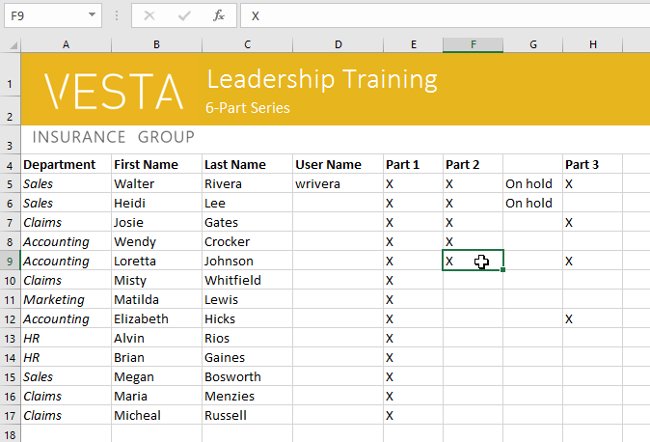
1. Select the cell(s) you want to copy. In our example, we select the cell range F9 .
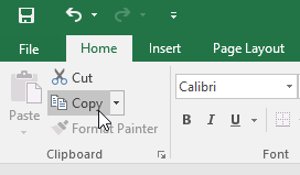
2. choose the Copy command on the Home tab or press Ctrl + C on your keyboard.
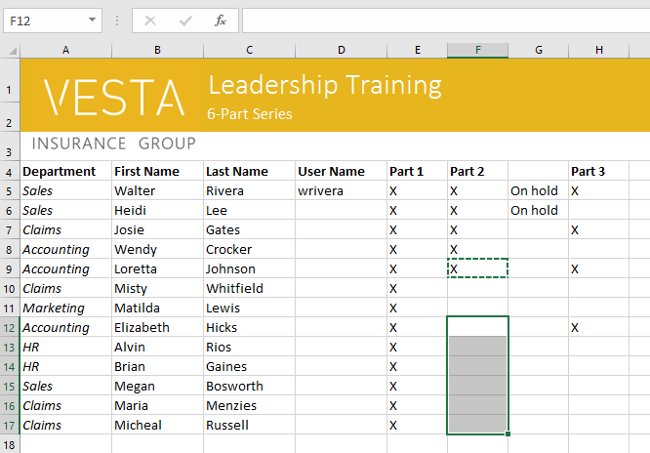
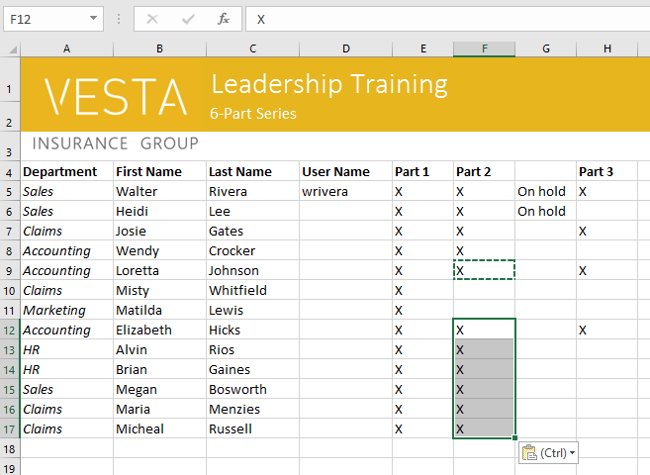
3. Select the cell(s) where you want to paste the content. In our example, we select F12:F17 . The copied cell(s) will have a box surrounded by dashed lines.
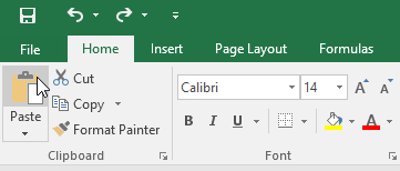
4. choose the Paste command on the Home tab or press Ctrl + V on your keyboard.
5. The content will be pasted into the selected cells.
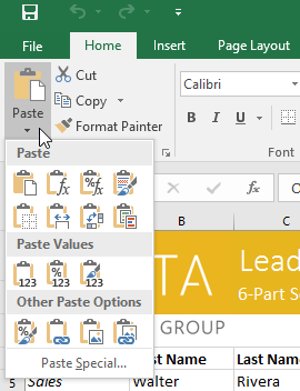
Access to Multiple Paste Options
You can access additional paste options, which are especially handy when working with cells that contain formulas or formatting. Just choose the drop-down arrow on the Paste command to see these options.
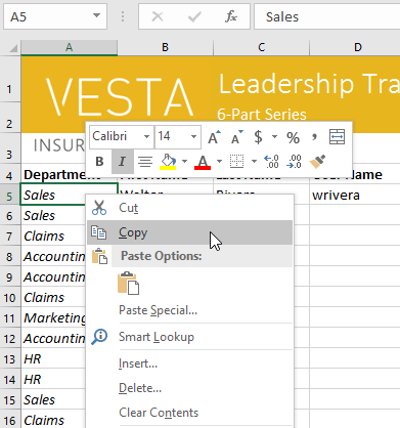
Instead of selecting commands from the Ribbon toolbar, you can quickly access commands by right-clicking . Simply select the cell(s) you want to format, then right-choose. A drop-down menu will appear, where you'll find some of the same commands as on the Ribbon.
Cut and Paste Cell Contents
Unlike copying and pasting, which duplicate cell contents, cutting lets you move content between cells.
1. Select the cell(s) you want to cut. In our example, we select the cell range G5:G6 .
2. Right-choose and select the Cut command . Alternatively, you can use the command on the Home tab or press Ctrl + X on your keyboard.
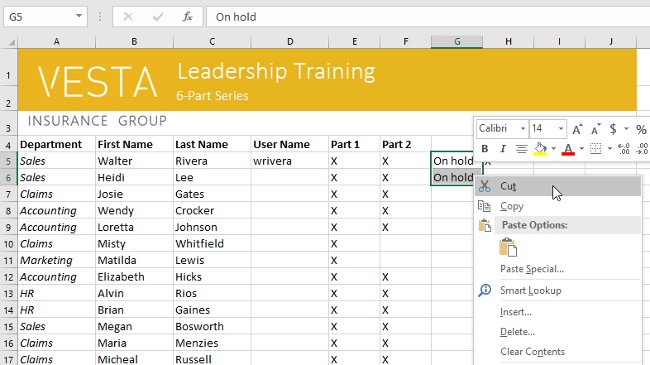
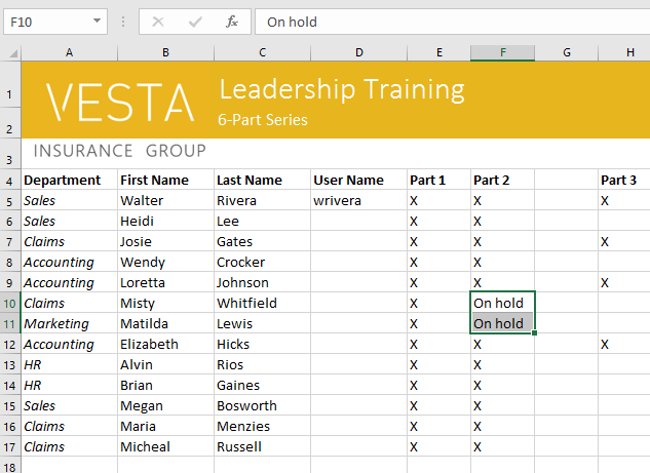
3. Select the cells where you want to paste the content. In our example, we'll select F10:F11 . The cut cells will have a box surrounded by a dashed line.
4. Right-choose and select the Paste command. Alternatively, you can use the command on the Home tab or press Ctrl + V on your keyboard.
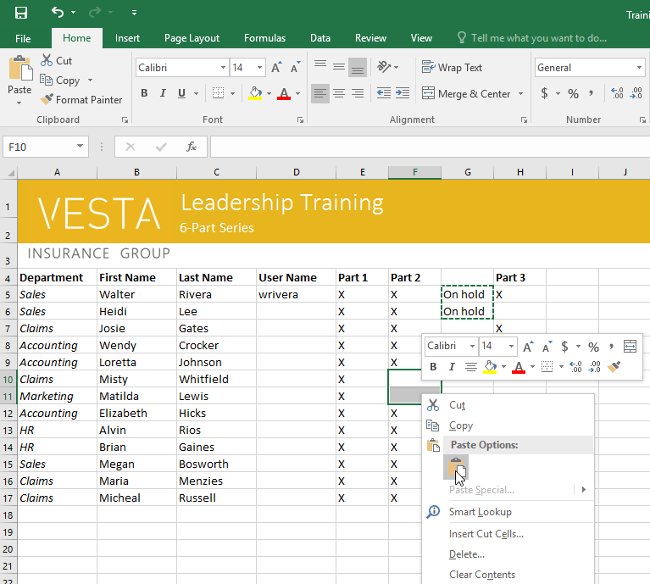
5. The cut content will be extracted from the original cells and pasted into the selected cells.
Drag and Drop Cells
Instead of cutting, copying, and pasting, you can drag and drop cells to move their contents.
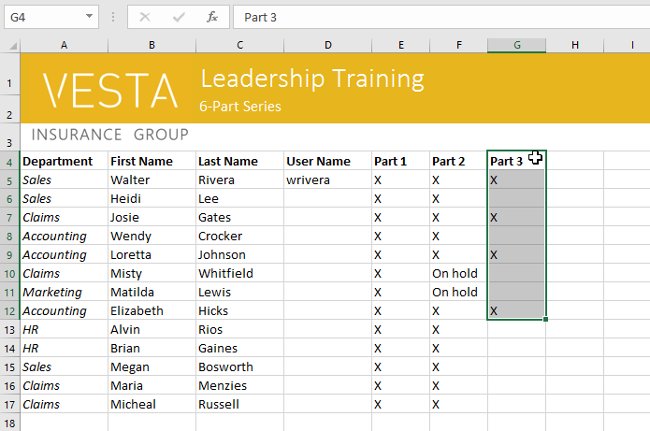
1. Select the cell(s) you want to move the contents of. In our example, we select the cell range H4:H12 .
2. Hover over the border of the selected cells until the mouse pointer changes to a pointer with four arrows ( as shown below ).
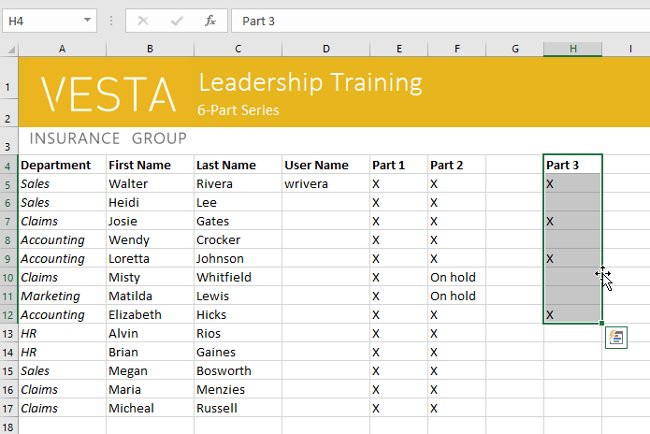
3. choose and drag the cells to the desired location. In our example, we move them to the cell range G4:G12 .
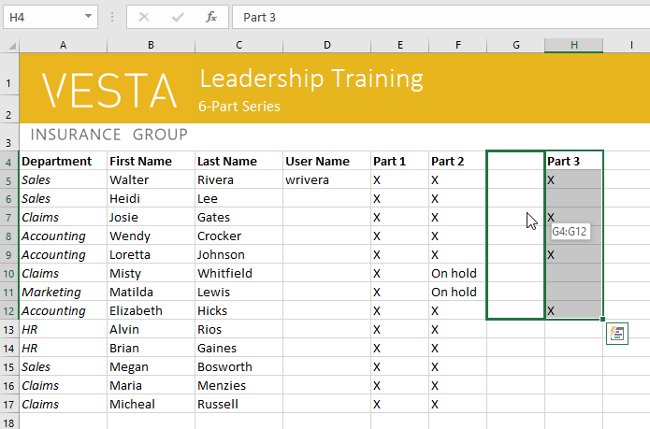
4. Release the mouse. The cells will be dropped in the selected location.
Using the Fill Handle Function
If you are copying cell contents to adjacent cells in the same row or column, using the fill handle function is a useful alternative to the copy and paste commands.
1. Select the cell(s) containing the content you want to use, then hover over the lower-right corner of the cell so that the fill handle appears (a bold black plus sign).
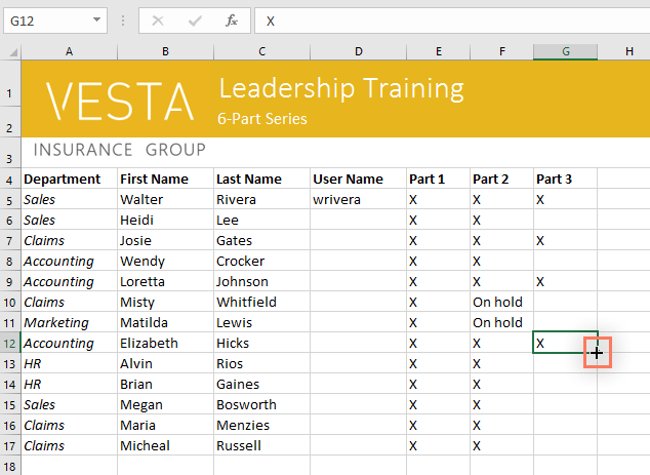
2. choose and drag the fill handle until all the cells you want to fill are selected. In our example, we select the cell range G13:G17 .
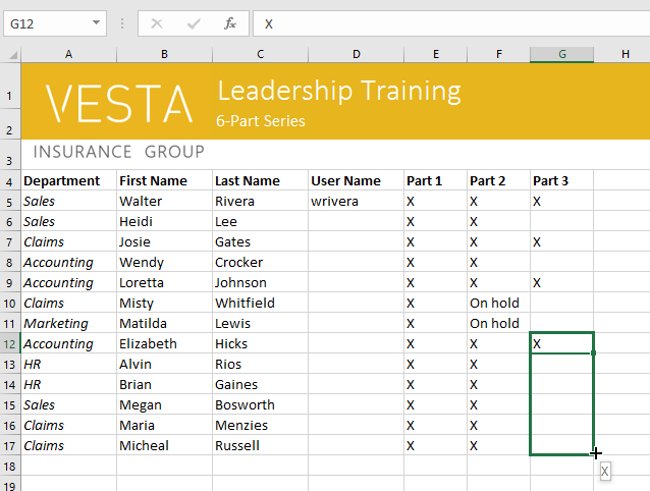
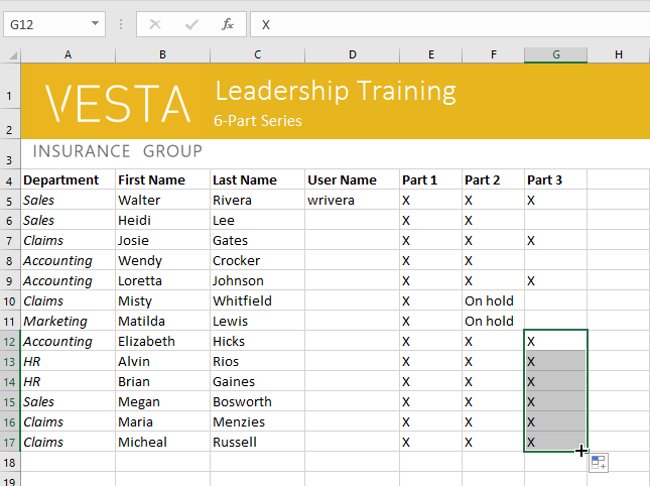
3. Release the mouse to fill the selected cell.
Continue a String with Fill Handle
The fill handle can be used to continue a series. Whenever the contents of a row or column are in sequential order, such as numbers ( 1, 2, 3 ) or dates ( Monday, Tuesday, Wednesday ), the fill handle can guess what comes next in the series. In most cases, you need to select multiple cells before using the fill handle to help Excel determine the series order . Take a look at the example below:
1. Select the cell range that contains the series you want to continue. In our example, we'll select E4:G4 .
2. choose and drag the pin to continue the chain.
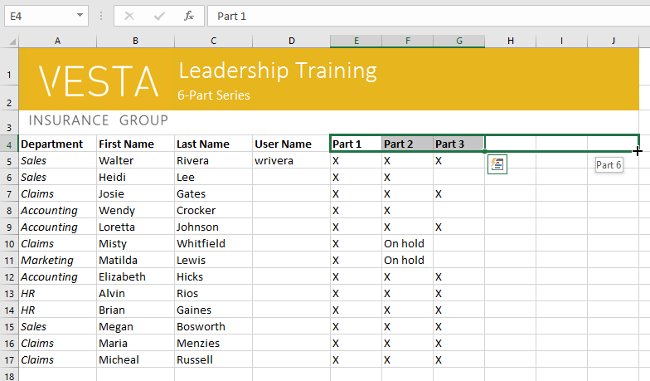
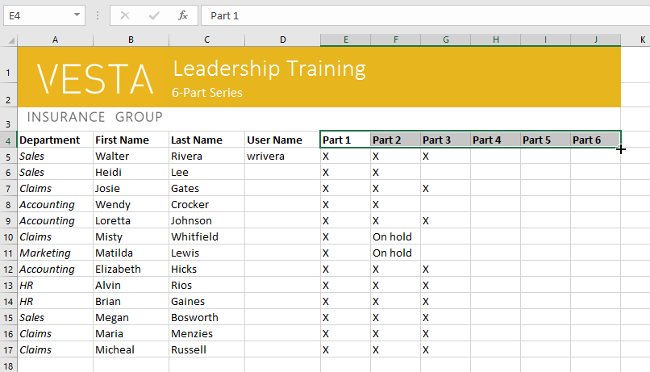
3. Release the mouse button. If Excel understands the string, it continues in the selected cells. In the example, Excel added Section 4, Section 5, and Section 6 to H4:J4 .
Next lesson: Excel 2016 - Lesson 6: Resizing columns, rows, and cells
Have fun!
FAQ
What is the main takeaway about Excel 2016 - Lesson 5: Basic Concepts of Cells and Ranges?
The key is to understand the core idea, compare the available options, and apply the practical guidance that matches your situation.
What should beginners know about Excel 2016 - Lesson 5: Basic Concepts of Cells and Ranges?
Start with the essential steps and terminology. Avoid changing advanced settings until you understand how they affect performance, privacy, cost, or compatibility.
How can I use this information in practice?
Follow the relevant section in order, test one change at a time, and confirm the result before moving to the next step or recommendation.
Related Articles
 Complete Tutorial of Excel 2016 (Part 5): Basics of Cells and Ranges11 minutes read
 How to Select Cells and Ranges in Excel Visual Basic7 minutes read
 How to Split Cells, Combine Cells in Excel6 minutes read
 How to Use the SUM Function to Calculate Totals in Excel8 minutes read
 How to Calculate and Color Blank Cells in Excel3 minutes read
 Instructions on How to Cross Cells in Excel7 minutes read
Reader Comments 0
Sign in with email or Google to join the discussion.