Table of Contents
Explore don't rush to spend money on upgrades, including the key concepts, practical examples, important considerations, and useful guidance.
There are good, free solutions available when you're running low on Linux storage. Some are effective because they are repeatable processes rather than one-time solutions. They don't just simply delete files; they also help you understand what's actually taking up space.
Check your drive before deleting anything
Stop guessing and let Linux show you what's really taking up a lot of disk space
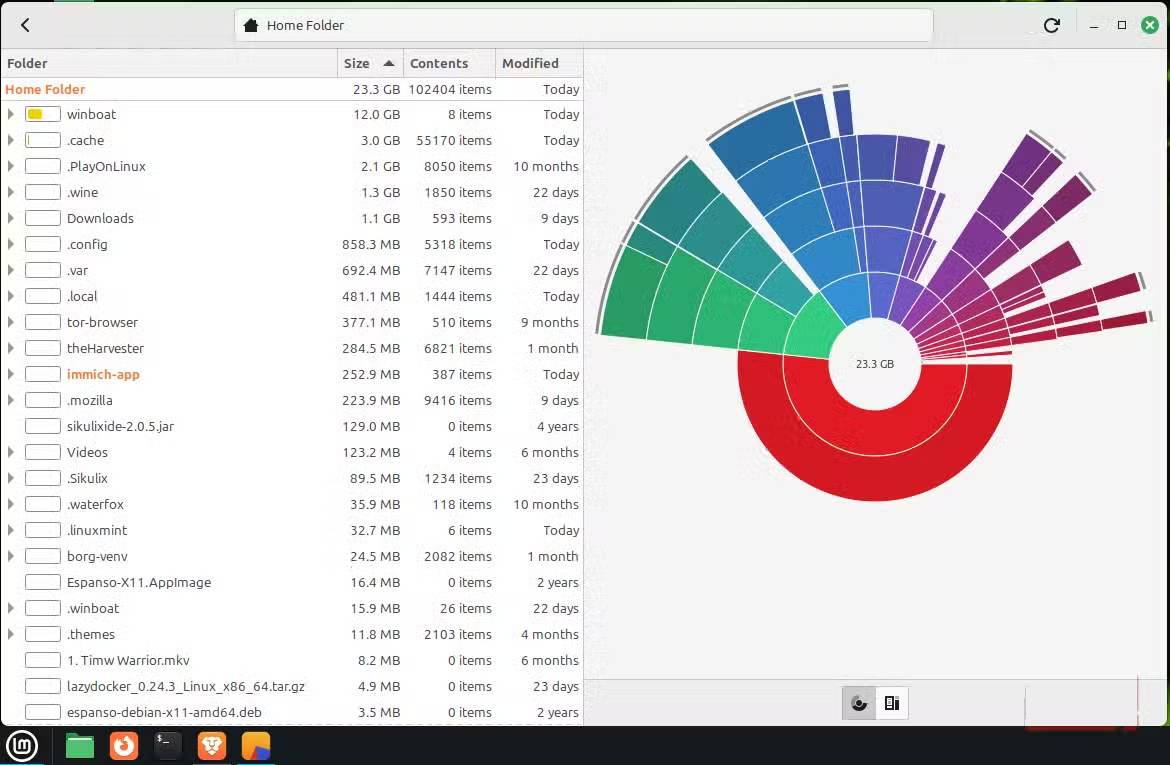
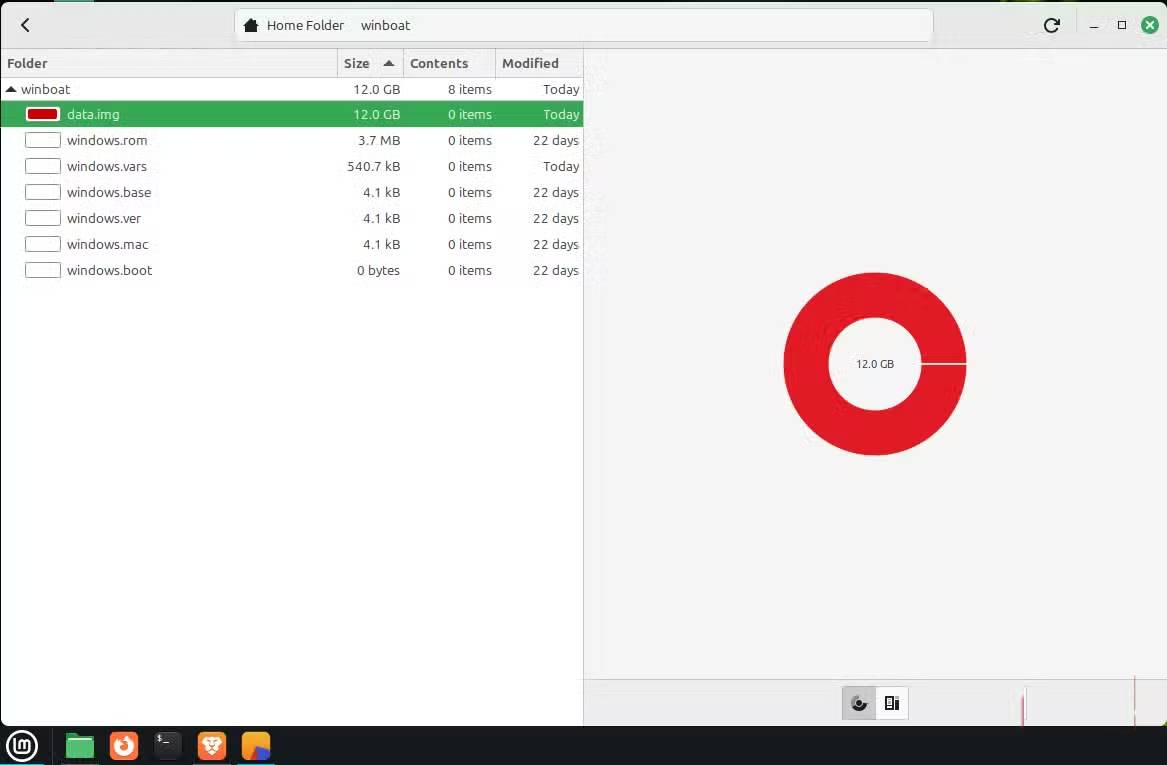
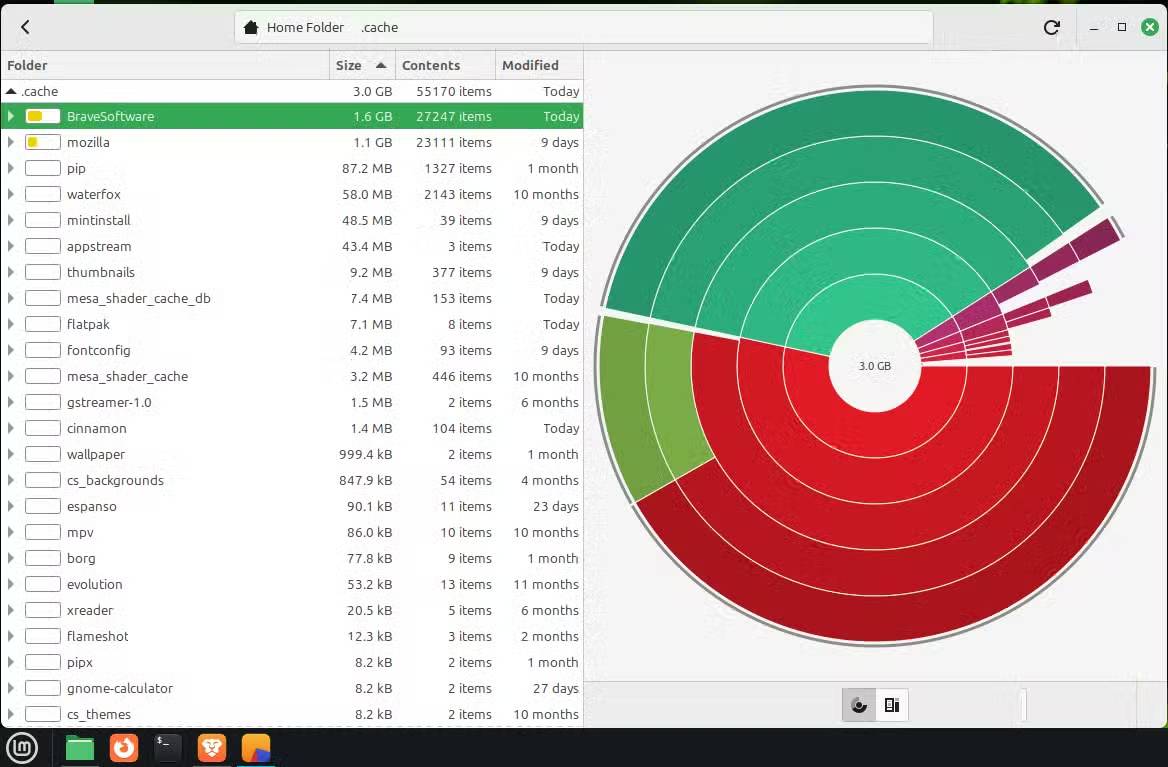
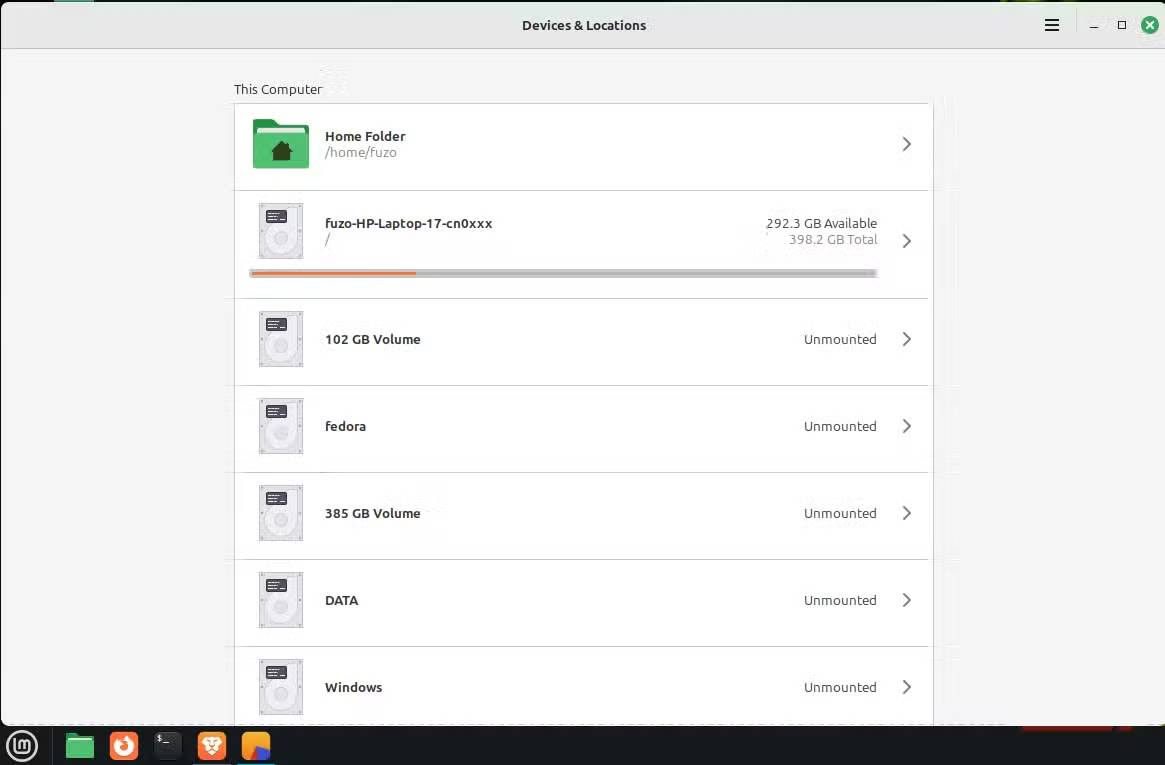
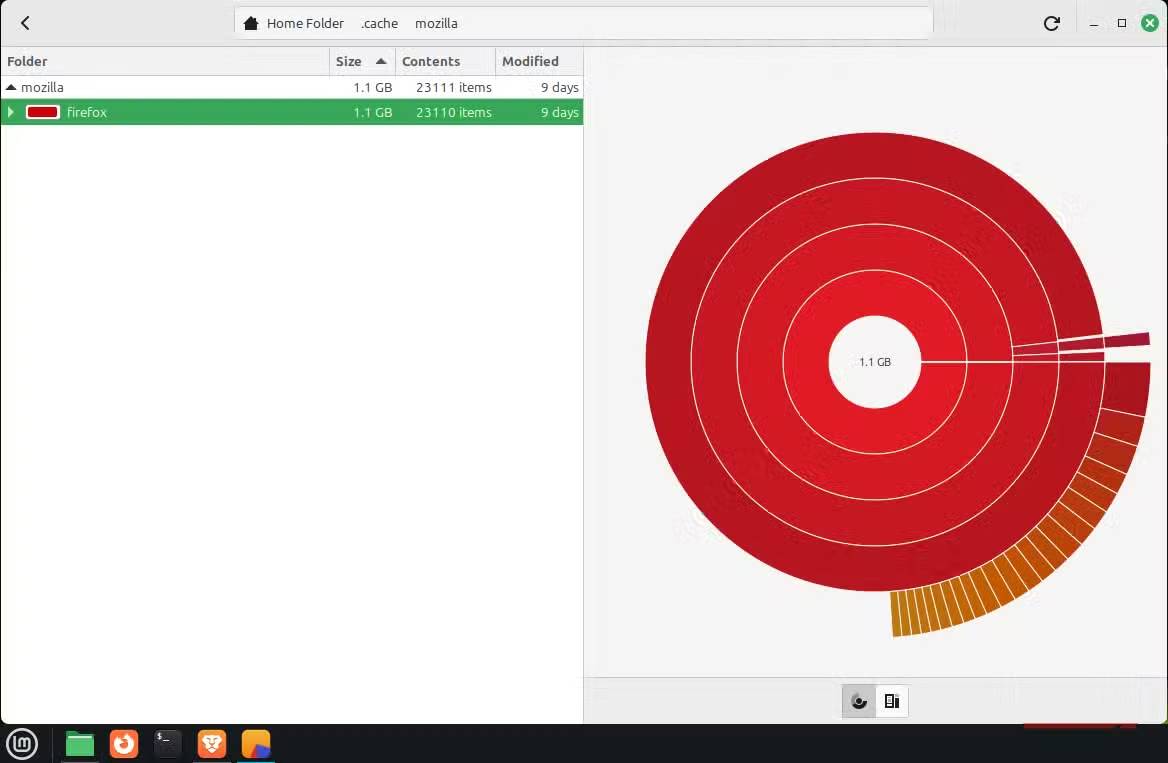
Your worst course of action is to immediately start deleting files or programs when you receive a low disk space warning. In experience, deleting many small things rarely solves storage space issues on Linux. It's likely you have one or two programs that are consuming a lot of space and causing the warning. If you can't find them, any cleanup efforts will be futile.
The quickest way to clarify the issue is to use Disk Usage Analyzer (Baobab). This is a GNOME-specific application, pre-installed in Linux Mint, Fedora, Pop!_OS, and also the default application in Ubuntu and Debian. On lighter, non-GNOME distributions, you can install it using one of the following commands:
sudo apt install baobab sudo dnf install baobabBaobab scans the system and visually displays a directory analysis by size. This is one of the easiest ways to find the culprit, often a virtual machine image, an old ISO image, or a backup folder.
The purpose of using a tool like this isn't just to view large files. It shows you where those files are located, allowing you to take targeted steps. Generally, deleting unnecessary files in the home directory is safe, but you should clean up system directories cautiously, using only built-in maintenance tools.
Delete cache data that Linux never automatically cleans up
Free up gigabytes from APT cache, application cache, and thumbnails
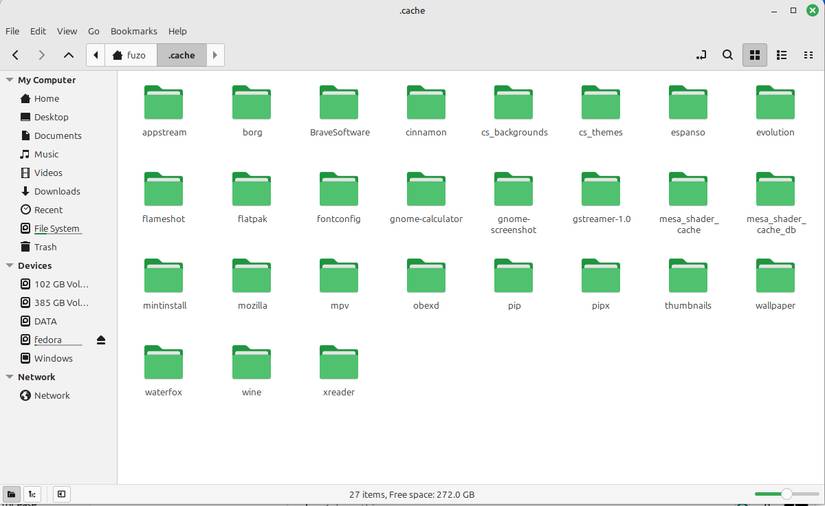
Linux is a rather conservative operating system. Typically, after downloading a software package, it will retain application files or data in case they are needed in the future. This is a safety net that quickly turns into an unwanted mess.
APT (used by Debian/Ubuntu/Linux Mint) is one of the main causes, but this is also true for Fedora's DNF package manager and pacman in Arch Linux, which store outdated installation files.
Cache clearing is safe because it doesn't affect the software; it only removes unused packages. After a few months, clearing the cache can free up several gigabytes of space. The table below shows the clearing commands:
|
Command |
Distribution |
Impact |
|---|---|---|
|
Suduk apt clean |
Linux Mint / Ubuntu |
Delete all local archives of downloaded package files (.deb). |
|
sudo dnf clean all |
Fedora |
Remove all cached packets and metadata from the system. |
|
sudo paccache -r |
Arch / Manjaro |
Remove all cached packages except the 3 most recent versions (a safe method for Arch). |
However, even application files can accumulate. You should delete thumbnails and temporary files from your browser, media player, and file manager. Deleting all of these is safe; the application will recreate some of them, but usually only the parts it needs, not everything.
Delete leftover system files from updates and installations
Old kernels, unused dependencies, and forgotten runtimes
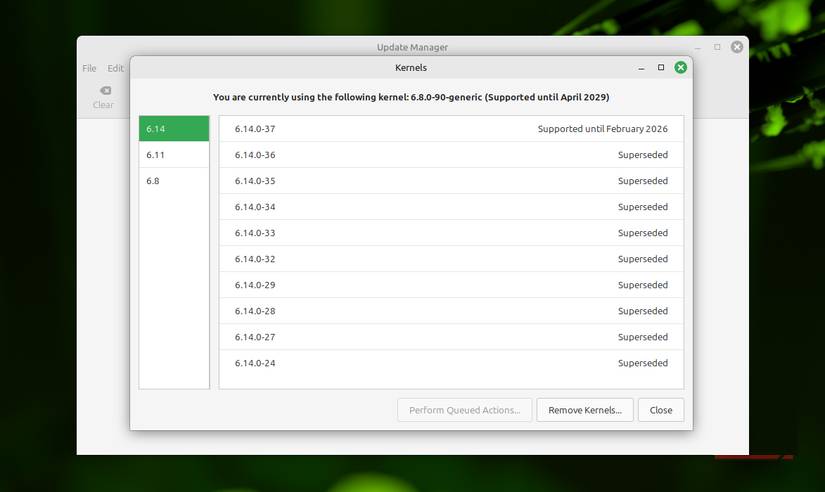
Linux kernel updates aren't automatic like Windows; they're handled in a way that can cause memory bloat. Previous versions remain on the system as backups. This is good for security, but you really don't need dozens of these backups. Each backup can take up a significant amount of disk space. On Ubuntu or Debian, you can use the command below to identify and remove old kernels and their associated files:
sudo apt autoremove --purgeOn Linux Mint, do the following:
- Navigate to Update Manager - > View - > Linux Kernels .
- Click on Remove Kernels , Linux Mint will suggest deleting everything except the current and previous versions.
The same applies to dependency libraries. Even after you uninstall an application, the libraries it depends on are not automatically deleted. Eventually, they become an unnecessary software burden. You can clean them up to free up space using one of the commands below:
|
Command |
Distribution |
Why does it work? |
|---|---|---|
|
sudo apt autoremove |
Linux Mint / Ubuntu / Debian |
Scan for libraries that no longer have a "parent" application and delete them. |
|
sudo dnf autoremove |
Fedora |
The functionality is exactly the same as the APT version for Red Hat-based systems. |
|
Arch |
A two-step process forces you to make a conscious decision for each product package. |
Tip : Before cleaning up Linux, create a System Snapshot using the built-in Timeshift tool. You can also use reliable backup tools like BorgBackup for your files.
Control of incident logs and data
When background errors silently occupy disk space
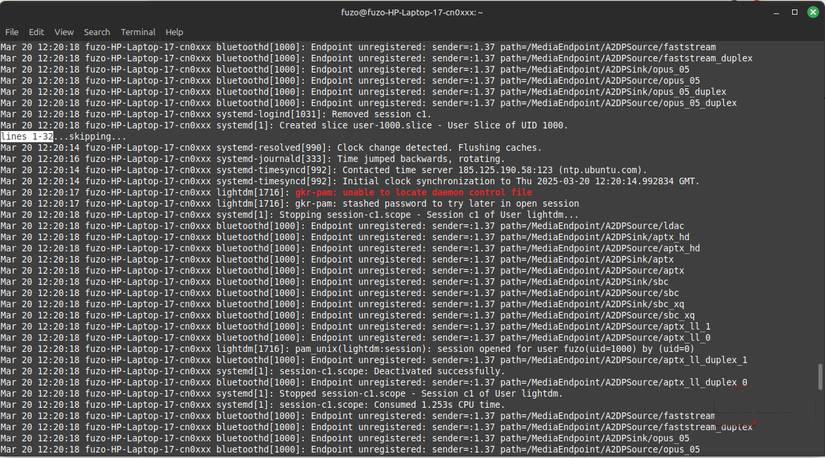
When you encounter system problems, logs help you diagnose them. However, if you leave Linux as is, it will log indefinitely. Systemd's journald stores logs continuously, and these tend to increase rapidly when problems occur on your device.
This can be particularly problematic because the system may not warn you until the drive is nearly full. Until then, everything is working fine: startup, applications, and processes. First, use the command below to check how much space the logs are taking up:
journalctl --disk-usageIf you have a large log, you can clean it up using any of the commands below:
|
Command |
Impact |
|---|---|
|
sudo journalctl --vacuum-size=100M |
Only keep the last 100MB of logs. |
|
sudo journalctl --vacuum-time=3d |
Only keep records for the last 3 days. |
Prevent Timeshift from hogging SSD space
Configure backup settings to protect data without filling up your hard drive
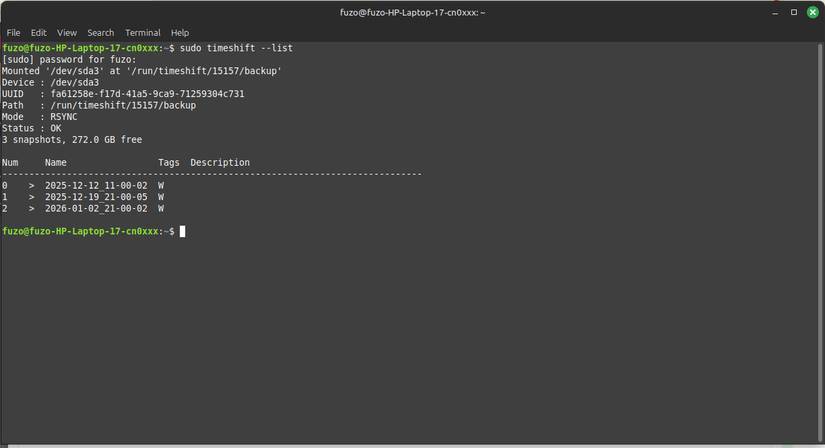
Timeshift is one of the most important features on many Linux distributions. It keeps the system safe by creating incremental snapshots and restoring the system in case of failure. But when snapshots are not managed well, they accumulate and become a storage space issue.
When storage space is running low, you can move Timeshift to an external hard drive or reduce the frequency of snapshot creation. Properly configuring Timeshift will help you avoid storage space issues. You can clean up Timeshift from the terminal if storage is full and the graphical interface is unresponsive. Follow these steps:
1. Open the command prompt window and run the command below to display the snapshots that are using storage space:
sudo timeshift --list2. Delete a specific snapshot using this command, entering the correct timestamp:
sudo timeshift --delete --snapshot '2023-10-01_12-00-01'You can use this command in an emergency when you need to reclaim a large amount of storage space: `sudo timeshift --delete-all` . This is an extreme option, deleting all snapshots, and should be used with caution.
Final Thoughts
Understanding don't rush to spend money on upgrades makes it easier to evaluate the information and apply the most relevant recommendations. Focus on the key points above and verify details that may change over time.
FAQ
What is don't rush to spend money on upgrades?
Explore don't rush to spend money on upgrades, including the key concepts, practical examples, important considerations, and useful guidance.
What key points does this article cover?
The article focuses on Check your drive before deleting anything, Stop guessing and let Linux show you what's really taking up a lot of disk space, Delete cache data that Linux never automatically cleans up, with practical explanations and examples.
How can you use this information in practice?
Use the explanations to compare options, verify important details, and make a more informed decision. Apply the recommendations that best match your goals and situation.
Related Articles
 7 Rules About Money Everyone Needs to Know5 minutes read
 How to Use Money in Excel, a Free and Secure Money5 minutes read
 Top 5 Best Cloud Storage Services 20208 minutes read
 2025: the Year of Linux? or Is It Microsoft's 'Forcing You to Buy a New PC'4 minutes read
 7 Important Lessons About Money That Every Child Needs to Be Taught7 minutes read
 7 Cloud Storage Apps That Offer Better Value Than Google One6 minutes read
Reader Comments 0
Sign in with email or Google to join the discussion.