Table of Contents
You do not have to treat Linux, macOS and Windows as an all-or-nothing choice. A two-system setup can work well when each machine has a clear role: Linux for gaming, development, customization or extending the life of PC hardware, and macOS for Apple-only tools, mobile work and established creative workflows.
The combination is not automatically better than one computer. It adds cost, file-sync decisions and another system to maintain. The useful question is therefore not “Which operating system wins?” but “Do my applications and devices divide cleanly enough to justify two environments?”
What Linux contributes
Linux gives you broad control over the desktop, software stack and update model. It is especially attractive for programming, containers, servers and users who enjoy changing their desktop environment or system configuration. A lightweight distribution can also keep older PC hardware useful; TipsMake has a separate guide to lightweight Linux distributions for older computers.
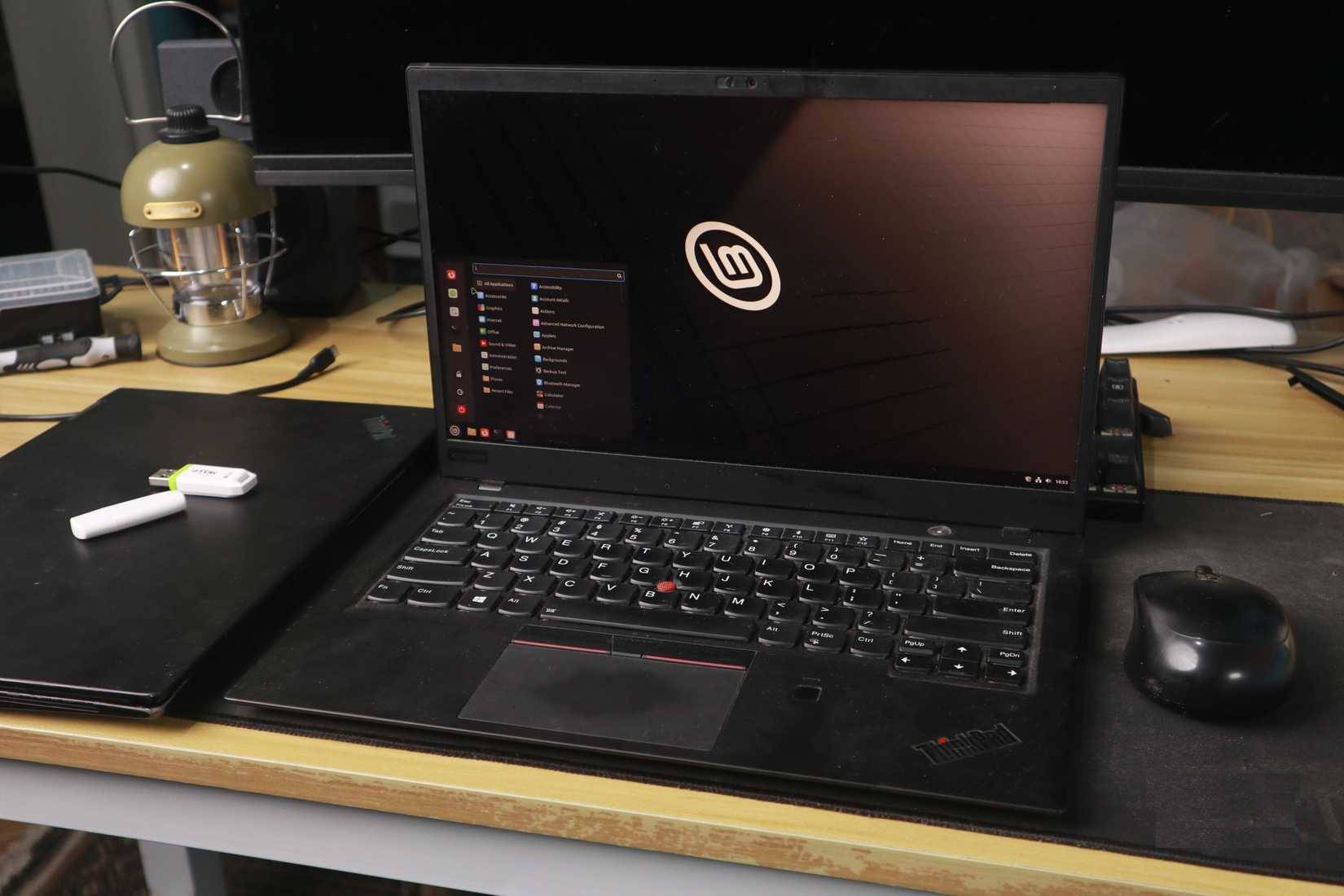
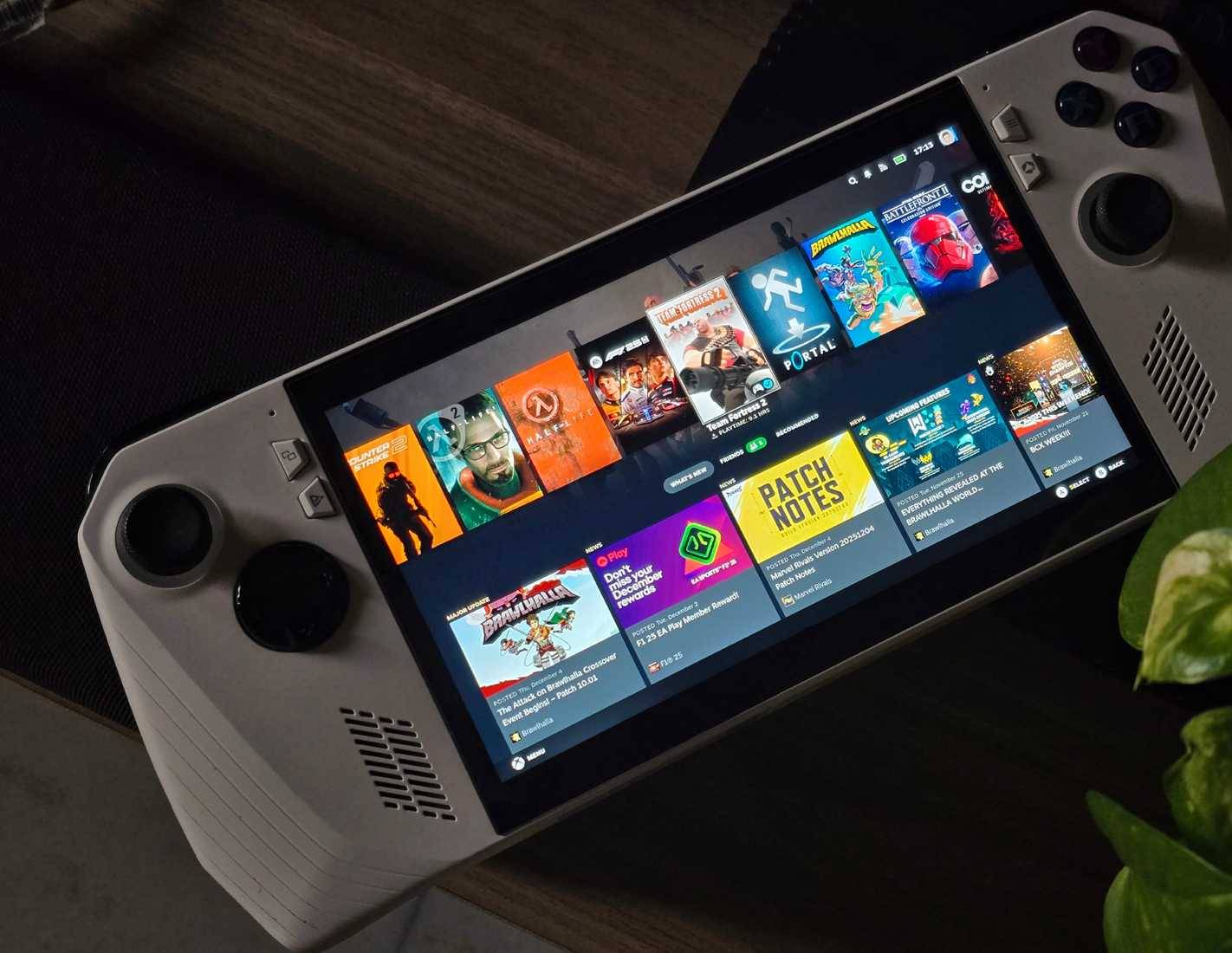
Gaming on Linux has improved, but it is not universally compatible. Steam's compatibility tools can run many Windows games, while some multiplayer titles, anti-cheat systems, launchers and peripheral utilities still require Windows. Check the games and accessories you actually use before replacing an existing installation.
A gaming-focused distribution such as CachyOS may appeal to experienced users who want frequent packages and performance-oriented defaults, but it is not the only option and a rolling release requires attention. Read TipsMake's overview of CachyOS before choosing it. Stable or image-based distributions may be easier to recover when experimentation goes wrong.
What macOS contributes
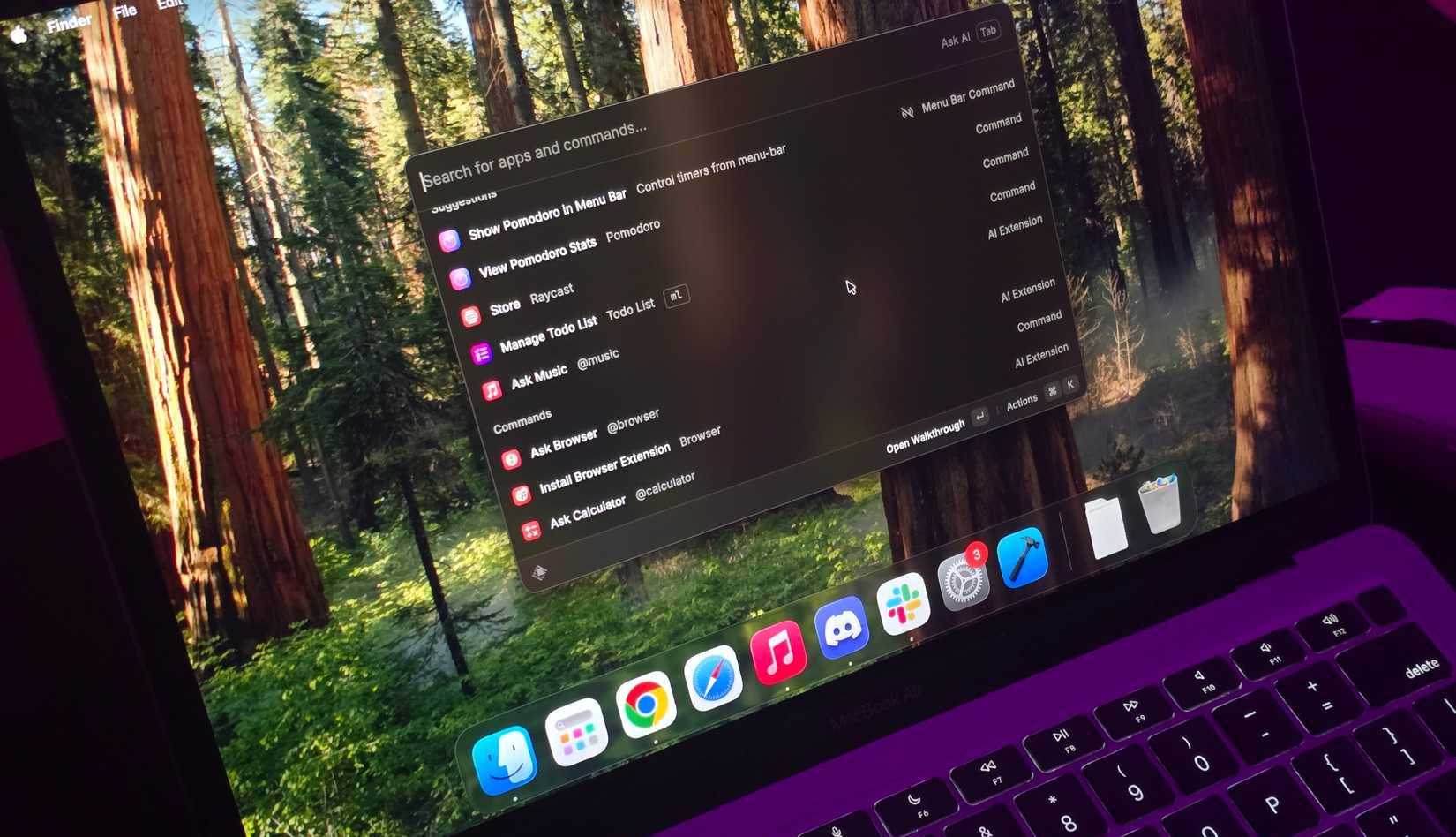
macOS is the practical choice when a workflow depends on Apple software or platform tooling. Logic Pro and Final Cut Pro are macOS applications, and Apple's Xcode development environment runs on macOS. Cross-platform editors can handle much of the coding, but building, signing and testing Apple-platform apps ultimately requires access to a supported Mac environment.
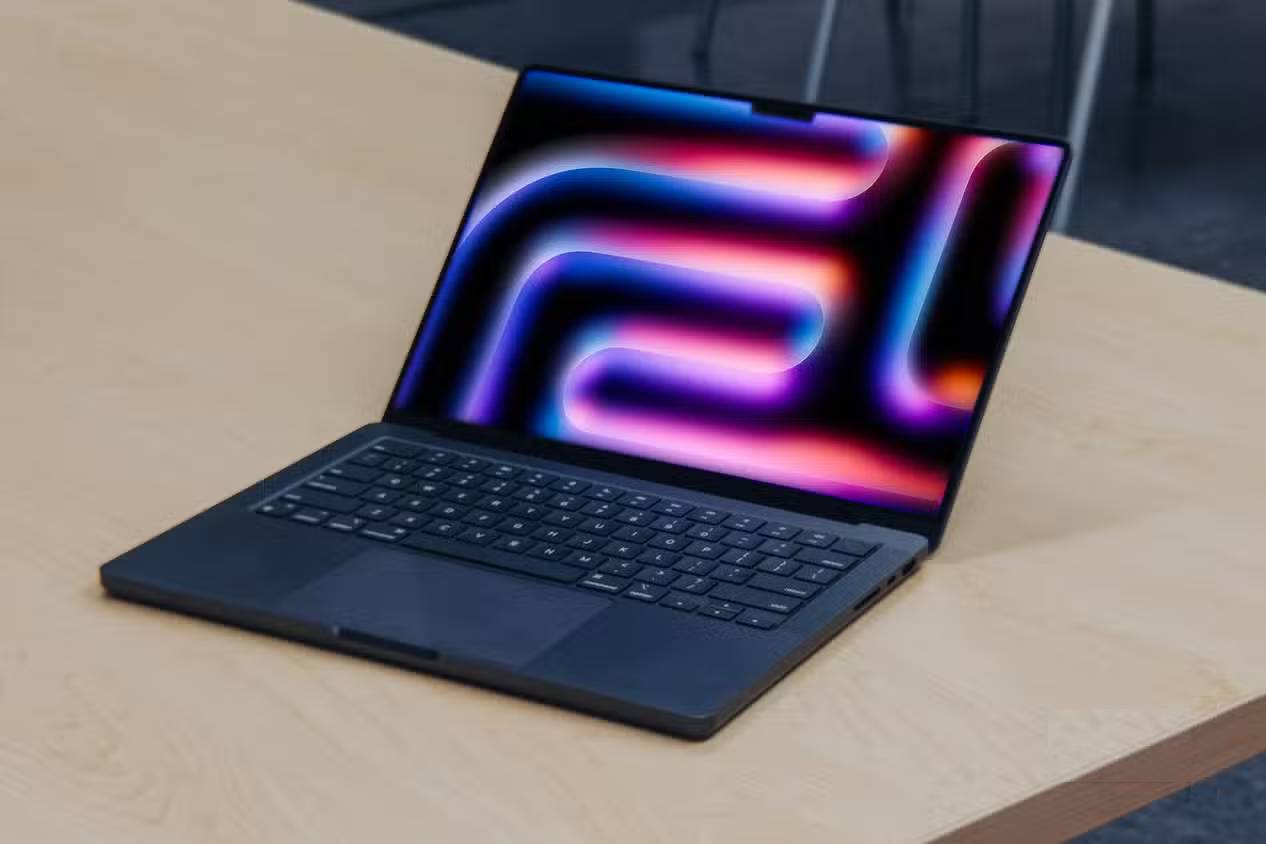
MacBooks can also be convenient travel machines because the hardware, trackpad, display, power management and operating system are designed together. That does not make every Mac the best choice for every user: ports, repairability, upgrade options, software compatibility and price should be compared with the exact PC alternatives you are considering.
Do not assume that creative work belongs only on macOS. Linux has capable open-source tools, and Windows supports many commercial suites. Moving is easiest when your current files, plugins, fonts, codecs and collaboration requirements are compatible—not merely when a replacement app has a similar feature list.
Why the command line feels familiar—and where it differs
Linux and macOS are both Unix-like systems, so concepts such as home directories, permissions, pipes, SSH and shell scripts transfer well. Modern macOS uses Zsh as its default interactive shell, while Linux distributions commonly use Bash or another user-selected shell.
Similar does not mean identical. macOS includes BSD-derived command-line utilities, while many Linux distributions use GNU utilities. Options for commands such as sed, date and stat can differ, paths are not always the same, and package managers are platform-specific. A script that works on one system should be tested on the other.
Give each system a defined role
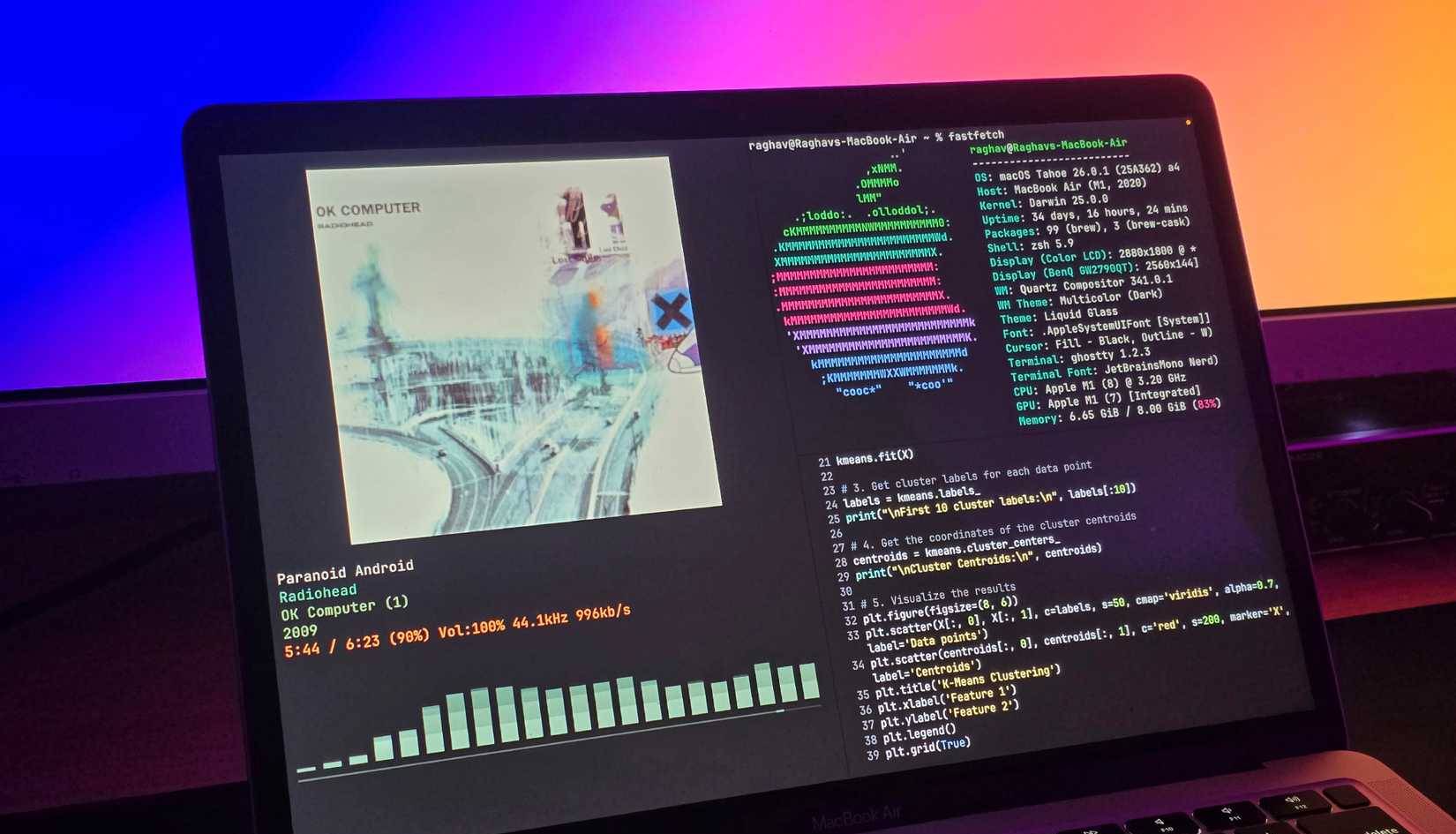
A mixed setup becomes easier to manage when tasks have an obvious home. One workable division is:
| Task | Likely home | Reason to reconsider |
|---|---|---|
| Linux-native development, containers and system experiments | Linux | Your team requires a platform-specific commercial tool |
| Compatible PC games and emulation | Linux | A required game, anti-cheat service or peripheral utility is unsupported |
| Final Cut Pro, Logic Pro or Xcode | macOS | No alternative if the project specifically requires that Apple application |
| Travel, writing and meetings | The laptop with the right battery life, ports and apps | Choose by the actual hardware and workplace requirements, not the OS label |
| Windows-only business software or games | Windows or a tested remote/virtual setup | Do not remove Windows until compatibility is confirmed |
This separation can protect a stable work environment from experiments, but it can also create duplication. Avoid installing and maintaining every application on both machines unless you genuinely use it in both places.
Plan how files and settings move between systems
Use portable formats
Prefer formats both systems can open: PDF for final documents, standard image and media formats, plain text or Markdown for notes, and widely supported office formats when collaboration requires them. For source code, keep line endings and filename case sensitivity in mind.
Choose one source of truth
Store each active project in one authoritative location. A version-control repository suits code; a reputable synchronized folder may suit documents; and network storage can work for large media libraries. Do not edit two offline copies and hope a sync service can reconcile them later.
Handle external drives deliberately
APFS is the normal choice for Mac-only use and common Linux file systems are best for Linux-only use. For a removable drive that must be writable on both platforms, exFAT is broadly compatible, but it lacks many features of native file systems. Keep another backup because a shared portable drive is a transfer method, not a backup strategy.
Keep configuration reproducible
Put shell aliases, editor preferences and small configuration files in a version-controlled dotfiles repository, but do not commit passwords, tokens or machine-specific secrets. Document platform-specific installation steps instead of forcing one script to behave identically everywhere.
Decide whether Windows still has a job
Replacing Windows should come after an application and hardware audit. List the games, work programs, VPN clients, printers, audio interfaces and accessibility tools you rely on. Test each one on the proposed replacement or identify a realistic substitute. A virtual machine may handle light legacy software, but it is not a guaranteed solution for demanding games, specialized hardware or software that restricts virtualization.
If you want to test Linux without giving up Windows, a dual-boot installation is a lower-cost trial than buying a second computer. Back up first, confirm that device encryption and recovery keys are under control, and follow TipsMake's guide to dual-booting Windows and Linux.
A low-risk migration plan
- Inventory requirements: record must-have applications, file formats, peripherals and games.
- Test from a live USB or spare drive: check Wi-Fi, audio, sleep, graphics, external displays and input devices.
- Assign roles: decide which system owns each project and where its authoritative files live.
- Set up backup and recovery: verify that you can restore important data before moving or repartitioning anything.
- Run both workflows for a few weeks: keep Windows available until real work confirms that the replacement is complete.
- Remove only proven duplication: retire an old setup after you have covered edge cases, not on the first successful day.
Linux and macOS complement each other best when they solve specific, different problems. If maintaining two computers costs more time than it saves, a single system—or Windows with Linux through dual boot, a virtual machine or WSL—may be the more efficient answer.
Related Articles
 Why Many People Don't Switch Even Though Everyone Says Linux Is Better Than Windows
 5 Ways to Make Your Switch from Windows to Linux Easier
 5 key differences between macOS and Linux
 Run Windows applications on Linux, macOS and other platforms
 6 reasons why Windows 11 is better than macOS
 Is Linux, Windows or macOS the operating system for you?
Reader Comments 0
Sign in with email or Google to join the discussion.