Table of Contents
Learn how to fix the 'a stop job is running' message during shutdown on Linux with clear steps.
This is a safety feature, not a bug!
The first thing you need to know is that the 'A stop job is running' message is a safety feature built into the system, not an error.
Modern Linux distributions like Ubuntu, Fedora, and Arch use Systemd to manage the boot and shutdown process. When you click Shut Down, Systemd doesn't simply unplug the power cord. It sends a polite signal called SIGTERM to every running service and application. Most applications, upon receiving this signal, will save their data, close files, and safely shut down the computer.
However, some services take longer to complete their tasks and ignore the signal. That's when you see the warning message. This delay often occurs because certain services, such as network managers, containers, user sessions, or drives mounted on the network, need extra time to close the connection or securely save the data.
Many Linux users look for solutions when they see the message 'A Stop Job is Running', assuming something is wrong. The truth is, Systemd developers intentionally designed this behavior. Essentially, it's a timeout period, typically 90 seconds, that Systemd allocates for services to complete their pending tasks. If a service doesn't complete within the configured timeout, Systemd will force-terminate it using SIGKILL and continue the shutdown process.
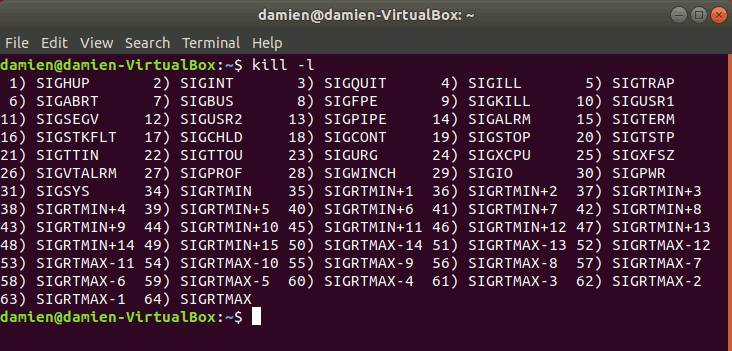
With this gentle shutdown process, many applications complete what they are doing, such as closing files, finalizing database transactions, and cleanly removing the file system. You can still eliminate the waiting time and make the shutdown process faster, but doing so also increases the risk of losing recent logs or transactions, corrupting databases or log files, or leaving mounted drives in an unstable state.
Reduce default waiting time
The default 90-second timeout strikes a balance for many Linux users, especially those with older hardware, as it's long enough for most services to complete their cleanup processes. However, for users of modern laptops or desktops, 90 seconds might feel too long.
Whatever the reason, you can adjust the system configuration file and reduce wait times by instructing systemd to allow incomplete services a specific number of seconds to complete their tasks.
To begin, open the terminal and use your preferred text editor to edit the system configuration file:
sudo nano /etc/systemd/system.conf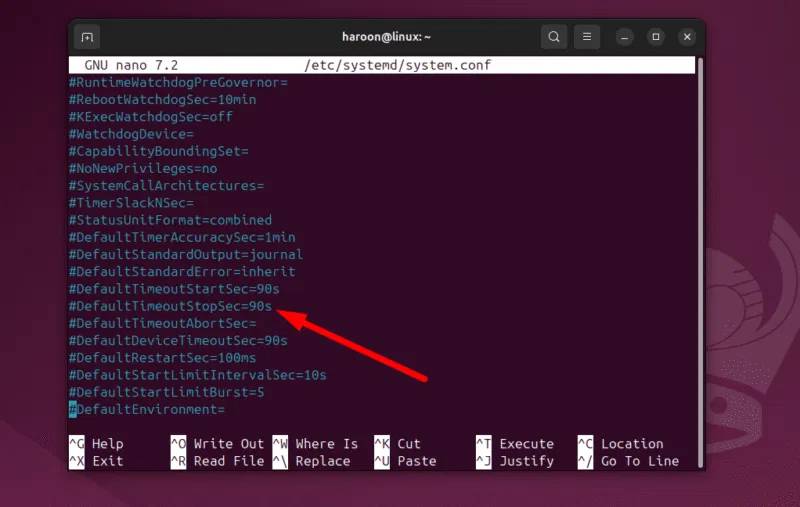
Next, locate the timeout variable. You'll see a lot of text representing the global settings for your system. Look for a line similar to #DefaultTimeoutStopSec=90s . The hash symbol at the beginning of the line means it's commented out or disabled. The system is currently using the internal default value, which is 90 seconds.
To modify the value, first remove the hash symbol to activate the line, then change 90 seconds to a shorter time according to your preference.
Warning : Do not set this value to 0. Setting it to 0 will create an infinite timeout, meaning the system will wait indefinitely until the process stops. This is the opposite of what we want. An average value (20-30 seconds) is reasonable for many users.
Once finished, save and exit the editor. To apply the changes, you will usually need to restart. Because the issue occurred during the shutdown process, you may see an extended timeout. The new seconds limit will take effect after the next restart.
Note : In some cases, you may also need to enable #DefaultDeviceTimeoutSec=90s for it to work.
When might a long waiting time indicate a problem?
In most cases, task stop timeouts are normal behavior. However, sometimes it can indicate an underlying problem, especially if the same service delays shutdown multiple times. This could mean the network hard drive is inaccessible, a background process is misconfigured, or a service isn't responding correctly to shutdown signals.
If you notice the shutdown process taking several minutes instead of seconds, or the same service experiencing a timeout error every time, it's worth investigating. Occasional delays are usually harmless, but persistent delays indicate something needs attention.
To identify the service causing the delay, check the logs after restarting from a slow shutdown process:
journalctl -b -1 -e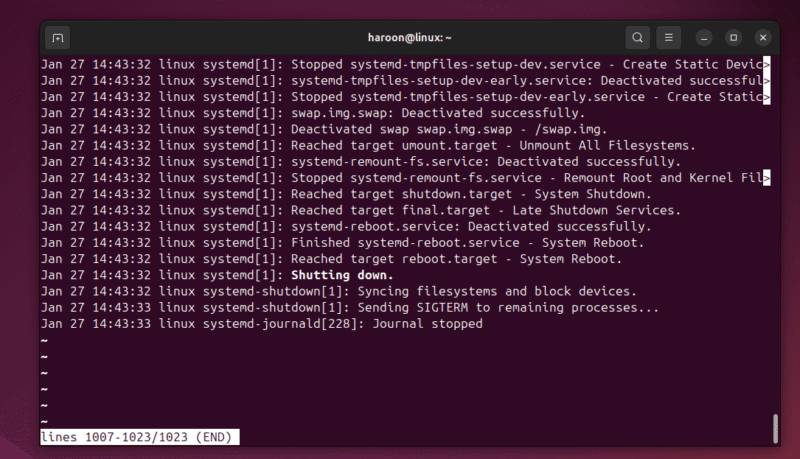
This command displays logs from the previous startup and jumps to the end. You can scroll up to search for warnings, timeout error messages, or services that the system has forced to stop.
Additionally, you can narrow your search by viewing the alert messages:
journalctl -b -1 -p warning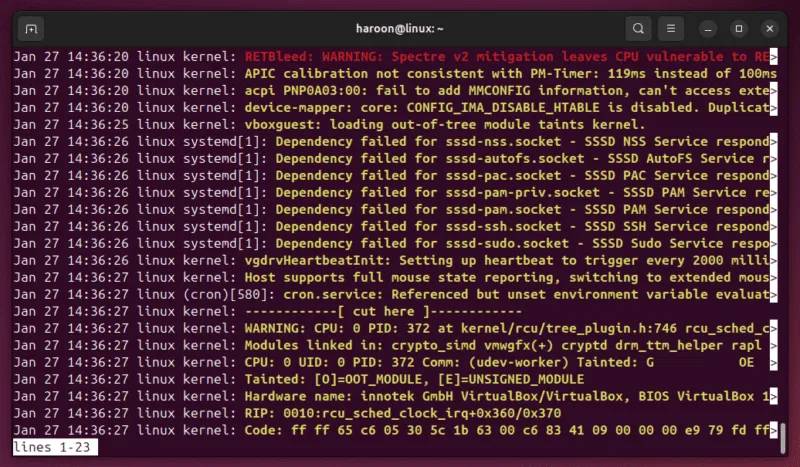
Another useful way to check is to run this Systemd analysis command:
systemd-analyze blameAlthough this command focuses on startup time, services that start slowly often exhibit similar behavior during shutdown. Some other common services that tend to cause task stop messages include:
- Network services
- Remote file systems such as NFS or SMB
- Database server
- Container and virtual machine manager
- External hard drives and devices that automatically mount
Network-based mounts are particularly susceptible to delays if the connection is unstable or unavailable. Additionally, reducing shutdown timeouts might make the shutdown process seem faster, but it doesn't address the root cause. If a service is consistently slowing down the shutdown process, resolving the underlying issue will yield better results in the long run.
Final Thoughts
Use this guide as a practical checklist for how to fix the 'a stop job is running' message during shutdown on linux. Work through the steps in order, verify each result, and adjust the options to match your needs.
FAQ
What do you need before following this How to Fix the 'a Stop Job Is Running' Message During Shutdown on Linux guide?
Review the required tools, accounts, settings, or materials mentioned in the article. Learn how to fix the 'a stop job is running' message during shutdown on Linux with clear steps.
What are the main steps for how to fix the 'a stop job is running' message during shutdown on linux?
Follow the sections in order, especially This is a safety feature, not a bug!, Reduce default waiting time, When might a long waiting time indicate a problem?. Complete each step before continuing and verify the result as you go.
What should you do if the process does not work as expected?
Recheck the prerequisites, update the relevant app or service, review the settings, and repeat the step that caused the issue. Use any troubleshooting notes included in the guide.
Related Articles
 Fix 'This App Is Preventing Shutdown' Error on Windows 104 minutes read
 How to Check the Time of Shutdown and Reboot in Linux5 minutes read
 How to Check All Services Running in Linux6 minutes read
 How to Add Shutdown to the Right-click Menu on Windows 104 minutes read
 PC Shutdown Timer: Simple and Easy Ways to Schedule PC Shutdown8 minutes read
 Shorten the Process of Turning Off the Computer8 minutes read
Reader Comments 0
Sign in with email or Google to join the discussion.