Table of Contents
This guide organizes the entries in "9 Old Windows Tools That Are Still Useful Today" and explains what each option, idea, or example offers. It also highlights practical details that matter when comparing the choices.
9. Disk Cleanup
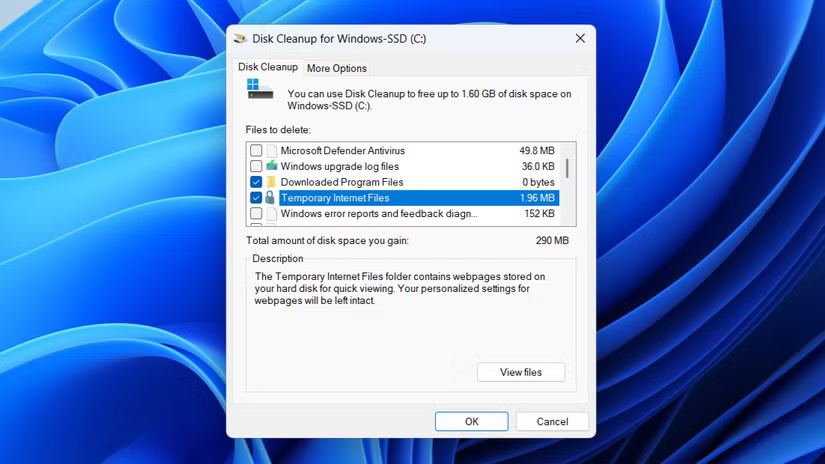
Windows 11 lets you delete temporary files from the Settings app. You can even turn on Storage Sense to automate cleanup tasks and never run out of storage space. Still, Disk Cleanup is a useful tool for those who prefer a simple, clean interface.
8. File History
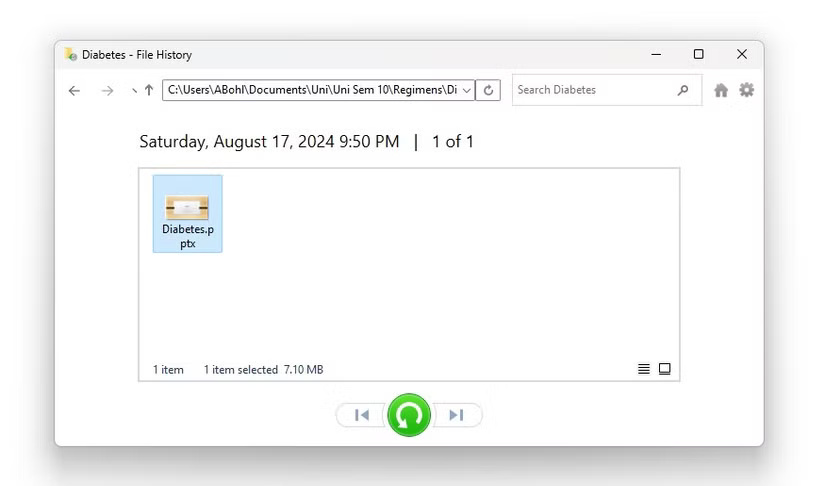
There are plenty of ways to back up data on your Windows PC, but if you don't need full system images or cloud storage, File History offers a simpler solution. It automatically saves copies of files from important locations—like your libraries, desktop, contacts, and favorites—to an external hard drive or network location.
If you accidentally delete a file or overwrite an important file, you can easily restore a previous version with File History.
7. Quick Assist
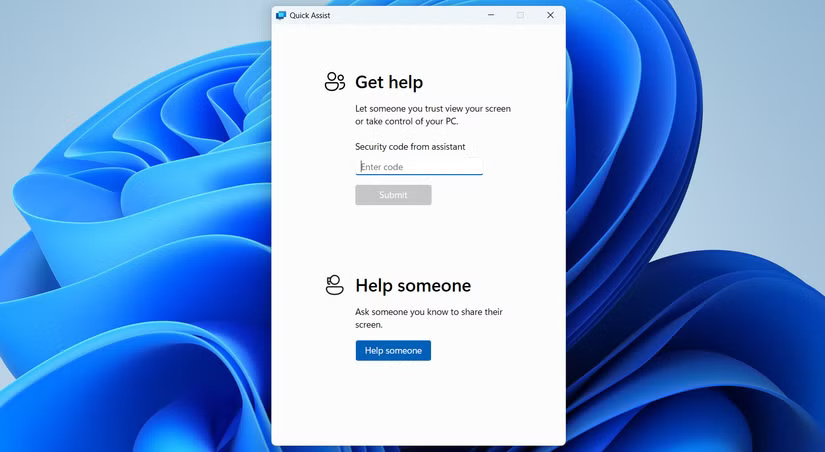
Quick Assist is a tool you may not need every day, but when you do, you'll be glad it's built in. Easy to use: When a friend, family member, or co-worker needs help with their computer, you can use Quick Assist to easily connect to their Windows device and provide direct support.
6. Character Map
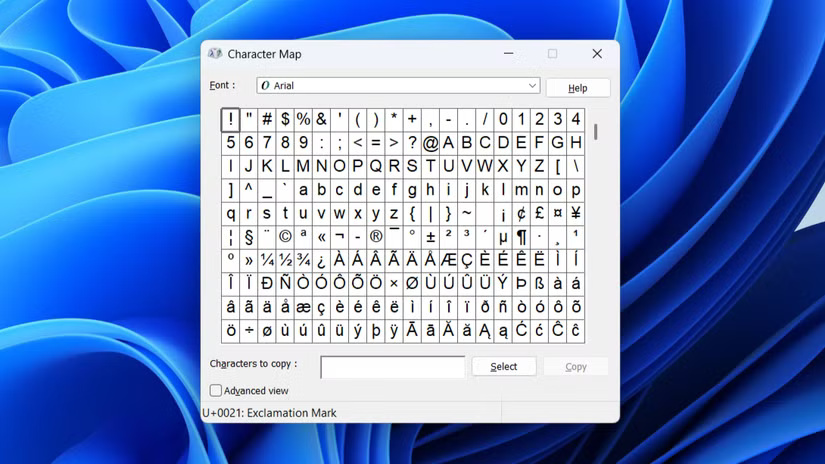
Your keyboard probably has all the basic letters, numbers, and some symbols. But what about those special characters you occasionally need, like ©, ™, or œ? If you're lucky, the app or website you're using may include a tool that lets you insert them. But if not, you can use the Character Map to find exactly what you need.
If you don't want to open the Character Map every time, you can use the Windows Alt key to insert special characters even faster.
5. Resource Monitor
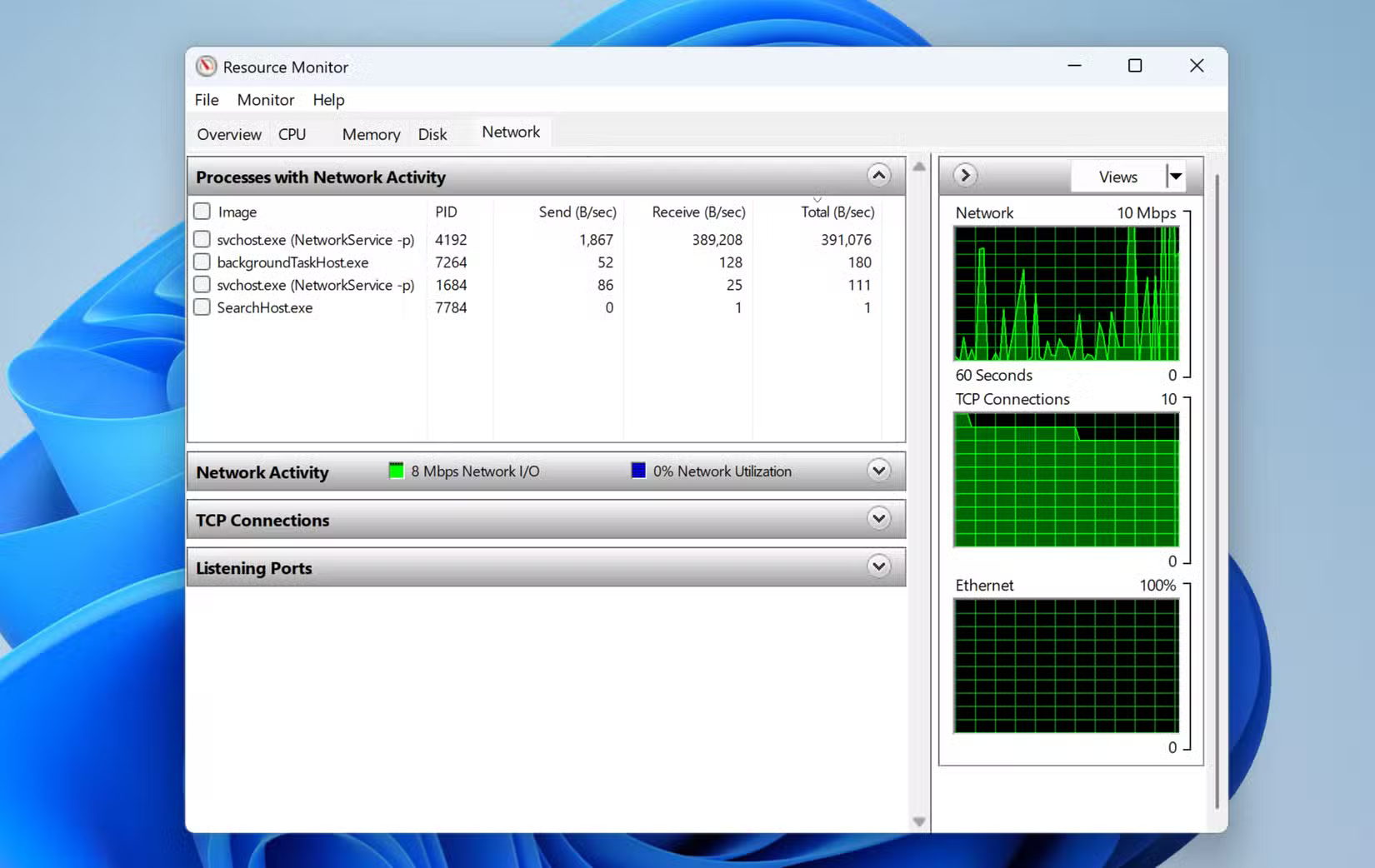
If your computer starts slowing down for no apparent reason, Resource Monitor is the tool to turn to. While Task Manager gives you a quick overview, Resource Monitor goes much deeper and lets you monitor system usage in real time.
4. Windows Reliability Monitor
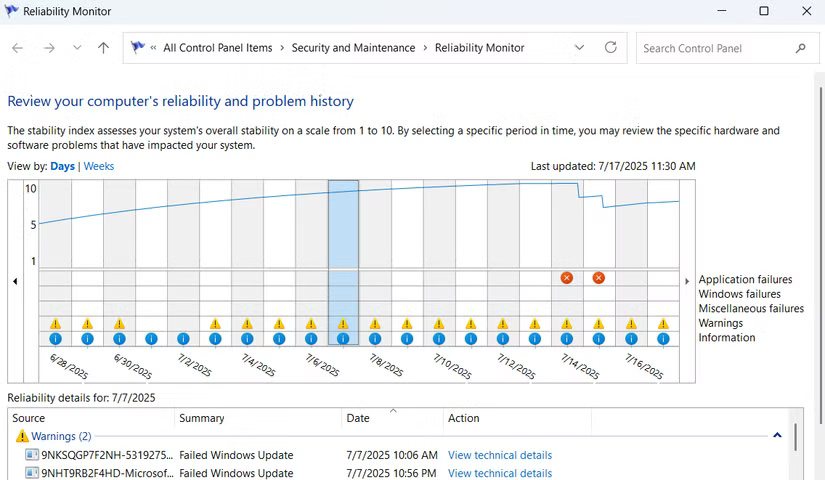
Reliability Monitor may not be as well known as Task Manager or Performance Monitor, but it's incredibly useful. If you want a quick report on the health of your computer, this is the tool to use.
Additionally, each day is marked on the graph with a stability index from 1 to 10, giving you a quick idea of how smoothly your computer is running.
3. Photos Legacy
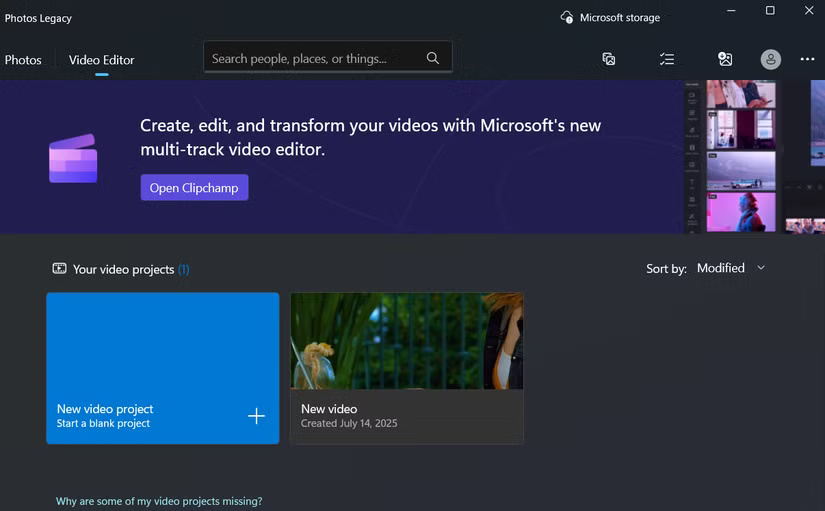
The new Photos app in Windows 11 comes with some impressive features, like OCR text recognition, iCloud syncing, and even AI-powered tools like data erasure. However, Microsoft has kept the old Photos app intact, and there are a few good reasons to use it.
Note : Unlike the other tools on this list, Photos Legacy doesn't come pre-installed on Windows 11. To use it, you'll need to download it from the settings menu in the new Photos app (under Photos Legacy) or directly from the Microsoft Store.
2. Windows Media Player Legacy
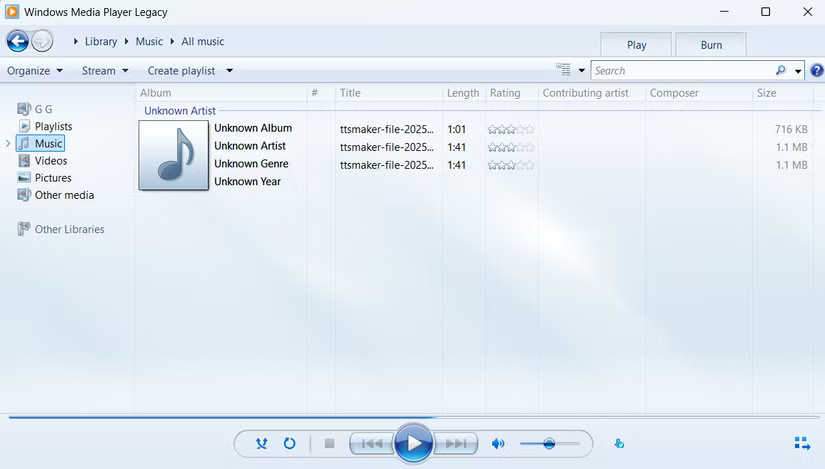
Before Spotify playlists and YouTube streams took over, Windows Media Player was the way to enjoy music and videos on your PC. And while Microsoft introduced a sleeker, more modern Media Player in Windows 11, the classic Windows Media Player Legacy is still around.
1. Control Panel
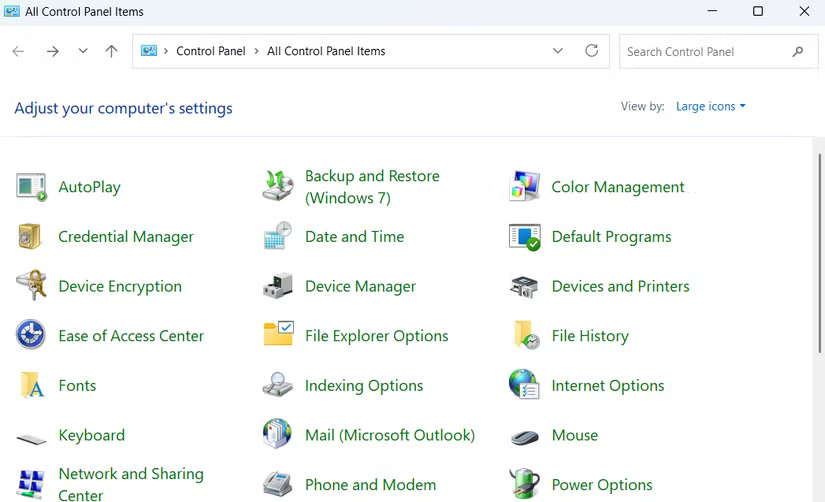
If there's one old tool that Windows users still love, it's the Control Panel. Sure, the Settings app now includes most of the essential features, but it's still not a complete replacement.
One reason people continue to use the Control Panel is its simplicity. While the Settings app has a modern interface, you often find yourself digging through menus just to adjust something simple, like changing your network adapter settings or adjusting your audio device.
FAQ
What should you know about 9. Disk Cleanup?
Windows 11 lets you delete temporary files from the Settings app. You can even turn on Storage Sense to automate cleanup tasks and never run out of storage space. Still, Disk Cleanup is a useful tool for those who prefer a simple, clean interface.
What should you know about 8. File History?
There are plenty of ways to back up data on your Windows PC, but if you don't need full system images or cloud storage, File History offers a simpler solution. It automatically saves copies of files from important locations—like your libraries, desktop, contacts, and favorites—to an external hard drive or network location.
What should you know about 7. Quick Assist?
Quick Assist is a tool you may not need every day, but when you do, you'll be glad it's built in. Easy to use: When a friend, family member, or co-worker needs help with their computer, you can use Quick Assist to easily connect to their Windows device and provide direct support.
What should you know about 6. Character Map?
Your keyboard probably has all the basic letters, numbers, and some symbols. But what about those special characters you occasionally need, like ©, ™, or œ? If you're lucky, the app or website you're using may include a tool that lets you insert them. But if not, you can use the Character Map to find exactly what you need.
Related Articles
 Top AI Chatbots Popular Worldwide Today6 minutes read
 5 Most Useful Windows Tools for Gamers6 minutes read
 Windows 11's Built-in Security Tools Can't Protect You6 minutes read
 5 Ways to Access Windows Tools in Windows 11: Explained4 minutes read
 8 Portable Windows Tools You Should Have on Your USB to Use Anywhere7 minutes read
 6 Must-Have Productivity Tools for Windows7 minutes read
Reader Comments 0
Sign in with email or Google to join the discussion.