Table of Contents
Windows is packed with features. Even if you've been using the platform for years, you may have missed out on its little-known tricks. How many of these hidden features did you know about?
8. Task Scheduler
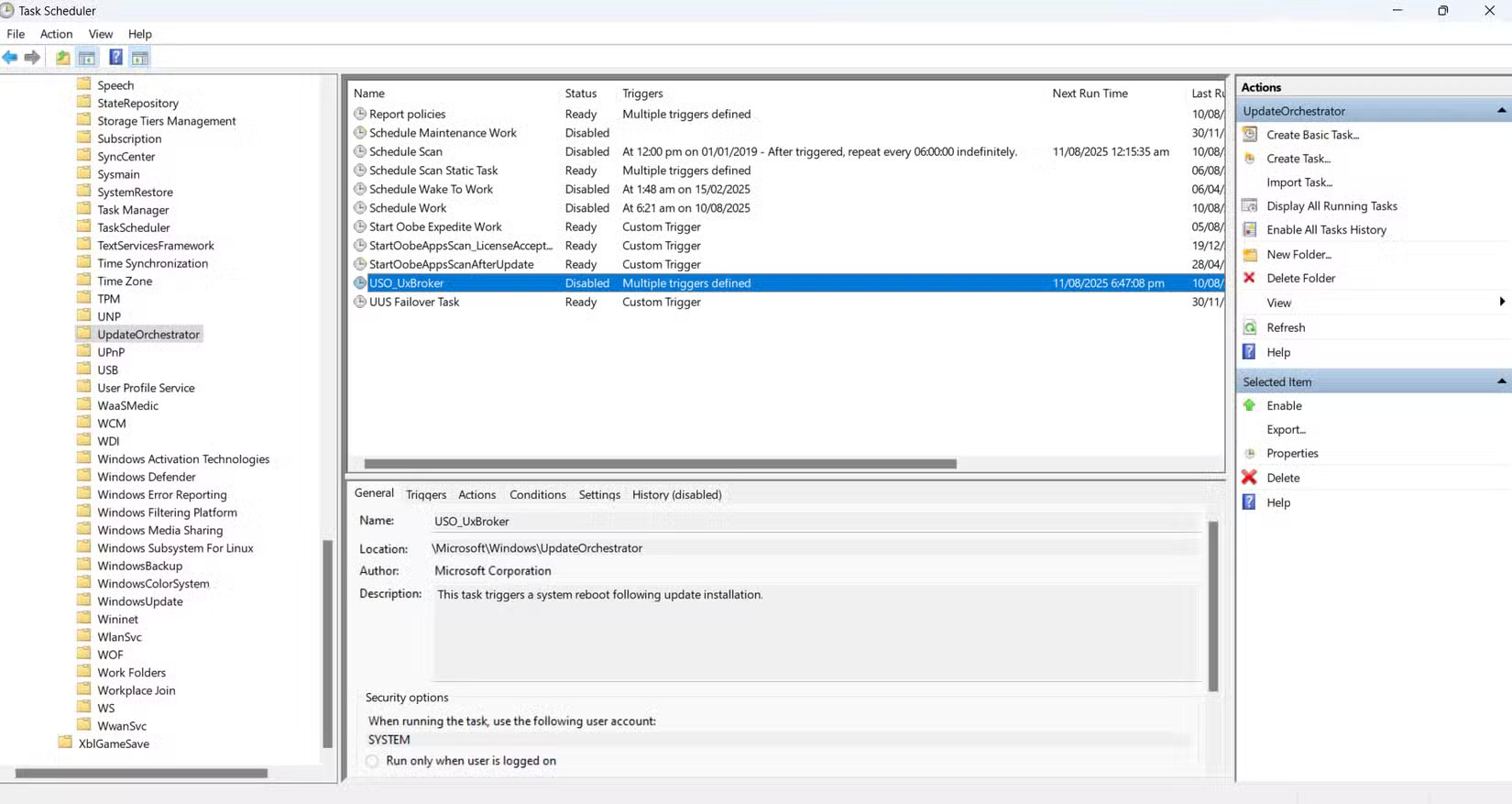
As the name suggests, Task Scheduler lets you schedule specific actions to run at a future time, including recurring tasks. While it takes a while to get started, it offers a lot of possibilities. For example, you can schedule all your work apps to open when you log in or run a script to clean up junk files every week.
To get started, type task scheduler into the Start menu to search for it. Like other Windows tools, it uses a system of folders on the left, activities in the middle, and options on the right. You can see some of the scripts already present, created by various apps on your PC (plus many built-in to Microsoft > Windows ).
7. Quick Assist
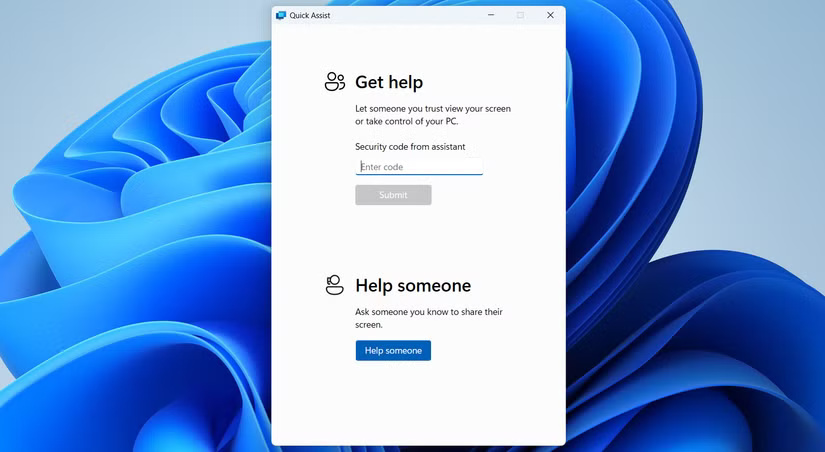
People have been using TeamViewer to help friends and family with PC problems for years, but then they realized Windows has a built-in tool for this purpose. Quick Assist lets you connect to someone else's PC to see what's on their screen and remotely control it if needed.
To try Quick Assist, search for it in the Start menu. In the resulting window, select Help someone if you're the helper and you'll get a code to share with them. There's an option to provide instructions that you can read to the other person, which is helpful because you can see their screen. Many people have had trouble talking loved ones through the steps to install TeamViewer over the phone, so this is appreciated.
6. Dynamic Lock
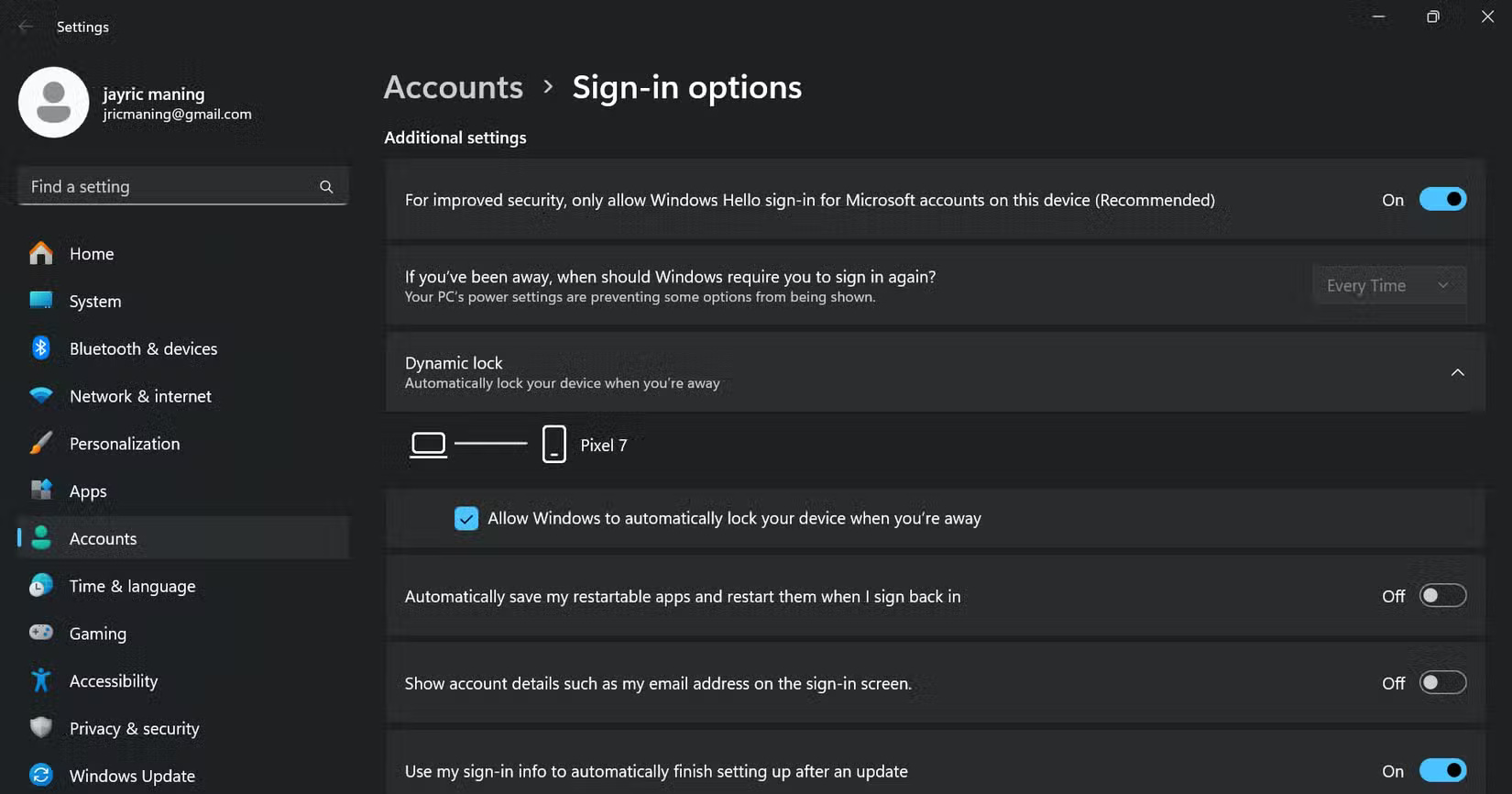
Windows has added more features with smartphones in mind, Dynamic Lock is a great example. With this tool, Windows will automatically lock your PC when the Bluetooth signal between your phone and your computer becomes weak. It reduces the chance of someone accessing your computer if you walk away and forget to lock it.
Go to Settings > Accounts > Sign-in options and under Dynamic Lock , check the box to let Windows automatically lock your device when you're away. If you've paired your phone with Windows, you'll need to go to Bluetooth & devices and do the same.
Phone linking has many benefits, so it's well worth setting up.
5. Built-in screen recording feature
There's no need to install complicated tools when you want to record your screen to illustrate a process or problem. Instead, press Win + Shift + S to open the built-in Snipping Tool. While you may already use this for screenshots, it also includes a simple screen recorder (and more).
Click the video icon in the top bar, drag to select the area you want to record, then toggle the other two icons to toggle your microphone and system sounds as desired. When you're done, the video will open in a screenshot-like editor. You can trim the video, copy it, turn it into a GIF, or move it to Clipchamp for more in-depth editing.
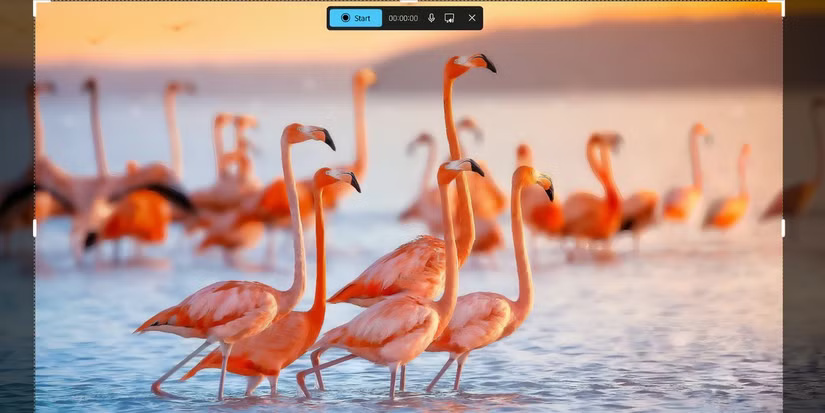
You will find all recordings created with this tool under [Your Username] > Videos > Screen Recordings .
4. Windows Sandbox
One of Windows' best-kept secrets is a virtual machine that lets you open anything in a safe environment. If you want to test changes without breaking your system or running a suspicious-looking file, Windows Sandbox lets you create a one-time virtual copy of Windows without affecting your actual PC.
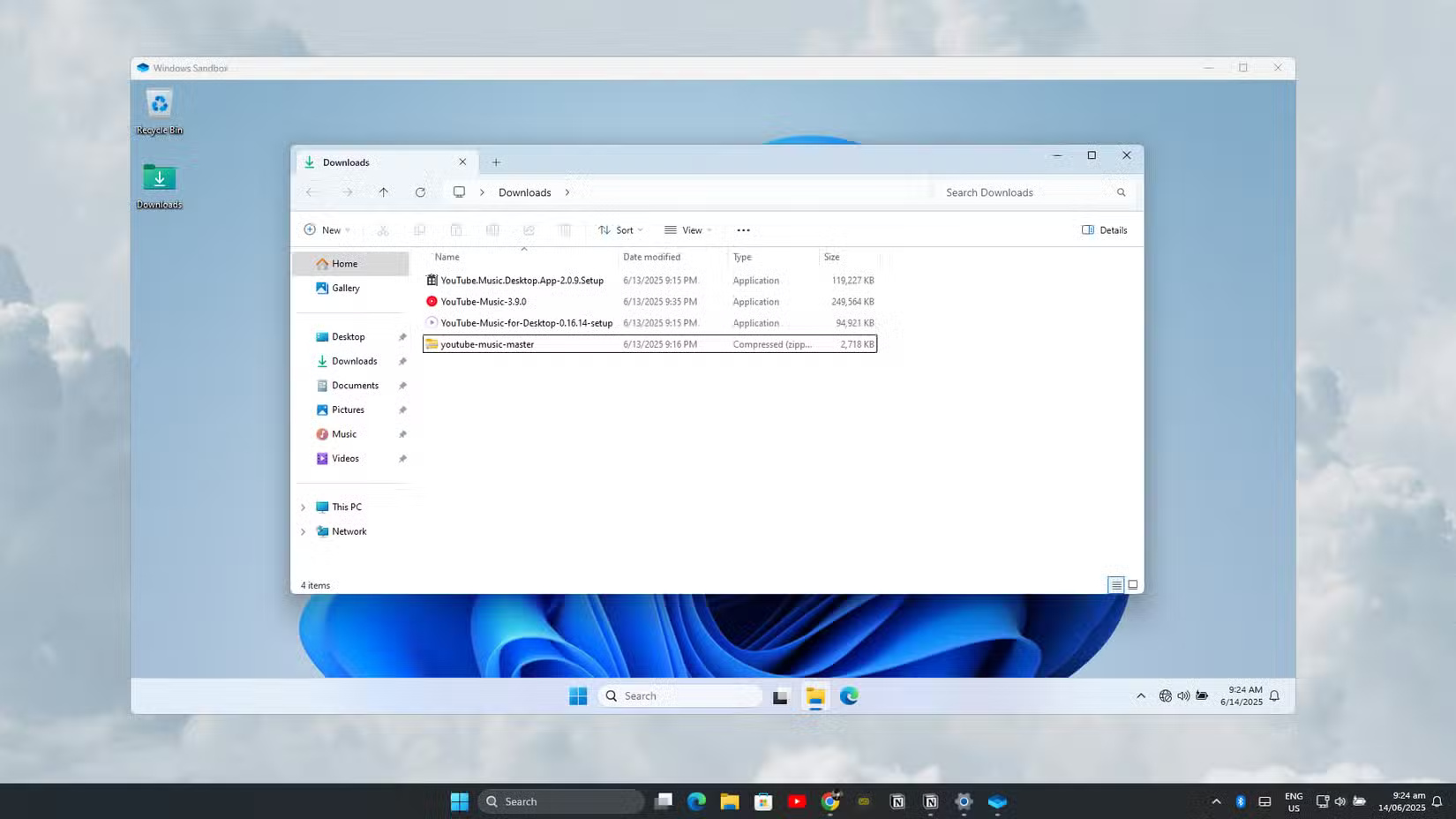
A complete overview of Windows Sandbox will show you everything about this useful tool for repair and security.
3. File Explorer checkboxes
If you find yourself selecting multiple items in File Explorer and are tired of holding down the CTRL or Shift keys to facilitate this, Windows offers a useful trick. Open File Explorer, click View , then select Show > Item check boxes .
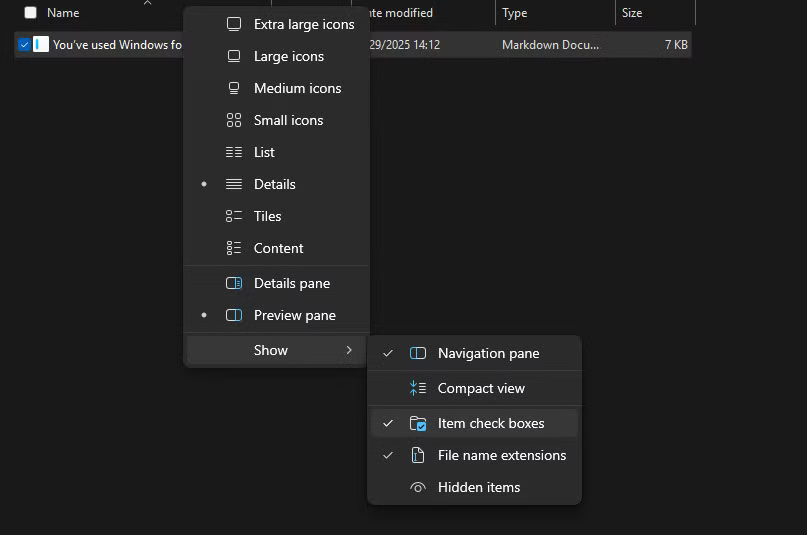
Then, every item in File Explorer will have checkboxes that you can use to easily select multiple items. The best Windows keyboard shortcuts, like Ctrl + A to select everything in a folder, are usually faster. But this gives you another option for selecting the files you need.
2. Live captioning
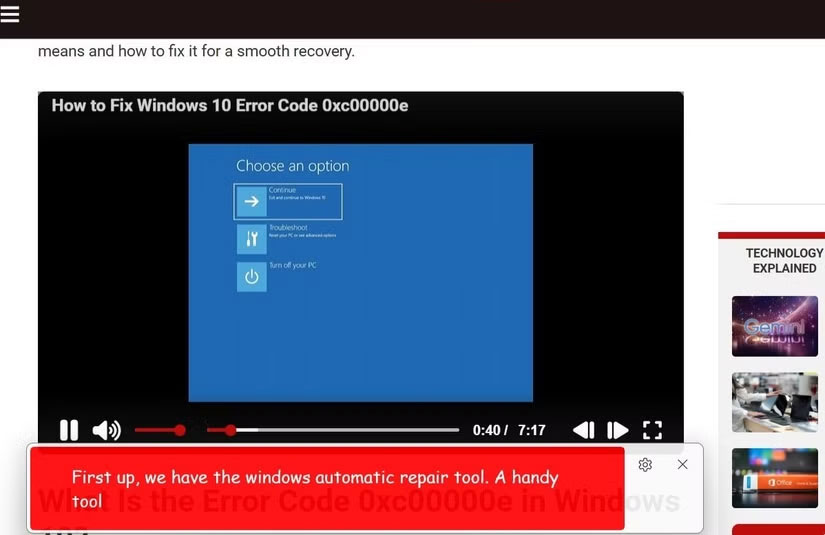
Many video platforms have built-in automatic captions, as do tools like Google Meet. But if you come across somewhere that doesn't offer them, or want a more consistent option, live captions in Windows are a great option.
Go to Settings > Accessibility > Captions , turn the feature on, then use Win + Ctrl + L to toggle captions whenever you want.
1. Emoji menu
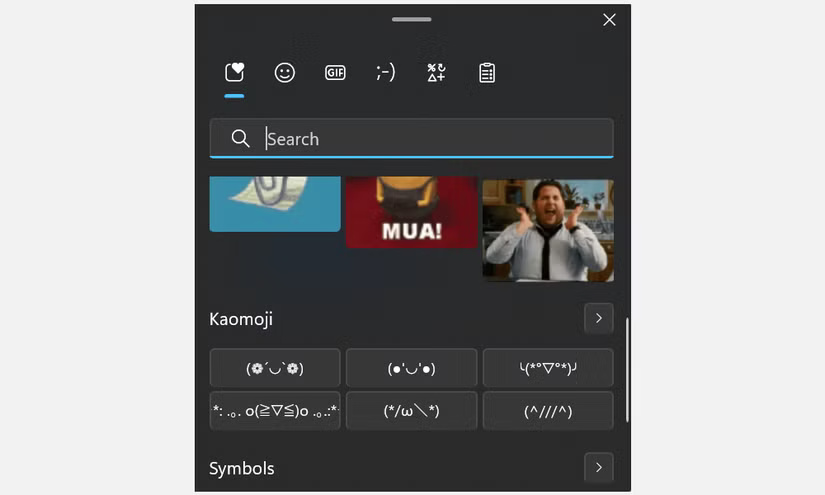
If you're an emoji fan, Windows makes it easy to keep them at hand. Just hit Win + period to open a menu with emojis, GIFs, emoticons, and more. There's a search bar to find the perfect emoji at the moment, so you don't have to feel lost when you're not typing on your phone.
Tip : Make sure you don't use popular emojis the wrong way!
Final Thoughts
The development covered in this article is worth following, but specifications, dates, and feature details may change until the relevant company or organization publishes an official confirmation.
FAQ
What is the main development covered in this article?
Windows is packed with features. Even if you've been using the platform for years, you may have missed out on its little-known tricks. How many of these hidden features did you know about?
What should you know about 8. Task Scheduler?
As the name suggests, Task Scheduler lets you schedule specific actions to run at a future time, including recurring tasks. While it takes a while to get started, it offers a lot of possibilities.
Is every reported detail officially confirmed?
Not necessarily. Product leaks, preview builds, research reports, and early announcements can change. Confirm important specifications, dates, and availability through an official source before making a decision.
Related Articles
 5 'Legendary' Features from Windows 95 Still Exist After Nearly 30 Years: Expert5 minutes read
 8 New Features Users Want to See in Windows 127 minutes read
 Factors That Make Windows 3.0 - the Supported Operating Systems Just 308 minutes read
 10 Features Apple Imitates from Windows7 minutes read
 Windows 10 Is 3 Years Old, Since Then, How Many Changes Have Been Made?8 minutes read
 Windows Revolution and Breakthrough Changes Through Each Version10 minutes read
Reader Comments 0
Sign in with email or Google to join the discussion.