Table of Contents
A messy Excel spreadsheet can be a nightmare — extra whitespace, inconsistent formatting, text all over the place. But with the right functions, you can clean it up in seconds and make your data actually useful.
5. TRIM function
Extra spaces in your spreadsheet can cause two seemingly identical entries to look different, mess up data validation, and even mess up your formulas. Luckily, the TRIM function solves all of that by removing all extra spaces from text (except single spaces between words). This is useful for rearranging names, addresses, etc., especially in spreadsheets you import from other sources.
Suppose cell A1 contains Alice, with extra spaces everywhere. Using the TRIM function will return Alice without the spaces.
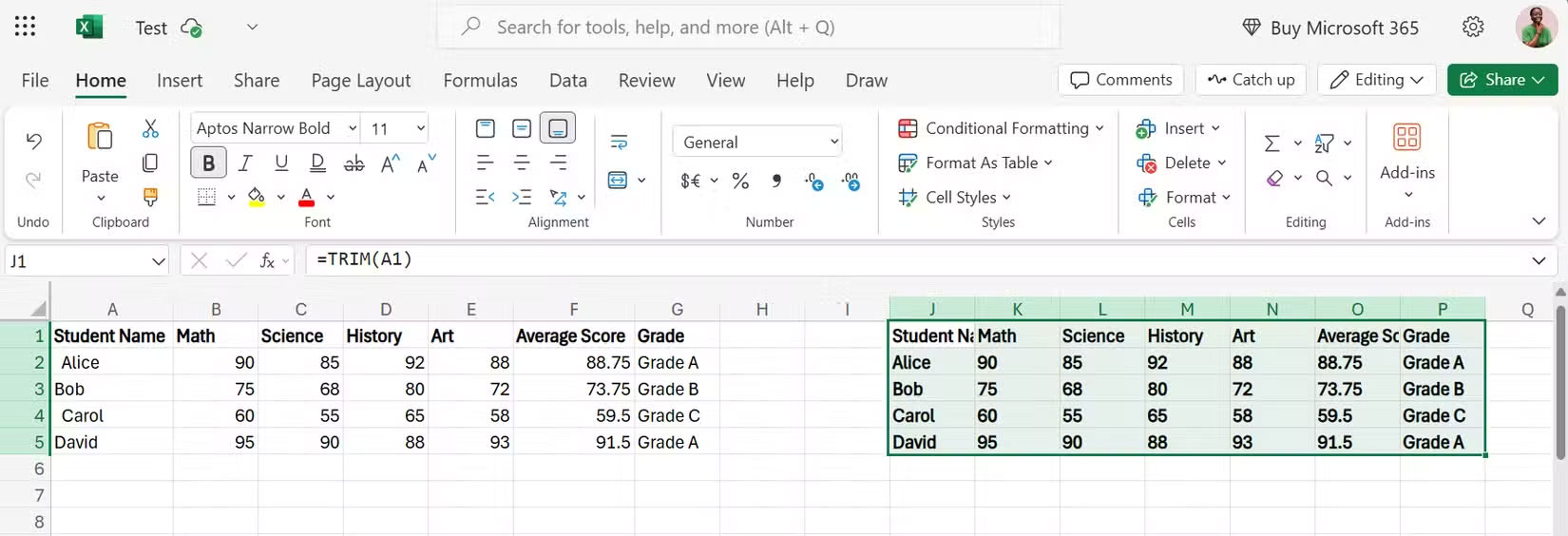
Instead of referencing a single cell and expanding the formula, you can also refer to all the data at once. For example, you can use the following formula to remove all extra spaces.
=TRIM(A1:G5)4. IFERROR function
IFERROR represents something more straightforward and less intimidating. It works with Office 2019 and Microsoft 365 subscription plans, so it is widely accessible. This function evaluates a formula and returns a specified value if the formula produces an error.
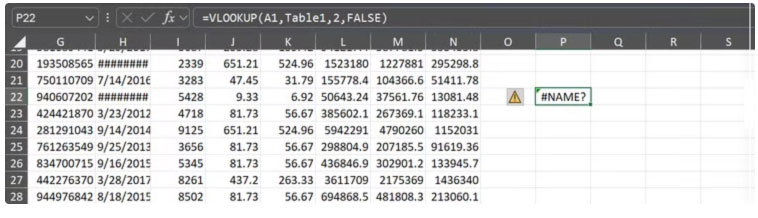
For instance, instead of using a formula that returns #NAME? when no match is found, like below:
=VLOOKUP(A1,Table1,2,FALSE)You can use the following formula to return a custom message:
=IFERROR(VLOOKUP(A1,Table1,2,FALSE),"Not Found")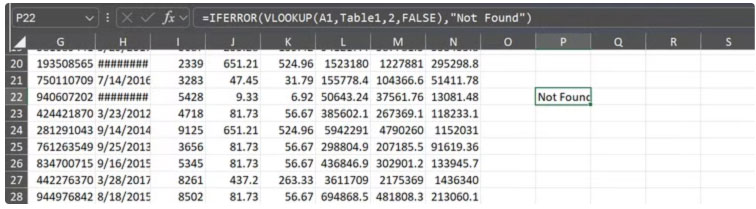
3. CLEAN function
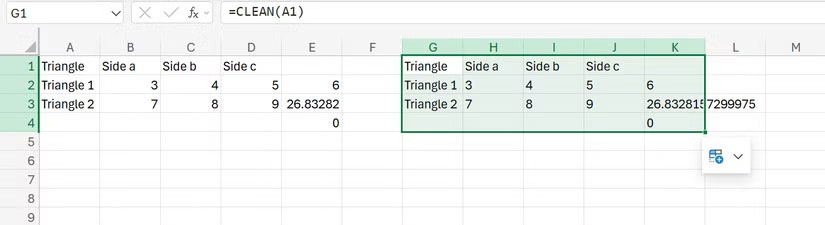
When you import data from PDFs, websites, and legacy systems, or even convert PDFs into Excel spreadsheets, you often carry over some invisible characters. Things like line breaks and hidden symbols, which you can't see, can stick around and ruin your formulas.
The CLEAN function removes all non-printing characters from text, leaving a more predictable and easier to use version for formulas.
You can also combine the CLEAN function with the TRIM function. Many Excel pros use this function as a shortcut for inputting data:
=TRIM(CLEAN(text))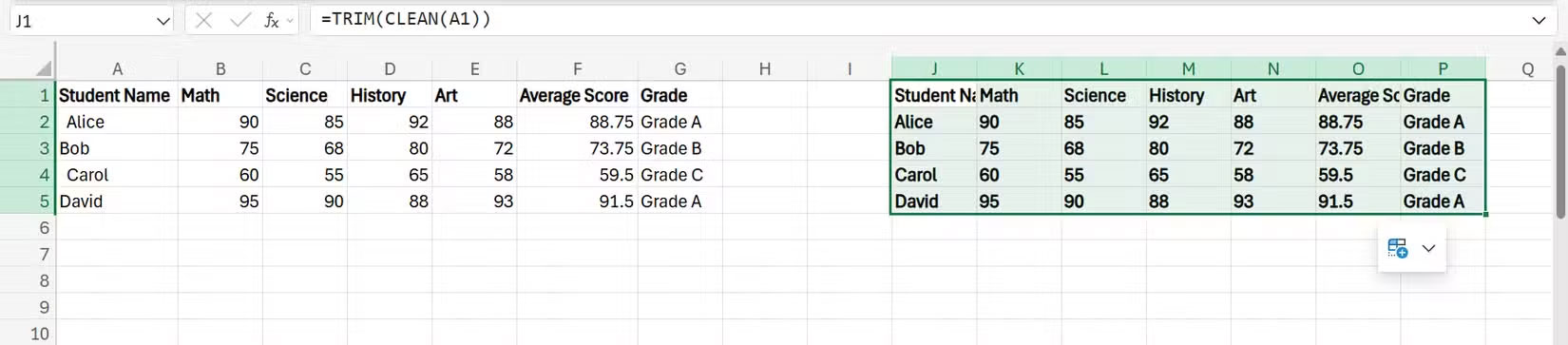
2. TEXTSPLIT function
TEXTSPLIT, available in Excel 365 and Excel 2021, works similarly to the Text-to-Columns wizard, but in formula form, and is useful if you're working with concatenated data. This function can split text into columns or rows using delimiters you specify.
If cell A1 contains Ada, Uche, ada.uche@email.com , then using the formula below can split the text into 3 separate columns: Ada, Uche and ada.uche@email.com .
=TEXTSPLIT(A1,",")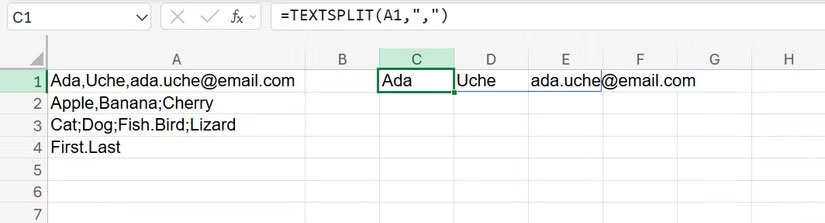
You can even split by row or column and handle multiple delimiters. For example, if cell A2 contains Apple , Banana ; Cherry , use the formula below:
=TEXTSPLIT(A1, {",", ";"})This formula will split the text into Apple, Banana and Cherry.
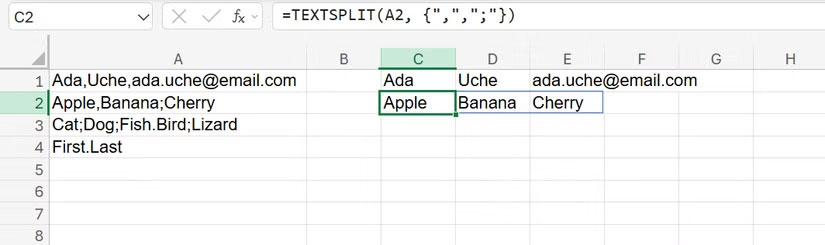
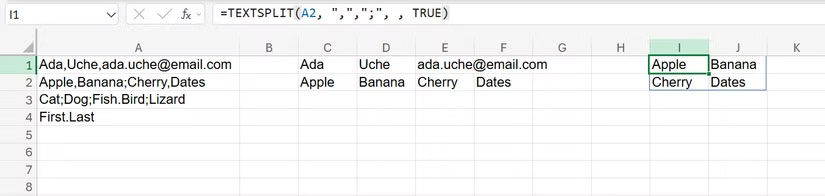
By default, TEXTSPLIT will fill these values into columns. If you want them to be split into separate rows, set the fourth argument, which defaults to FALSE or is omitted, to TRUE:
=TEXTSPLIT(A2, ",",";", , TRUE)The result will be Apple in cell I1, Banana in cell J1, Cherry in cell I2 and Dates in cell J2.
1. TEXTJOIN function
After splitting, you may want to join the pieces together. TEXTJOIN helps you merge multiple text strings with optional delimiters and even allows you to ignore spaces.
Suppose you have first name in column A, middle name in column B (some blank cells), and last name in column C. You can use the following formula to create full name without extra spaces from blank middle name cells.
=TEXTJOIN(" ",TRUE,A1,B1,C1)You will get full name like Cardi B or Mary Jane Watson after applying the formula.
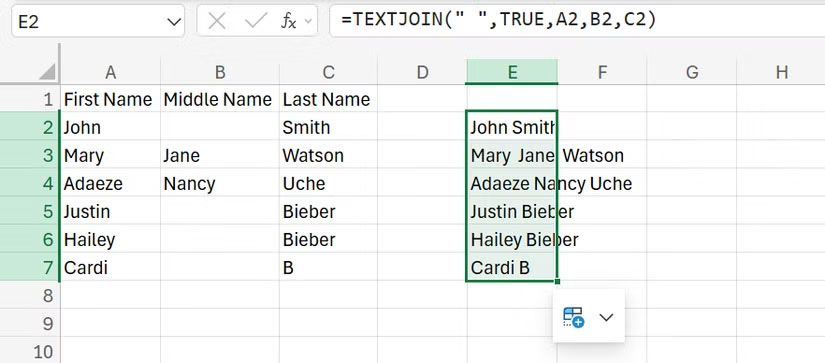
The TRUE argument tells Excel to ignore blank cells, so you won't get unsightly spaces or dangling commas.
Final Thoughts
Overall, 5 Functions to Instantly Clean up Messy Excel Spreadsheets is best understood by considering the main facts, practical context, and limitations together. Use the details above as a clear starting point and confirm time-sensitive information when necessary.
FAQ
What does this article explain about 5 Functions to Instantly Clean up Messy Excel Spreadsheets?
A messy Excel spreadsheet can be a nightmare — extra whitespace, inconsistent formatting, text all over the place. But with the right functions, you can clean it up in seconds and make your data actually useful.
What should you know about 5. TRIM function?
Extra spaces in your spreadsheet can cause two seemingly identical entries to look different, mess up data validation, and even mess up your formulas.
Should time-sensitive details be verified?
Yes. Software features, game codes, product specifications, prices, and research findings can change. Confirm important details with an official or primary source when accuracy affects your decision.
Related Articles
 How to Cleaning up Excel Data Tables5 minutes read
 How to Learn About Focus Cell: a Hidden Excel Setting That Makes Spreadsheets Instantly Easier to Read10 minutes read
 Summary of Information Functions in Excel4 minutes read
 5 Tips to Turn Messy Excel Data into Beautiful Results in Just Minutes8 minutes read
 Tips for Working with Functions in Excel5 minutes read
 Basic Functions in Excel, Calculation Formulas and Illustrative12 minutes read
Reader Comments 0
Sign in with email or Google to join the discussion.