Table of Contents
What started out as a simple cleanup eventually showed how small changes can easily upset the balance that keeps Windows stable.
Windows 11 comes with built-in background apps and services that many consider bloatware. Many people want to see if removing them will actually make their computer faster and cleaner, as countless posts online have claimed.
Some features that seemed optional turned out to be tied to important parts of Windows. Updates stopped installing smoothly, the Microsoft Store became unreliable, and system behavior became unpredictable. What started as a simple cleanup eventually showed how small changes can easily upset the balance that keeps Windows stable.
App distribution and Microsoft Store issues
Removing unnecessary applications takes away important tools.
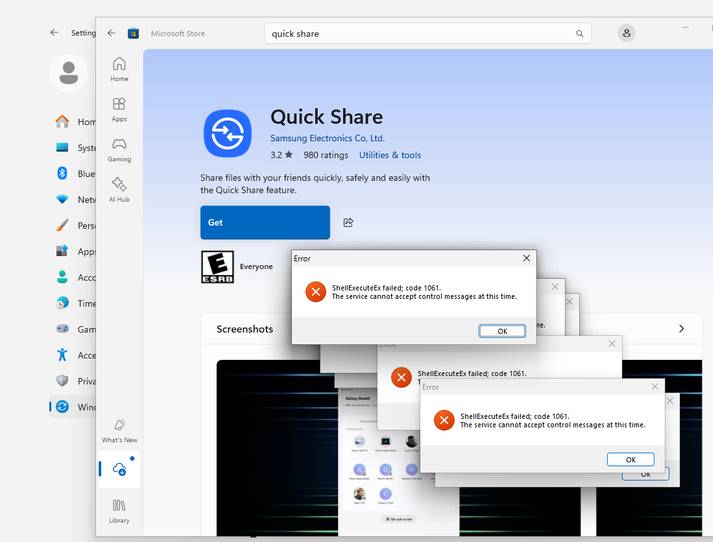
The first and most obvious problem was with the Microsoft Store. Immediately after removing the bloatware, the Store opened, but downloading new apps failed. After a few reboots, the window would either go blank or refuse to launch. A check of the system settings revealed that some of the background components the Store relies on were disabled. These services handle sign-in, licensing, and app deployment.
With these disabled, the Store initially looks fine, but you can't install or update any apps. The Store glitch also affects built-in apps you've previously uninstalled. I deleted Photos and a few other default apps, only to find that I couldn't get them back cleanly.
Windows Updates stopped working as expected
Speed comes at the cost of updates
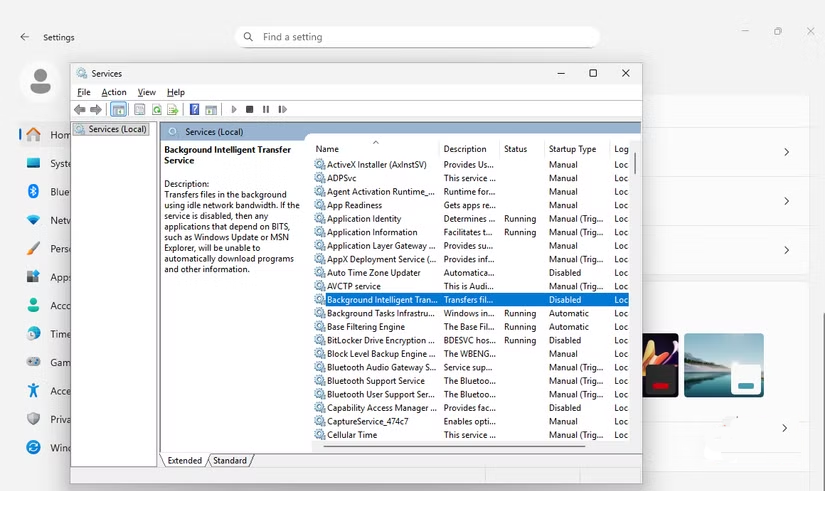
Another issue you'll encounter is with Windows Update. After running the bloatware removal tool, cumulative and feature updates stopped installing properly. Some downloads failed mid-way through, while others completed but then rolled back after a reboot. A check of Windows services revealed that components required for updates were disabled or removed.
Because some parts of the update pipeline are missing, Windows cannot reliably verify, extract, or apply new builds. Modern Windows relies on frequent monthly updates and can reintroduce core components to maintain system consistency. In fact, aggressive bloatware removal can be detrimental to this update model.
Unstable system and weaker protection
Speed increases, but confidence is lost
In addition to the faulty update, the problem spread to the rest of Windows. Small issues turned into unexpected glitches. Taskbar icons sometimes disappeared for a moment, File Explorer occasionally closed and restarted, and the Start menu repeatedly opened to a blank slate. This could be a sign that shell dependencies were being cut off, leaving one missing part causing the others to lose their rhythm.
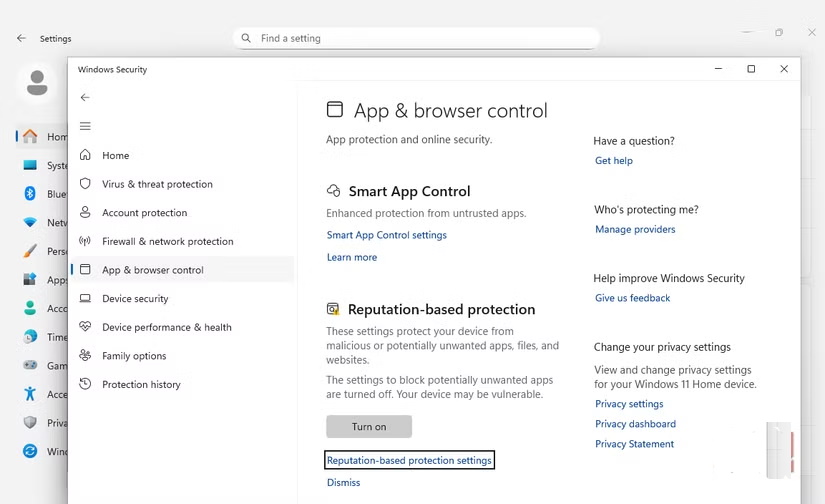
Security changes have been more subtle. SmartScreen prompts don't always appear when new downloads are available. Windows Security sometimes loads incompletely after a cold boot. Disabling telemetry or diagnostic services reduces background activity, but it also removes the signals that help Windows detect threats, validate integrity, and cleanly restore the system in the event of a crash.
On modern hardware, the benefits of cutting these layers may be negligible. The consequences are uncertain, as early warnings and reliability checks are part of how Windows keeps users safe without getting in the way. If you want a more lightweight setup, it's better to cut back on startup apps, remove only the extras you never actually use, and let Windows keep the protection and diagnostic paths intact. This can help keep your desktop stable while reducing clutter.
FAQ
What should you know about the options in this guide?
In practical terms, what started out as a simple cleanup eventually showed how small changes can easily upset the balance that keeps Windows stable.
Which option is the best choice?
The best choice depends on your priorities, compatibility, budget, and the specific features discussed in the comparison.
What should you compare before deciding?
Compare core features, limitations, ease of use, compatibility, and long-term value before making a decision.
Related Articles
 3 Reasons Why You Need to Remove Bloatware from Windows Immediately8 minutes read
 Bloatware List Can Be Uninstalled or Safely Deleted from Android Device Synthesized by Androidsage11 minutes read
 4 Most Famous Windows Bloatware Apps5 minutes read
 What Is Bloatware? How to Remove Bloatware?12 minutes read
 Why Windows Bloatware Removal Scripts Can Do More Harm Than Good?10 minutes read
 Adwcleaner 7.4 Was Officially Launched, Adding the Ability to5 minutes read
Reader Comments 0
Sign in with email or Google to join the discussion.