Table of Contents
No matter what you use your computer for, understanding Task Manager's true capabilities can help you get the most out of it.
If you're like most Windows users, you probably only open Task Manager when something goes wrong. Maybe an app crashes, or your computer's fan suddenly starts spinning. But Task Manager isn't just an emergency tool.
It's packed with useful features that can help you understand your system, track down problems, monitor hardware health, and even adjust how applications use resources. No matter what you use your computer for, understanding Task Manager's true capabilities can help you get the most out of it.
- How to return to the old Task Manager interface on Windows 11
Add columns for more insight
Expand your vision beyond the basics


By default, Task Manager shows key information like CPU, memory, disk, and network usage for different processes. But that's not all. You can right-click on a column header and add more tabs, like GPU , Power usage , Publisher name , PID, And others.
These additional tabs can give you a clear picture of what your system is doing. For example, if one of your applications is unusually hogging GPU resources or consuming too much power, you can find out right away. This feature also works in the Details Tab. There, you can enable I/O reads , I/O writes , and I/O other To see how much disk activity your applications are creating.
Identify a suspicious process or find the installation folder of any application
Detect problems before they spread
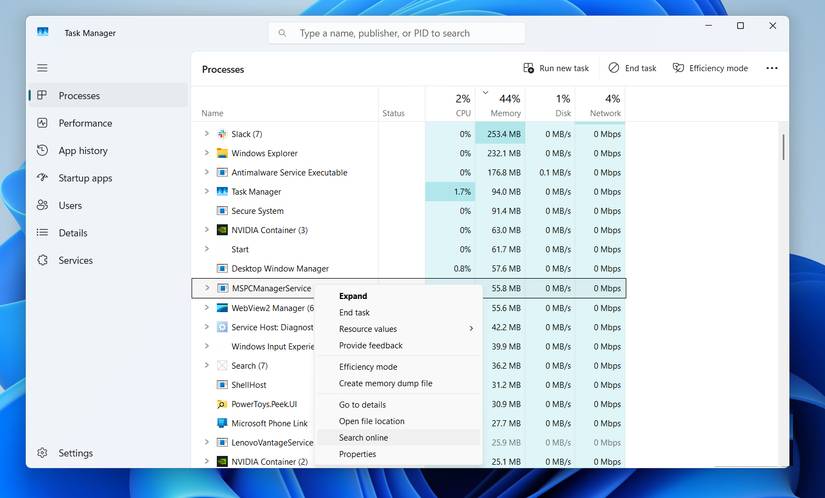
In addition to apps and programs, Task Manager shows all sorts of system processes and background services. They're usually easy to recognize by name, but some may look like random strings of characters. If you can't identify a process by name alone, you can right-click the process and select Search online . Your browser will display information about the process so you can see if it's legitimate or malware.
Another useful option you'll find in the same menu is Open file location . This option is extremely useful when you want to find out where an application is installed on your PC. It's also useful if you encounter an unfamiliar program and want to find an uninstaller or learn more about its behavior on your system.
Restart Windows Explorer to fix temporary problems
Restarting is not always necessary
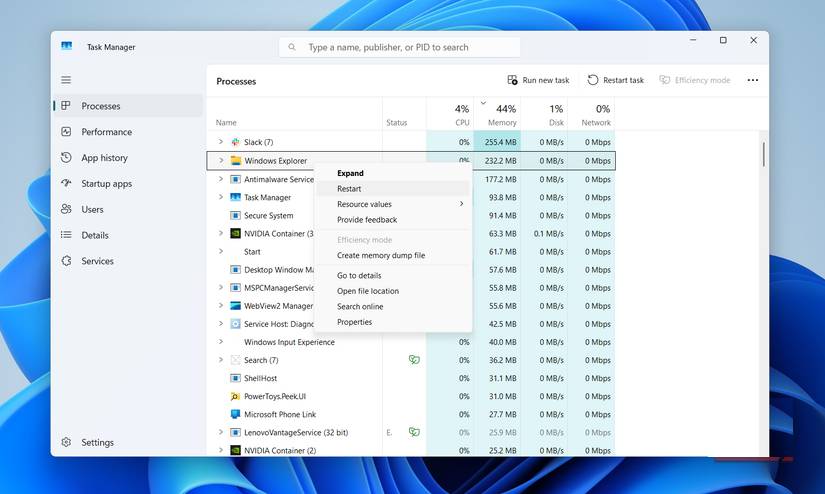
When using a Windows PC, you may encounter unusual problems such as a frozen desktop, a disappearing taskbar, or File Explorer getting stuck loading. In these cases, the usual reaction is to restart the entire PC and hope everything is fine, but that's not always necessary.
Windows Explorer is the process that handles your desktop, taskbar, and File Explorer. When any of these processes start acting strangely, you can use Task Manager to restart the Windows Explorer process and get things back to normal. All you have to do is right-click the Windows Explorer Process in Task Manager and select Restart .
Set application priority
Increase performance where needed
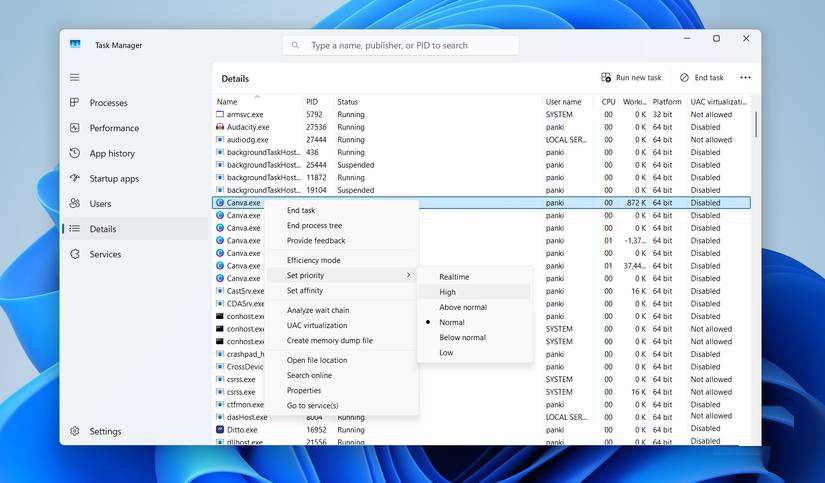
Sometimes a particular application needs more of your PC's processing power than everything else around it. Maybe you're using a video editor that needs all the performance it can get, or maybe you want a game to run smoothly while background apps take a backseat. If so, you can use Task Manager to tell Windows to allocate more resources to that application or game. This is especially useful on PCs with limited CPU and RAM.
In Task Manager, switch to the Details Tab, right-click the process you want to adjust, and select Set priority . Here, you'll see different options, from Low To Realtime . Choosing a higher priority will tell Windows to focus more processing power on that application, while lowering the priority will do the opposite.
Check GPU temperature and boot speed
Track important statistics
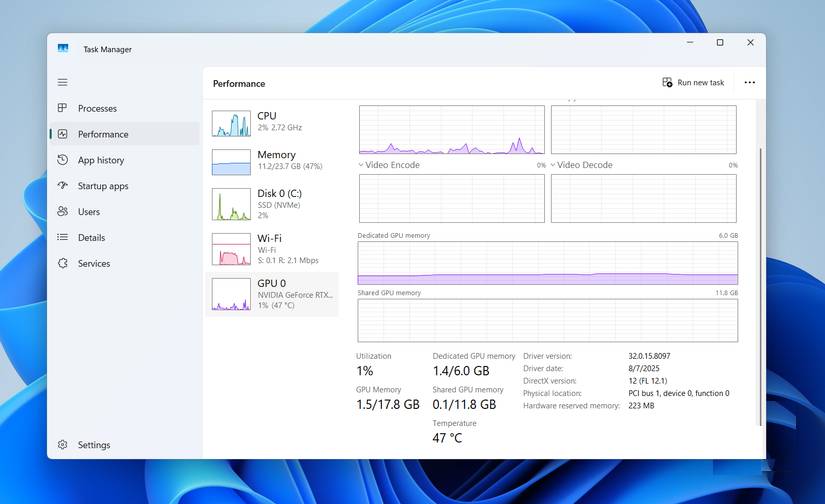
If you use your PC for gaming, creative work, or any other graphics-intensive work, it's a good habit to keep track of your GPU temperature. The good thing is that you don't need a third-party app to do this. In the Performance Tab, you can select the GPU to check the current temperature of your graphics card. This makes it easy to spot any overheating issues.
Task Manager also displays Last BIOS time In the Startup apps Tab. This number is essentially how long your system takes to initialize hardware before Windows starts loading. If you see this number increase more than usual, it could be a sign of slow loading or a BIOS setting that needs attention.
Switch to classic interface or pin Task Manager always on top
Choose the interface that suits you
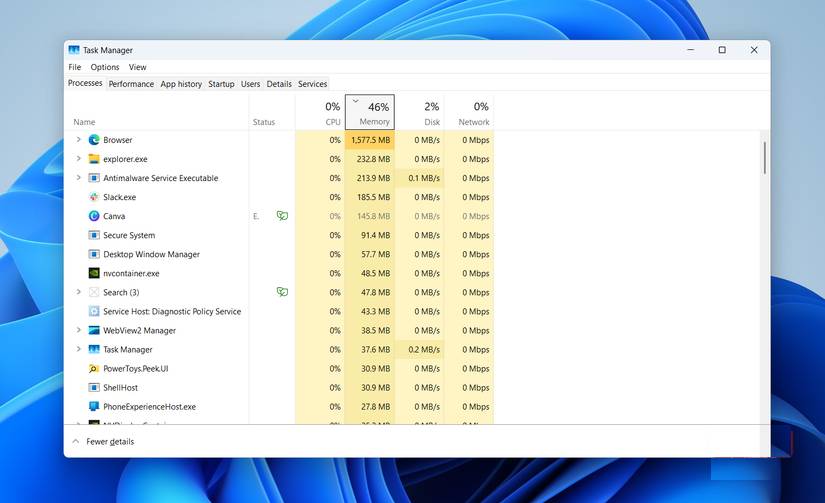
The Task Manager interface is modern, but if you like the old look, you can get it back without any complicated editing. Press Win + R To open the Run dialog, type Taskmgr -d , and press Enter . Of course, this interface doesn't have any transparency effects or dark mode, so it might be a bit retro.
Finally, if you want to keep an eye on Task Manager to monitor usage while you work, you can keep it always on top. Go to Task Manager Settings > General > Window management and select the Always on top Checkbox.
Task Manager may seem like one of those boring tools, but once you learn what it can actually do, it will become your favorite tool. The more you explore it, the more confident you will be in your computer management abilities.
FAQ
What should you know about useful Windows task manager tricks you need to know?
In practical terms, no matter what you use your computer for, understanding Task Manager's true capabilities can help you get the most out of it.
Why does useful Windows task manager tricks you need to know matter?
The article highlights that how to return to the old Task Manager interface on Windows 11 Add columns for more insight Expand your vision beyond the basics By default, Task Manager shows key information like CPU, memory, disk, and network usage.
What is the main takeaway?
The main takeaway is that when any of these processes start acting strangely, you can use Task Manager to restart the Windows Explorer process and get things back to normal.
Related Articles
 All Problems About Using Task Manager6 minutes read
 Ways to Enable Task Manager in Windows 113 minutes read
 7 Simple Ways to Open Task Manager on Macbook, Windows 10,117 minutes read
 Preparing for a New Task Manager on Windows 113 minutes read
 Instructions to Fix Task Manager Has Been Disabled by Your4 minutes read
 4 How to Open Task Manager Windows 114 minutes read
Reader Comments 0
Sign in with email or Google to join the discussion.