Table of Contents
There serves as a better application than Task Manager to handle processes and it runs on command line interface.
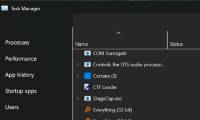
If you've ever spent any time managing open programs and processes on Windows, you're probably familiar with Task Manager. It's one of the most popular Windows utilities, and you can use it for everything from checking your system's specs and resources to closing unresponsive programs.
You can easily identify and fix high memory usage using Task Manager and system health. However, there is a better application than Task Manager for handling processes and it runs on the command line interface.
Why is htop superior to Task Manager?
More data, fewer clicks
Windows' Task Manager works perfectly fine and offers enough control for most Windows users who want to monitor their computer's performance. However, htop has a few advantages that make it better for power users and anyone who wants more control over their system.
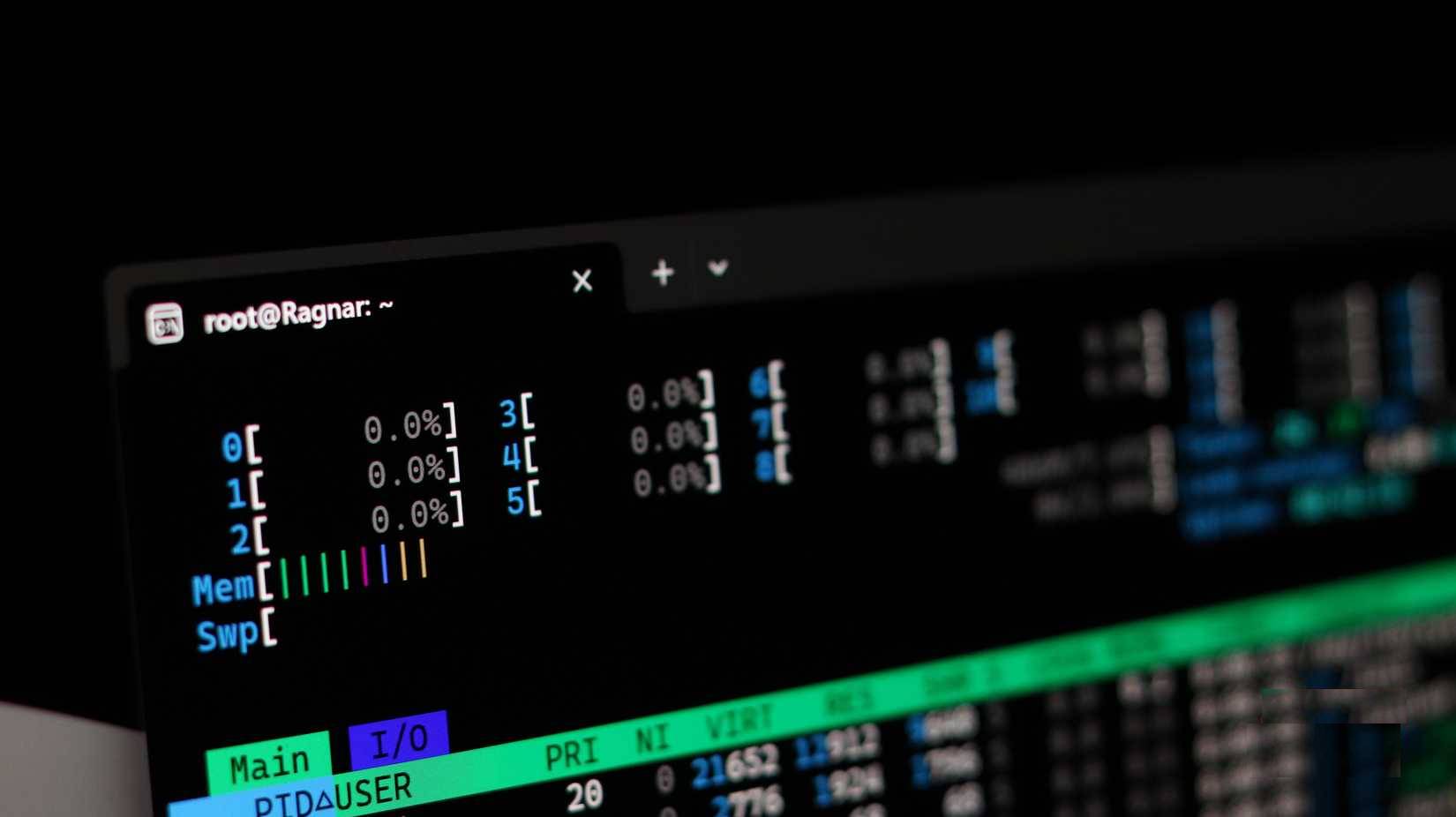
Unlike Task Manager's simple graphs, htop uses a color-coded system that tells you exactly what's going on with your system resources. Green bars show normal user processes using the CPU, blue shows low-priority threads, red shows system and kernel processes, and orange shows interrupt processing time.
Similarly, green indicates active memory pages, blue indicates buffer pages, and orange indicates cached data. These visual cues allow you to diagnose problems immediately without having to dig through menus and wonder if the process you're about to close is system-critical.
That said, color coding isn't all htop has to offer. It's incredibly flexible and easy to use for a terminal application. First, you get full mouse support even though htop is a command line tool. You can click on processes to select them, scroll through the list with the mouse wheel, and even click the function buttons at the bottom instead of pressing keyboard shortcuts.
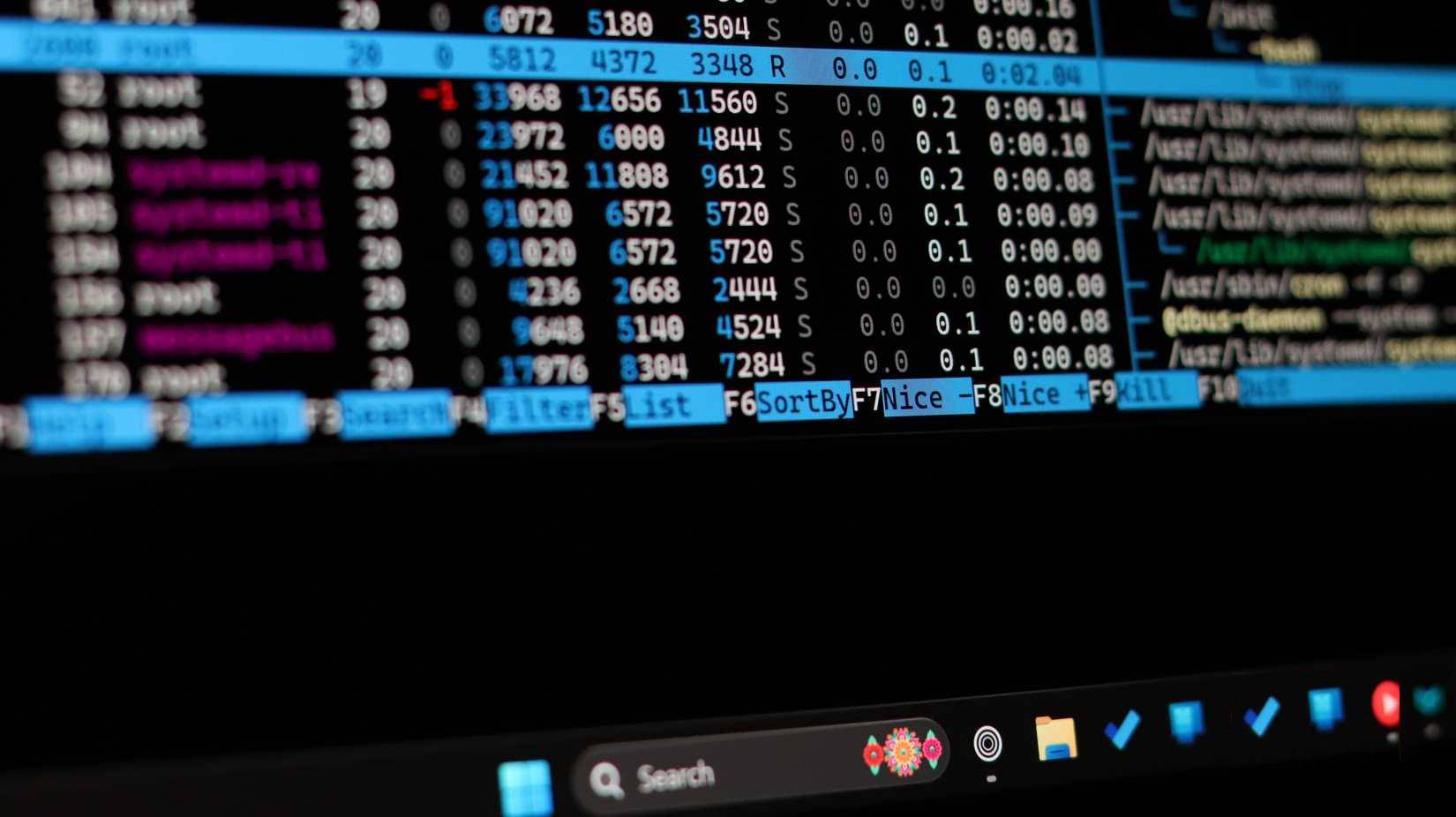
Htop also supports both horizontal and vertical scrolling. This solves a significant problem with command line tools, where long command names or text strings get truncated. htop lets you scroll horizontally to see the entire command line of any process. This is especially useful when you are trying to determine exactly what is running for processes with long parameters.
You also get much more advanced process management with htop. If you want to kill a misbehaving process, just select it and press F9 . If You should adjust the priority of a process, F7 and F8 let you raise or lower it instantly. Accessing this is like a secret menu that shows you everything running on your PC.
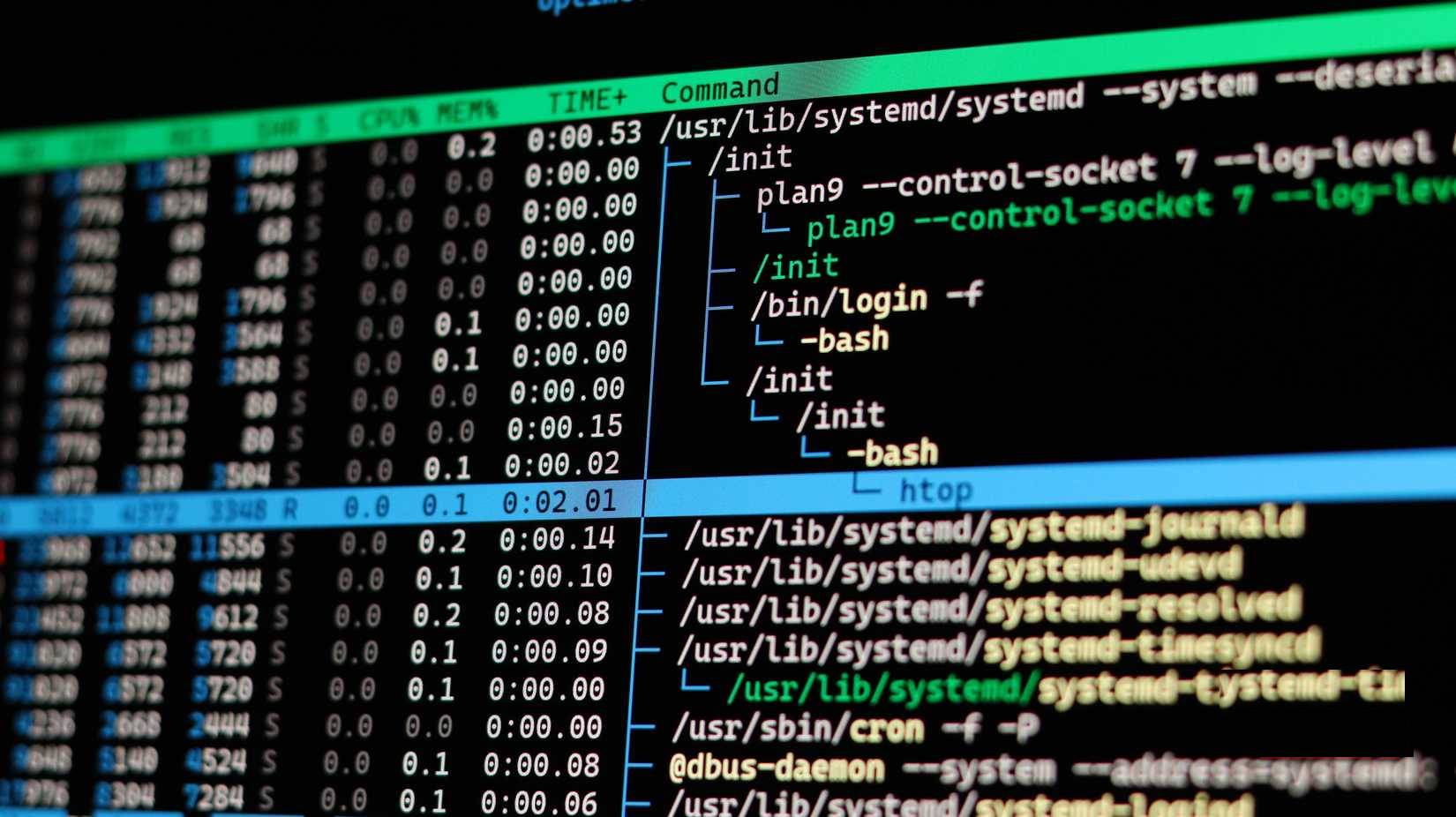
You can even view processes in a hierarchical tree structure, showing the parent-child relationship between them, using the F5 Key. This makes it easy to understand which process spawned which process—something Task Manager doesn't do elegantly.
Using htop on Windows
Yes, it runs on Windows too.
Although htop was originally a Linux-exclusive tool, Windows users are no exception. Several ports and alternatives bring similar functionality to Windows. And if you want the real htop experience, you can run native htop on Windows using Windows Subsystem for Linux (WSL).
For ports, you should use btop4win. It is a free, open source, feature-rich port of btop++, which is itself a modern C++ successor to htop with even more features. It runs on Windows 10 version 1607 and above and works great in Windows Terminal. You can also install it using Winget by running the following command.
Winget install aristocratos.btop4win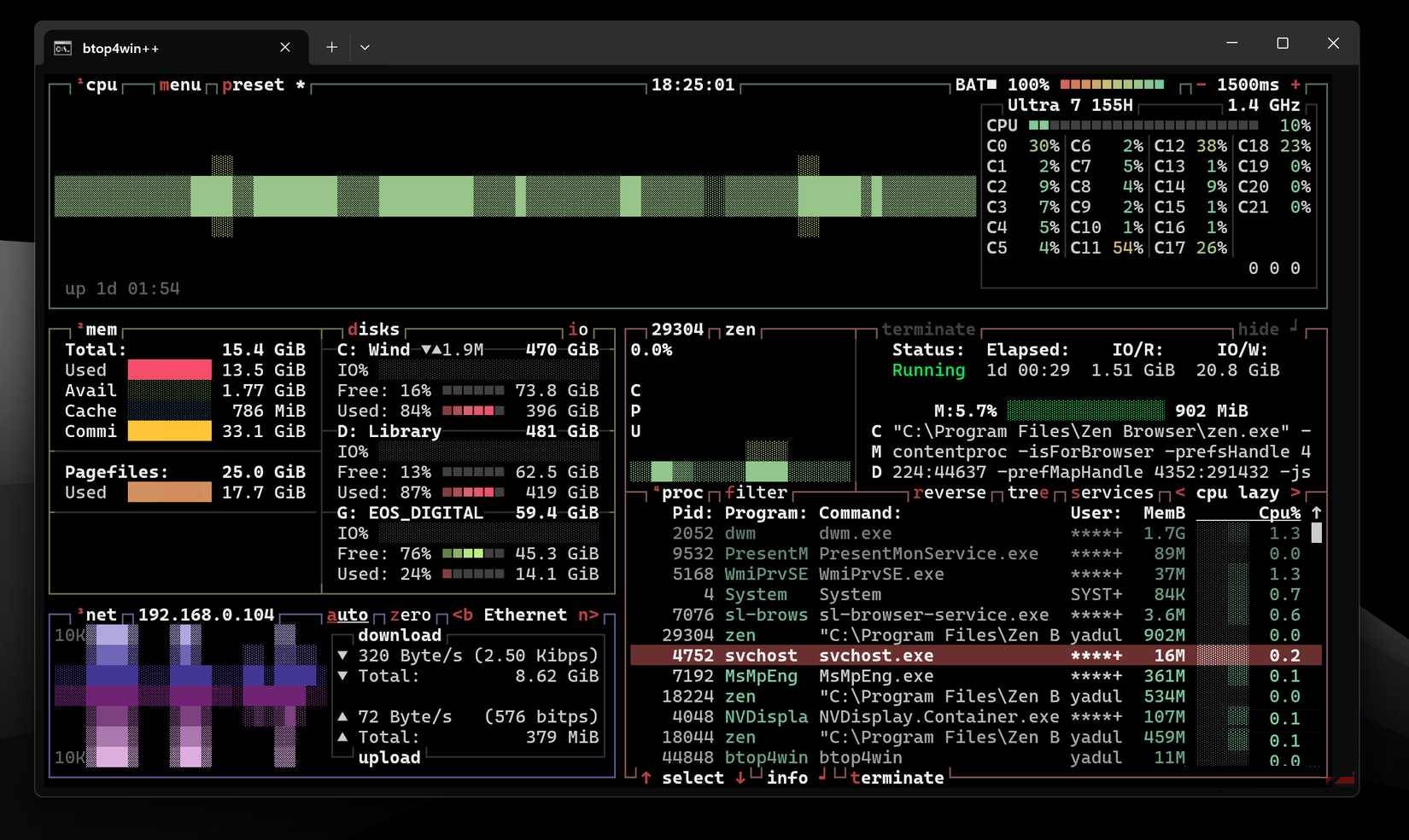
To use native htop, make sure you have WSL installed on Windows first. For most users, this is as simple as running this command.
Wsl --installThis command will install Ubuntu as the default WSL installation. Once done, you can install htop as follows
Sudo apt install libncursesw5-dev autotools-dev autoconf automake build-essential apt install htop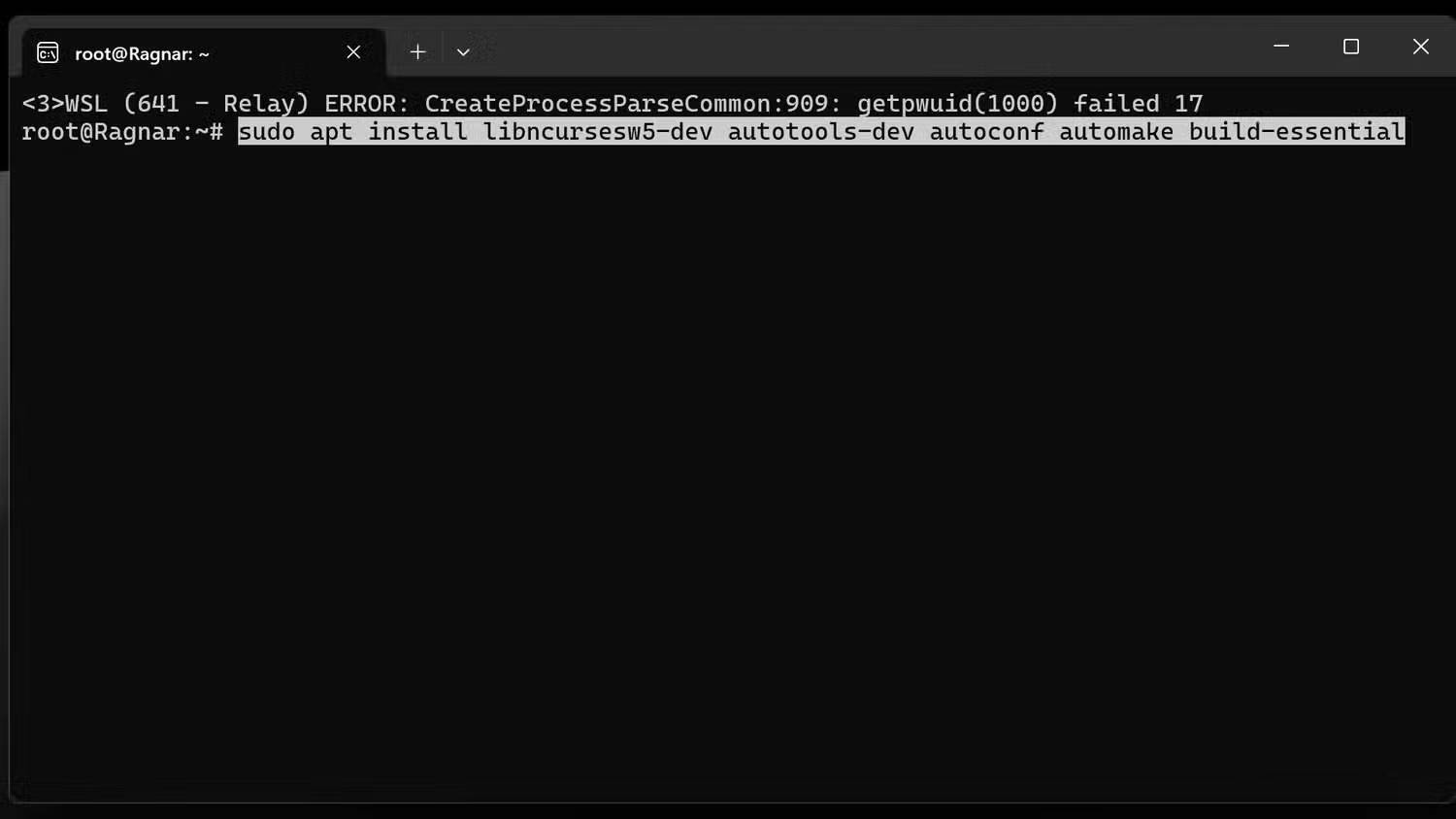
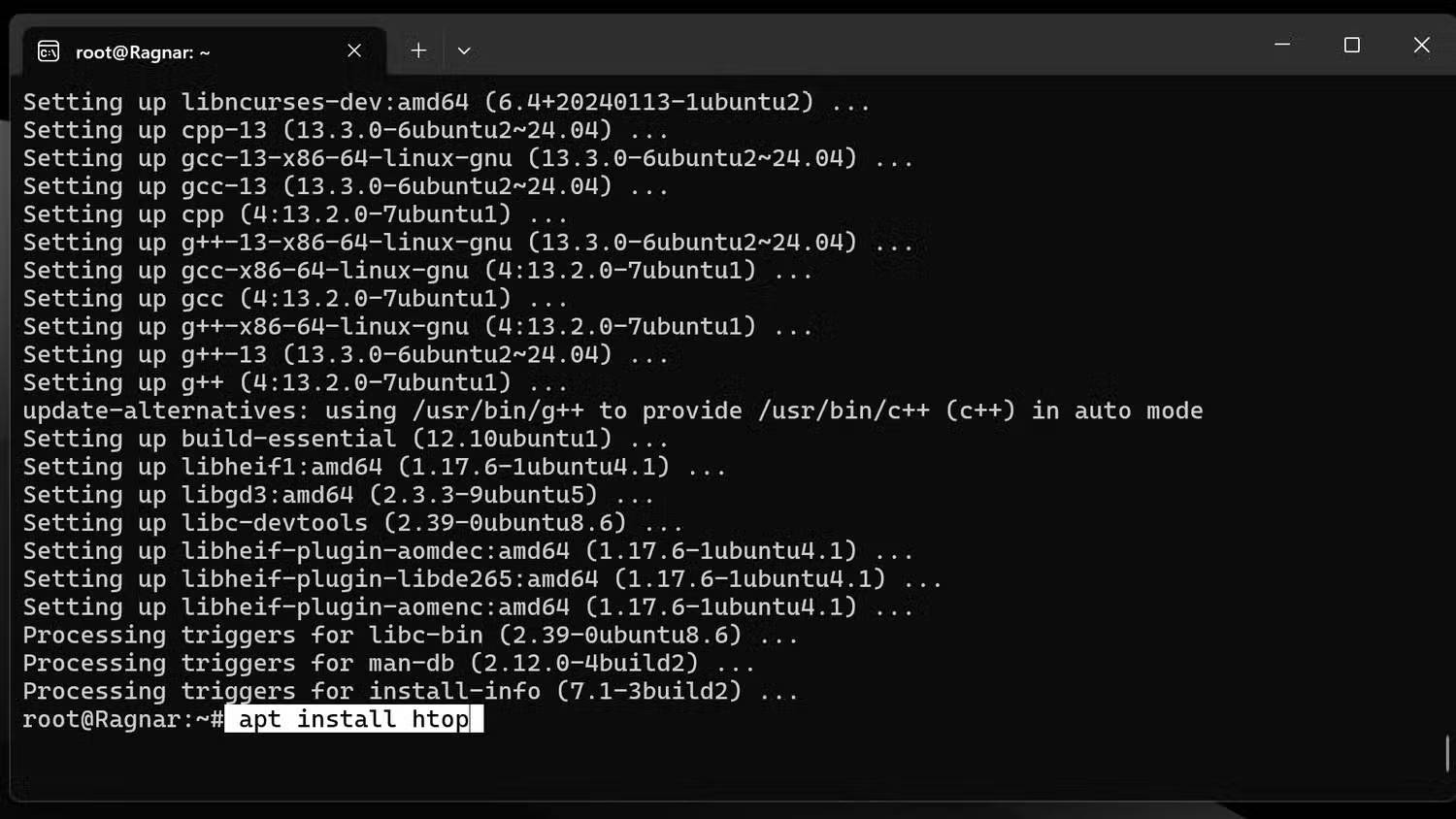
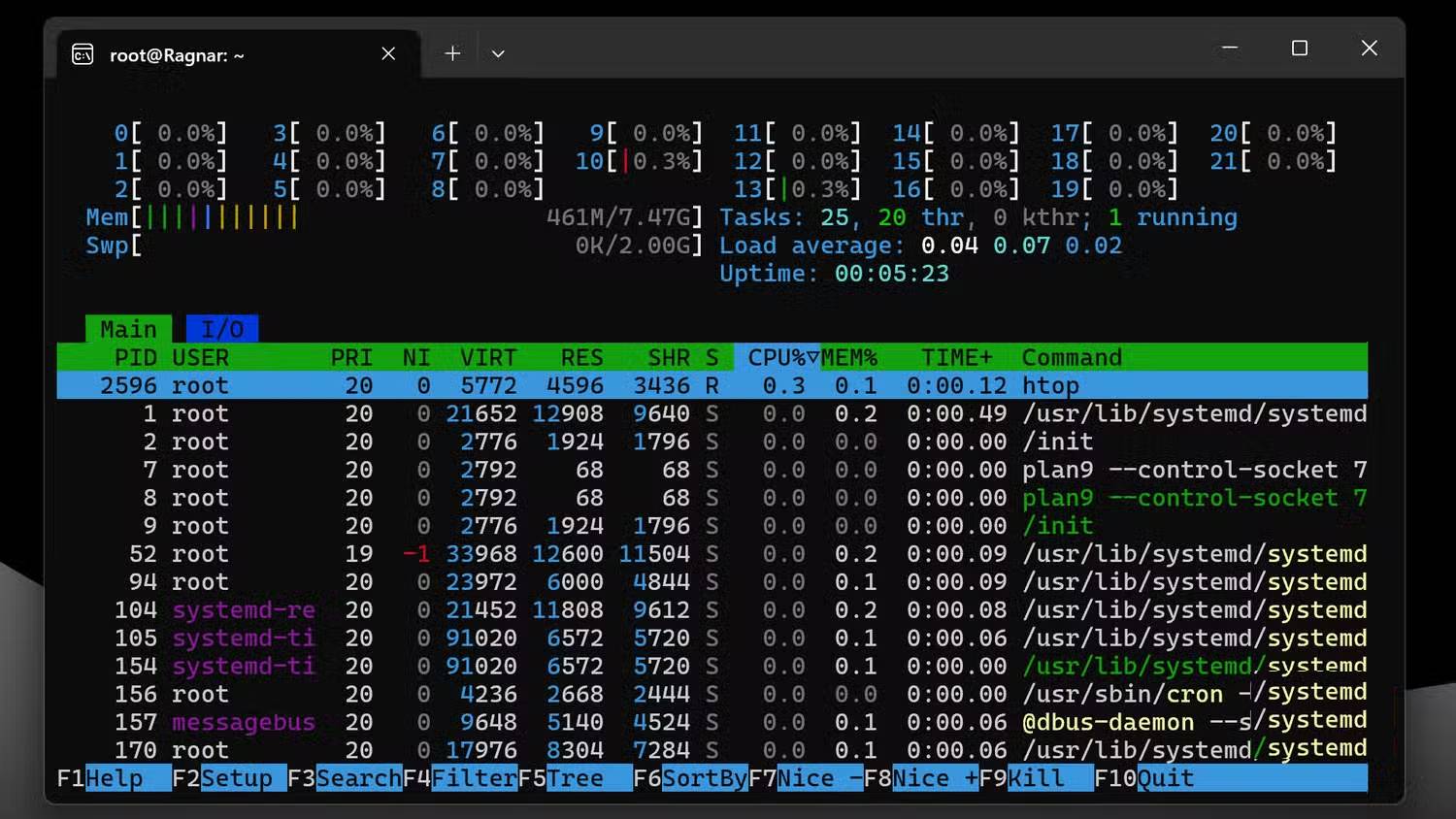
Once installed, you can run btop4win or htop by typing btop4win or htop into the Windows Terminal or the WSL Ubuntu terminal. Btop4win has a nicer interface, which may be easier to understand if you have never used a command line tool before. However, htop is equally easy to understand if you read the interface carefully.
The controls for both tools are fairly intuitive, but htop's helpful function key guide at the bottom will get you up and running faster. For btop4win, check out the official GitHub repository for any help you need. The repository also has a help menu with all the keyboard shortcuts, which you can access by pressing the H Key while the tool is open.
FAQ
Why Can Htop Beat Task Manager: Explained?
In practical terms, there is a better application than Task Manager to handle processes and it runs on command line interface.
What factors are most important?
The article highlights that you can easily identify and fix high memory usage using Task Manager and system health.
What is the main takeaway?
The main takeaway is that however, there is a better application than Task Manager for handling processes and it runs on the command line interface.
Related Articles
 All Problems About Using Task Manager6 minutes read
 Ways to Enable Task Manager in Windows 113 minutes read
 7 Simple Ways to Open Task Manager on Macbook, Windows 10,117 minutes read
 Useful Windows Task Manager Tricks You Need to Know: Complete Guide8 minutes read
 Instructions to Fix Task Manager Has Been Disabled by Your4 minutes read
 Preparing for a New Task Manager on Windows 113 minutes read
Reader Comments 0
Sign in with email or Google to join the discussion.