Table of Contents
Explore the wifi icon is missing from the Windows taskbar.
Troubleshooting potential software errors
If the internet is working normally and only the Wi-Fi icon is missing, it's likely a minor software error that can be easily fixed. The most common and quickest solution is to restart File Explorer in Windows. This will reset the taskbar and system tray, restoring the Wi-Fi icon.
If the icon is just a blank space or the icon image is corrupted, you can rebuild the icon cache. You'll have to edit the Registry for this, but for simplicity, the article provides the PowerShell command below to apply the changes automatically:
Stop-Process -Name explorer -Force $path = "HKCU:SoftwareClassesLocal SettingsSoftwareMicrosoftWindowsCurrentVersionTrayNotify" Remove-ItemProperty -Path $path -Name "IconStreams" -ErrorAction SilentlyContinue Remove-ItemProperty -Path $path -Name "PastIconsStream" -ErrorAction SilentlyContinue Start-Process explorer.exeAlternatively, you can also try restarting your computer, as the fast startup feature is enabled by default in Windows. Simply hold down the Shift key and click Shutdown in the power menu. Wait a minute before restarting your computer.
Make sure Airplane Mode is turned off
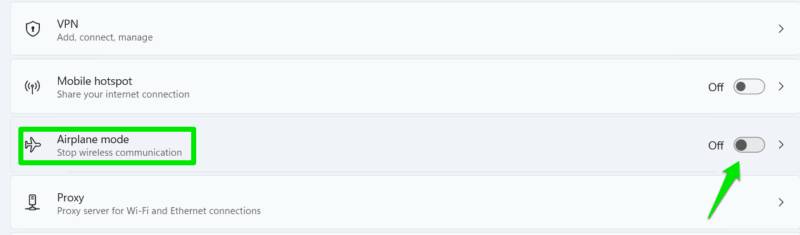
The Wi-Fi icon will disappear and be replaced by an airplane icon if Airplane Mode is enabled. Make sure you don't accidentally turn on Airplane Mode, as this is easy to do on laptops since most have a dedicated shortcut or physical button to enable it.
Simply open Windows Settings and go to Network & Internet . Here, make sure the Airplane Mode option is turned off. You can also press the Fn key and the airplane key on your keyboard to quickly turn Airplane Mode on or off.
Enable the WLAN AutoConfig service
WLAN AutoConfig is a Windows service that controls the Wi-Fi functionality on your computer. If it's disabled, not only is the Wi-Fi button removed, but the Wi-Fi option is also removed from Settings. If the internet isn't working and you can't find any Wi-Fi-related options in Settings, it's likely that WLAN AutoConfig has been disabled in some way.
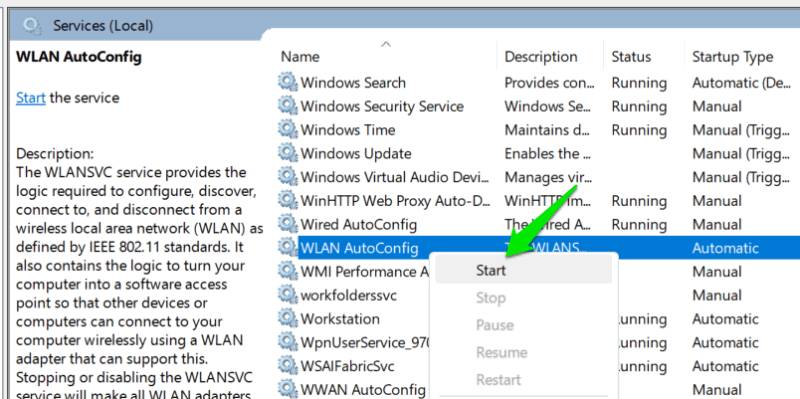
To re-enable it, search for "services" in Windows Search and open the Services application. There, right-click on the WLAN AutoConfig service and select Start .
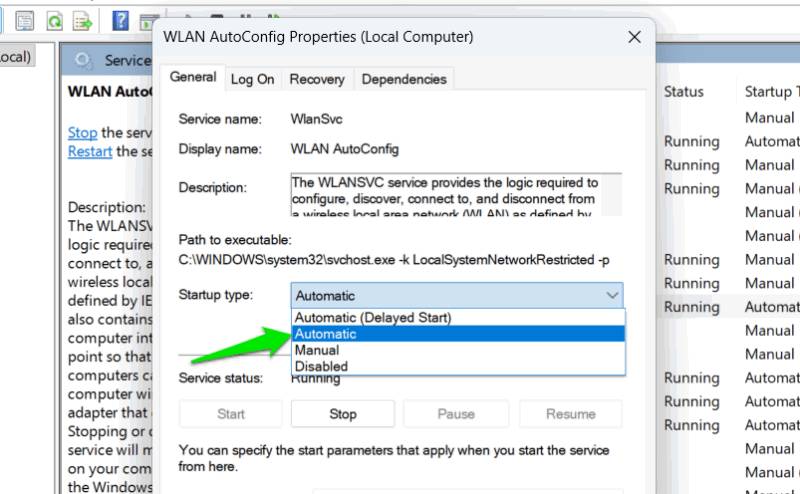
Additionally, make sure that Startup Type is set to Automatic . If it's set to Manual, right-click on it and select Properties . Click next to the Startup type drop-down menu and select Automatic .
Run the built-in network troubleshooter to automatically fix the missing Wi-Fi icon issue
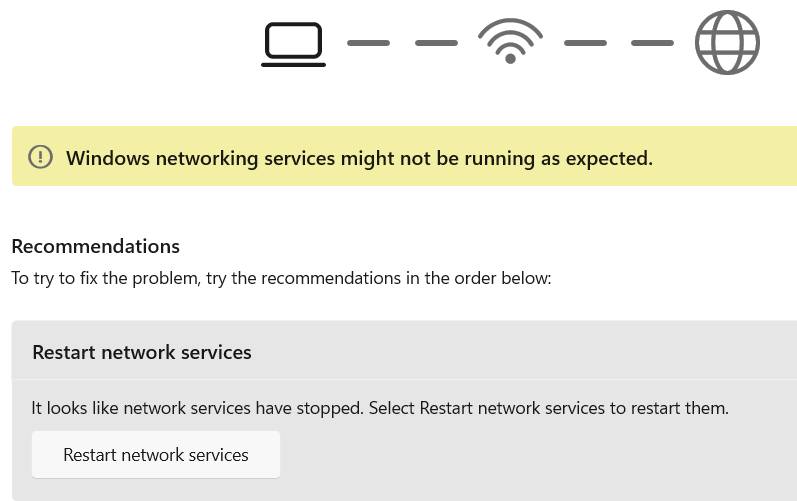
Windows has several built-in troubleshooters to fix common Windows problems, including network issues. While it's not a magic solution that can fix every internet problem, it can fix the most common ones. If your Wi-Fi icon disappears due to a known issue, the troubleshooter can help resolve it.
In Windows Settings, go to System → Troubleshoot → Other troubleshooters and click the Run button next to Network and Internet .
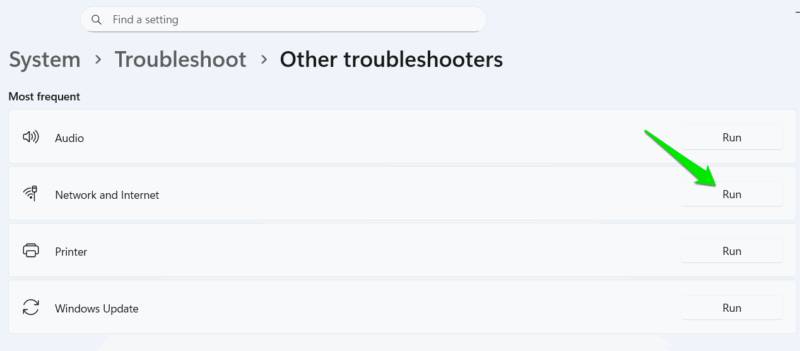
The troubleshooter will automatically attempt to detect problems upon launch. If a problem is found, it will try to fix it automatically or request permission to apply the fix.
Network adapter management
If none of the above solutions work, it's likely a problem with your network adapter. It's difficult to pinpoint the exact cause of network adapter issues, so we'll go from basic fixes to more advanced ones. Follow the network adapter troubleshooting steps below in order:
Activate the Wi-Fi Network Adapter
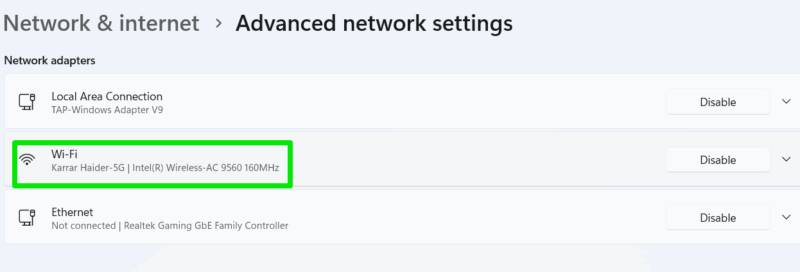
Disabling the Wi-Fi Network Adapter also results in no Wi-Fi icon and no Wi-Fi settings, similar to disabling the WLAN AutoConfig service. In Windows Settings, go to Network & internet → Advanced network settings and make sure the Wi-Fi adapter is enabled.
Change the network adapter driver
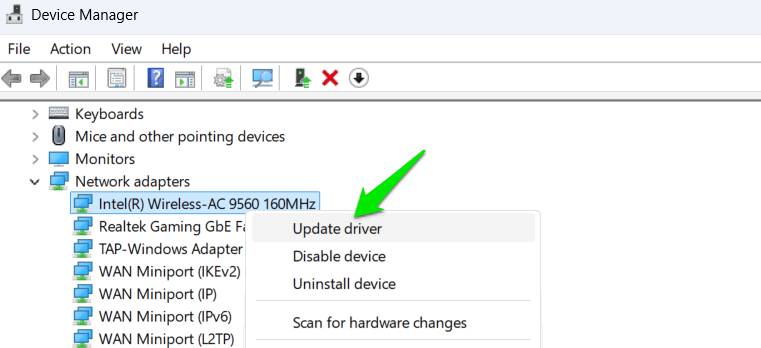
The network adapter driver might be the cause of the problem. Fortunately, your computer may have multiple compatible drivers, making it easy to switch to a different one. Search for 'device manager' in Windows Search and open Device Manager. Right-click on your wireless network adapter and select Update driver .
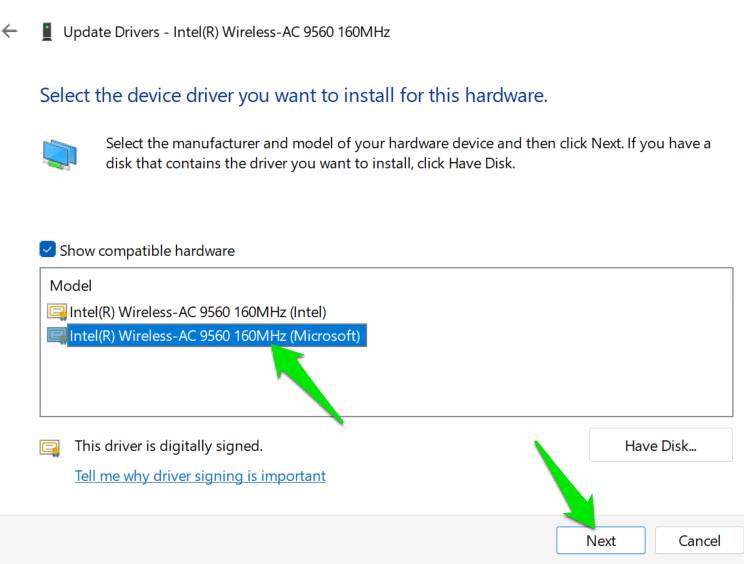
Now, click on Browse my computer for drivers and then select Let me pick from a list of available drivers on my computer . Choose a different driver than the one currently installed and click Next to install. If this doesn't fix the problem, try a different driver if available.
Uninstall the network adapter driver
You can also uninstall the network driver and let Windows handle it automatically. In Device Manager, right-click your network driver and select Uninstall Device . Make sure the Attempt to remove the driver for this device option is not selected, then click Uninstall .
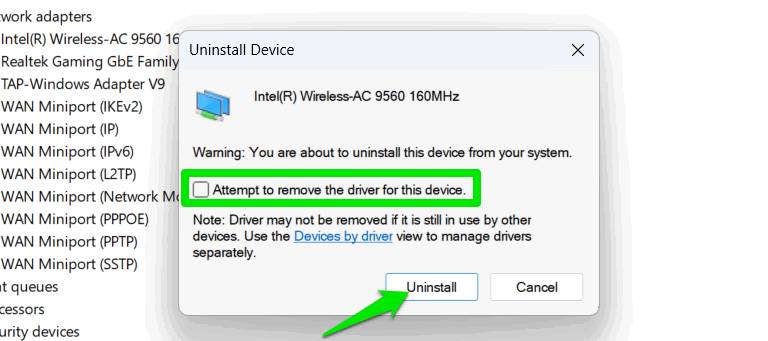
Restart your computer, and Windows will automatically apply the basic network driver to help you connect to the Internet and fix the missing Wi-Fi icon issue. After that, you can go to Windows Update in Settings and click Check for updates to find the working network driver.
Although rare, this issue can also occur due to a hardware problem, which in most cases can be fixed by reinstalling the network card. You might also be interested in what to do if your Wi-Fi network stops showing up.
See also:
- Troubleshooting the issue of having 3G data enabled but unable to connect to the internet on iPhone.
- Simple ways to boost your home Wi-Fi signal.
- When you discover someone is using your Wi-Fi without permission, follow these steps to stop them.
Final Thoughts
Use this guide as a practical checklist for the wifi icon is missing from the windows taskbar; here's how to fix it. Work through the steps in order, verify each result, and adjust the options to match your needs.
FAQ
What do you need before following this The Wifi Icon Is Missing from the Windows Taskbar; Here's How to Fix It guide?
Review the required tools, accounts, settings, or materials mentioned in the article. Explore the wifi icon is missing from the Windows taskbar.
What are the main steps for the wifi icon is missing from the windows taskbar; here's how to fix it?
Follow the sections in order, especially Troubleshooting potential software errors, Make sure Airplane Mode is turned off, Enable the WLAN AutoConfig service. Complete each step before continuing and verify the result as you go.
What should you do if the process does not work as expected?
Recheck the prerequisites, update the relevant app or service, review the settings, and repeat the step that caused the issue. Use any troubleshooting notes included in the guide.
Related Articles
 How to Get the Missing Wi-Fi Icon Back from the Windows 10 Taskbar7 minutes read
 Wi-Fi Icon Missing on the Taskbar Windows 10, This Is How to Fix4 minutes read
 How to fix the missing WiFi icon on a Windows 11 laptop3 minutes read
 How to Display the Missing Bluetooth Icon on the Windows Taskbar4 minutes read
 How to Pin the App to the Taskbar to Open It Faster4 minutes read
 Steps to Recover Lost Taskbar Icon on Windows 106 minutes read
Reader Comments 0
Sign in with email or Google to join the discussion.