Table of Contents
Explore Windows 11 needs these 5 features instead of another copilot update.
Move Taskbar to the left
Keep the same position
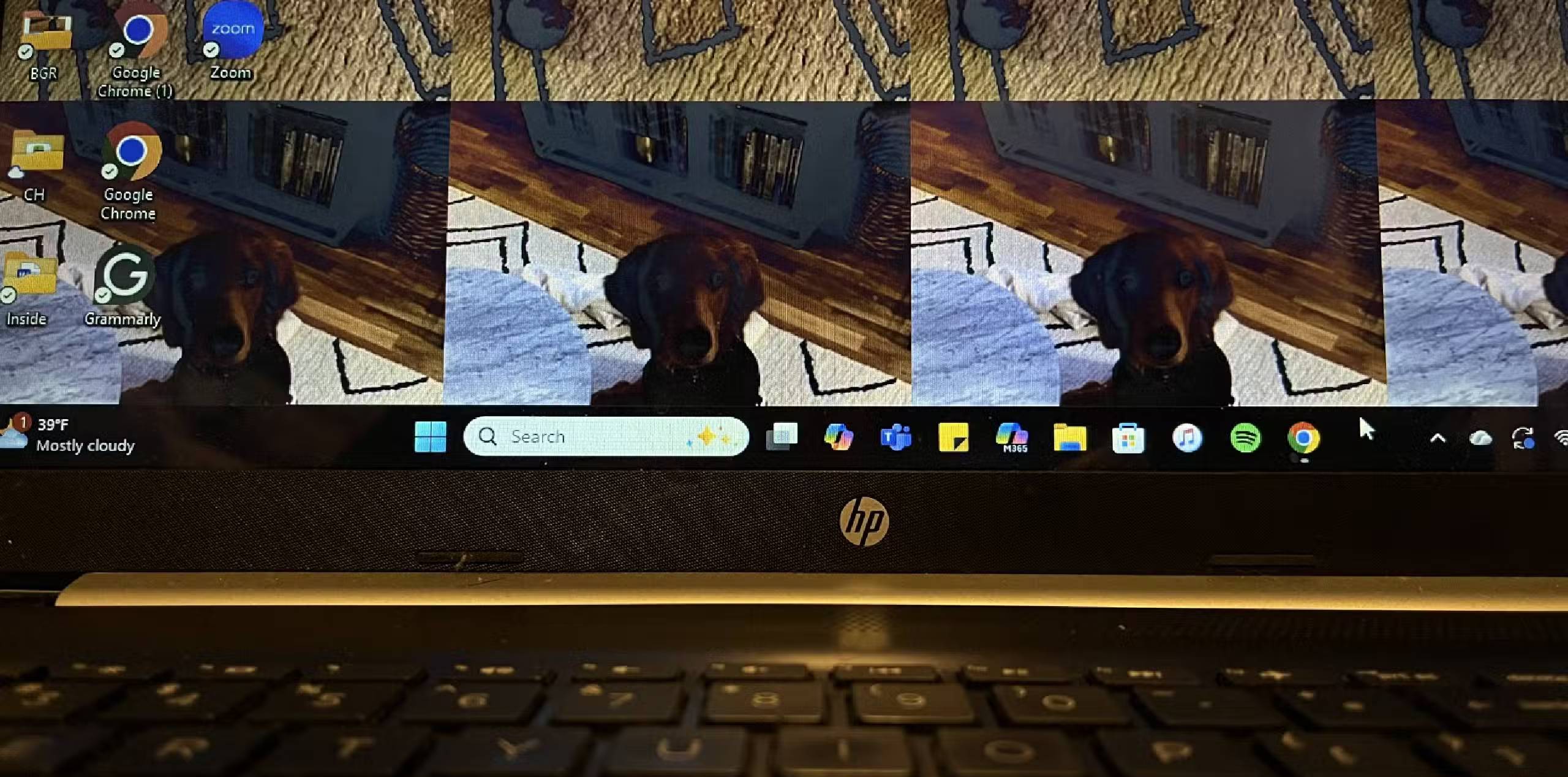
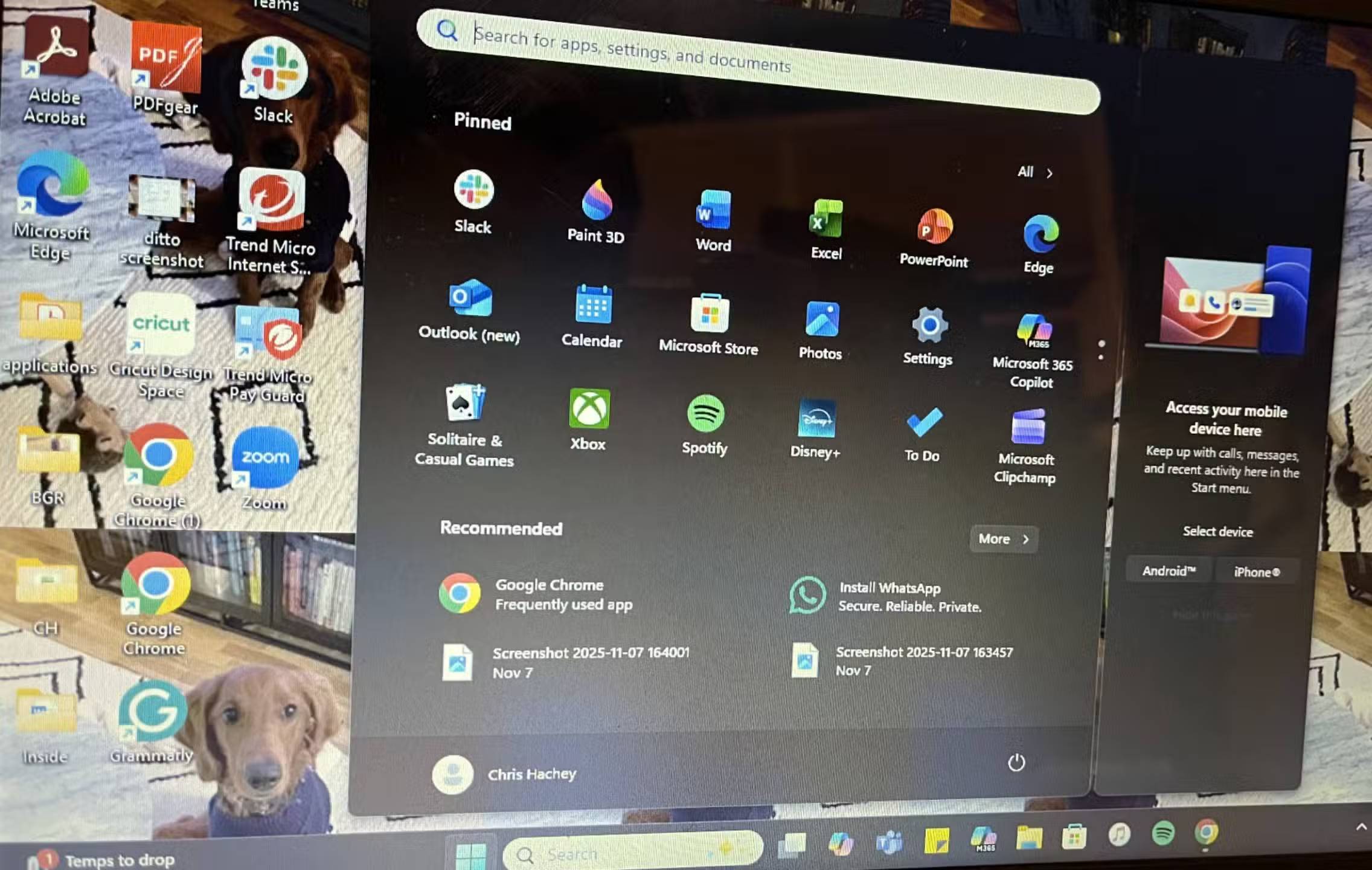
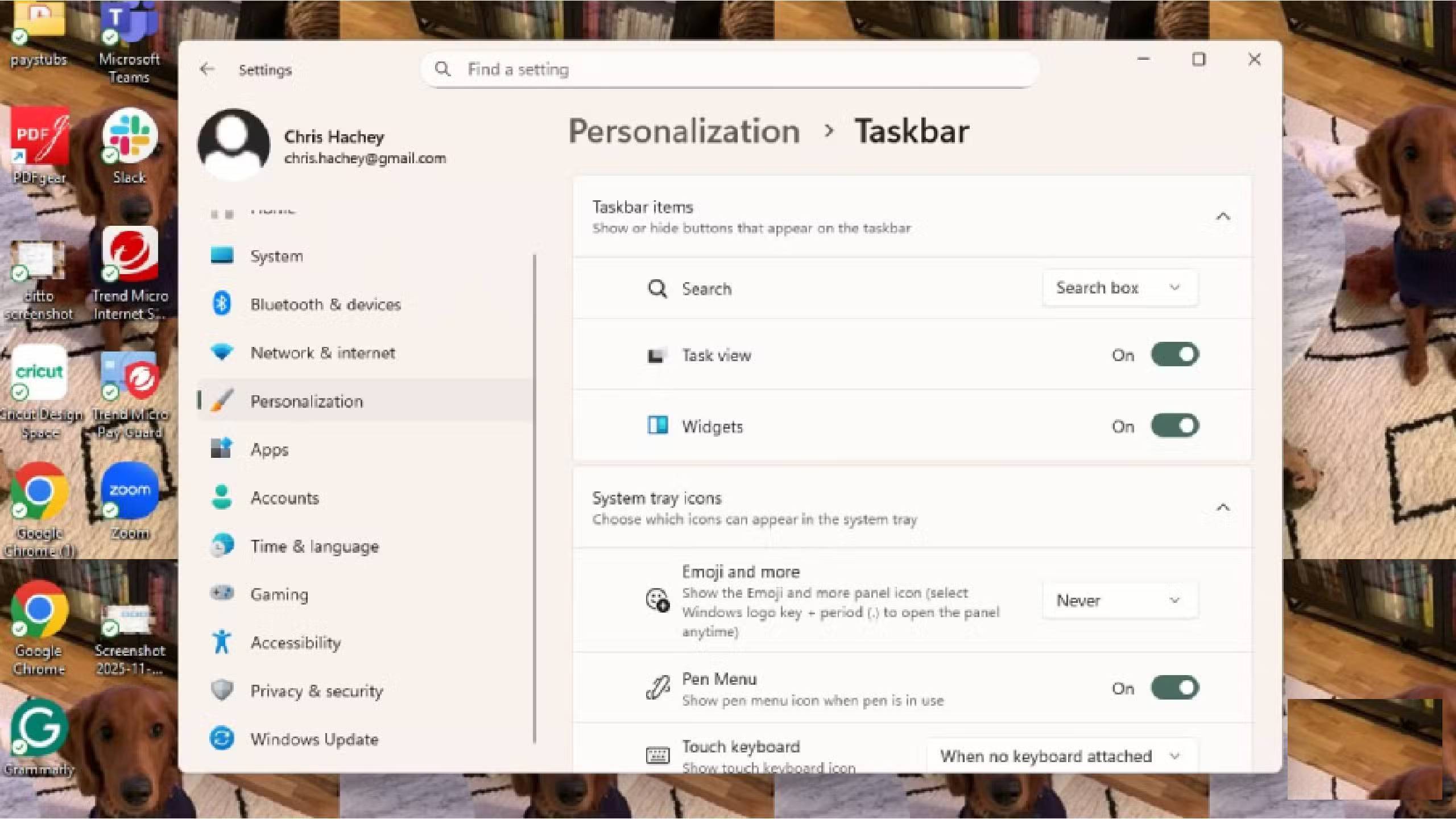
It was perfectly aligned in the old position. Why did Windows move it? The Windows Start menu button is supposed to be on the bottom left of the screen. In Windows 11, the Taskbar is centered by default. The reason is that Microsoft wants to use the space at the bottom for widgets and updates.
The Taskbar shows weather and stock market information, which is fine, but many people want to keep it as it is. The good news is that you can move it around whenever you see fit. If you go to Settings > Personalization > Taskbar , you can align it to the left. This will bring you back to the familiar Windows 10 interface. However, it feels a little strange to have the Taskbar centered instead of where it was. It feels like Microsoft is trying to distract users and show them a new side of the operating system.
Set up Windows Start menu with folders
You can customize it yourself
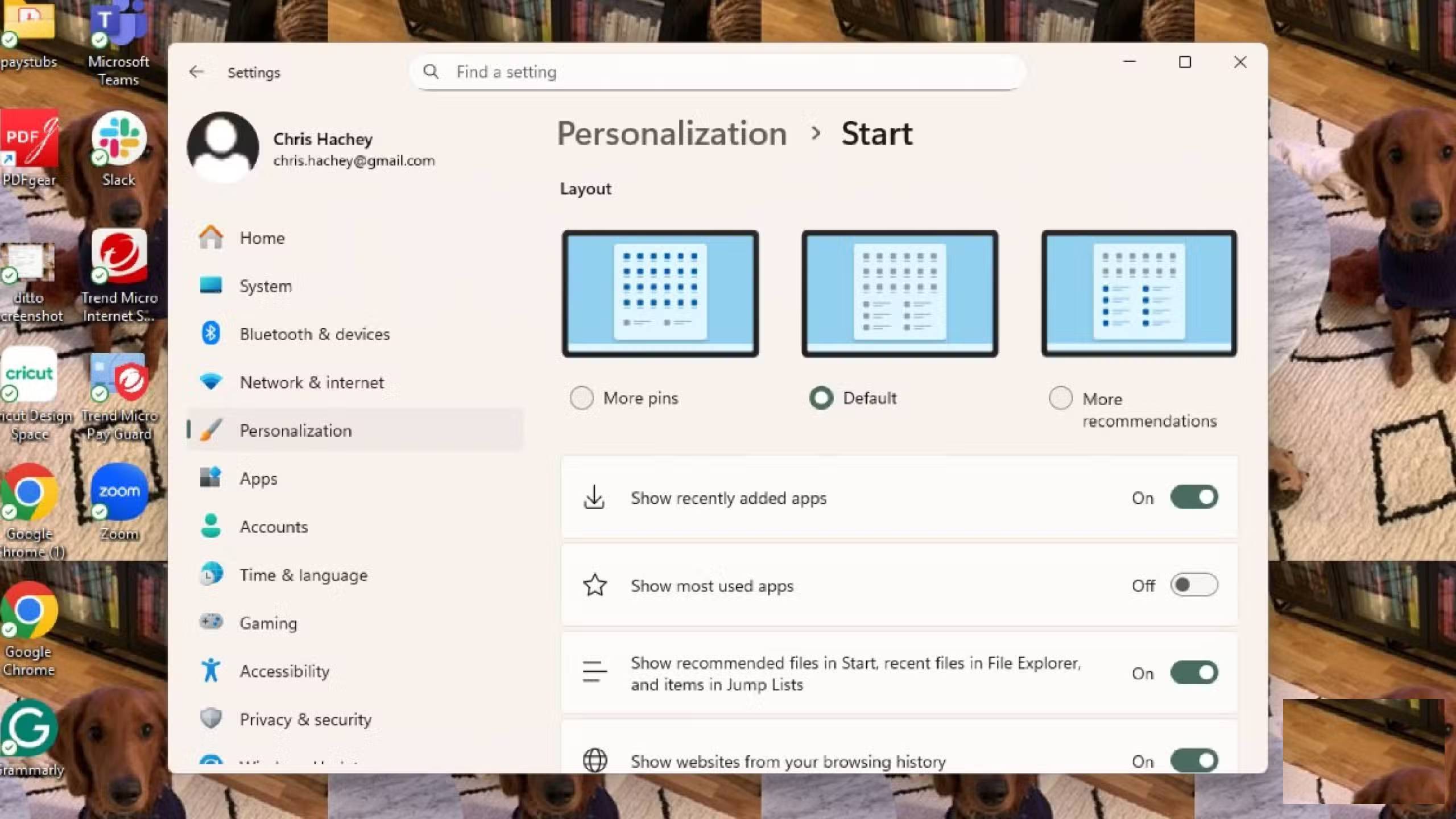
In Windows 11, the Start menu was overly simplified and may not be for you. Now, Windows 11 has app icons at the top that you can customize and change depending on the programs you use most. Below that are the suggested options, as Windows 11 learns what you've recently opened or open frequently and will suggest them. If you find these suggestions helpful, you can turn them on. If you don't like them, you can reduce the number of suggestions that appear.
Note : You cannot remove suggested options from the Start menu.
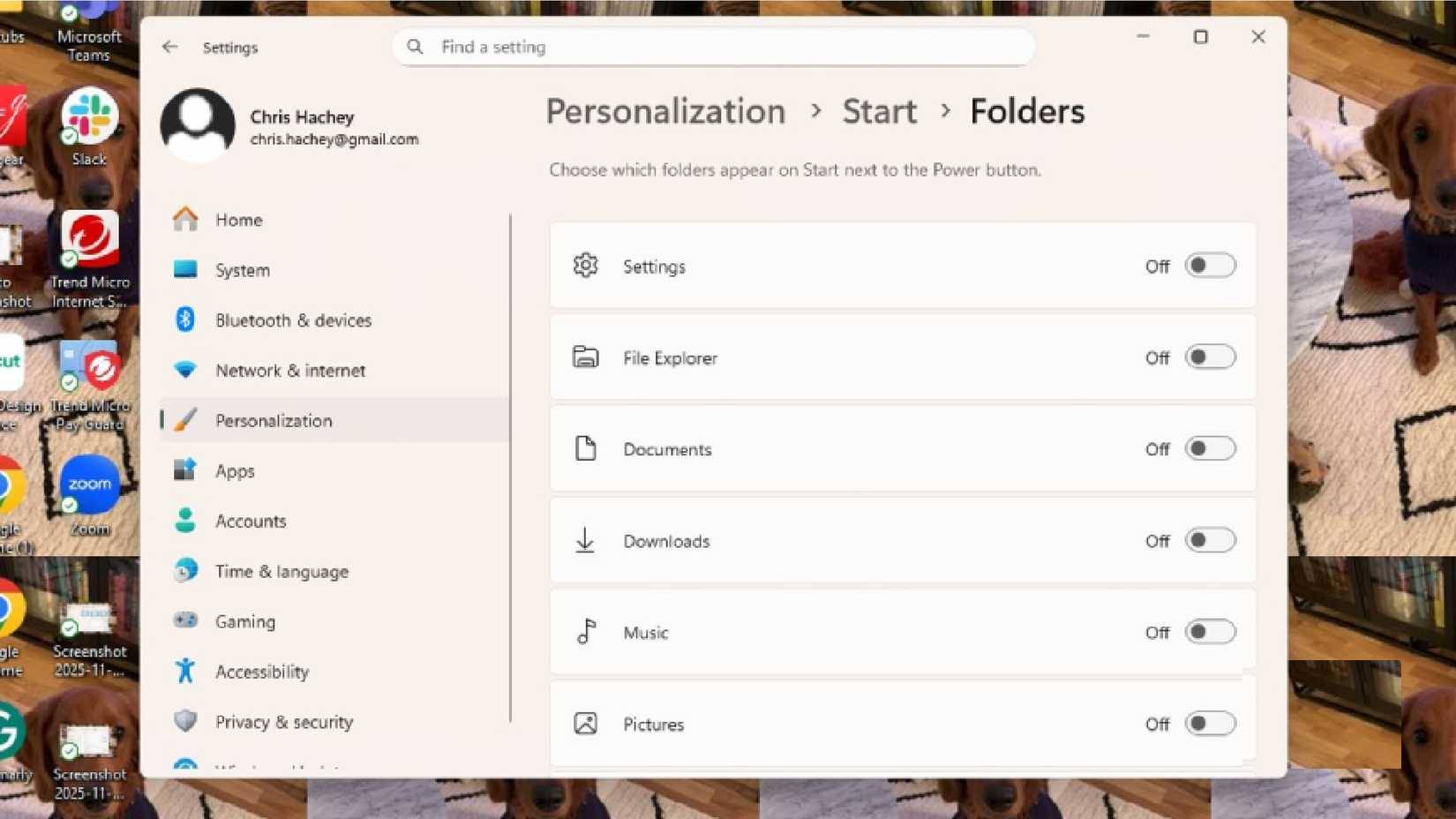
Back in the Personalization menu, you can click Start and choose the version of Start you like. It will automatically be set to be about half icons and half suggestions. There are also folders, which allow you to add folders to the Start menu. This is a useful feature because you don't have to rely on the OS's suggestions for easy access to files. It also eliminates the need to use the Taskbar to find files you use often.
Make sure System Protection is turned on
Why don't you want to save your settings?
While some people think they need to manually back up files, System Protection backs up files, settings, applications, and more by creating restore points. Think of using Microsoft Word, where you can go back to previous versions of a document if you want to see edits you or someone else made in an earlier version. Restore points are similar, as they look at how your computer was set up at a specific time and keep a mental log of the settings.
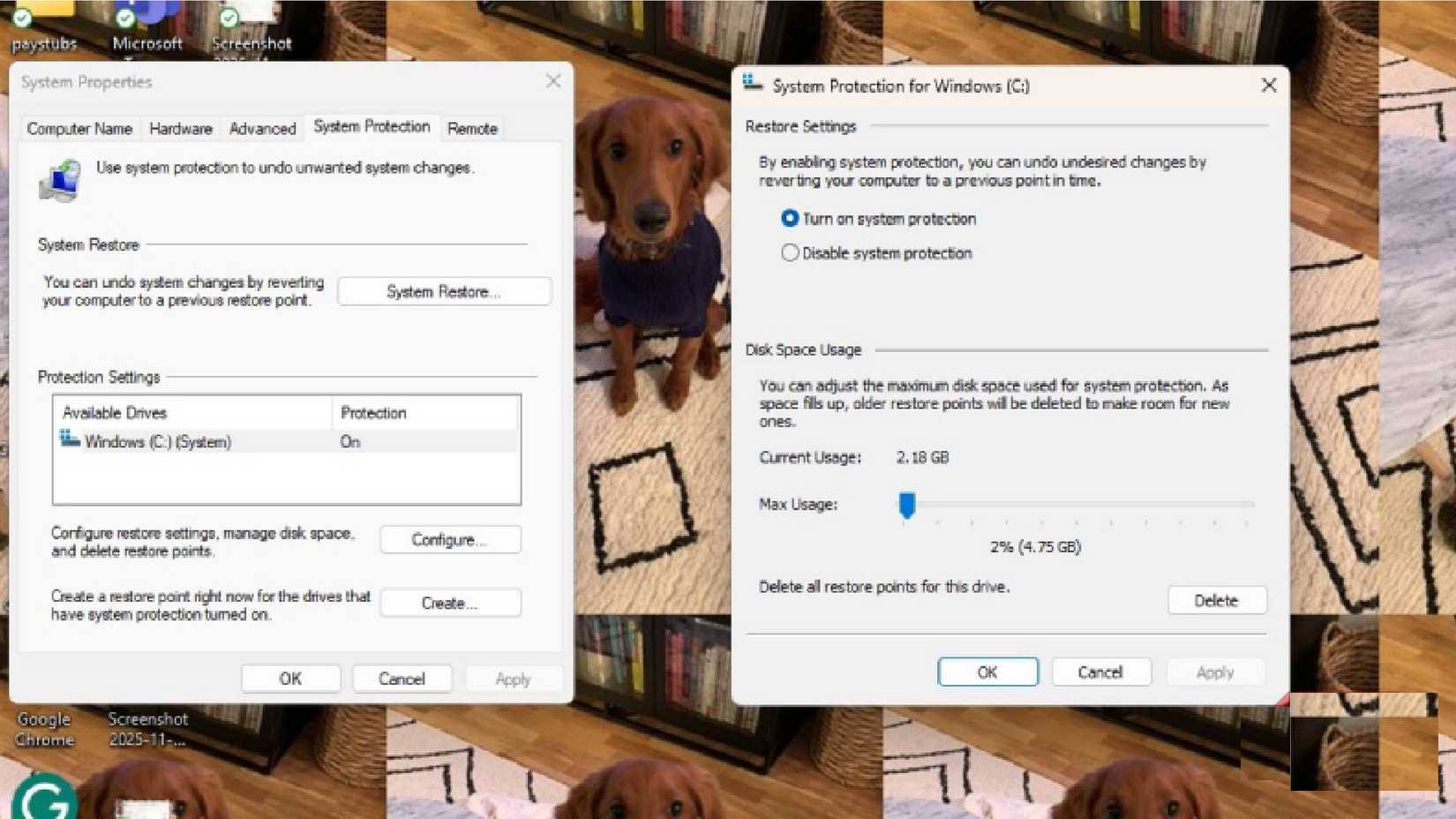
You can restore points to return your system to the state it was in when they were recorded. To set this up, search for 'Create a restore point' on the Taskbar or Start menu. The System Properties menu will appear, and you can click System in the Protection Settings section of the menu. After clicking Configuration , you can select Turn on System Protection .
There is a slider that allows you to choose the maximum amount of space the system will set aside. Click Apply > OK and you are done setting up based on your preferences. This will allow you to restore saved points.
Enable Developer Mode
Turn this feature on in case you need it!
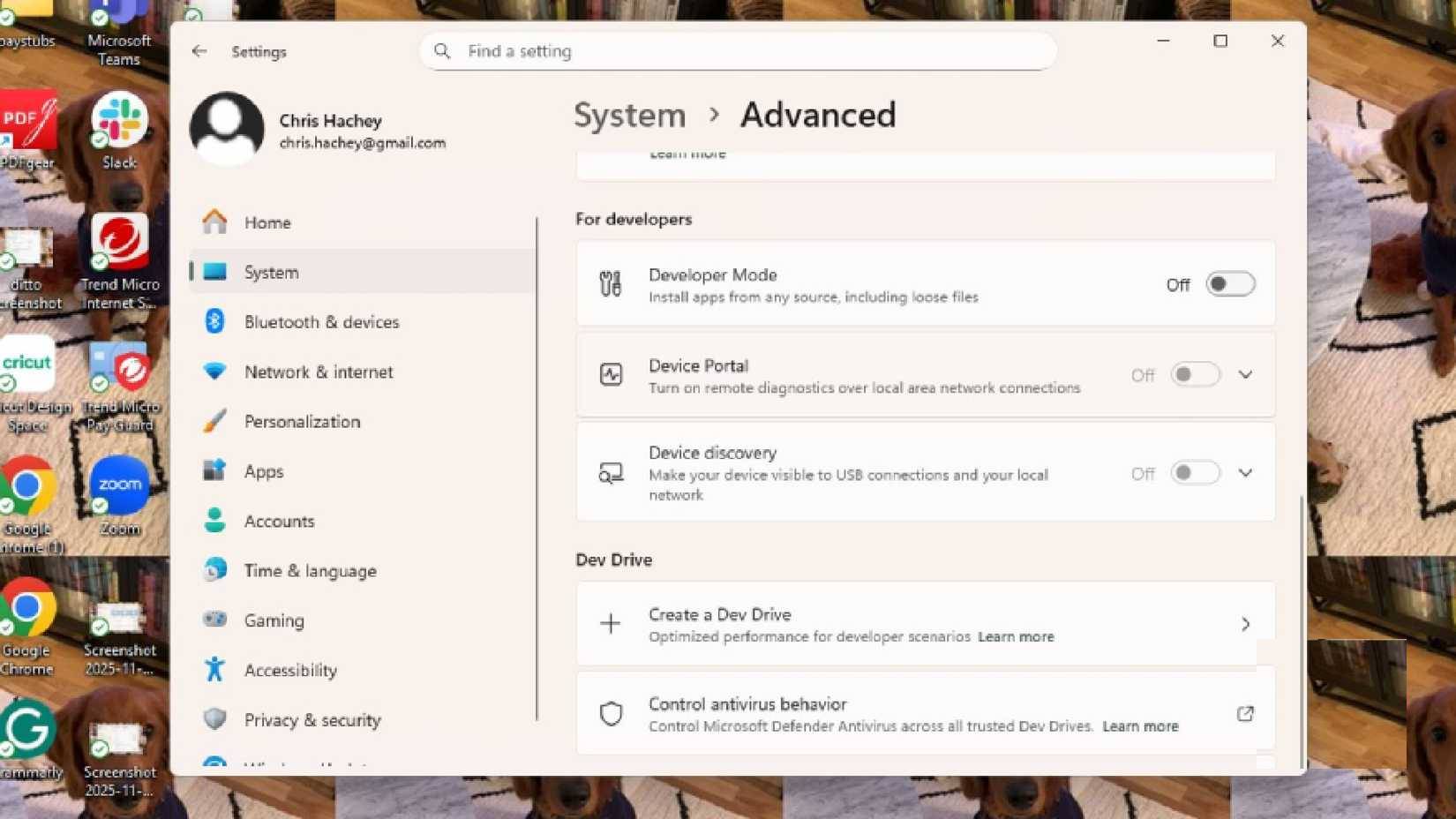
By going to Start -> System -> Advanced and enabling Developer Mode , you will have access to the latest apps and features on your computer. However, Developer Mode is not necessarily for everyday use, unless you are testing out some new features.
But if you just use your computer normally, you probably don't need to turn on Developer Mode. However, it's a good idea to turn it on if you really need it. You won't always find that menu naturally, so it's perfectly fine to turn it on.
Show extensions when searching for files
This feature should be added to File Explorer
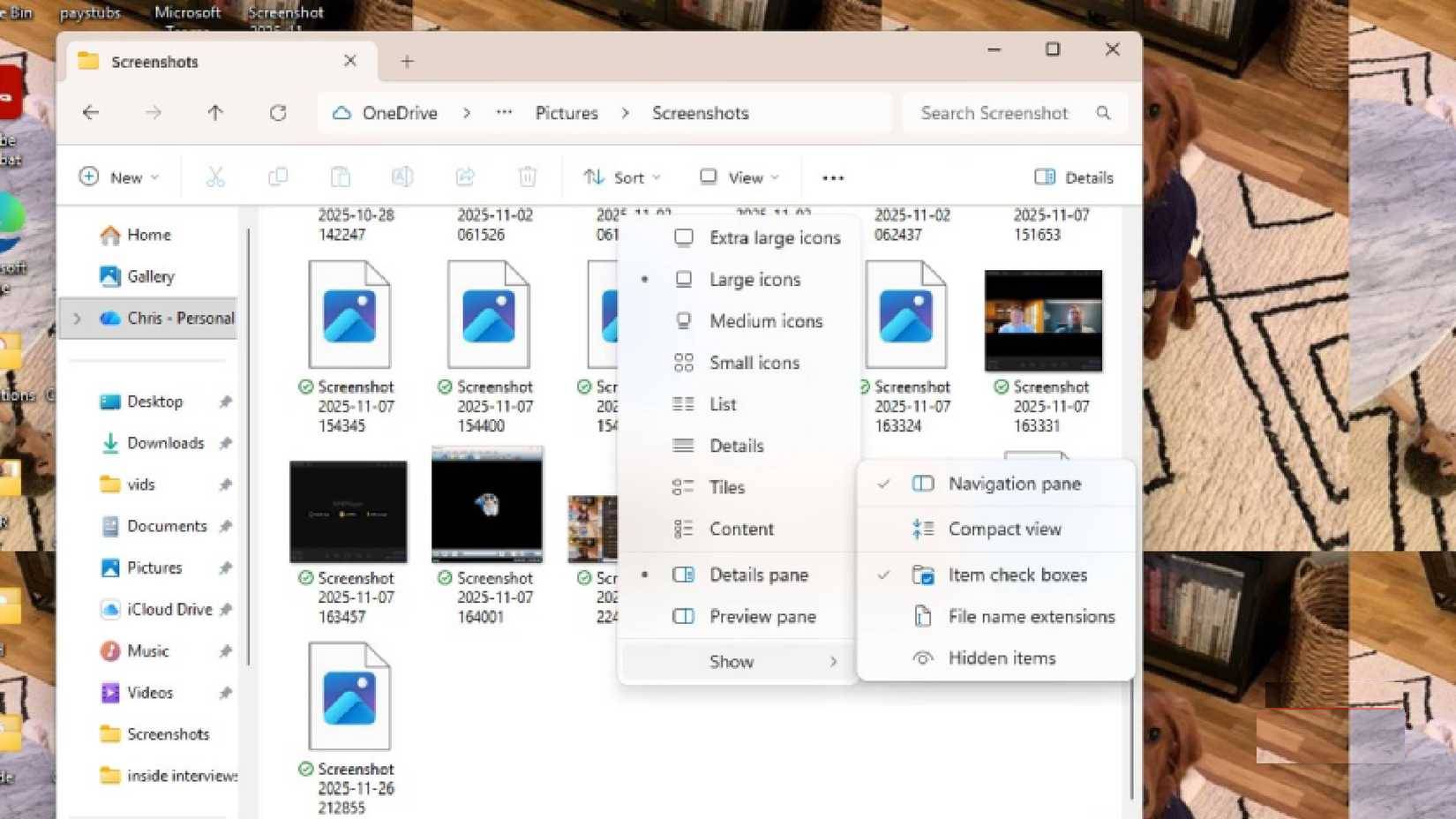
File Explorer is a feature in Windows that allows you to search for different files on your computer. File Explorer isn't always the best way to find files on your computer, but you can click through folders and menus, or type and search by name. You can see the file names in each folder and menu. But it may not give you much more information than that.
To do that, you need to open File Explorer and click View . At the bottom is the Show menu, and in the Show menu there is an option to select File name extensions . Once selected, the file name will be abbreviated followed by the file name. This makes it easier to identify each file.
Final Thoughts
Understanding windows 11 needs these 5 features instead of another copilot update makes it easier to evaluate the information and apply the most relevant recommendations. Focus on the key points above and verify details that may change over time.
FAQ
What is windows 11 needs these 5 features instead of another copilot update?
Explore Windows 11 needs these 5 features instead of another copilot update.
What key points does this article cover?
The article focuses on Move Taskbar to the left, Keep the same position, Set up Windows Start menu with folders, with practical explanations and examples.
How can you use this information in practice?
Use the explanations to compare options, verify important details, and make a more informed decision. Apply the recommendations that best match your goals and situation.
Related Articles
 These Major Updates Enable Users to Utilize Copilot for Research and Analysis5 minutes read
 minutes read
 The Truly Useful Features Make Copilot Irresistible to Users8 minutes read
 Don't Miss These 8 Little-known Features of Microsoft Copilot9 minutes read
 How to Turn Off Copilot in Windows 11: Step-by-Step Guide4 minutes read
 How to Completely Disabling Copilot in Windows5 minutes read
Reader Comments 0
Sign in with email or Google to join the discussion.