Table of Contents
Copilot is deeply integrated into Windows 11, but not everyone wants to use it. This guide explains you in detail how to completely disable Copilot in just a few simple steps.
Since its launch, Microsoft Copilot has become an increasingly prominent part of Windows 11. Originally a standalone application, Copilot is now deeply integrated into the operating system. It combines the power of Bing AI search with advanced language modeling, bringing a variety of support and productivity features right to the desktop.
In recent updates, Microsoft has also incorporated Copilot into the Windows 11 experience more clearly: a Copilot button appears on the taskbar for quick access, and on Copilot+ PC Models there is even a physical Copilot key – showing that Microsoft is very serious about 'AI-izing' Windows in the future.
That said, not everyone wants AI in their operating system. Some people are concerned about privacy, others prefer the traditional Windows experience, or simply find Copilot unhelpful. If you fall into this category and want to disable Copilot, the good news is that Microsoft still makes it pretty easy to do.
Here are detailed instructions.
How to Completely Disable Copilot in Windows 11
Note: If you want to re-enable Copilot later, simply reverse the steps below and select Not configured Or Disabled In the last step.
Step 1: Open Group Policy Editor
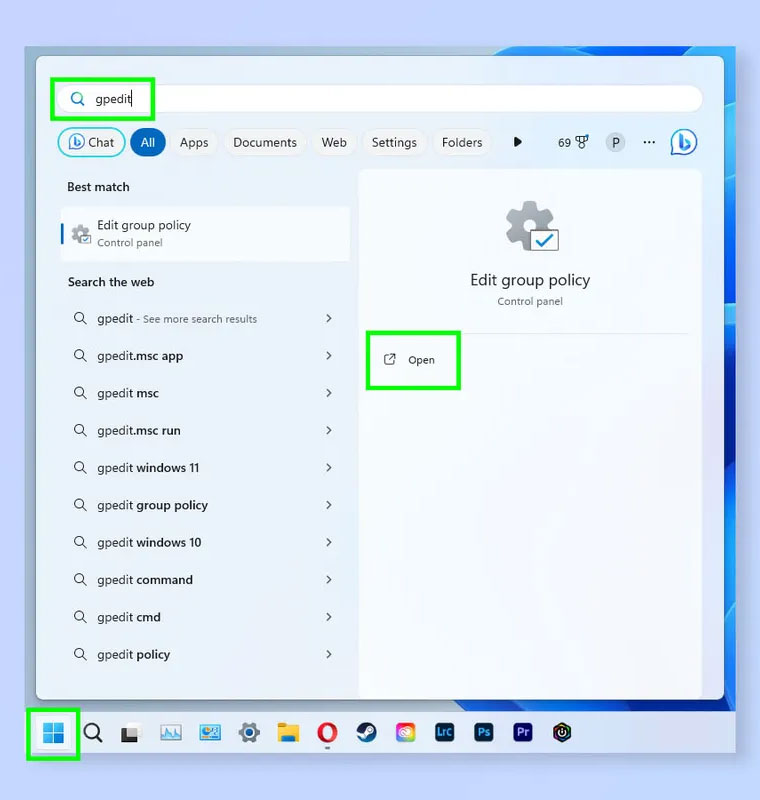
- Click Start , type gpedit, then open Group Policy Editor When it appears.
Step 2: Navigate to Windows Copilot
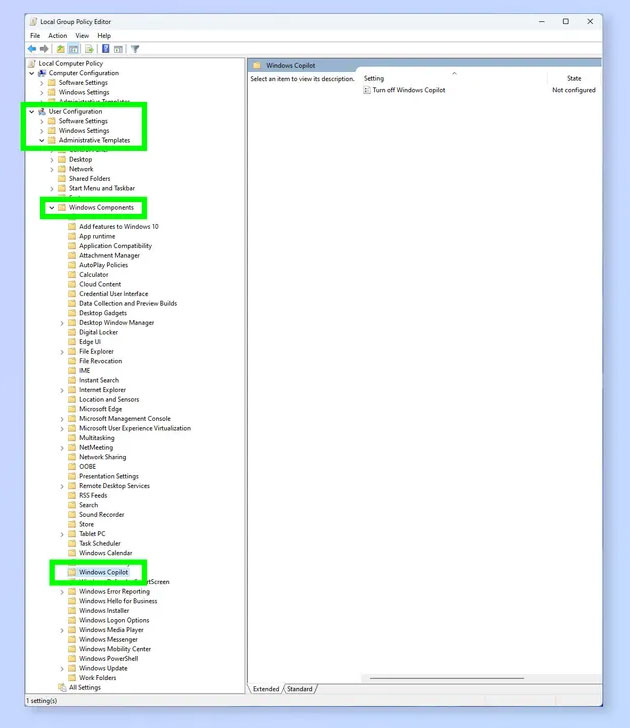
- In the left pane, follow the path: User configuration > Administrative templates > Windows components > Windows Copilot
Step 3: Open 'Turn off Windows Copilot' settings
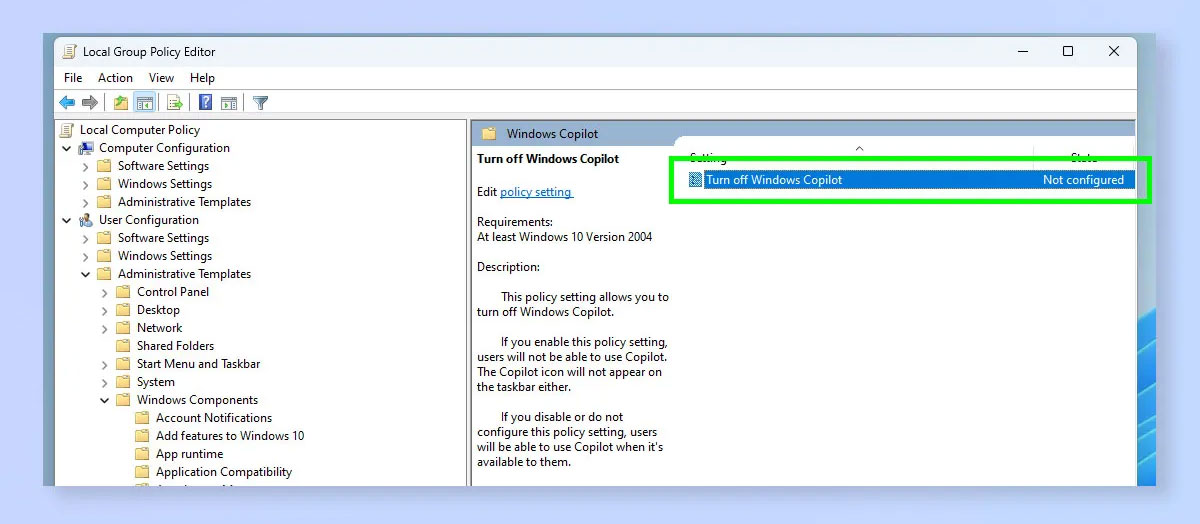
- In the right pane, find and double-click the Turn off Windows Copilot Option.
Step 4: Select 'Enabled' then Apply
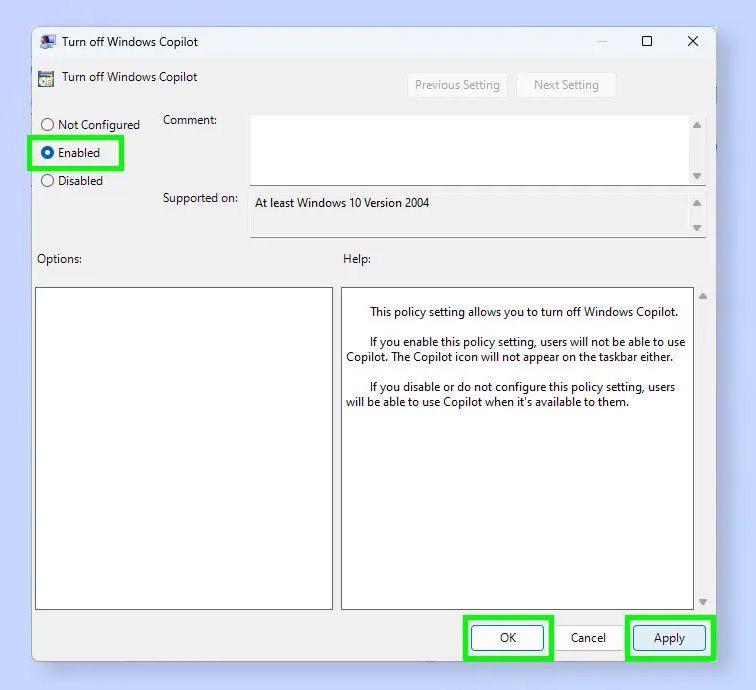
- Select Enabled , then click Apply And OK .
- It may sound strange to select 'Enabled', but you are actually Enabling the Copilot disable policy .
Should Copilot be turned off?
Copilot is actually a powerful tool if you know how to exploit it: you can quickly answer questions, support work, or control Windows with natural language. Therefore, you can consider taking advantage of Copilot for work as well as daily entertainment needs on your PC.
FAQ
How do you turn off Copilot in Windows 11: step-by-step guide?
In practical terms, Copilot is deeply integrated into Windows 11, but not everyone wants to use it. This guide explains you in detail how to completely disable Copilot in just a few simple steps.
What should you check before getting started?
Review the requirements, compatible device or software version, and any warnings described in the guide before making changes.
What should you do if the steps do not work?
Repeat the steps in order, confirm that your app or system is up to date, and review the troubleshooting details provided above.
Related Articles
 minutes read
 How to Turn Off or Remove Windows Copilot on Windows 11: Practical Guide6 minutes read
 How to Completely Disabling Copilot in Windows5 minutes read
 How to Turn Off Share with Copilot on Windows 11: Step-by-Step Guide4 minutes read
 How to Disable Copilot Discover in Windows 11 Widgets: Step-by-Step Guide4 minutes read
 Copilot Explained7 minutes read
Reader Comments 0
Sign in with email or Google to join the discussion.