Table of Contents
Dev Drive serves as a feature of Windows 11 that allows you to create a drive formatted with Microsoft's Resilient File System (ReFS) instead of the usual NTFS.
Dev Drive is a feature of Windows 11 that lets you create a drive formatted with Microsoft's Resilient File System (ReFS) instead of the usual NTFS. ReFS is a file system designed for large data sets and has been tuned by Microsoft for developer workloads, but it can also benefit gamers. Let's take a look at how Dev Drive can improve your gaming experience – and what to look out for!
Benefits of playing games on Dev Drive
NTFS is still considered the top choice for gaming and general use, and ReFS is not intended to replace that. However, depending on your setup and needs, a ReFS-formatted drive is a worthy choice for gaming.
Dev Drive will mainly affect game performance when it comes to game loading times, whether it's initial loading or loading resources during gameplay. In practice, its benefits will be more noticeable on SATA SSDs or HDDs. On NVMe, the performance benefits will be negligible in real-world use. Here are some of the key benefits:
- Faster large file handling : ReFS supports block copy/copy-on-write techniques to speed up large file handling like game installations and patches.
- Optimized for handling small files : It is also optimized for handling workloads with many small files, which can benefit games that rely on many smaller files. In some games, this can reduce initial load times and even help stabilize frame times if slow storage is the cause.
- No latency from Microsoft Defender : Since real-time security scanning is delayed, it can speed up disk I/O.
- Less likely to corrupt game files : While less of a concern for games, file corruption can still occur, especially for game saves. ReFS is resistant to file corruption.
In general, it will be most beneficial for games with large data files, such as open world games. We tested many games on PCs with SATA SSDs with 530MB read/write speeds (benchmarked), including Red Dead Redemption 2, ARK, Albion Online, COD, etc. In terms of initial load times after restarting the PC, the Dev Drive game load times improved by an average of 5-16%.
Disadvantages of playing games on Dev Drive
ReFS is stable with regular use, so you won't encounter any immediate problems while using it. However, you will have to sacrifice some important security and convenience features to use it. Here are some notable downsides:
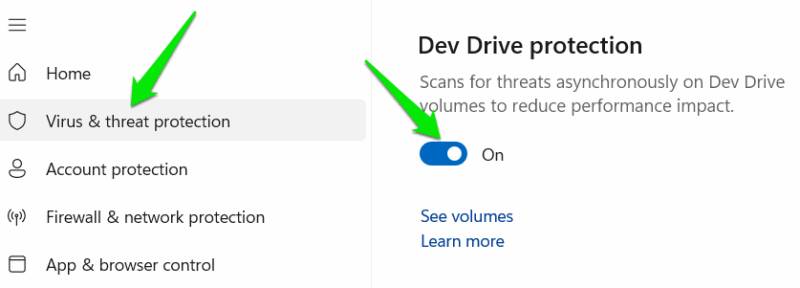
- Real-time scanning is less secure : Windows treats Dev Drive as a trusted drive and runs scans asynchronously. In practice, You should be extra careful if you use untrusted third-party mods or any other unofficial tweaks. You can disable this feature in the Windows Security app by going to Virus & threat protection → Manage settings → Dev Drive protection .
- Compatibility Issues : While rare, it is possible that some games and modding tools that rely on certain NTFS features, such as compression or hard links, may not function properly. Some in-game anti-cheat tools have also been reported to cause issues with Dev Drive games.
The lack of consumer features like compression or encryption might not affect the game too much, but it's still a drawback worth considering.
Create Dev Drive in Windows
No need to convert from NTFS; just create a separate Dev Drive and put your game on it for testing. If you run into any problems, just erase the drive. A minimum of 50 GB is required to create a Dev Drive, so you should have enough free space on the drive to re-allocate it. Here's how:
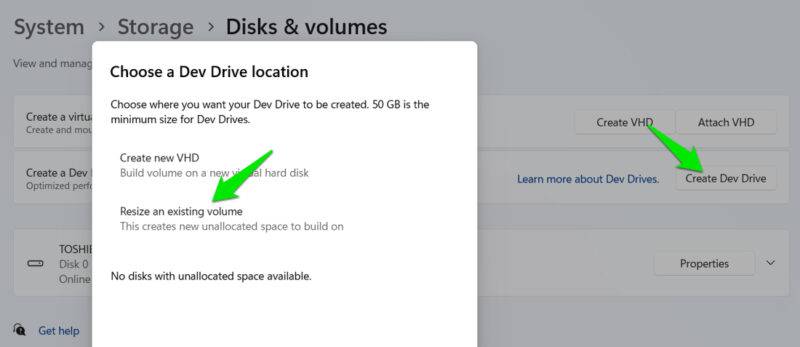
In Windows Settings, go to System → Storage → Advanced storage settings → Disk & volumes . Click Create Dev Drive , then select Resize an existing volume .
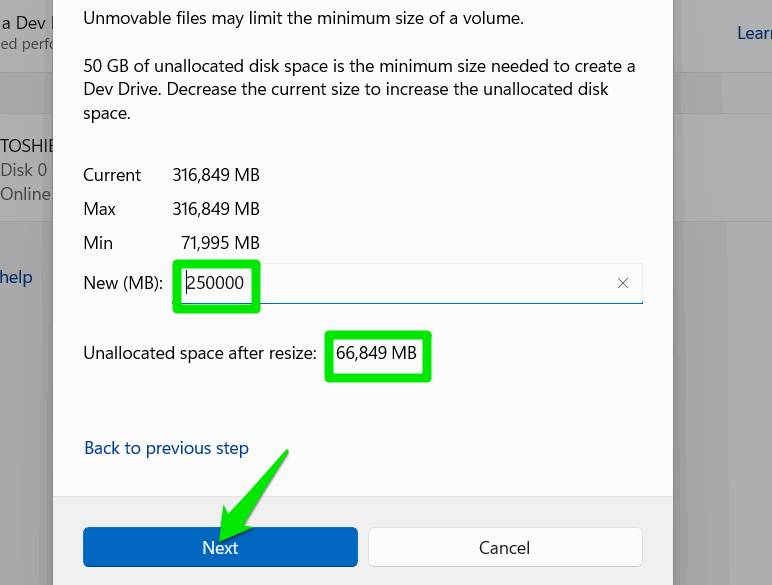
Now, enter the amount of disk space you want to keep on the drive and make sure the unallocated space is above 50,000 MB (below the field). After resizing, you will be prompted to enter a name and size for the Dev Drive to create. You can delete the Dev Drive in the same Disk & volumes Section.
Creating or deleting a Dev Drive is easy, so you can simply allocate the space needed for your game and easily test to see if it makes any improvements. You can also try these tips to further improve your Windows gaming performance.
FAQ
Why Should You Move Games to Dev Drive in Windows: Explained?
In practical terms, dev Drive is a feature of Windows 11 that allows you to create a drive formatted with Microsoft's Resilient File System (ReFS) instead of the usual NTFS.
What factors are most important?
The article highlights that benefits of playing games on Dev Drive NTFS is still considered the top choice for gaming and general use, and ReFS is not intended to replace that.
What is the main takeaway?
The main takeaway is that disadvantages of playing games on Dev Drive ReFS is stable with regular use, so you won't encounter any immediate problems while using it.
Related Articles
 How to Move Steam Games to Another Drive in 2 Ways8 minutes read
 Click: How to Move Windows to Another Drive6 minutes read
 How to Move an Installed Application from Drive C to Drive D or Another4 minutes read
 How to Move the Downloads Folder to a Different Drive on Windows 10/113 minutes read
 Move Desktop, Download and Documents to Another Drive on Windows5 minutes read
 How to Move Software to Another Drive Right on Windows 103 minutes read
Reader Comments 0
Sign in with email or Google to join the discussion.