Table of Contents
Discover why do your Windows updates keep failing (it's not the internet) and explore the main causes, risks, practical effects, and recommended actions.
Windows Errors That Many People Don't Notice At First
Failed updates come from leftover files
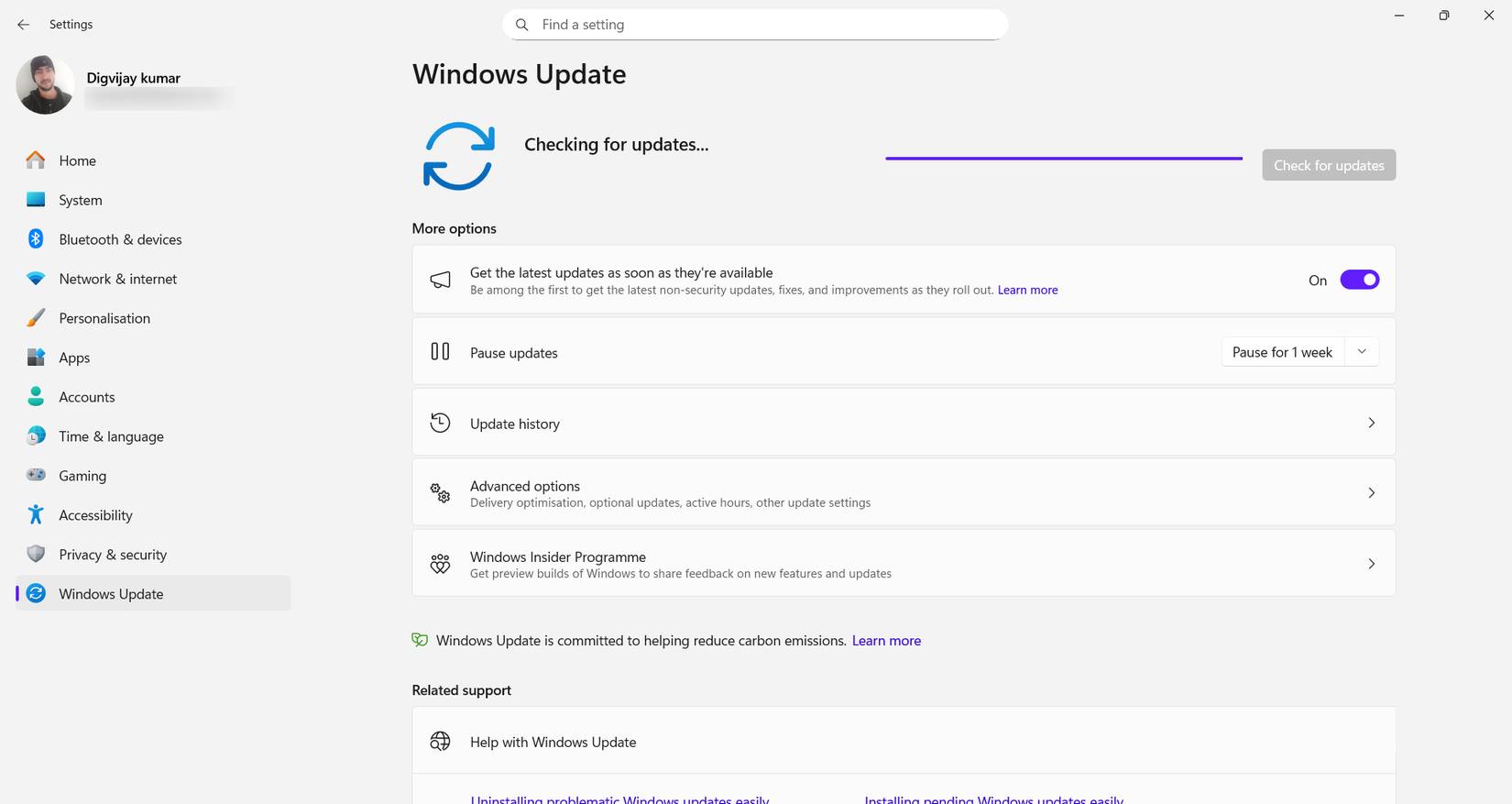
When your system prepares for an update, it creates a group of temporary files that store the parts needed for the installation. These files are usually stored locally on your computer so Windows can continue the process without having to download the same data again. If the update fails, these files are usually still there. Windows can try to use them again the next time you check for updates. If any of these files are corrupted, the installation may fail the same way every time.
Windows doesn't point to this folder or warn you that cached files are the cause. It's so deep inside the system that most people never check it. Many people don't look there until they search for the error code online and see other people describing the same problem. In many cases, the update may fail because a temporary file in the update cache is corrupted. No amount of online troubleshooting can replace a corrupted file that's already on your computer. The problem is inside Windows.
How to reinstall updates for Windows
Deleting old data will fix the update loop error
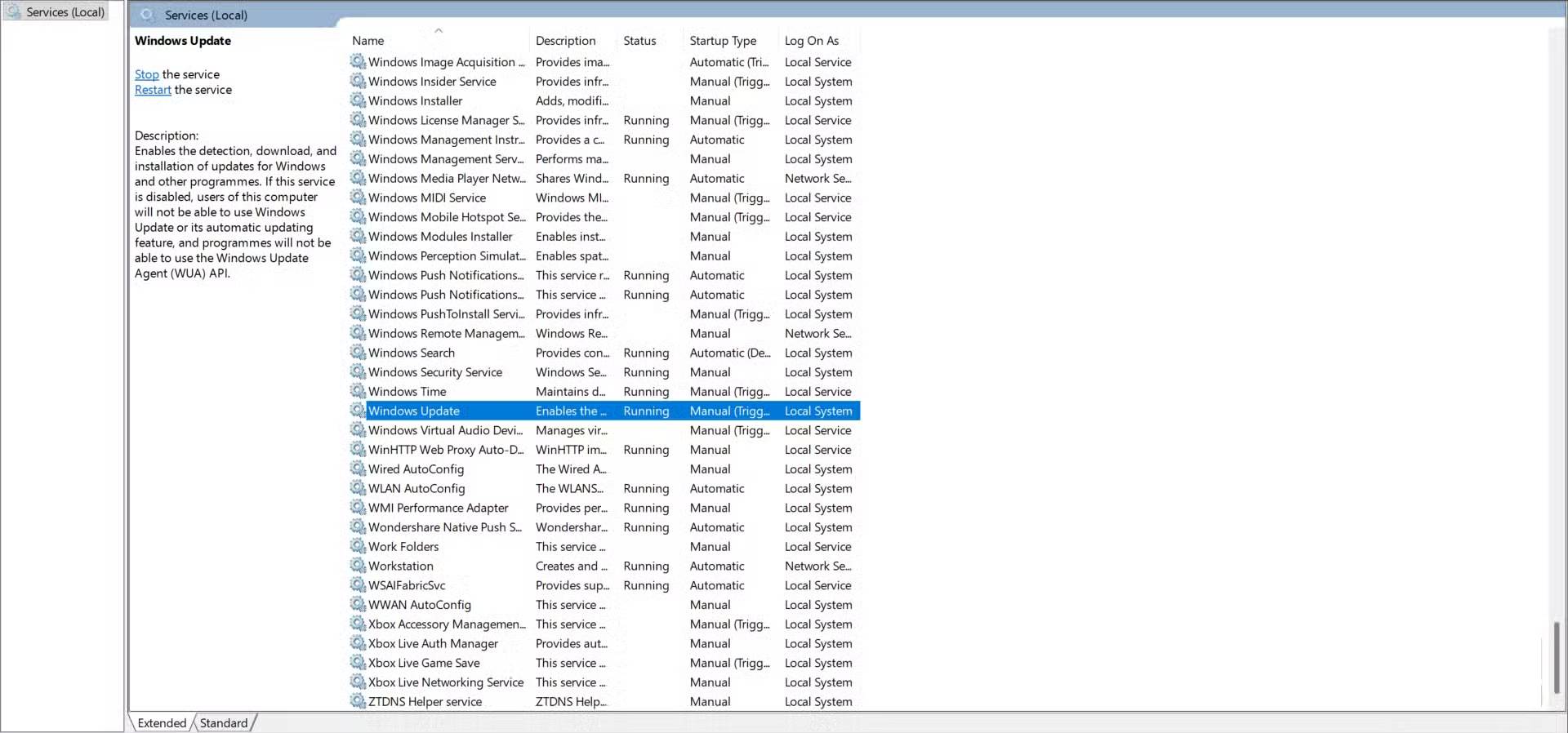
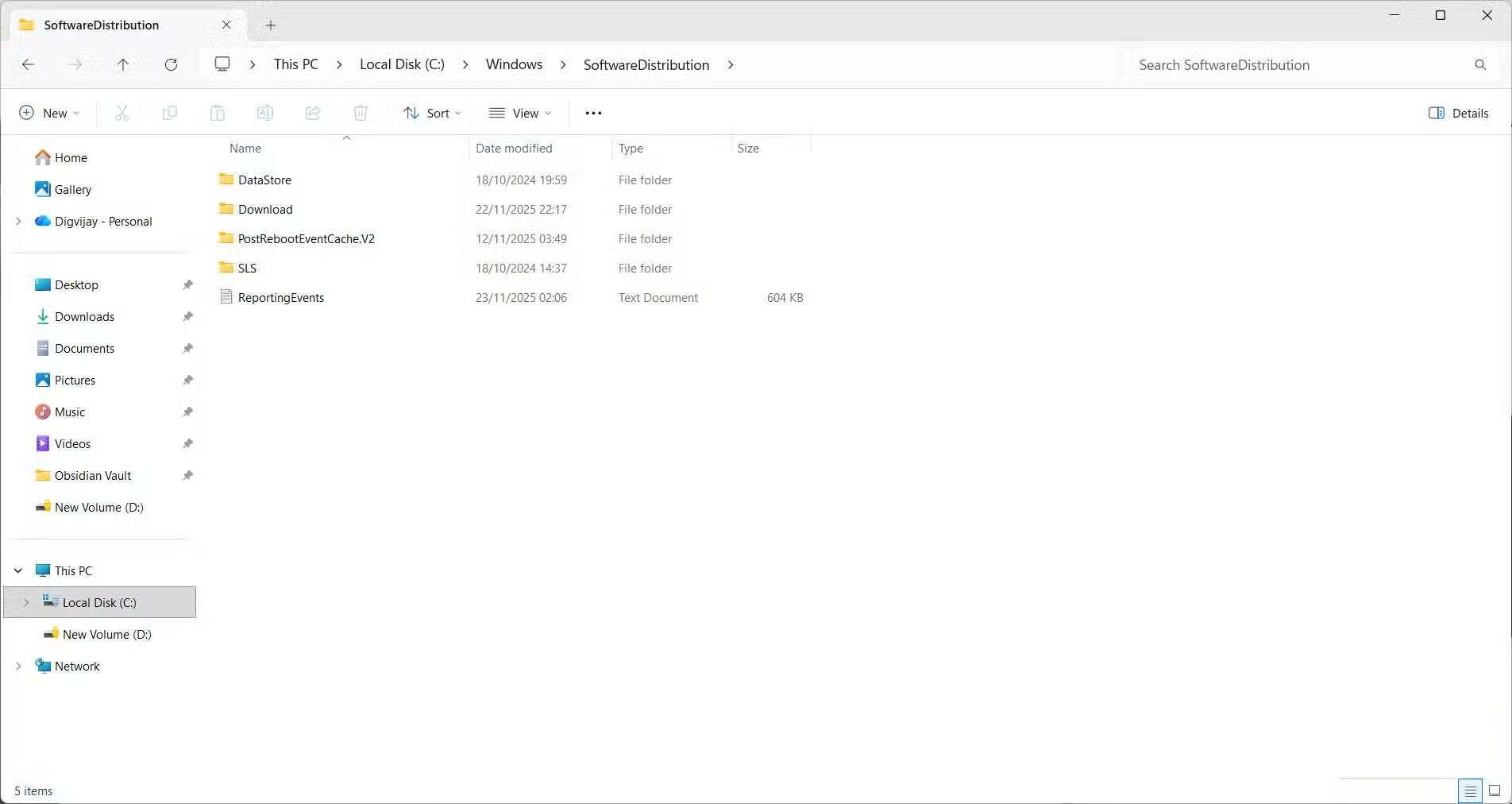
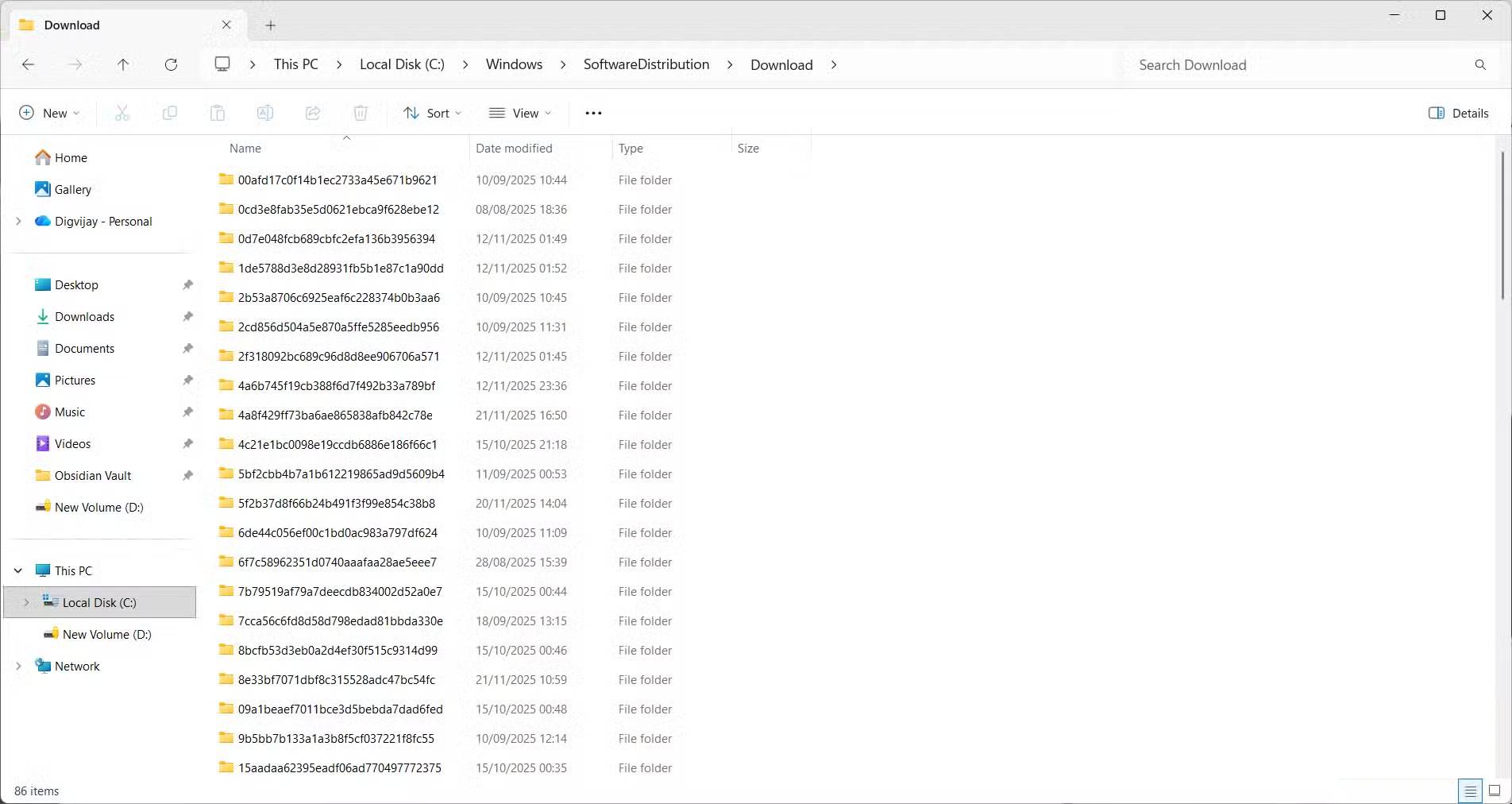
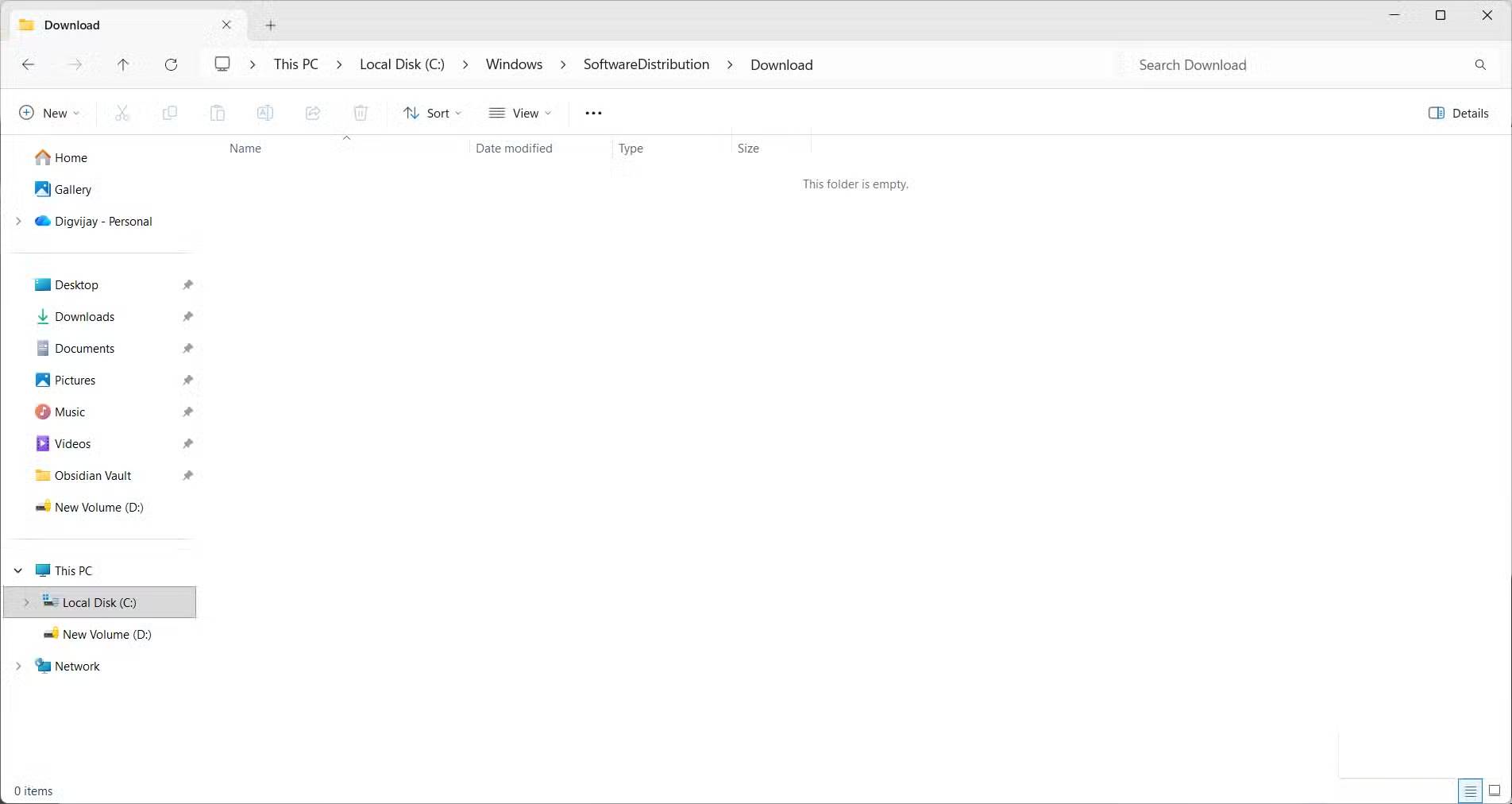
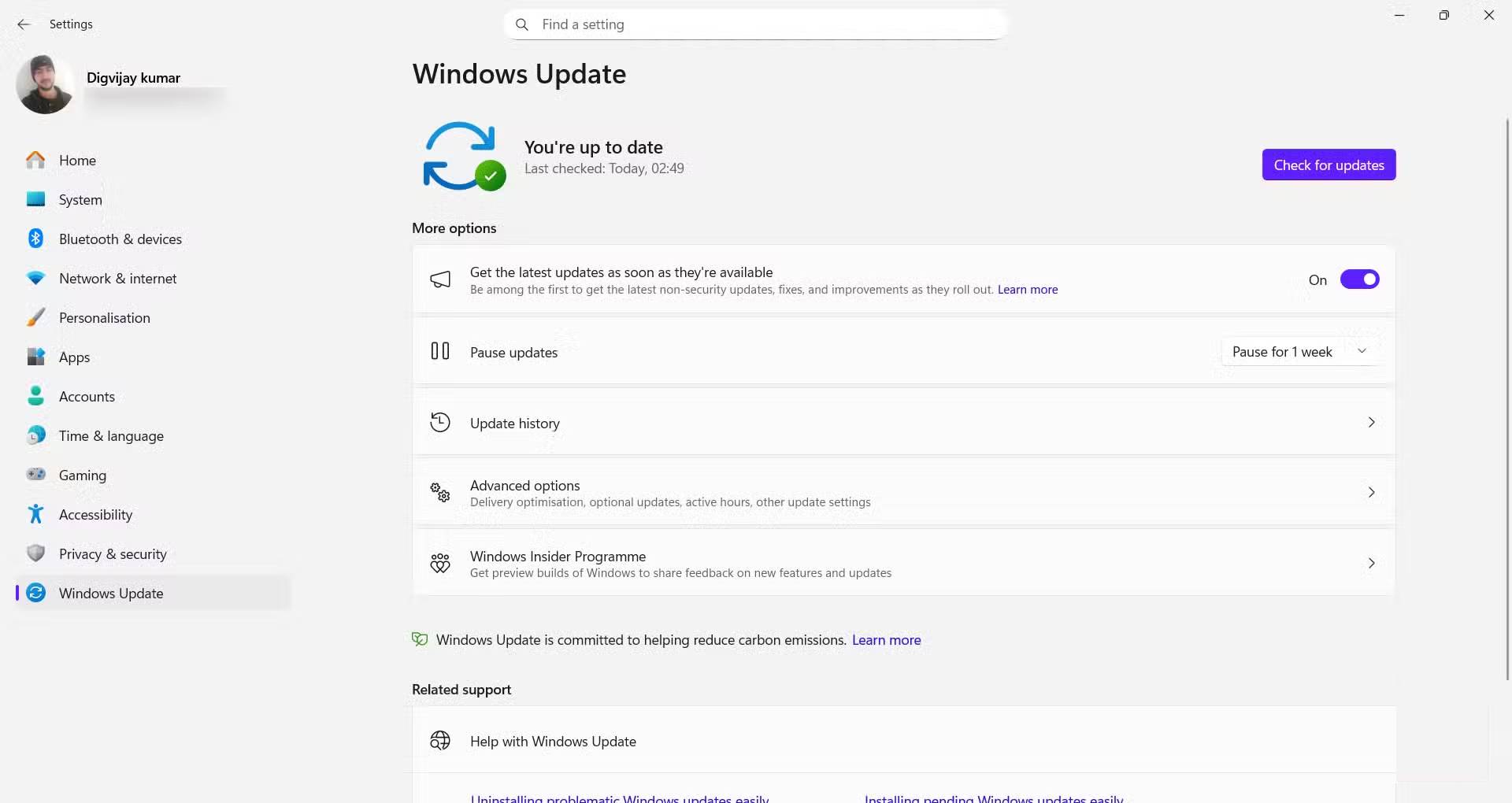
Now that the update cache is likely the culprit, the next step is to delete the files in the folder that Windows uses to temporarily store update data. This folder is called SoftwareDistribution and is located in the Windows main folder. The system uses it to store update files and related data that it downloads before installing updates. This folder does not store personal documents, and deleting it will not delete installed applications, although the list of installed updates may appear incomplete until Windows rebuilds.
Before deleting anything, you should pause the update services. In the Services window, stop both Windows Update and the Background Intelligent Transfer Service. These background programs handle the downloading of updates and file transfers for Windows. While they're running, Windows may still keep some temporary files in the SoftwareDistribution that are in use, which can block the deletion. Stopping the services will pause the update process long enough to work with the folder.
Next, open SoftwareDistribution and delete its contents. Just delete the files inside the folder. The folder itself will remain intact so Windows can continue to use it properly. These are temporary update files that Windows used. Deleting them will force the system to download new copies the next time you check for updates. The next time Windows updates, it will automatically reload the folder with new data. If any files refuse to delete even after services have stopped, restart in Safe Mode and repeat the process to delete the folder's contents.
After deleting the folder, go back to the Services window and restart Windows Update and the Background Intelligent Transfer Service. This should have brought the update services back to normal. When I checked for updates later, Windows downloaded a clean file and the installation proceeded without stopping.
Final Thoughts
Understanding why do your windows updates keep failing (it's not the internet) makes it easier to evaluate the information and apply the most relevant recommendations. Focus on the key points above and verify details that may change over time.
FAQ
What is why do your windows updates keep failing (it's not the internet)?
Discover why do your Windows updates keep failing (it's not the internet) and explore the main causes, risks, practical effects, and recommended actions.
What key points does this article cover?
The article focuses on Windows Errors That Many People Don't Notice At First, Failed updates come from leftover files, How to reinstall updates for Windows, with practical explanations and examples.
How can you use this information in practice?
Use the explanations to compare options, verify important details, and make a more informed decision. Apply the recommendations that best match your goals and situation.
Related Articles
 How to Stop Windows Updates on Your PC10 minutes read
 How to Disable Windows 10 Updates9 minutes read
 Fixing the 'No Internet, Secure' Error on Windows 10, Resolving Network Access Issues4 minutes read
 Windows 10 Updates Will Be Divided into C, B, and D Levels5 minutes read
 Spreading Hacking Tools Helps Windows 7 Still Get Updates Even3 minutes read
 How to Uninstall Internet Explorer 11 on Windows 7: Practical Guide5 minutes read
Reader Comments 0
Sign in with email or Google to join the discussion.