Table of Contents
Explore turn off these 5 Google settings to improve your privacy.
It's impossible to completely abandon Google, so to start 2026, consider reviewing all of Google's privacy settings and taking control of how your data is collected and used.
Turn off Web & App Activity
Google's largest tracking source
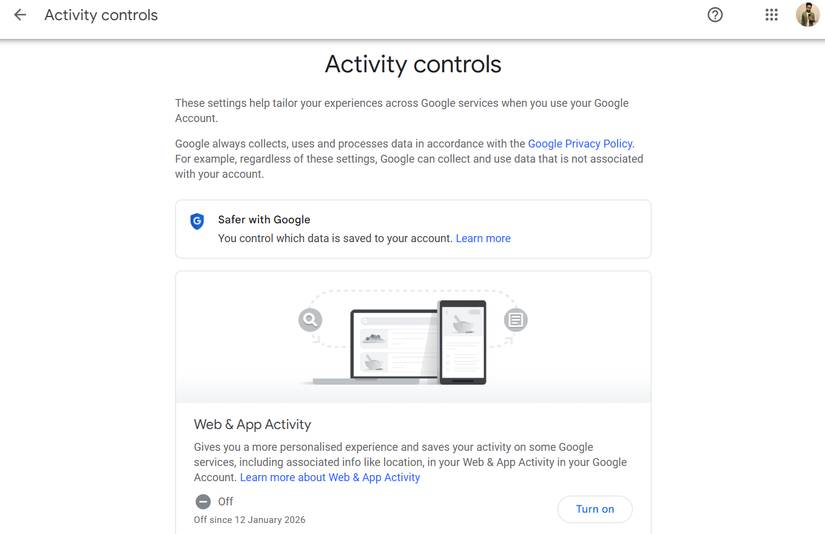
If there's one Google account setting that tracks the most data, it's this one. Google's Web & App Activity setting records what you search for, the apps you use, the websites you visit, the YouTube videos you watch, etc. Go to the Google My Activity page and you might be shocked. Almost everything you've done in Google's apps and services shows up here.
To turn this feature off, select Web & App Activity on the Google My Activity page and choose Turn off . Make sure you select Turn off and delete activity here to delete everything Google has stored about you.
Disable timeline or location history
Prevent Google from recording your activity
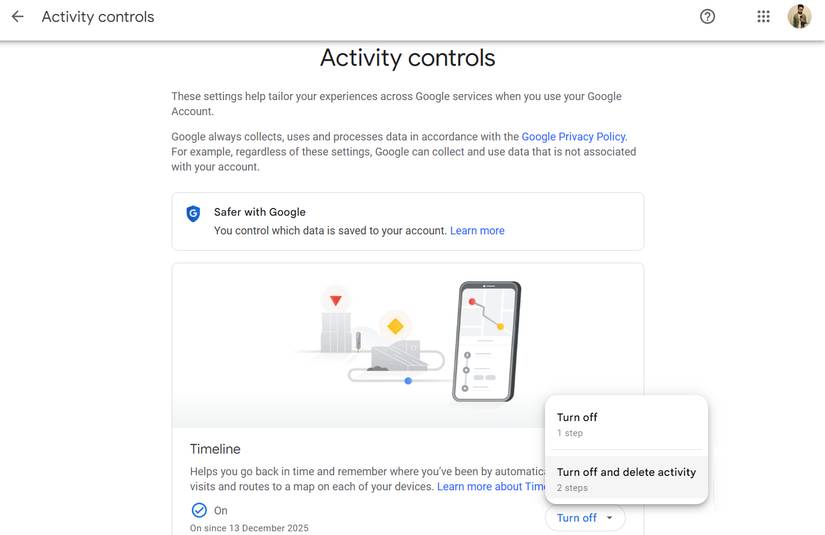
If you frequently use Google Maps, you may already be familiar with the Timeline feature, also known as Location History. It records all the places you go using your phone's location services.
This includes every time you go out to a coffee shop, bank, or grocery store. It even remembers where you went on vacation, the places you visited, and the route you took to get there.
Such detailed travel history can make many people uncomfortable. Like Web & App Activity, you can turn off the Timeline feature and the data collected from Google My Activity .
Turn off personalized ads
Prevent ads from tracking you
This is hardly surprising. After all, Google makes most of its money from advertising. Even after turning off Web & App Activity and Timeline, Google can still collect data about you when you use their free apps and services.
You know this feeling. You search for something once, and suddenly ads for that very thing follow you everywhere. It's not magic. It's stalking.
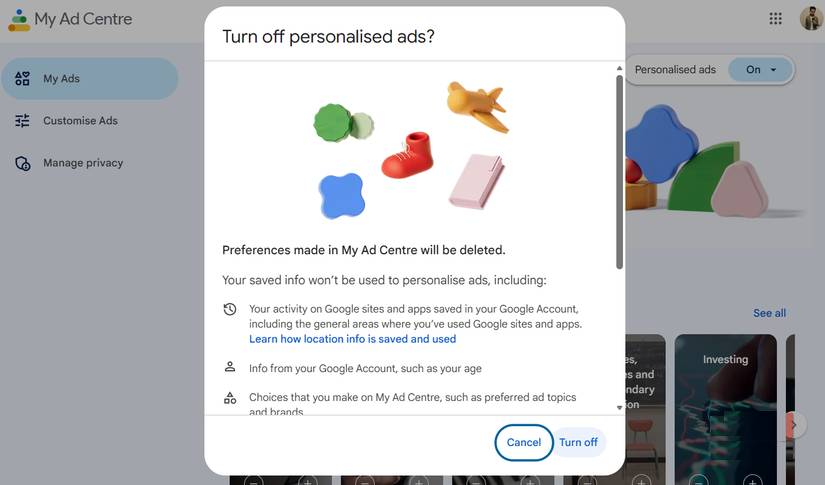
This is very annoying. It means that what you search for could appear in ads that anyone looking at the screen can see. To turn this off, go to Google's My Ad Center and disable the Personalized ads option.
Remove unwanted third-party connections
Close the doors you forgot you were leaving open
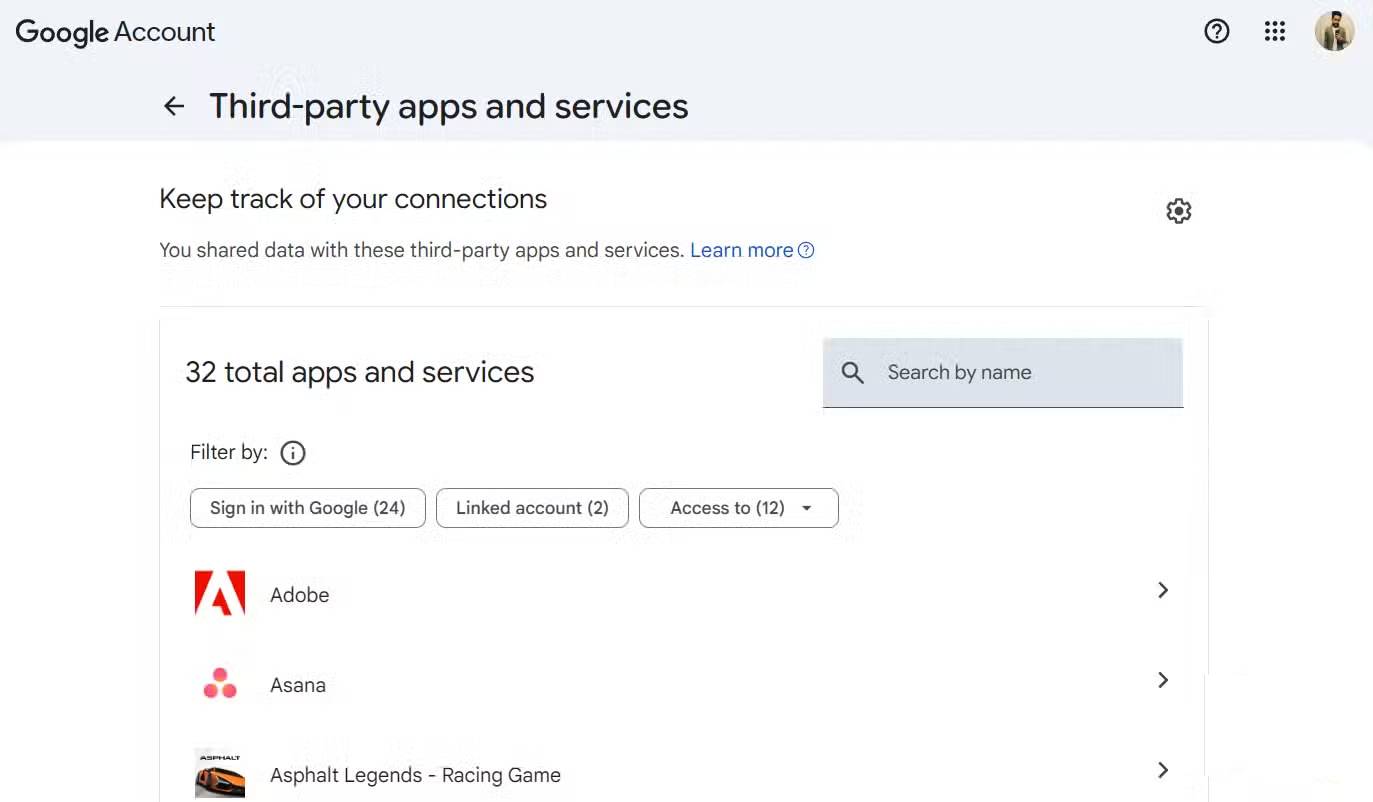
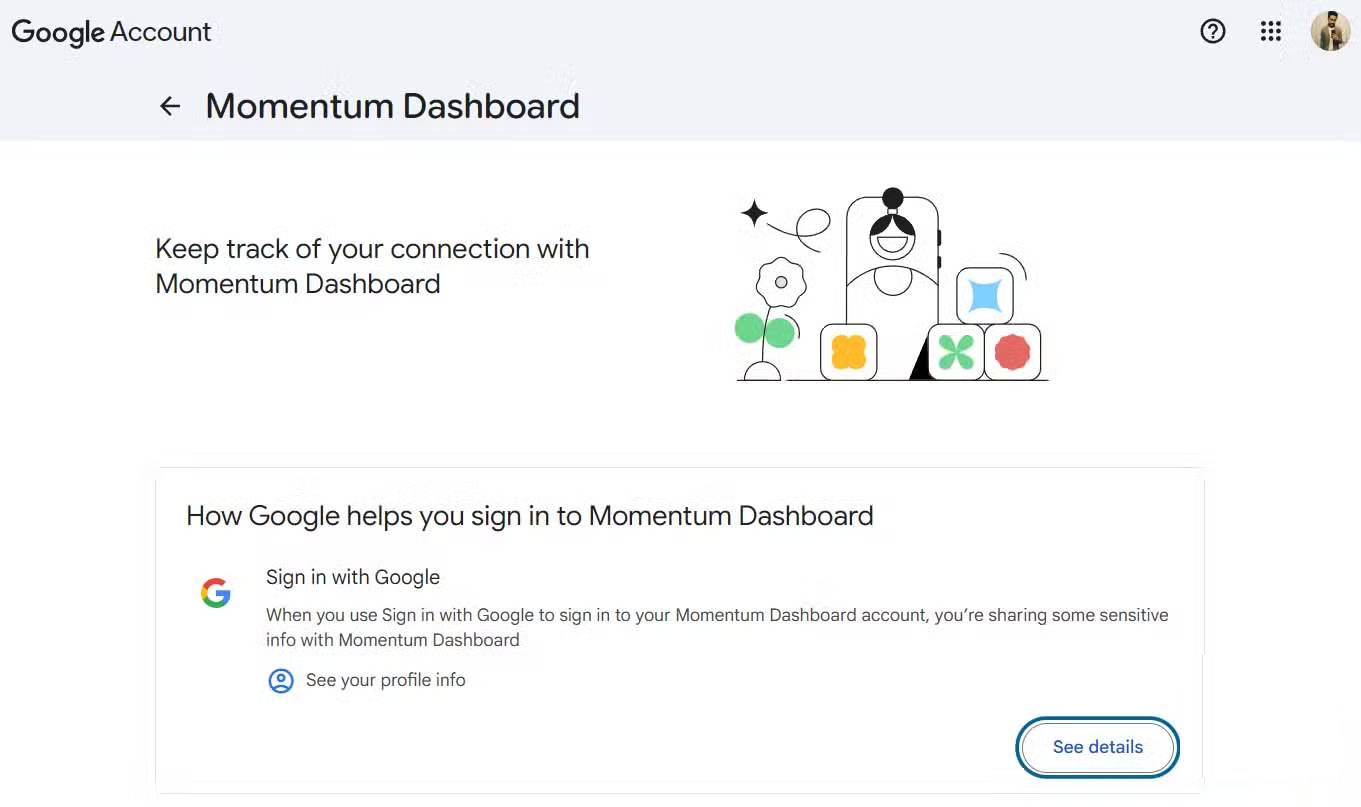
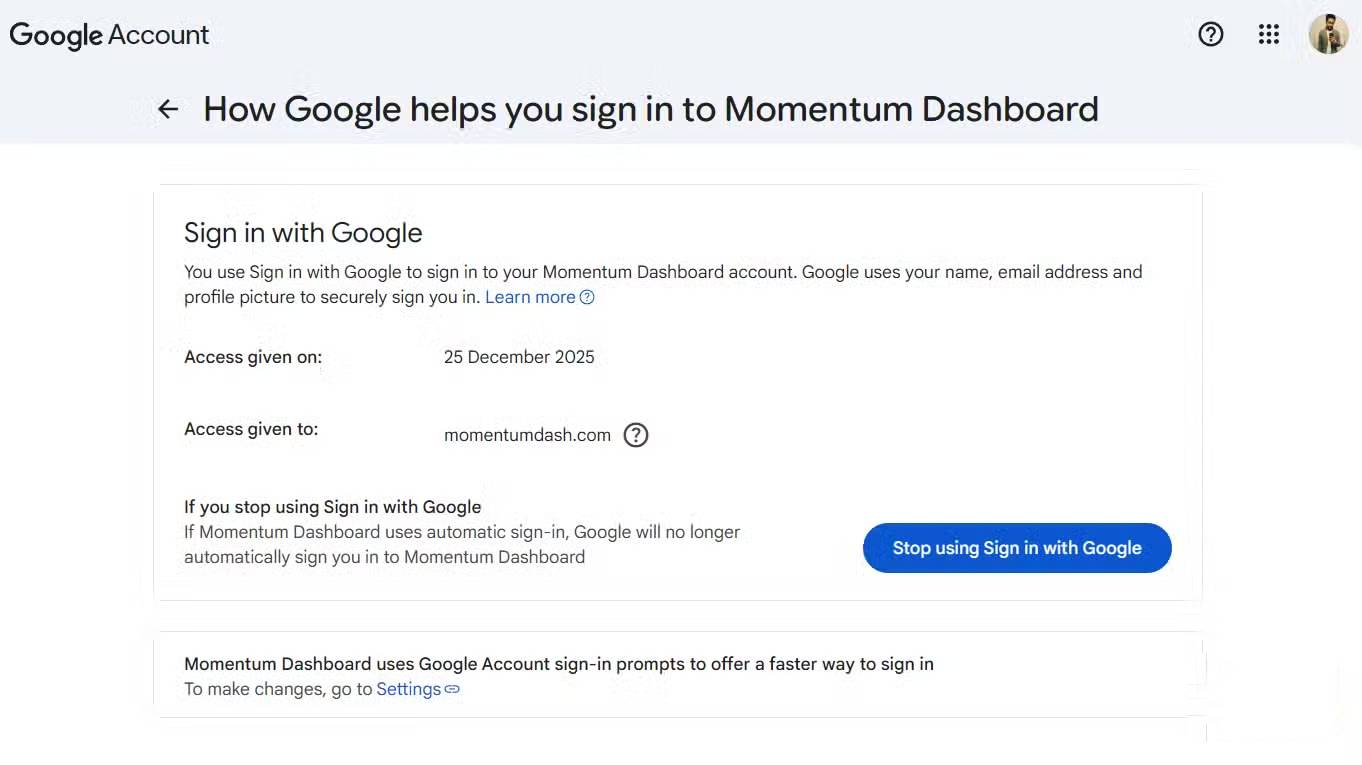
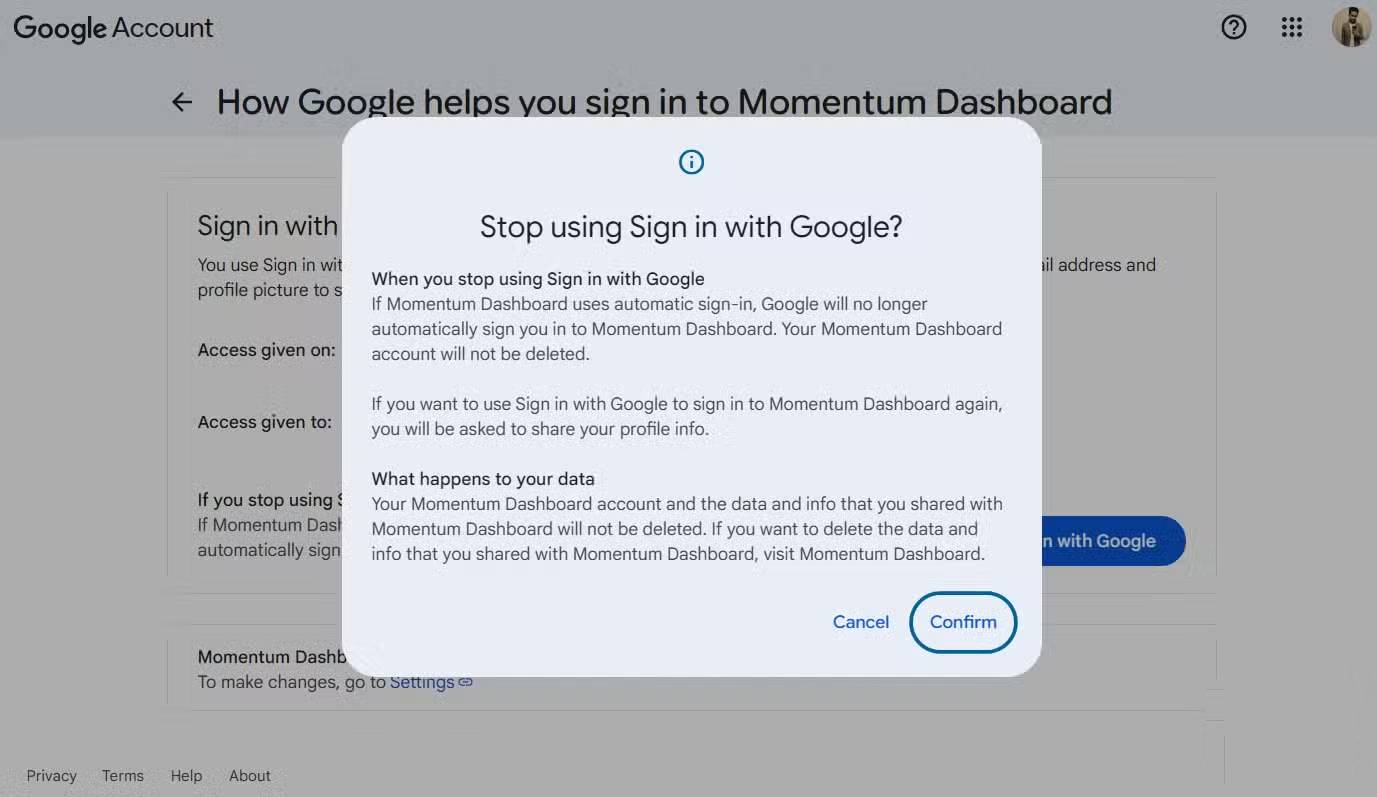
Most people prefer using the "Sign in with Google" option on most third-party apps or services they try. It's quick and convenient. But each time you do this, you're also allowing these third-party connections to use certain data.
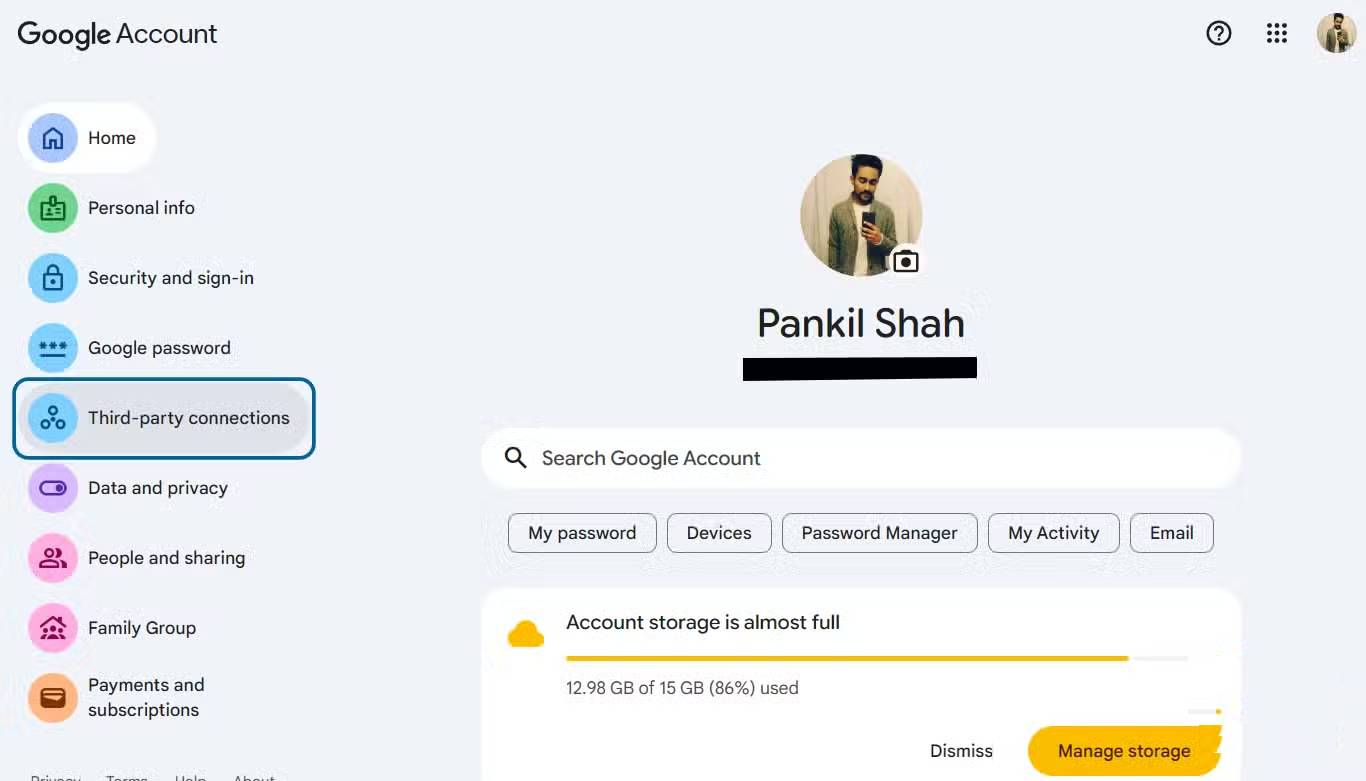
To resolve this issue, go to My Google Account and select Third-party connections . Here, you will see a list of websites where you have used your Google account to log in. Review the list and remove all unwanted connections.
Check the settings for Google apps
Check out settings you've never seen before
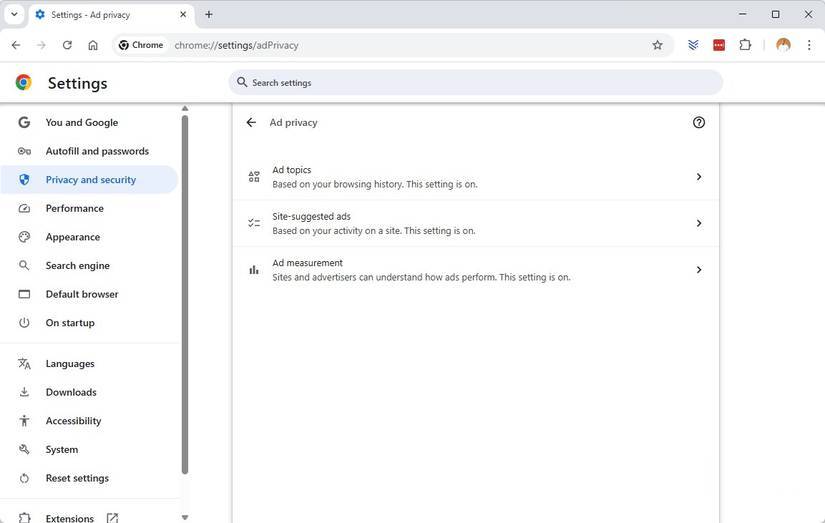
Turning off all the tracking features mentioned above is a great start. However, if you use many Google apps, that's only half the job. Each Google app has its own set of privacy settings, and unless you actively seek them out, most of them remain at their default settings and collect data in one way or another.
Managing these privacy settings doesn't affect or change how you use Google apps and services. And the peace of mind you get now is immense. Occasionally you'll see Google ask you to re-enable these settings, but those pop-ups are pretty easy to ignore.
Final Thoughts
Understanding turn off these 5 google settings to improve your privacy makes it easier to evaluate the information and apply the most relevant recommendations. Focus on the key points above and verify details that may change over time.
FAQ
What is turn off these 5 google settings to improve your privacy?
Explore turn off these 5 Google settings to improve your privacy.
What key points does this article cover?
The article focuses on Turn off Web & App Activity, Google's largest tracking source, Disable timeline or location history, with practical explanations and examples.
How can you use this information in practice?
Use the explanations to compare options, verify important details, and make a more informed decision. Apply the recommendations that best match your goals and situation.
Related Articles
 9 Windows Privacy Settings You Should Change Right Now9 minutes read
 Guide to Controlling Privacy Settings on Copilot4 minutes read
 Privacy Practices on Google Chrome: Google Security Check14 minutes read
 9 iPhone Privacy Settings You Should Turn on Right Now9 minutes read
 Check These Privacy Settings Immediately If You Use Claude Frequently6 minutes read
 Online Security: How to Block Google Ads and Adjust Privacy7 minutes read
Reader Comments 0
Sign in with email or Google to join the discussion.