Table of Contents
This updated guide compares Google TV settings to change immediately and highlights the details that matter most. While there are plenty of streaming devices, Google TV is a clear winner, largely because of the Android operating system running in the background. Still, the default settings do not always provide the best experience, and there are a few Google TV settings It is best to change.
6. Manage Content Suggestions
When you set up Google TV, you'll be asked to enter and enable your subscriptions to your services and apps. When you use this feature, Google TV will display more content, like TV shows and movies, on the home screen, Along with displaying a list of apps and games on your device. This makes it easy to find new content to stream and pick up where you left off.
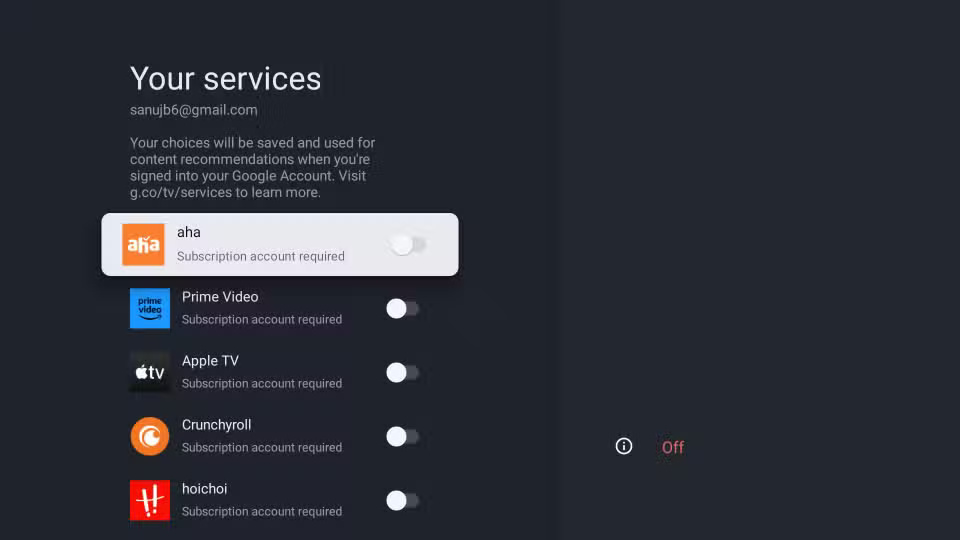
Still, if you add or forget to enable service subscriptions during setup, you can easily manage them. To choose which services Google TV recommends on the home screen, follow these steps:
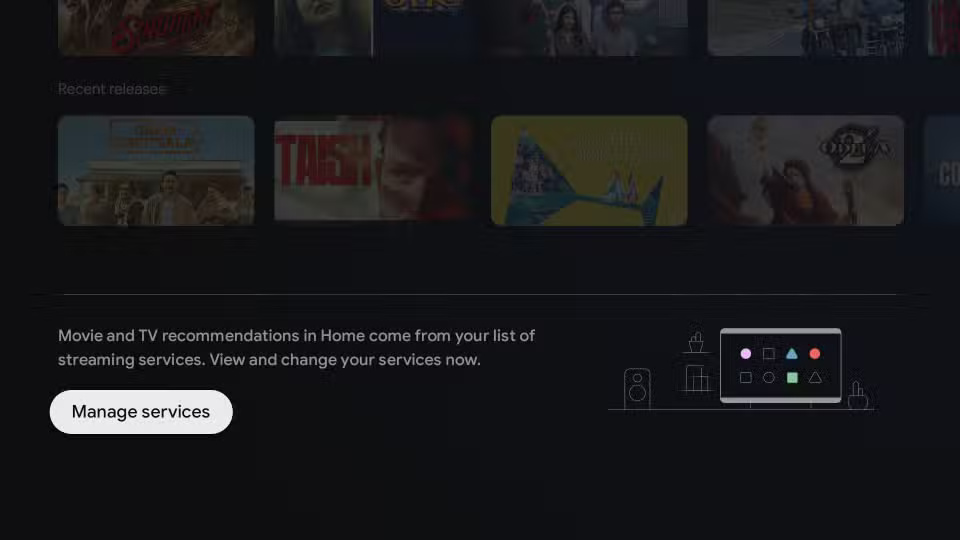
- Scroll down to the bottom of the home screen.
- Click Manage services .
- Turn home screen suggestions on or off for each service.
5. Turn Off Autoplay Video Previews
Similarly, Along with showing recommendations, Google also promotes a large amount of content on the home screen in a bar above the recommendations. While this is beneficial to some users because it allows them to watch trailers and previews while discovering new content, it can be annoying, especially since these videos start playing automatically by default. You can easily turn off these video previews on Google TV:
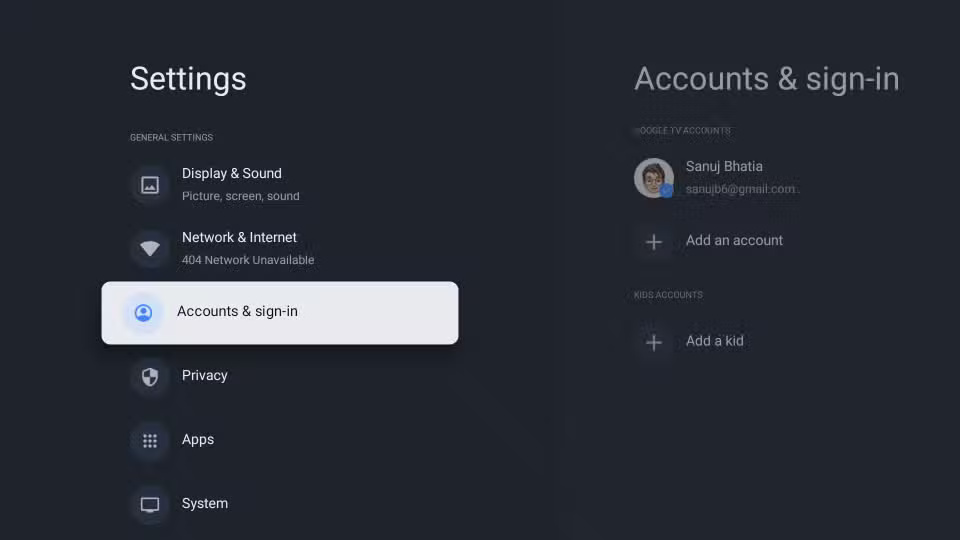
- Open Settings .
- Select Accounts & sign-in .
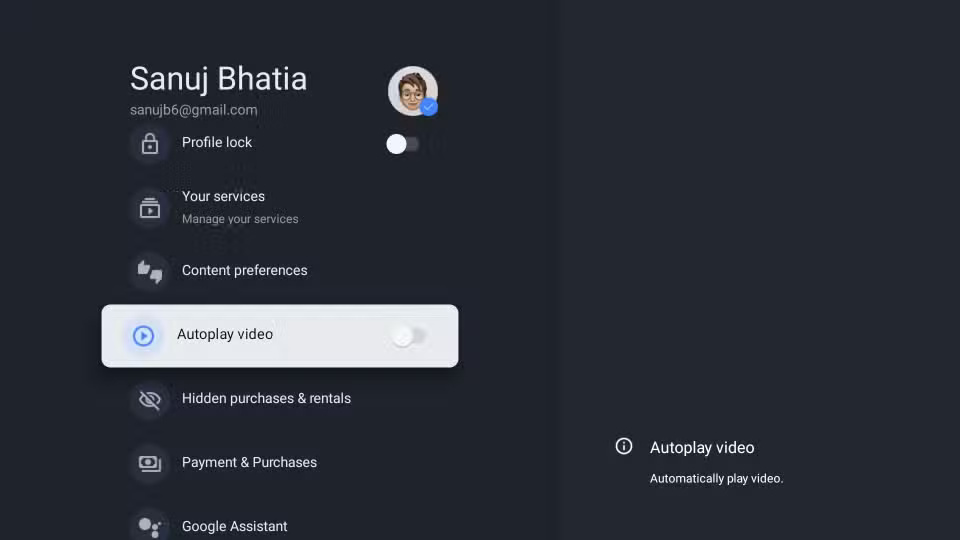
- Now, select the profile for which you want to disable video preview.
- Scroll down and turn off the toggle to preview the video.
4. Turn Off Animations for a Faster Experience
Like Android smartphones, Google TV comes in a variety of price points. The Chromecast, which is no longer available, starts at $40, while the new Google TV Streamer is a whopping $100. Other vendors also offer Google TV streaming devices, including Xiaomi and Walmart. These devices offer different hardware but often struggle to handle the task.
One way to improve your Google TV experience is to disable animations. This gives your streaming device more resources to process data instead of using them to display animations. To do this, you'll first need to enable Developer Settings, then disable animations entirely.
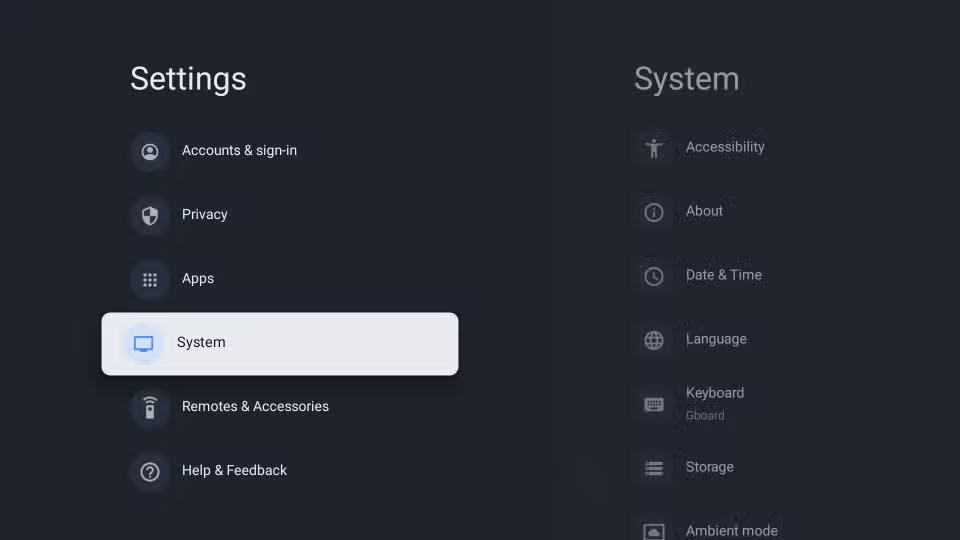
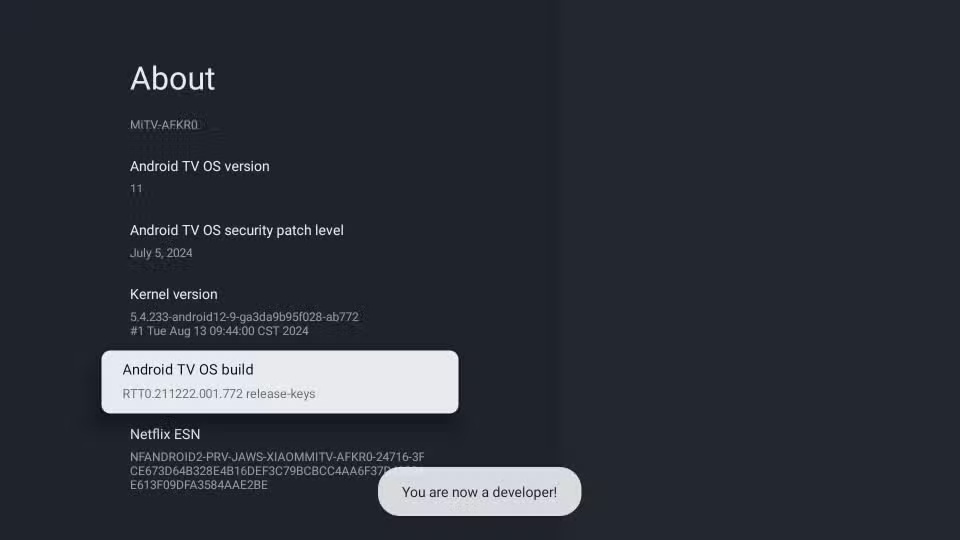
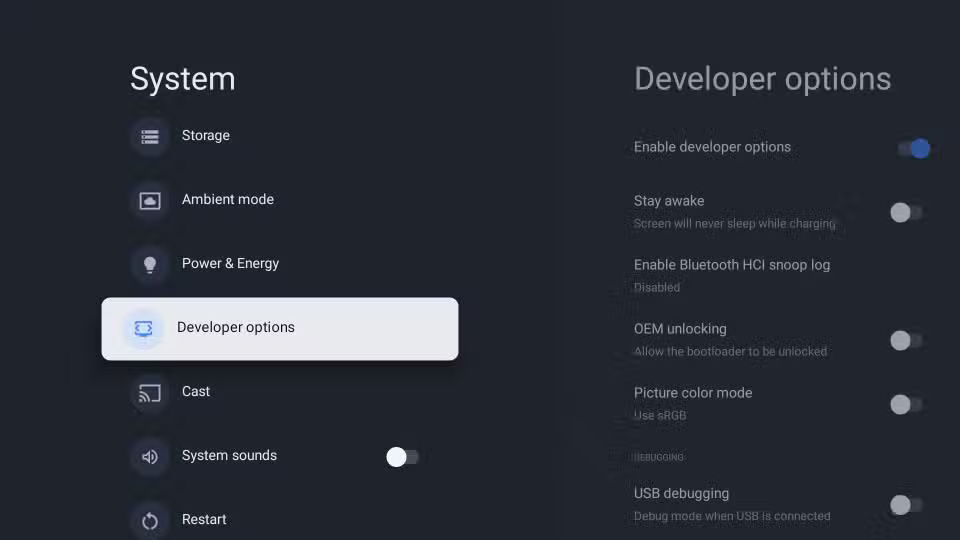
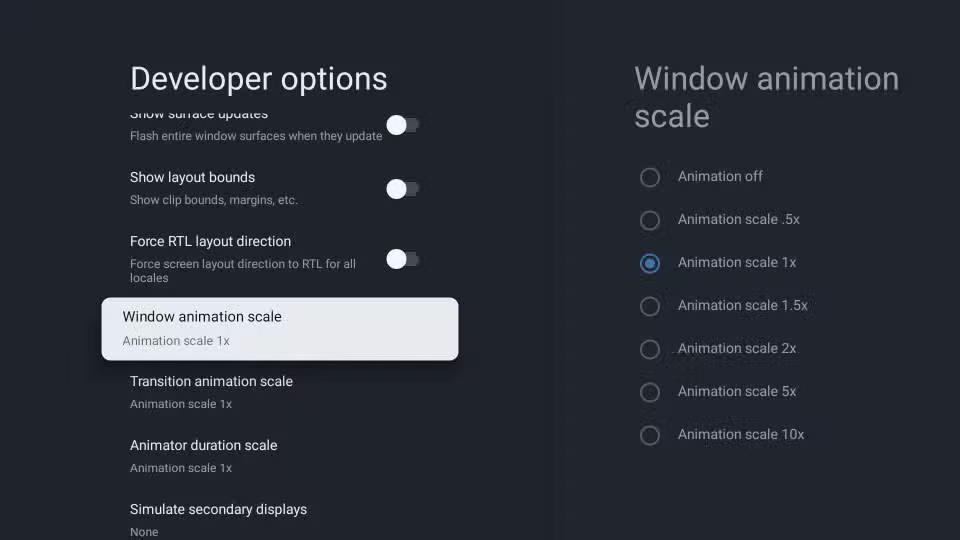
Here's how you can get started:
- Open Settings .
- open System > About .
- With the Android TV OS Build Number selector selected, choose the OK button on your Google TV remote 7 times.
- Go back to System settings, then select Developer Options .
- In Developer Options , scroll down and set Window animation scale , Transition animation scale , and Animator duration scale to Animation off .
This small tweak can make a big difference to the performance of your Google TV device.
3. Turn on Apps - Only Mode
If you find the default Google TV home screen too cluttered, you might want to try Apps-Only Mode. This mode removes unnecessary suggestions from the home screen and puts your apps at the forefront.
Still, it is worth noting that Apps-Only Mode will disable Google Assistant and Google Home integration. You also will not be able to download new apps. To do that, you'll have to disable Apps-Only Mode again.
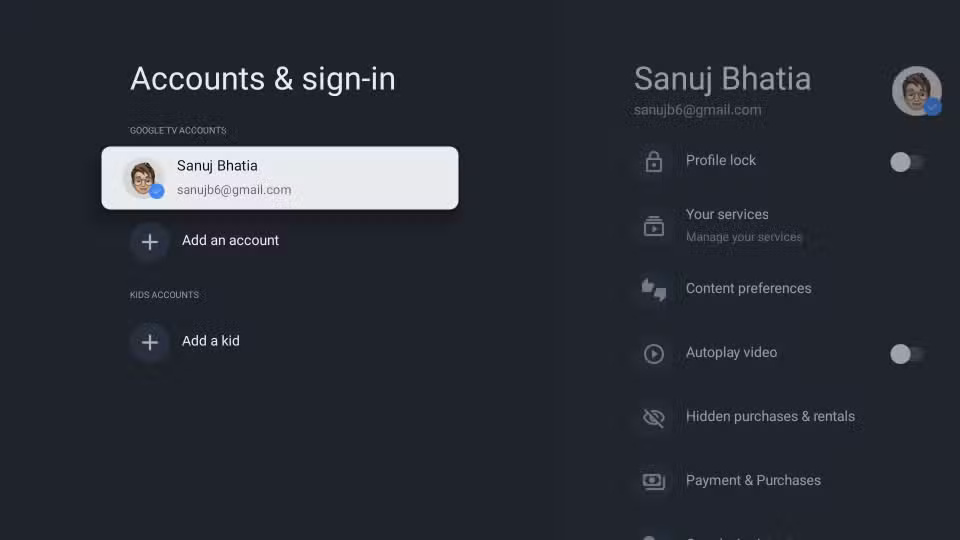
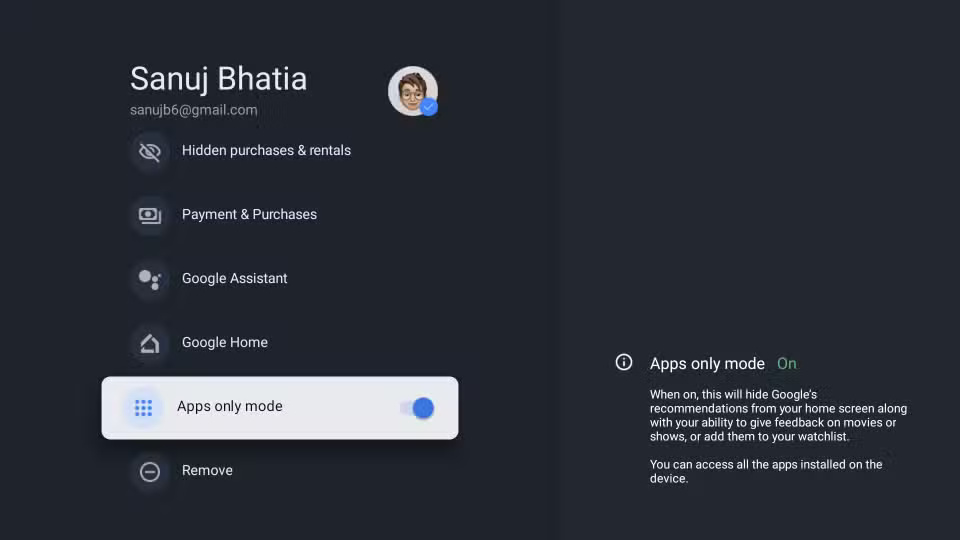
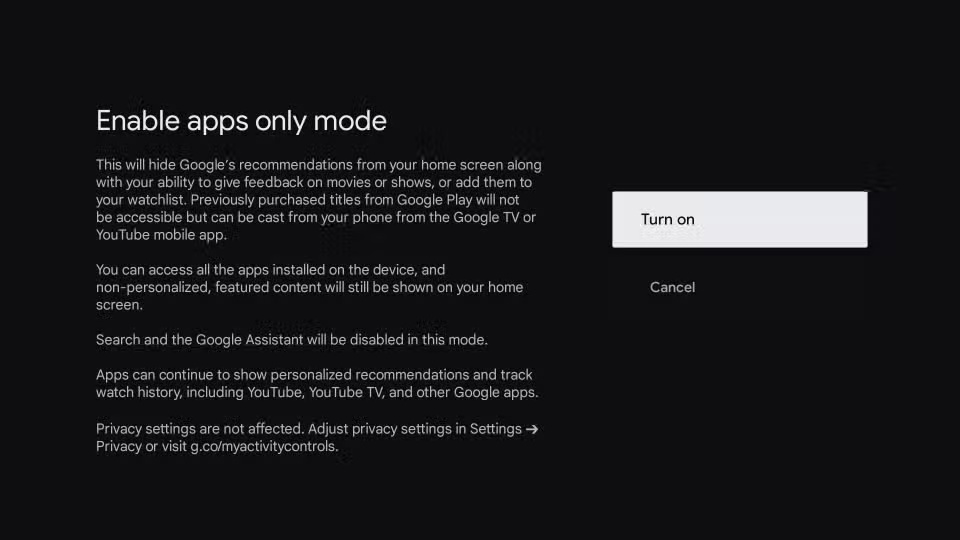
To enable Apps-Only Mode on Google TV, follow these steps:
- open Settings .
- Select Accounts & sign-in .
- Select the profile for which you want to disable home screen clutter.
- In profile settings, turn on the toggle for Apps only mode .
Select Turn on and now you have a much simpler Google TV home screen.
2. Set Up User Profile
Often, you're not the only one using the TV in your home. There may be other family members or friends using the same TV. In these cases, you can set up profiles for each user, allowing each to have their own personalized recommendations and watchlists without being confused with the main profile.
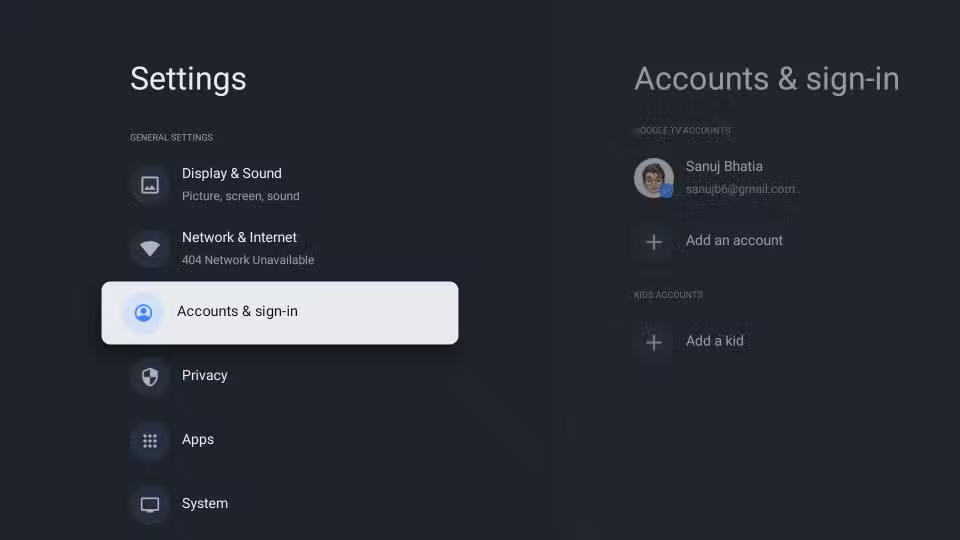
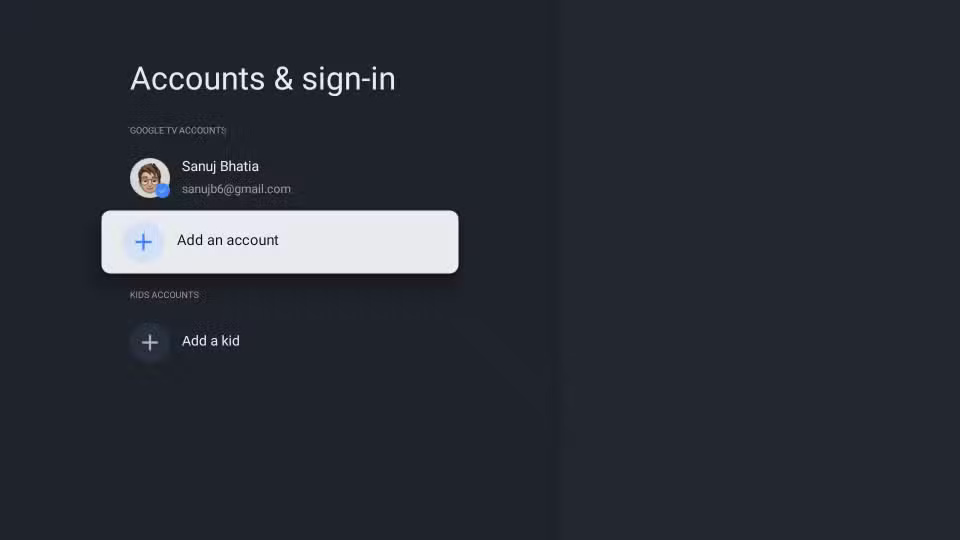
To add more profiles to Google TV, follow these steps:
- Open Settings .
- Select Accounts & sign-in .
- Click Add account and sign in with other members' Google ID using QR code.
Try them out as they can streamline your Google TV experience.
1. Use Custom DNS
The Domain Name System (DNS) is like a phone book for the Internet, turning website names into IP addresses. By default, most Google TVs rely on Google's DNS servers, and while they rarely go down, DNS issues can cause some video streaming apps on your smart TV to lag.
Luckily, you can easily switch to a custom DNS on your TV for better speeds and improved privacy, like Cloudflare's 1.1.1.1 DNS service. Other benefits include blocking ads and bypassing content restrictions.
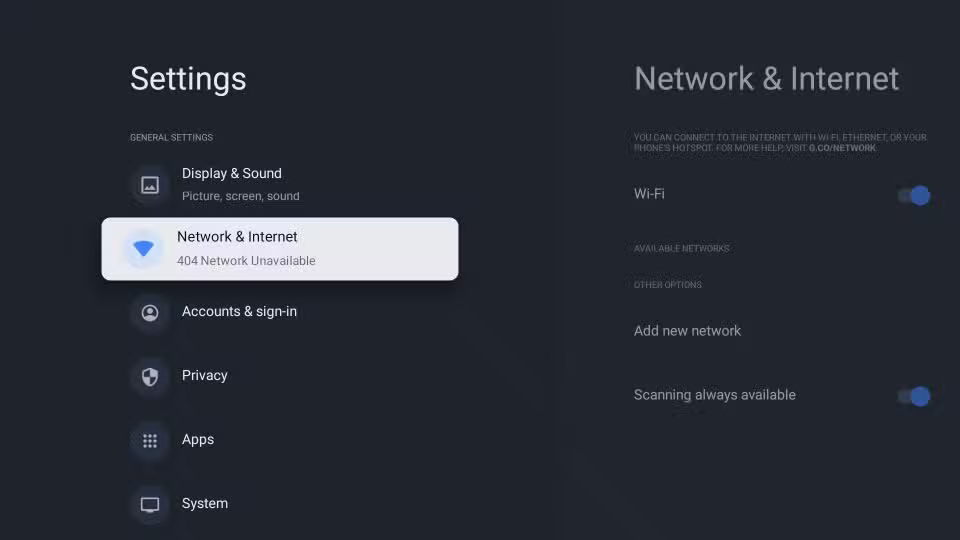
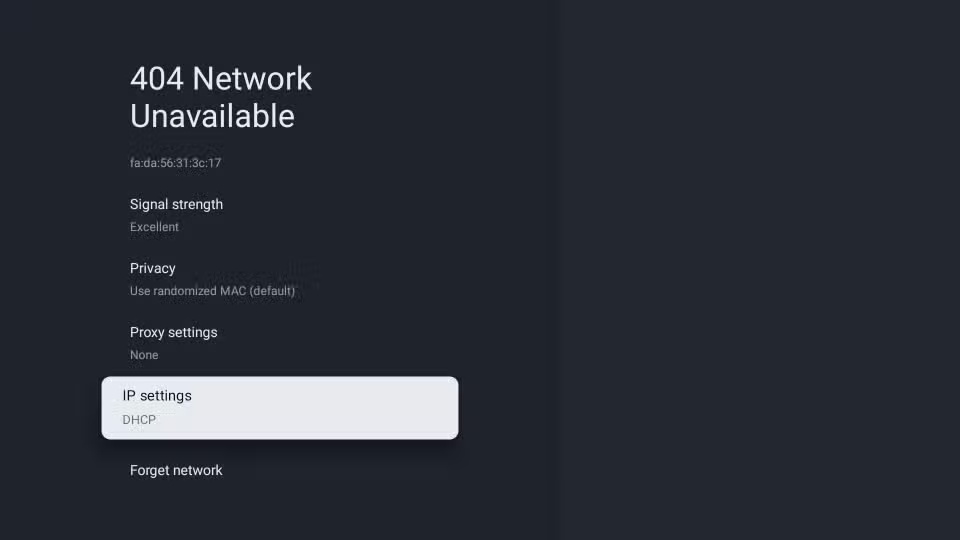
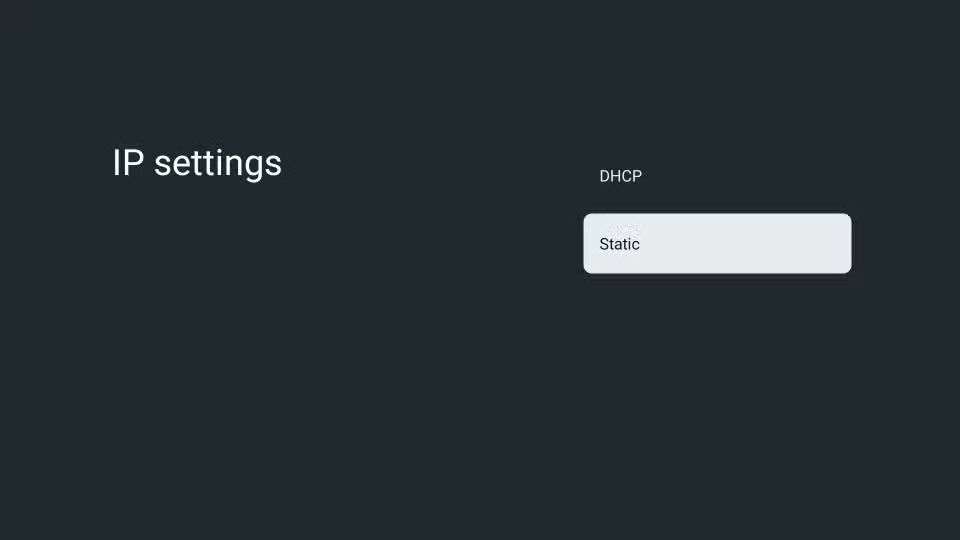
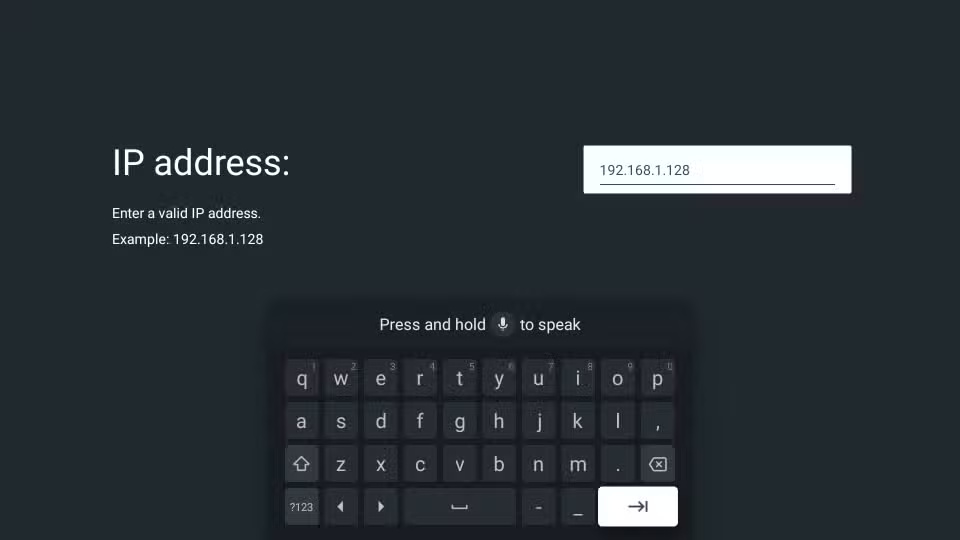
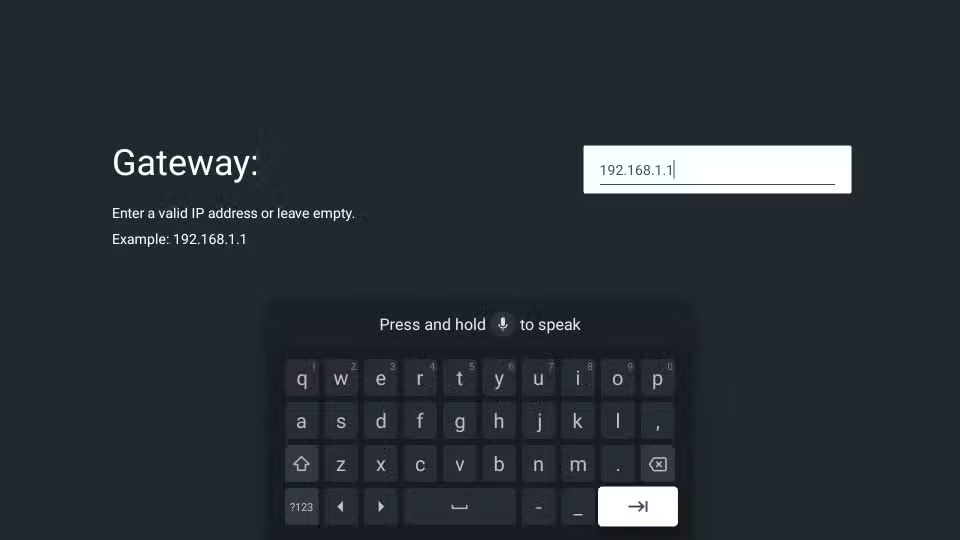
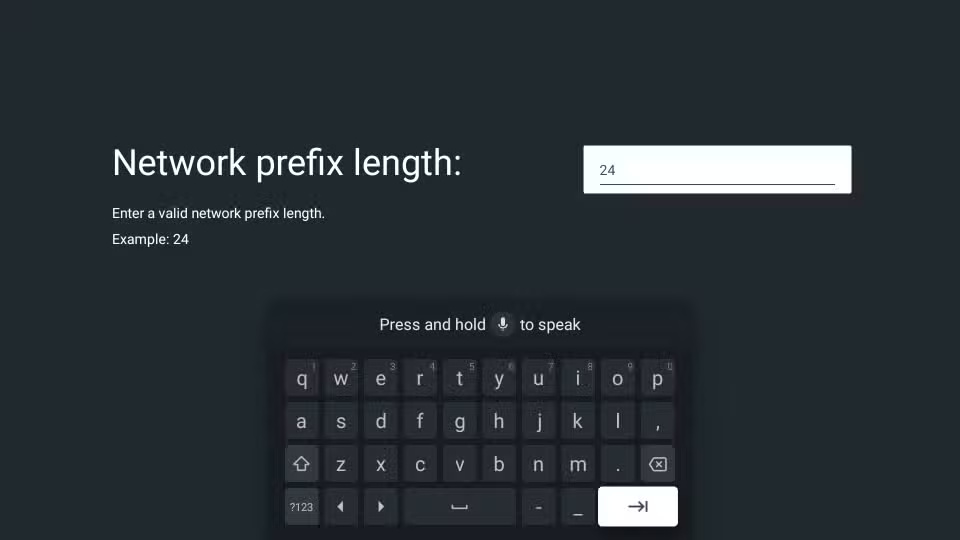
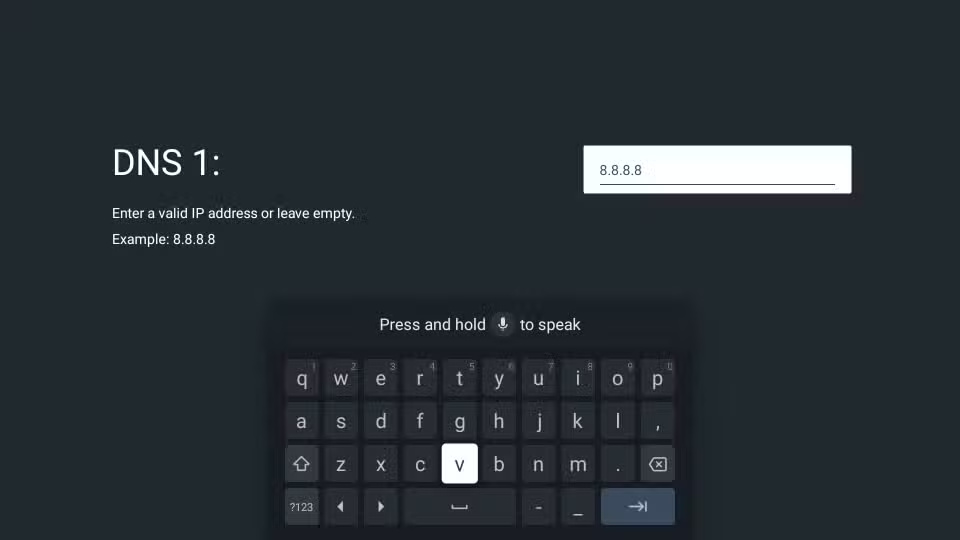
To change DNS on Google TV:
- open Settings and select Network & Internet .
- Select the Wi-Fi your device is connected to and open IP Settings .
- Select Static .
- Do not change the IP Address, Gateway or Network prefix length; continue to choose Next .
- Now, set custom DNS on your Google TV.
remember that using some custom DNS servers can cause problems. In this case, simply forget the network and reconnect to return to default settings.
FAQ
How were the google tv settings to change immediately options evaluated?
The comparison focuses on practical features, ease of use, limitations, compatibility, and the type of user each option is most likely to help.
Which option is best for beginners?
Beginners should prioritize a clear interface, useful documentation, reliable support, and the core features needed for their first project.
Should I choose a free or paid option?
Start with a free option when it covers your needs. A paid plan may be worthwhile when you need advanced tools, commercial rights, collaboration, or professional support.
Related Articles
 Turn Off These 5 Google Settings to Improve Your Privacy: Explained6 minutes read
 6 Google Pixel 8 Camera Settings You Need to Change: Best Options Compared11 minutes read
 5 Settings You Should Change on Galaxy S9 / S9 +8 minutes read
 The First 6 One UI 8 Settings You Should Change on Every Samsung: Key Facts6 minutes read
 How to Change DNS Settings on Apple TV4 minutes read
 8 Settings You Should Change Immediately When Buying a New Windows PC5 minutes read
Reader Comments 0
Sign in with email or Google to join the discussion.