Table of Contents
Photos and videos are now stored on hard drives or in the cloud, waiting to be viewed someday. But even the smallest mistake can wipe everything out.
Every photo tells a story - a birthday, a vacation, a trip of a lifetime, or maybe the last photo you took with that special someone. Now imagine all those moments disappearing in a matter of seconds.
In the past, we printed out photos and carefully stored them away in albums. Now, photos and videos are stored on hard drives or in the cloud, waiting to be viewed someday. But in both cases, even the smallest mistake can wipe everything out.
One backup is not enough
Follow the 3-2-1 rule
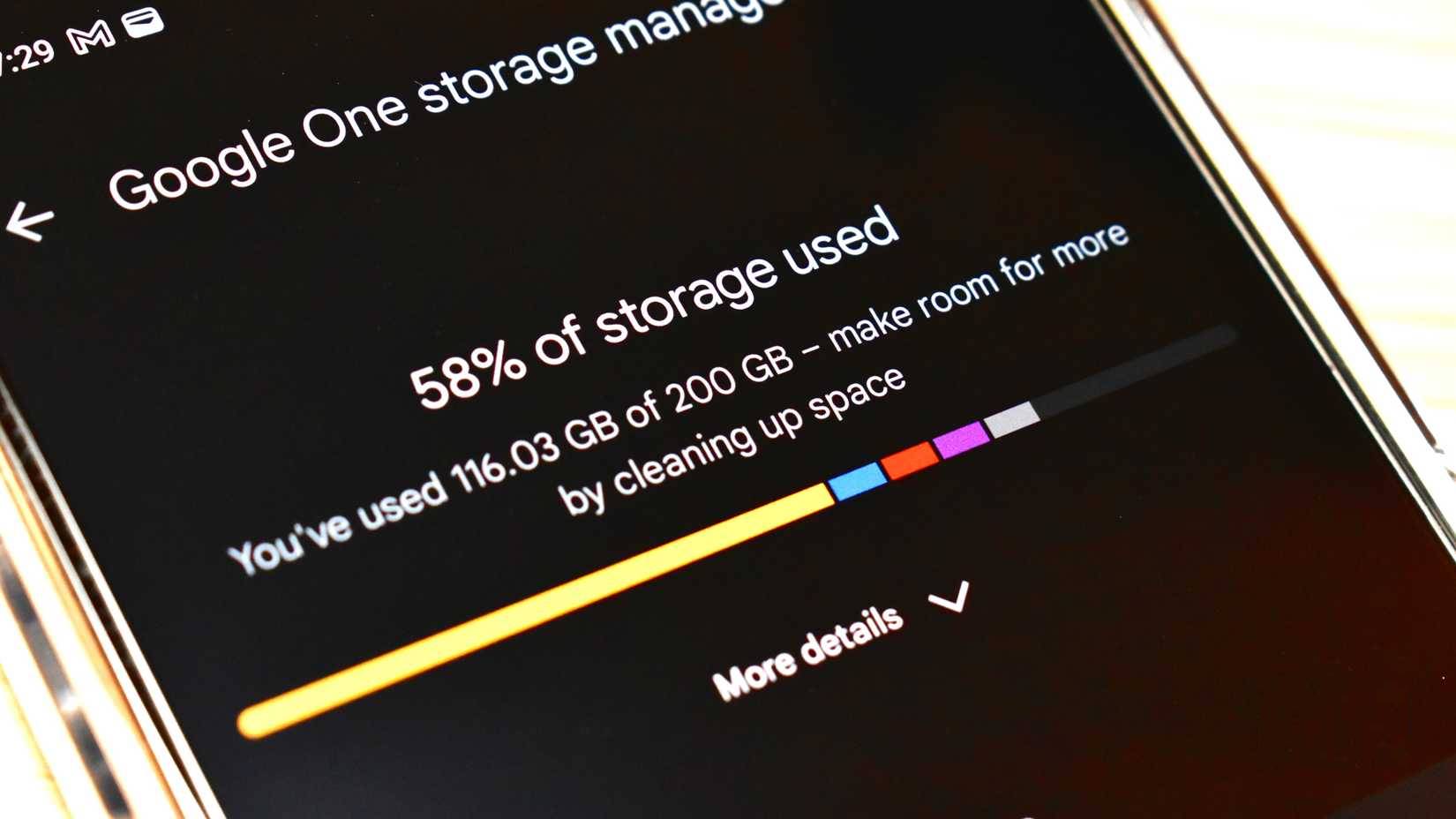
Uploading photos to Google Photos, iCloud, or Amazon Photos is a great start—but it's still just a copy. And one copy is never enough. If your account gets locked, hacked, or deleted, those memories are gone.
Your best bet is to follow the tried and tested 3-2-1 backup rule: 3 copies of your data, stored on 2 different types of media, with 1 copy stored offsite.
If one backup fails, you still have other backups to keep your photos and videos safe.
Store all backups in one place
Don't put all your eggs in one basket!
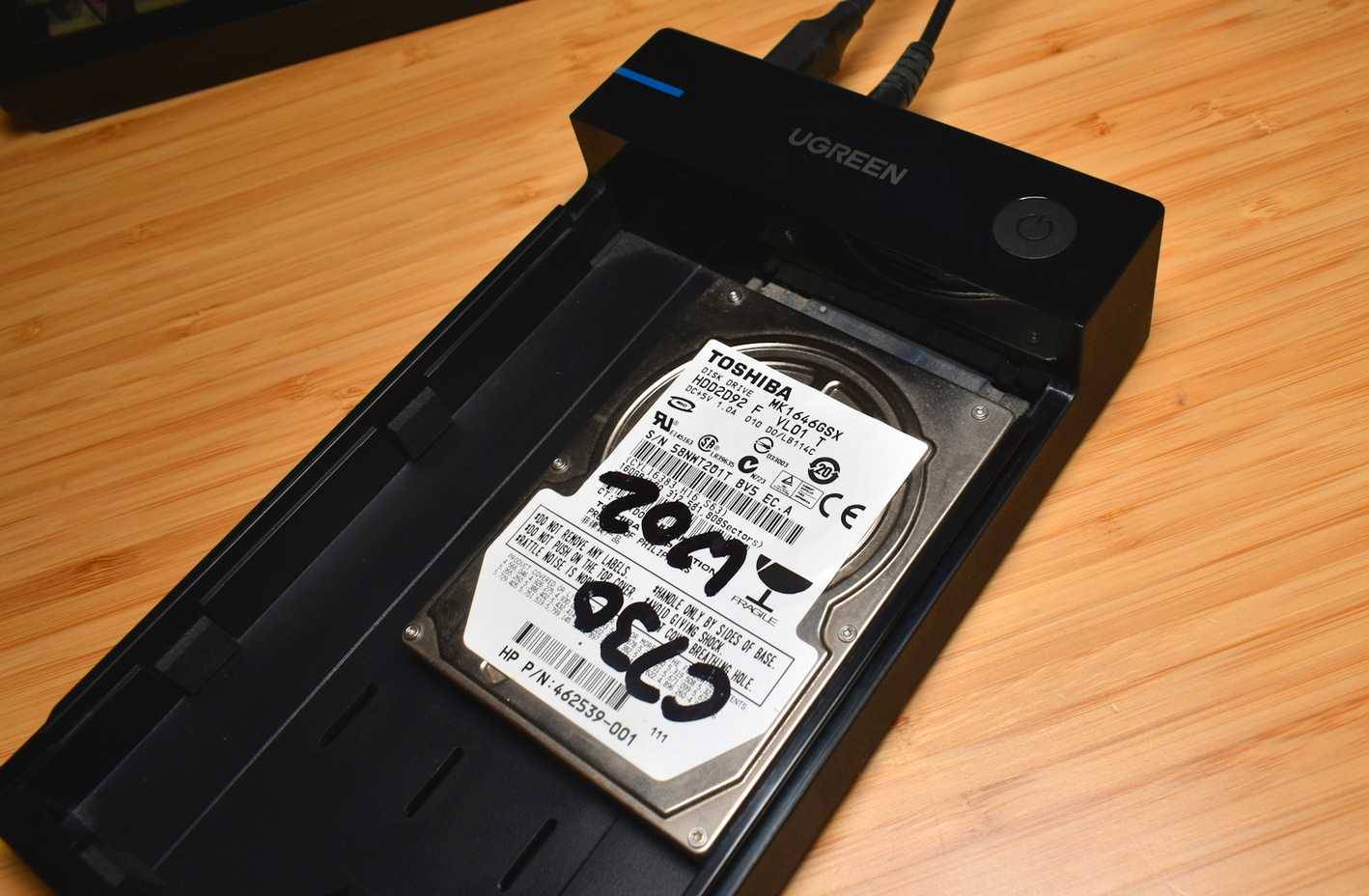
Following on from the above, it is important to make sure that you store your backups in separate places. Having multiple backups is great, but if you keep all your backups in the same place and something goes wrong, they will all be gone at once.
At the very least, make sure you have an offsite backup, whether it's a physical copy at someone else's home or a comprehensive cloud backup option. You don't need to keep multiple copies—just make sure you have one somewhere that won't be affected if a disaster strikes locally.
Not checking if the backup is still working
Is your external hard drive still working?

This is not uncommon. Over the years, when your laptop starts to fail, you can remove the hard drive and not worry too much about it. Many people have a stack of 5-6 old HDDs on their shelves, waiting to be tested and their data moved.
In short, check that your backups are still working properly and do this regularly. That means checking that your external hard drive is still accessible, making sure you have the correct login details for your email account and recovery service, etc.
Archived photos forgotten over time
Staying organized is a backup skill that needs to be mastered.
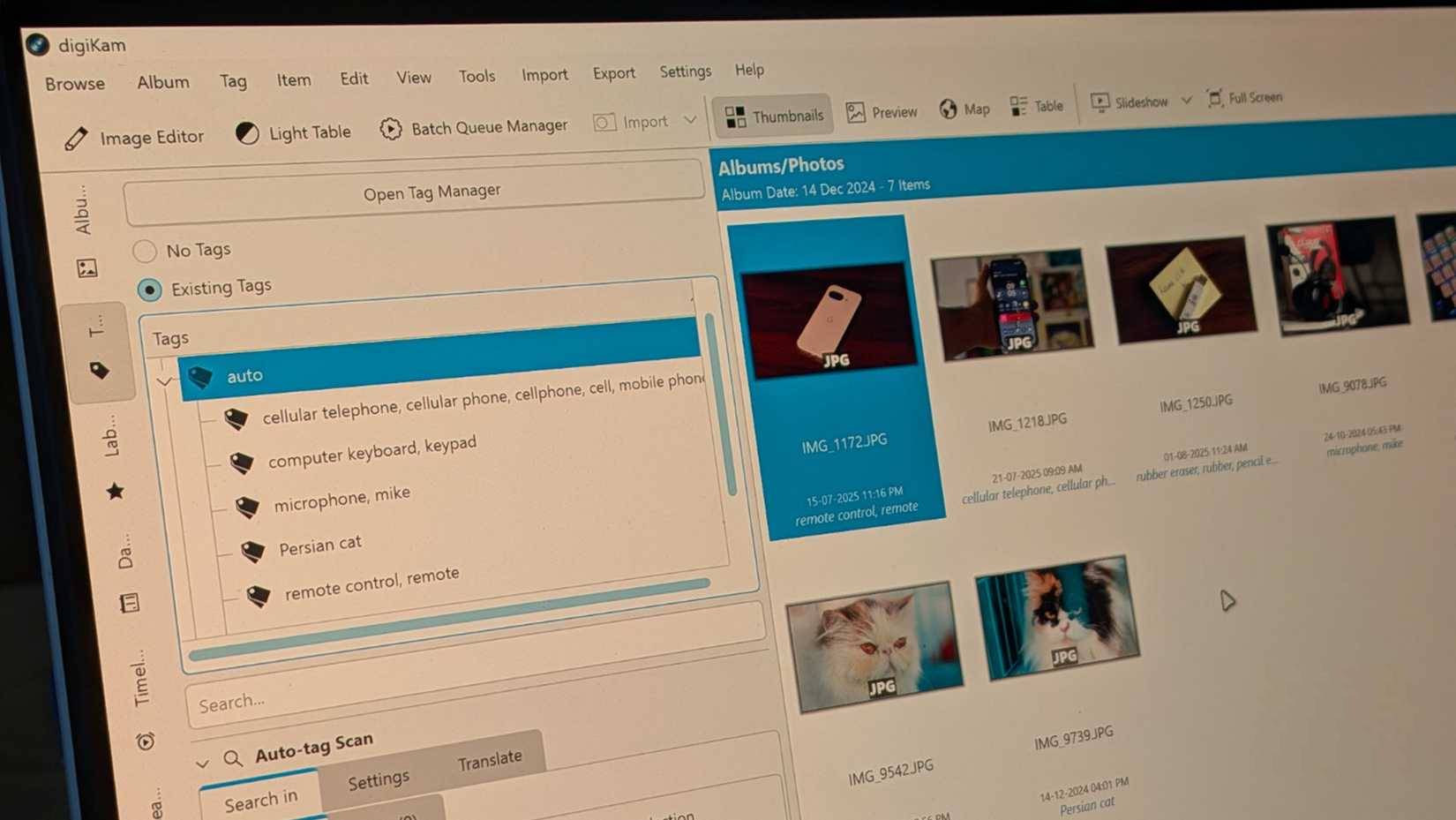
It's frustrating to have to undo something that you've already done wrong. For example, right before you leave for a trip, you realize you're out of space on your smartphone or SD card, and you haphazardly throw all your photos into one giant folder. It's a giant mess, sometimes containing years of photos and videos. Even though you technically backed up your files, you'll never find them again because the folder is hard to find and navigate.
So, on the one hand, your photos are fine. On the other hand, the lack of organization means you may never see them again. Use a photo management tool like DigiKam to organize your upcoming shots and you'll never lose a photo again.
Ignore account changes
Lost email addresses, password changes, and data breaches can all cost you
Cloud services are a core part of any photo backup strategy. Many people primarily use Google Photos because they change smartphones frequently, and it works very smoothly.
But online accounts aren't inviolable. They have a limited lifespan, especially if a company decides to shut them down.
The bottom line is that You should log in to your backup account and keep an eye out for any changes. Service providers sometimes make changes (or change their systems, etc.), and You should keep an eye on your inbox for those changes. Don't forget about family or shared accounts—they need attention too!
Don't wait until your photos disappear!
Get your photo backup plan in place now!
Photos are your personal history. It's hard to imagine losing the photos that document your entire life, but it happens. All it takes is one accident, a corrupted hard drive, or a forgotten password to wipe out years of your life. So take the time to set up some decent photo backup routines.
- Follow the 3-2-1 rule . Three copies, two formats, one off-site backup.
- Automation . Tools like Syncthing, FreeFileSync, or the built-in backup utilities on macOS/Windows make this easy.
- Quarterly check . Randomly open test drives and photos or uploaded documents.
- Save an encrypted copy off your computer . It can be in the cloud or on a drive you store elsewhere.
- Refresh every few years . Replace old drives and recheck your cloud settings.
FAQ
What should you know about these backup mistakes could cost you years of photos?
In practical terms, photos and videos are now stored on hard drives or in the cloud, waiting to be viewed someday. But even the smallest mistake can wipe everything out.
Why does these backup mistakes could cost you years of photos matter?
The article highlights that if one backup fails, you still have other backups to keep your photos and videos safe.
What is the main takeaway?
The main takeaway is that archived photos forgotten over time Staying organized is a backup skill that needs to be mastered.
Related Articles
 5 Common Mistakes When Backing Up Email7 minutes read
 Mistakes in Photo Arrangement Make You Lose Many Precious Memories9 minutes read
 10 Lightroom Mistakes That Can Ruin Your Photos14 minutes read
 10 Common Mistakes When Shopping Make You Spend More Money6 minutes read
 Mistakes That Are Silently Reducing the Life of Your SSD7 minutes read
 How to Back up Mac Photos4 minutes read
Reader Comments 0
Sign in with email or Google to join the discussion.