Table of Contents
If you want a photo to fill a custom silhouette in Canva, the Framespark app can turn a transparent image into a reusable frame. Prepare a clean cutout, convert its outline, then drag a different photo into the new frame. A regular Canva frame from Elements > Frames is simpler if a standard circle, rectangle, or other preset shape already fits your design.
Prepare the shape image
- Open a Canva design and add the graphic or photo whose outline you want to use. You can upload an image or search Canva’s graphics.
- Make the area around the subject transparent. If the image still has a background, select it and use Canva’s background removal tool if available on your plan, or upload a transparent cutout you prepared elsewhere. A plain white background is not the same as transparency.

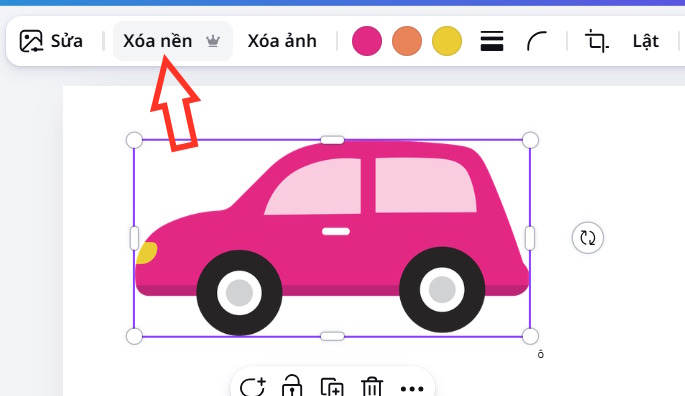
Convert the cutout with Framespark
- In the editor’s Apps panel, search for Framespark (or “image to frame”) and open the app. Check its app permissions before using it with a private design.
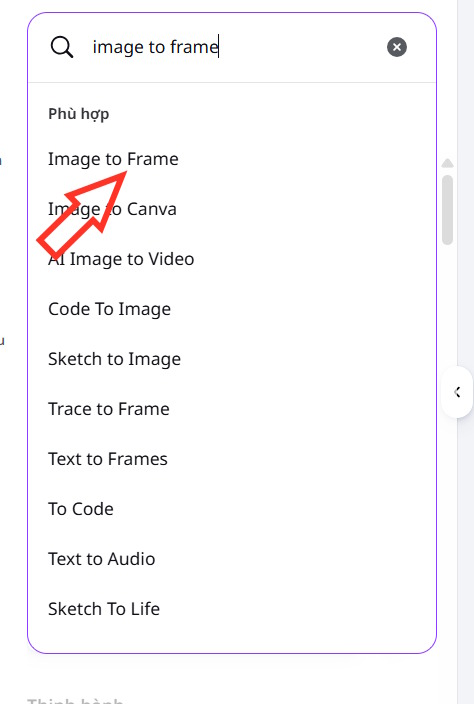
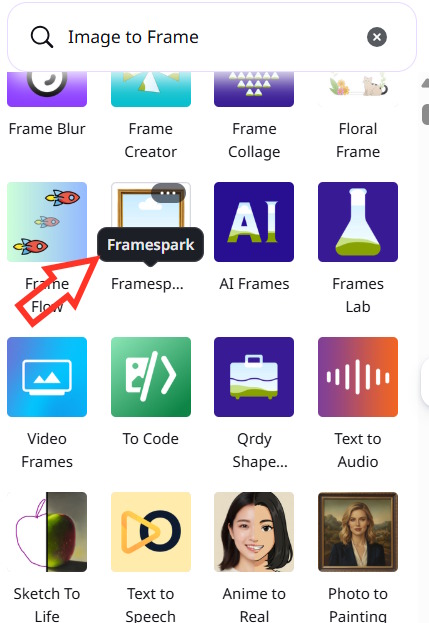
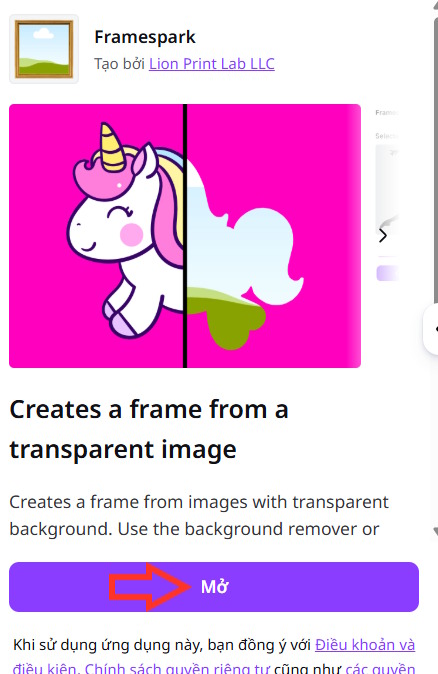
- Select the transparent image on the canvas so Framespark can detect it. Adjust Edge detection if the outline is too loose or cuts off details, then select Convert to Frame.
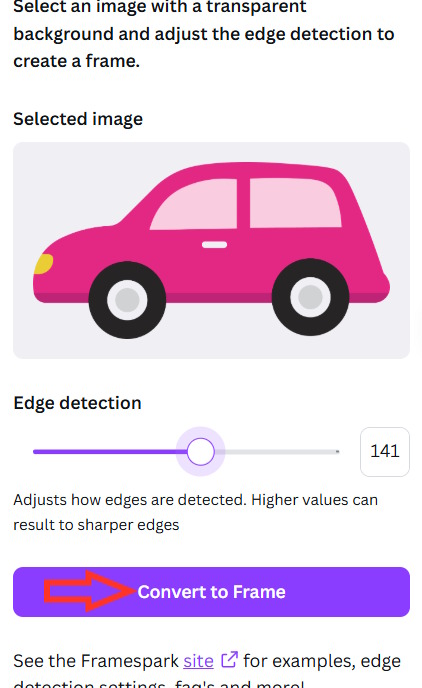
The new frame follows the detected outline. If its edge looks jagged or includes unwanted background, clean up the cutout and try the conversion again rather than hiding the problem with a different fill image.
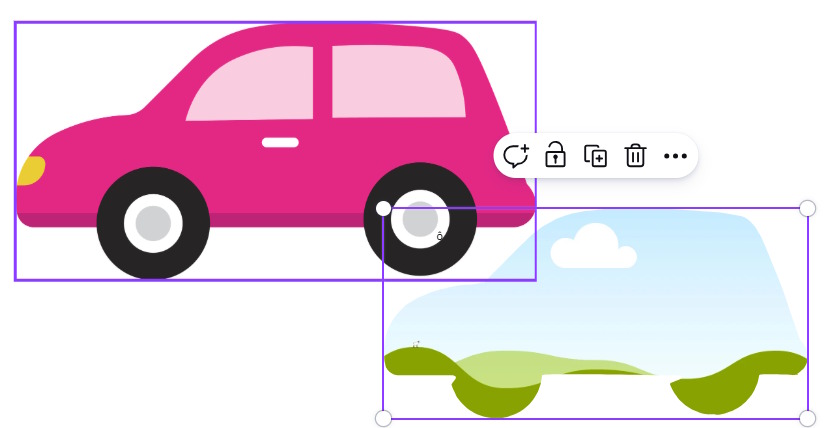
Fill and position the frame
Drag a photo from your uploads or Canva’s library onto the new frame. Reposition or crop the inserted image until the important part is visible within the silhouette. The frame is a placeholder for the new photo; the original cutout supplies the shape.
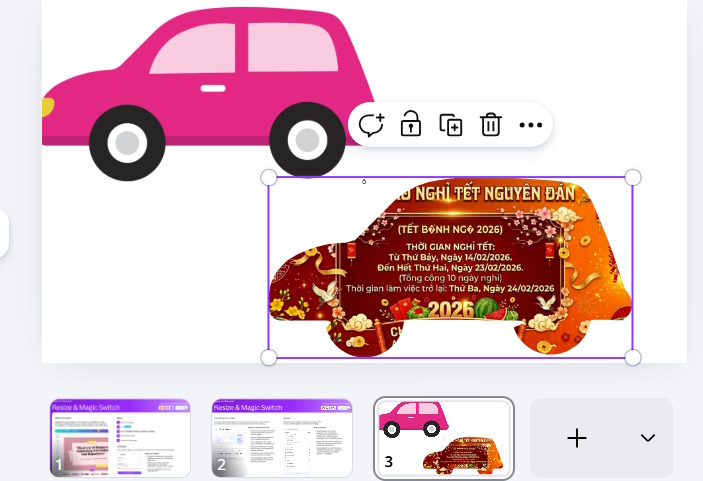
For a preset shape, follow the simpler circle frame walkthrough. If you need help preparing the cutout first, see how to make a transparent background in Canva. Canva’s Framespark listing describes the app’s transparent image requirement.
Related Articles
 How to Add Photos to a Frame in Canva4 minutes read
 Collage Photos into Frames with Photoshine3 minutes read
 How to Merge Photos into the Frame on Paint4 minutes read
 Instructions for Blurring Photos on Canva Are Very Simple4 minutes read
 Quick Clone in Canva: How to Clone Quickly in Canva3 minutes read
 How to Change Objects in Photos with Canva AI Very Quickly4 minutes read
Reader Comments 0
Sign in with email or Google to join the discussion.