Table of Contents
Explore microsoft 'gives in' to users.
One user on Reddit found in the release notes that: 'If no AI Actions are available or enabled, this item will no longer appear in the right-click menu.' Alternatively, users can remove all AI Actions at once by going to Settings > Apps > Actions and deselecting related apps like Paint, Photos, or Teams.
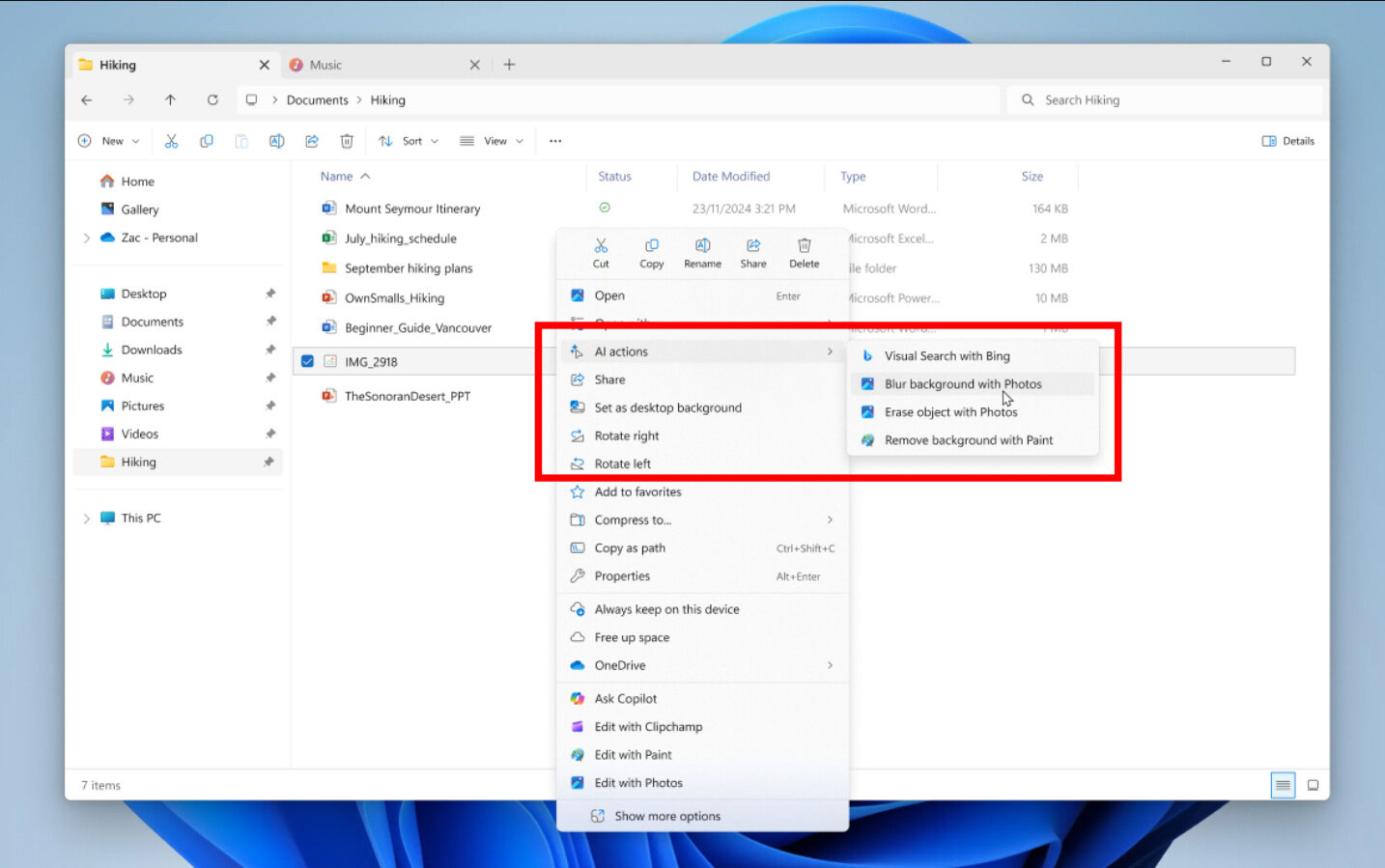
Previously, even with these options turned off, AI Actions remained in the right-click menu, albeit empty—taking up useless space in an already cluttered menu. When right-clicking an image, AI Actions allowed for quick actions like Visual Search with Bing , Blur background , Erase object , or Remove background with Paint or Photos. Those who needed it found it convenient, but those who didn't like it can now remove it entirely.
AI Actions are criticized as… redundant
One of the reasons why users complain is that AI Actions are actually just shortcuts to open other apps . These actions can be done by simply going to the 'Open With' option and selecting the desired app.
Screenshots from Neowin from May also show that the AI Actions menu contains items like Edit with Paint or Edit with Photos , meaning options that are already available elsewhere.
Also in that image, the right-click menu has up to 18 items , not including the action row above and the Show more options option. Meanwhile, on Fedora Xfce, when right-clicking on an image, there are only about 10 items . Microsoft is clearly 'overdoing it' with the number of options, so it's understandable that users want to clean it up.
The new build also brings some other notable improvements:
- Combine options like Compress to. , Copy as path into one Manage file menu to avoid confusion.
- Collect all OneDrive-related options into a single section.
Overall, Microsoft is trying to streamline the right-click menu, while giving users more control instead of imposing AI features on the interface.
Final Thoughts
Understanding microsoft 'gives in' to users, allows turning off ai actions on windows 11 makes it easier to evaluate the information and apply the most relevant recommendations. Focus on the key points above and verify details that may change over time.
FAQ
What is microsoft 'gives in' to users, allows turning off ai actions on windows 11?
Explore microsoft 'gives in' to users.
What key points does this article cover?
The article focuses on AI Actions are criticized as… redundant, with practical explanations and examples.
How can you use this information in practice?
Use the explanations to compare options, verify important details, and make a more informed decision. Apply the recommendations that best match your goals and situation.
Related Articles
 How to Enable Copilot Actions on Windows 11: Step-by-Step Guide3 minutes read
 How to enable and disable AI Actions in Windows 115 minutes read
 How to Enable AI Actions in Windows 11 File Explorer6 minutes read
 Users Will Be Allowed to Create Their Own Quick Actions on Windows 103 minutes read
 How to Use Text Actions in Snipping Tool on Windows 116 minutes read
 Instructions: Restart, Shutdown or Sleep in Windows 82 minutes read
Reader Comments 0
Sign in with email or Google to join the discussion.