Table of Contents
Explore powerpoint 2019 (part 13).
How to indent text
Indentation helps format the layout so that text appears more organized on your slides. The quickest way to indent is to use the Tab key. An alternative method is to use one of the Indent commands. With these commands, you can increase or decrease the indentation level.
- To indent using the Tab key: Place the insertion point at the beginning of the line you want to indent, then press the Tab key.

- To indent using the Indent command: Place the insertion point at the beginning of the line you want to indent. From the Home tab, select the Increase List Level command.
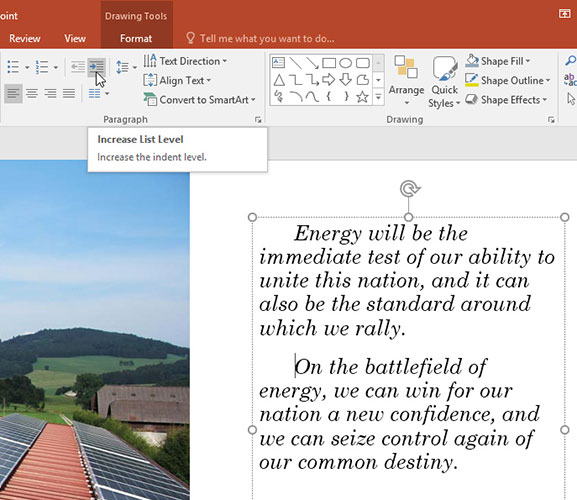
- To reduce the indentation level, select the desired line, then press Shift + Tab or the Decrease List Level command.
Indent lists and paragraphs
Indentation will produce different results depending on whether you are working with a list or a paragraph.
- Paragraph : Indenting the first line of a paragraph using the Tab key separates paragraphs, as in the examples above.
- Lists : Indenting a single line of a list creates a multi-level list. This means the indented line is a child header of the line above it. This multi-level list is useful if you want to create an outline or hierarchical structure.

After creating a multi-level list, you might want to choose a different bullet point style for the different levels of the list to make them stand out even more.

Adjust the indentation level
Sometimes you might want to adjust the indentation level in your presentation. You can do this by moving the indentation markers on the Ruler. By default, the Ruler tool is hidden, so you need to show it first.
How to display the Ruler
1. Select the View tab on the Ribbon.
2. In the Show group, select the box next to Ruler. Ruler will appear.
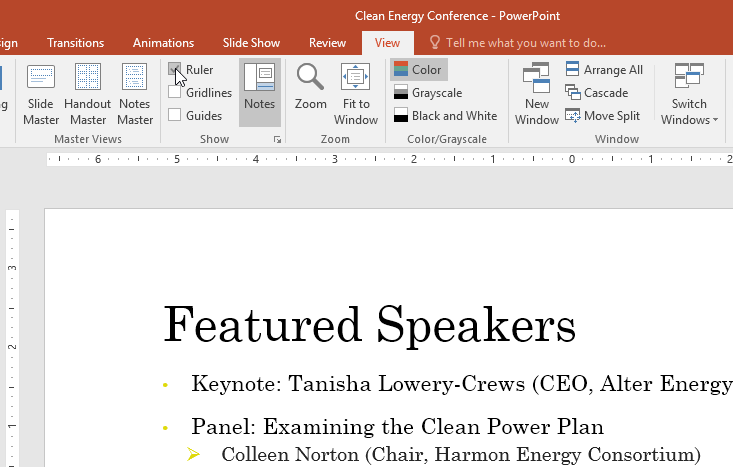
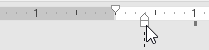
Indentation marker
The indentation markers are located to the left of the horizontal ruler and they provide several indentation options.
- First-line indent marker : Adjusts the first line of the paragraph.

- Hanging indent marker : Adjusts every line of the paragraph except the first line.

- Left indent marker : This action moves both the First-line indent marker and the Hanging indent marker simultaneously, indenting all lines in a paragraph.
Indent by using indent markers
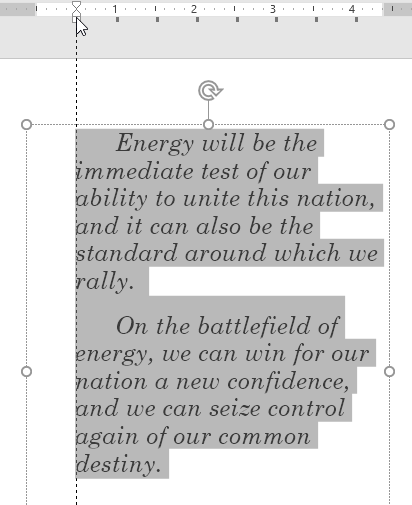
1. Place the insertion point anywhere within the paragraph you want to indent, or select one or more paragraphs.
2. Go to the desired indent marker. For example, we will use the Left indent marker option.
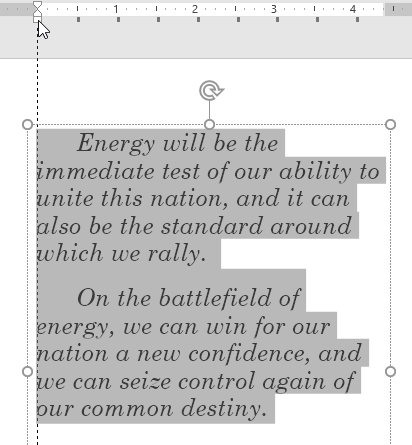
3. Click and drag the indent marker if needed. When you're finished, the selected text will be indented.
Customize bullet point spacing
When working with lists, PowerPoint allows you to adjust the spacing between bullet points and text using the First-line indent marker and Hanging indent marker options.
How to change bullet spacing
1. Select the lines you want to change, then go to the desired indent marker. The example will use the Hanging indent marker option.

2. Click and drag the indent marker if needed. When you're finished, the bullet spacing will be adjusted.

Line spacing
PowerPoint allows you to adjust the spacing between each line in a list or paragraph. You can decrease the line spacing to fit more lines on the slide, or you can increase it to improve readability. In some cases, PowerPoint may automatically resize the font when you adjust the line spacing, so increasing the line spacing too much can make the text too small.
How to format line spacing
1. Select the text you want to format.

2. On the Home tab, locate the Paragraph group, click the Line Spacing command, and then select your desired line spacing option from the menu.
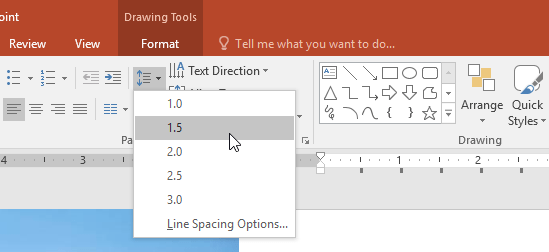
3. The line spacing will be adjusted.

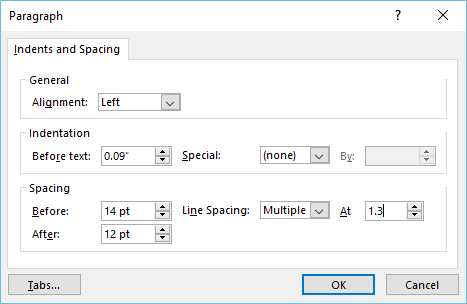
If you want to adjust line spacing with even greater precision, select Line Spacing Options from the drop-down menu. The Paragraph dialog box will appear, allowing you to adjust line and paragraph spacing, or the spacing added before and after each paragraph.
Final Thoughts
Understanding powerpoint 2019 (part 13) makes it easier to evaluate the information and apply the most relevant recommendations. Focus on the key points above and verify details that may change over time.
FAQ
What is powerpoint 2019 (part 13)?
Explore powerpoint 2019 (part 13).
What key points does this article cover?
The article focuses on How to indent text, Indent lists and paragraphs, Adjust the indentation level, with practical explanations and examples.
How can you use this information in practice?
Use the explanations to compare options, verify important details, and make a more informed decision. Apply the recommendations that best match your goals and situation.
Related Articles
 Set Line Spacing in PowerPoint2 minutes read
 How to Align and Stretch Lines in PowerPoint 20166 minutes read
 How to Adjust Line Spacing and Line Spacing in Excel2 minutes read
 How to Adjust Line Spacing in Word 2016, 2019, 2010, 2007, and 20139 minutes read
 Full Word Tutorial 2016 (Part 7): Use LINE and Paragraph Spacing4 minutes read
 PowerPoint 2016: How to Align Margins and Line Spacing: What You Need to Know8 minutes read
Reader Comments 0
Sign in with email or Google to join the discussion.