Table of Contents
Instead of rearranging icons, try a different approach: Stop relying on the desktop to open everything and install Flow Launcher.
People use the Windows desktop as the place to open almost everything. Browsers, folders, downloads, and screenshots all start there. If you want something, you just look for its icon and click it. Everything important is on that screen, and it's like a window into your computer.
Things start to get messy when that door isn't so simple anymore. Programs install new shortcuts, and old ones stay there even after you stop opening them. Every time the system boots, you have to scan the screen before you can actually do anything. Similar names and similar-looking icons mean you often click the wrong thing, launch the wrong app, then close and try again.
So instead of rearranging icons, try a different approach: Stop relying on the desktop to open everything and install Flow Launcher.
- Why are so many people replacing their Windows Start menu with Flow Launcher?
Type instead of clicking
One shortcut opens everything
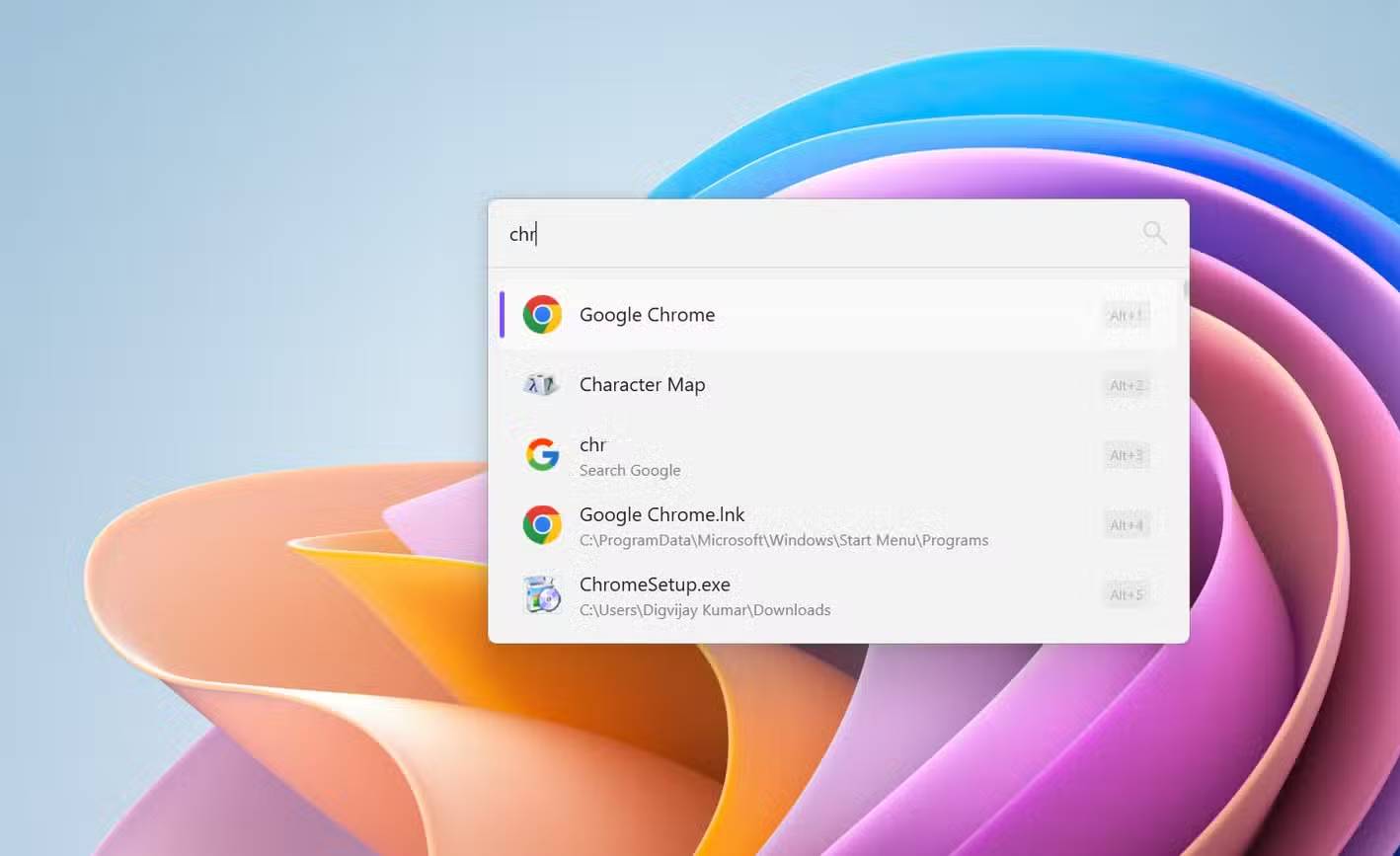
When I first started using Flow Launcher, I wanted a quicker way to open the apps I was using. Let's keep the default shortcut, Alt And Space . Tapping it opens a search box in the middle of the screen, and then it disappears when I click away.
From there, type the name of the thing you want and press Enter . For example, type Chr To launch Chrome. Likewise, a few characters will open a folder written in the same way, and that search will also bring up matching files. If you type a web address or search term, Flow Launcher will send you directly to the browser. The box also handles quick calculations, so you can check sums without opening another app.
This way of launching apps skips the icon search entirely. You don't need the exact name, as fragments and minor misspellings are allowed. When more than one result appears, use Alt + number Keys to select one without touching the mouse. Instead of moving your hand to the mouse, finding the cursor, and scanning the screen for the right icon, tap the shortcut and start typing. The app, folder, settings, and web search all open from the same box, so your hands stay on the keyboard and your eyes stay on the screen.
Within days, this had become the default way for many people to open apps. The desktop still appeared behind windows, but there was little reason to go there. Most of the time, you could just use a shortcut to open directly to what you needed.
Your desktop is finally clean
Icons no longer work
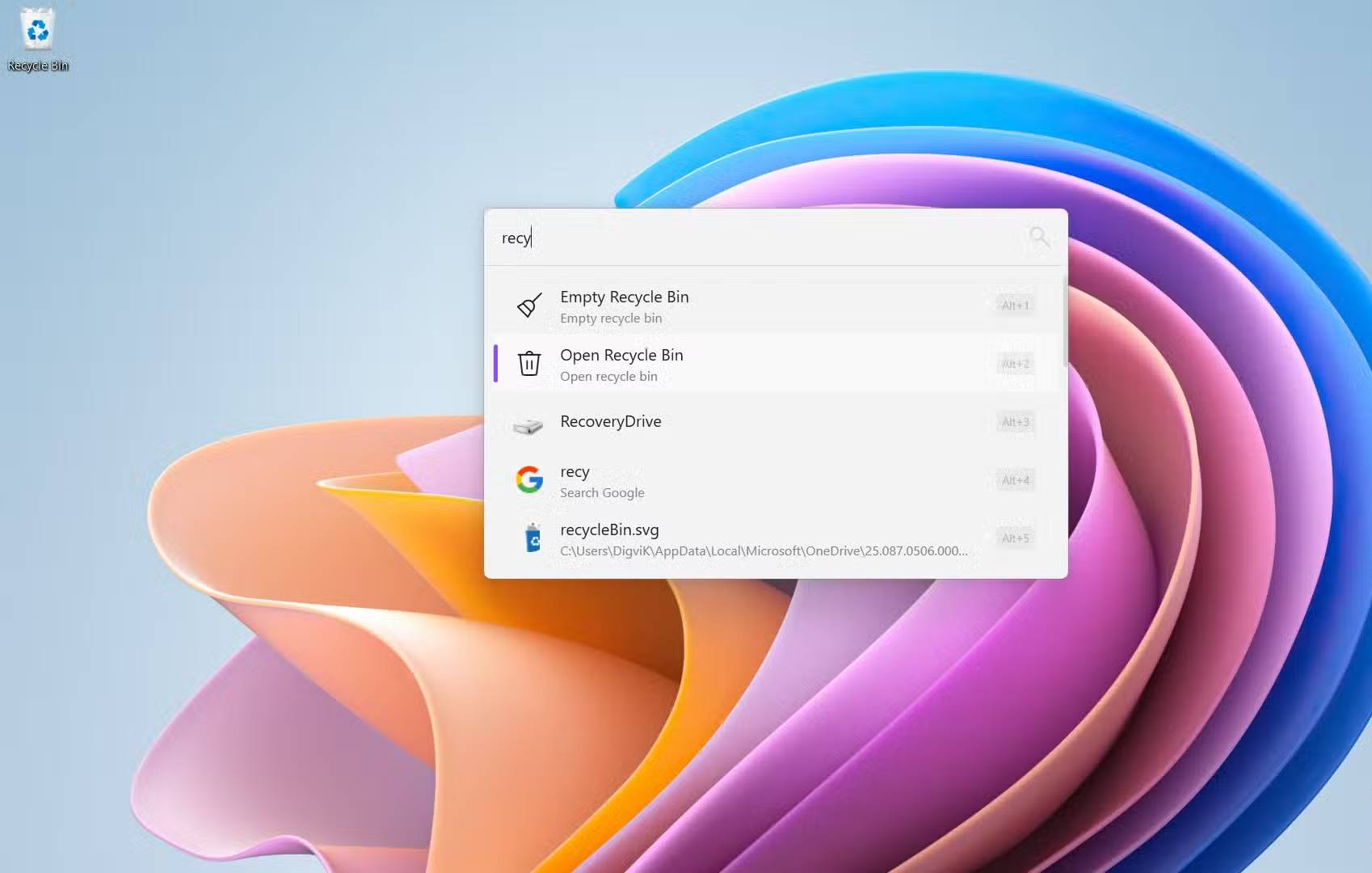
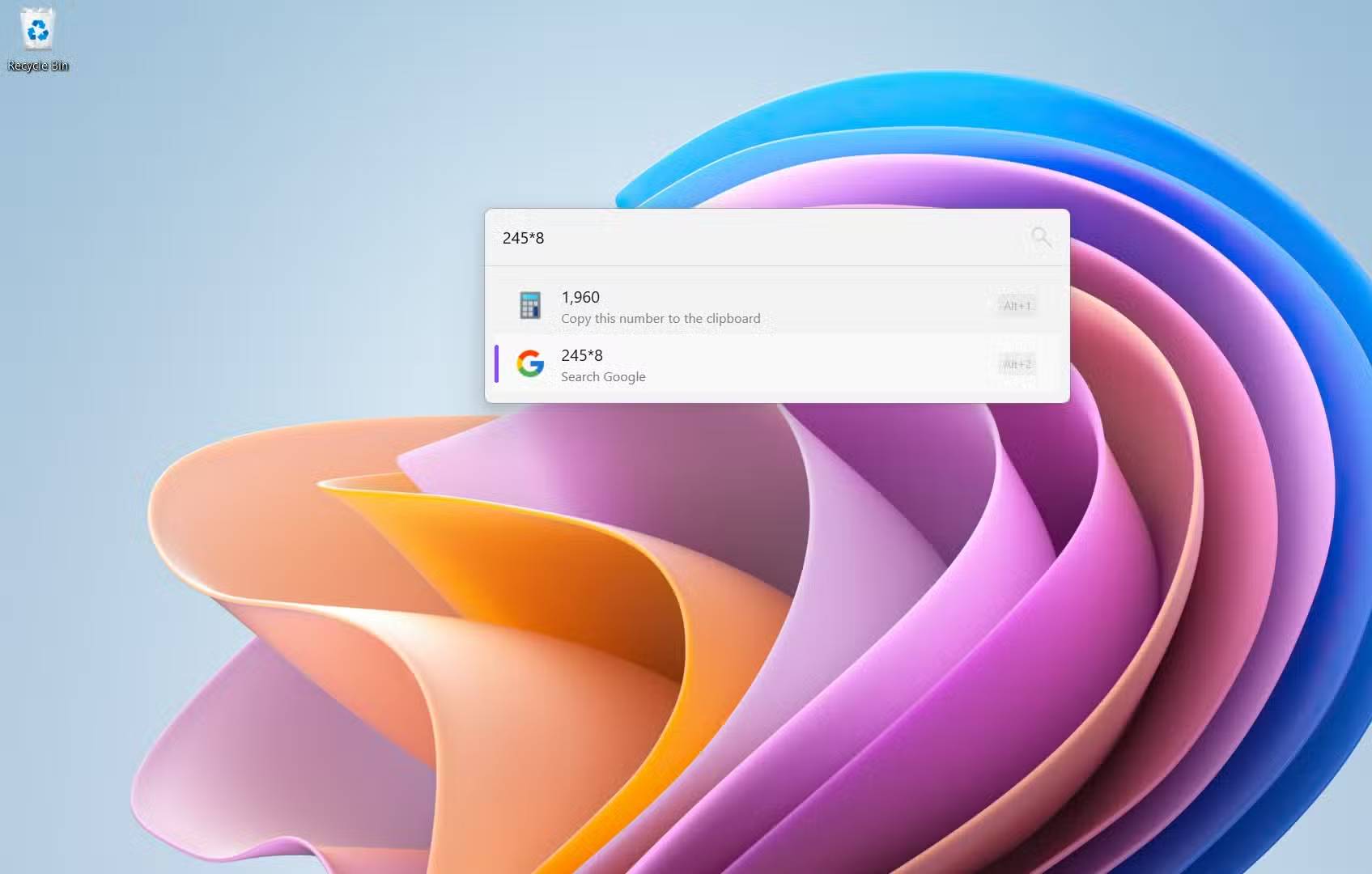
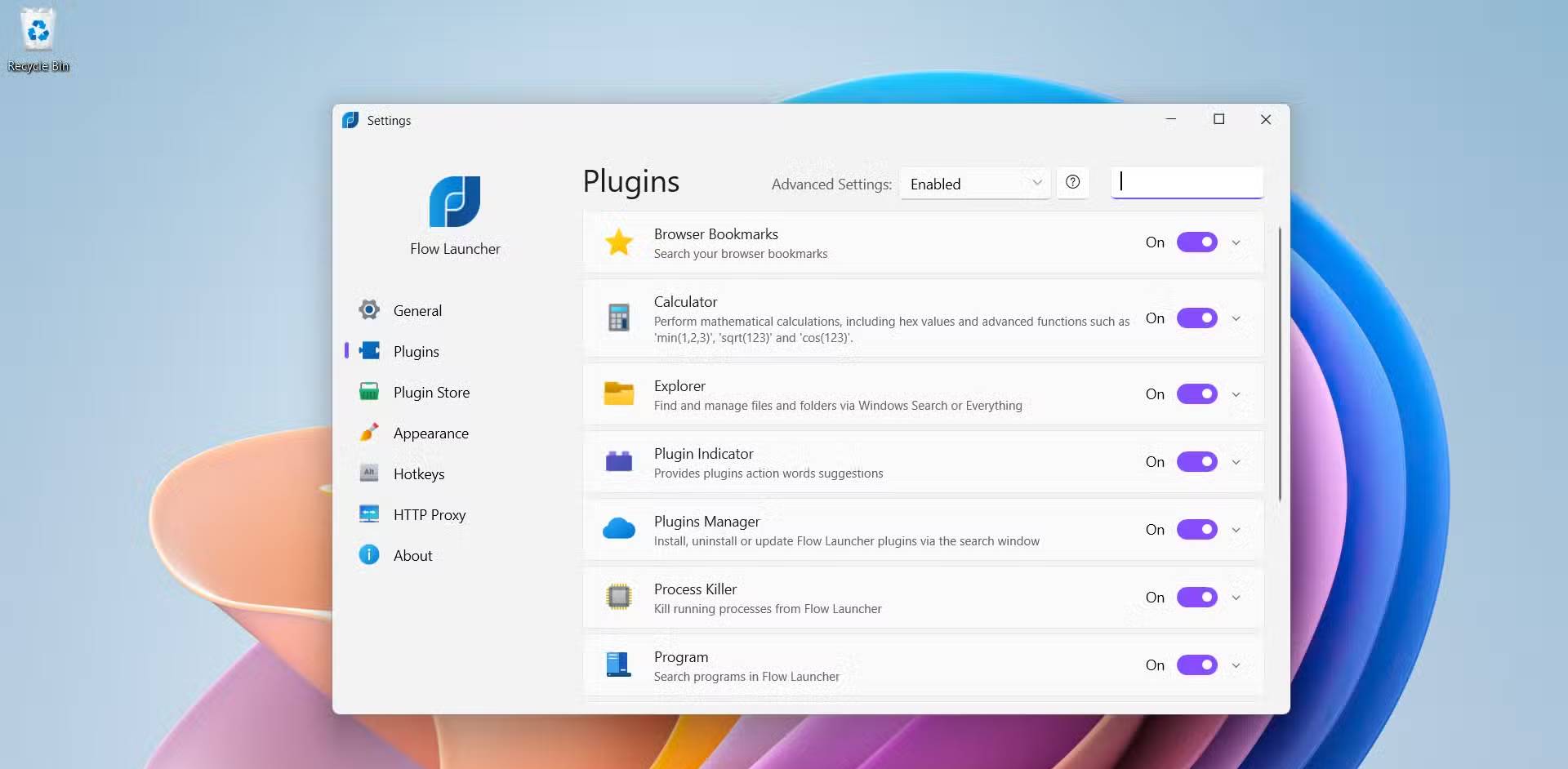
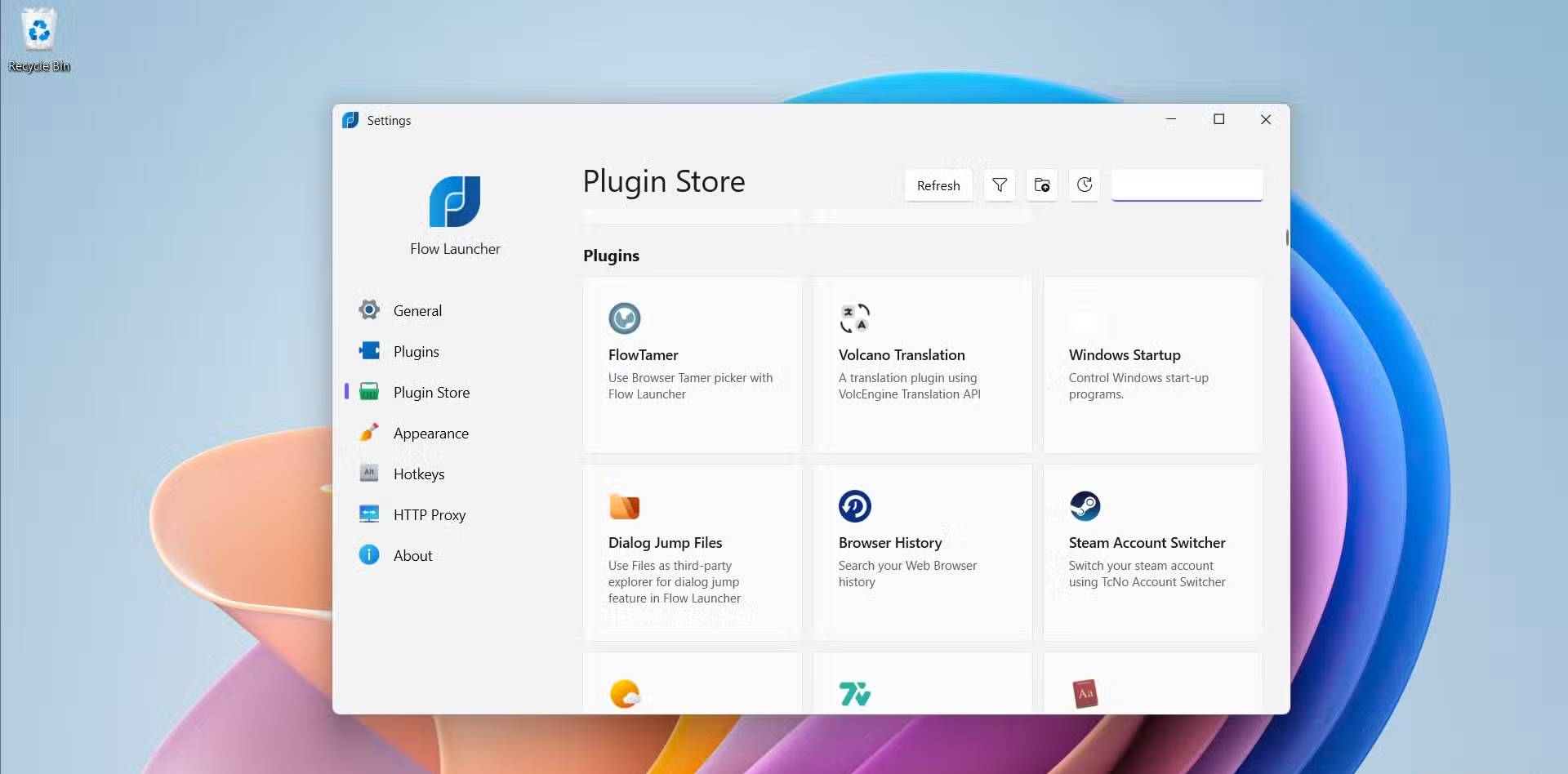
After a few days of using Flow Launcher, you'll find yourself opening dozens of apps and folders without clicking a single icon on the desktop. The shortcuts are still there, obscuring your wallpaper and doing nothing. So you can clean up your desktop in one go. Screenshots are really helpful when it comes to cleaning up. Previously, if you needed a clean desktop, you'd have to drag all the icons to a temporary folder, take a screenshot, and drag them all back. That meant wiping the entire desktop every time.
Many people have tried using the Start menu for input before. It accepts text, but the results share space with app shortcuts, system settings, files, and web suggestions in a list. After typing a few characters, they often have to scroll through unwanted items before finding the app they want. Most of the time, they just close the menu and use another app.
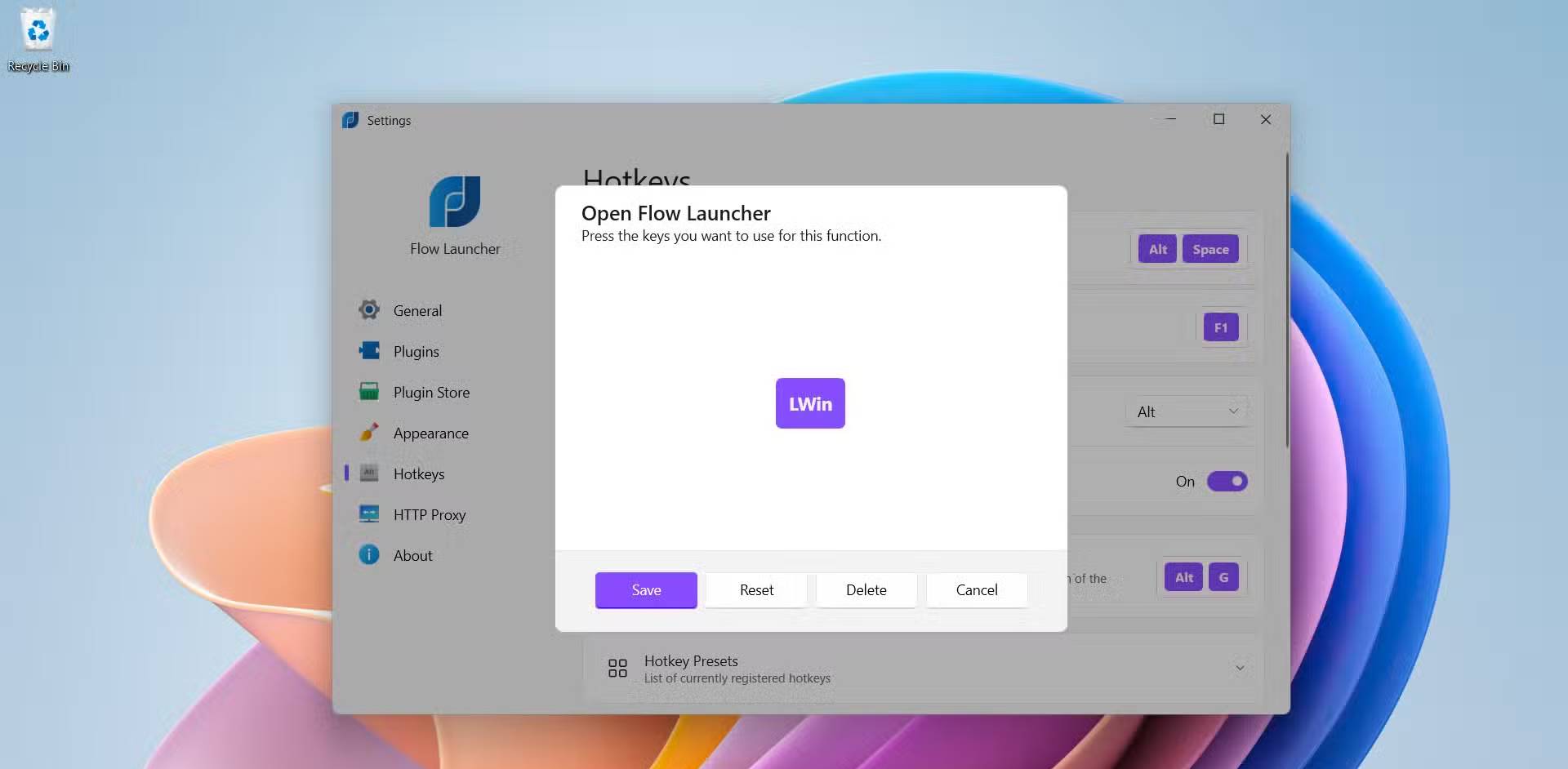
If you replace the Windows Start menu shortcut with Flow Launcher, the Windows key opens the launcher. This removes the Start menu from your daily routine and makes typing the default way to launch apps. Flow Launcher handles all of this in one little box. You can launch apps, search for files, run system commands, and search the web all from one place. Instead of switching between menus and windows, you can just focus on one field and complete the task there.
It becomes even more useful once you start using its plugins. Through them, the launcher handles small tasks that would normally take you to other apps. Quick calculations, basic conversions, note searches, music controls, and running system commands are all in the same interface. Actions like restarting, shutting down, or emptying the Recycle Bin aren't buried deep in the settings. They're in the same bar where you type everything else.
At this point, your desktop should be almost completely empty. A few active folders should still be there, and the Recycle Bin should still be in its usual corner. You won't be going to that screen to open anything anymore. It's simply empty space behind windows, not another interface to manage.
FAQ
How do you delete 90% of desktop shortcuts?
In practical terms, instead of rearranging icons, try a different approach: Stop relying on the desktop to open everything and install Flow Launcher.
What should you check before getting started?
Review the requirements, compatible device or software version, and any warnings described in the guide before making changes.
What should you do if the steps do not work?
Repeat the steps in order, confirm that your app or system is up to date, and review the troubleshooting details provided above.
Related Articles
 What Is Desktop Shortcut? How Does a Shortcut Work?8 minutes read
 How to Create a Desktop Shortcut: Step-by-Step Guide3 minutes read
 Summary of the Latest Windows 10 Shortcuts6 minutes read
 Create Shortcuts for Website on Desktop3 minutes read
 Permanently Delete Files on macOS Without Sending to Trash: How-To Guide6 minutes read
 Instructions to Hide or Delete Recycle Bin Icon on Desktop3 minutes read
Reader Comments 0
Sign in with email or Google to join the discussion.