Table of Contents
Explore 5 beautiful and modern Linux desktop environments with macOS styling.
Pantheon: A minimalist, easy-to-use macOS
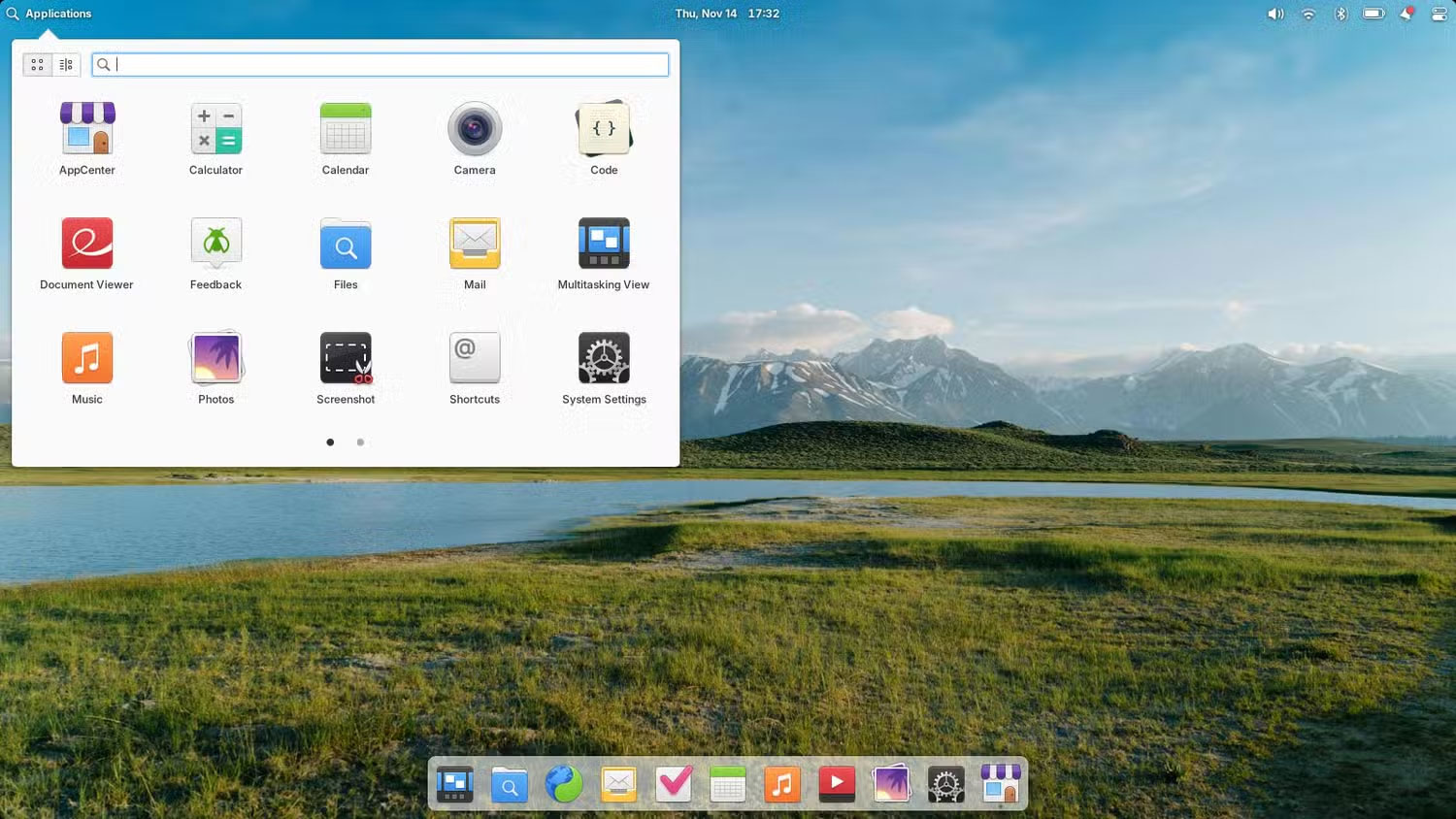
Pantheon is the desktop environment of elementary OS, designed from the outset to resemble macOS. The interface uses a familiar two-bar layout, with a dock at the bottom to pin and display running applications, and a top bar similar to the macOS menu bar. On this bar, the application launcher is on the left, the clock in the middle, and quick settings on the right. The missing element is a global application menu – a hallmark of macOS. Nevertheless, the overall interface remains clean, minimalist, and easily recognizable to anyone who has used a Mac.
Pantheon's greatest strength lies in its "just use it" philosophy. It's geared towards users who want a stable environment without too much tweaking. Its drawback is its limited customization options, almost entirely limited to changing wallpapers and colors.
The best way to experience Pantheon is still by installing elementary OS. Alternatively, you can also install Pantheon on openSUSE Tumbleweed or EndeavourOS.
GNOME: The workflow most similar to macOS
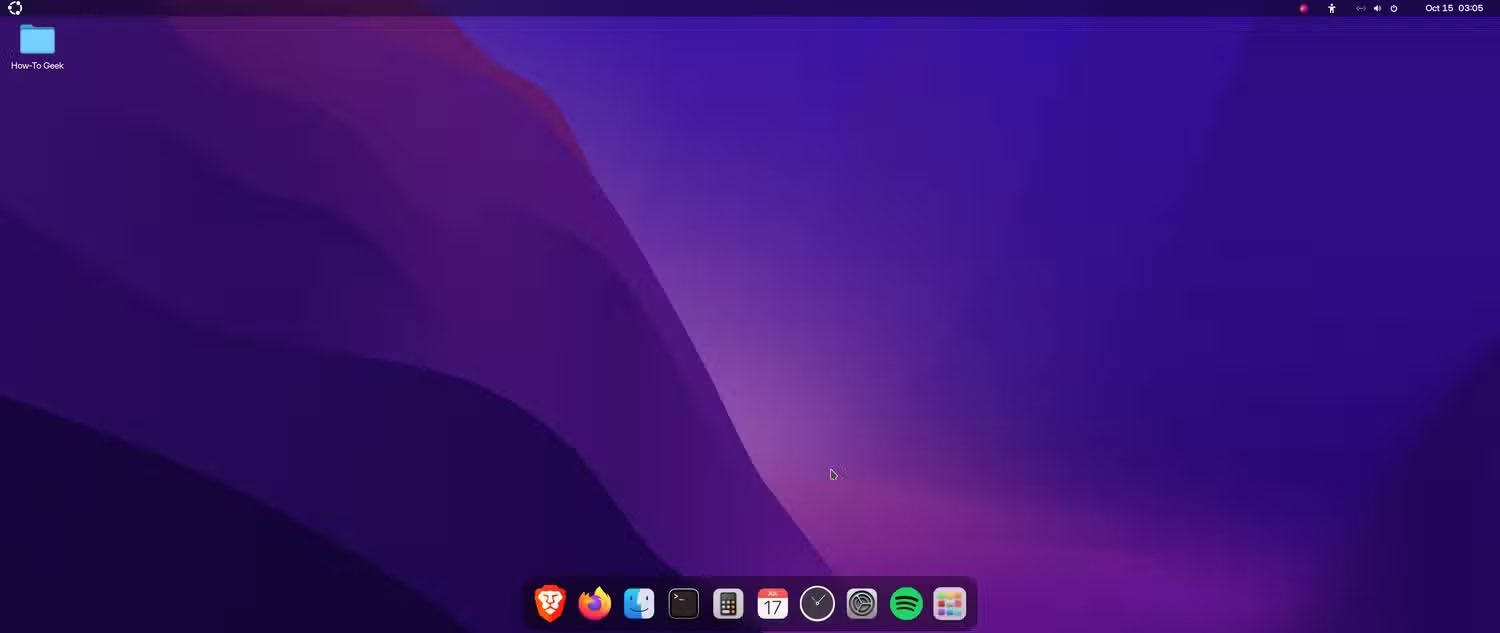
GNOME offers the closest macOS-like work experience on Linux. This environment encourages a workflow centered around virtual desktops, where each workspace typically runs only one or two applications. You can create multiple workspaces to organize your work and switch between them via the Activities Overview screen, which, in my personal opinion, is even more intuitive than macOS's Mission Control.
In terms of design, GNOME is very minimalist by default. The desktop is blank, with no icons, a slim bar at the top containing the Activities button on the left, the clock and calendar in the middle, and the quick settings area on the right. The application dock (Dash) only appears when the Activities Overview is opened, instead of always being displayed on the screen.
Despite its rather bare-bones default interface, GNOME is incredibly flexible thanks to its GNOME Extensions ecosystem. You can use Dash to Dock to keep the dock always visible, enable icons on the desktop, add a system tray, and restore many other familiar features. GNOME also supports themes, allowing you to customize the interface to be closer to macOS. However, the global application menu is something GNOME cannot fully replicate, making it difficult to achieve a "100% macOS-like" experience.
If you want a great GNOME experience right from the start, Manjaro GNOME Edition is a worthwhile option as it comes pre-installed with Dash to Dock. Zorin OS Pro is also a paid distro but it has a very complete macOS-style layout.
The biggest drawback of GNOME lies in the stability of its extensions. After major updates, extensions can malfunction, and users have to wait for the developers to update them again, although popular extensions are usually fixed quite quickly.
COSMIC: macOS for advanced users
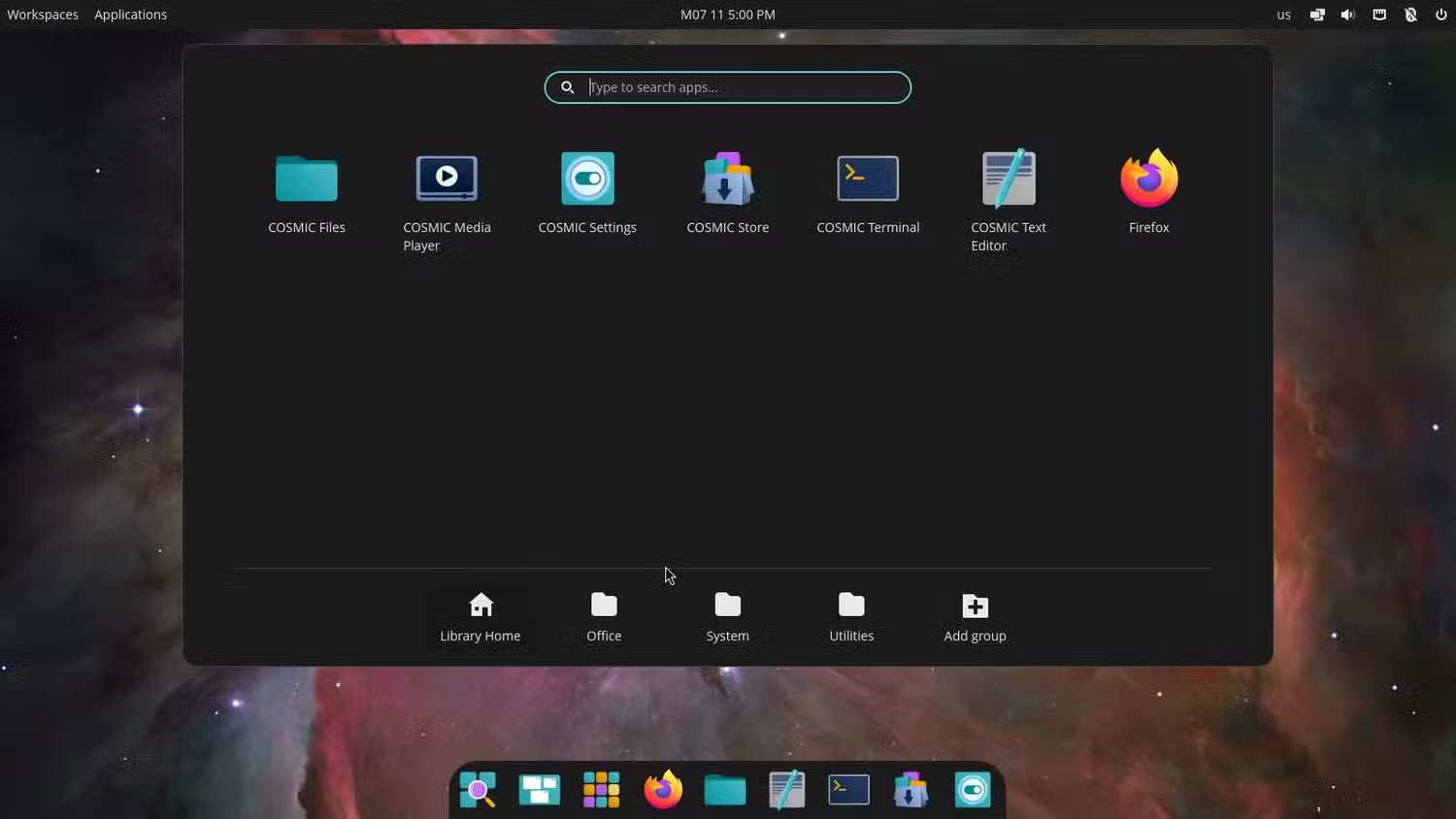
COSMIC is a completely new desktop environment developed by System76 for Pop!_OS. Previously, Pop!_OS used a heavily customized GNOME, but because frequent GNOME updates often broke important extensions, System76 decided to build its own desktop from scratch.
The default COSMIC experience feels like macOS optimized for the tech-savvy user. The interface features a familiar top bar and bottom dock, Spotlight-style application and file search, and a window and workspace overview similar to Mission Control. COSMIC also offers a moderate level of customization, even with a layout resembling Windows 7. However, its most notable feature is the powerful auto-tiling system, something many Mac users have been wanting for years.
The best way to use COSMIC is to install Pop!_OS 24.04 LTS, although you can also experience it on Fedora or Arch Linux.
KDE Plasma: Perfectly Recreating the Mac Interface
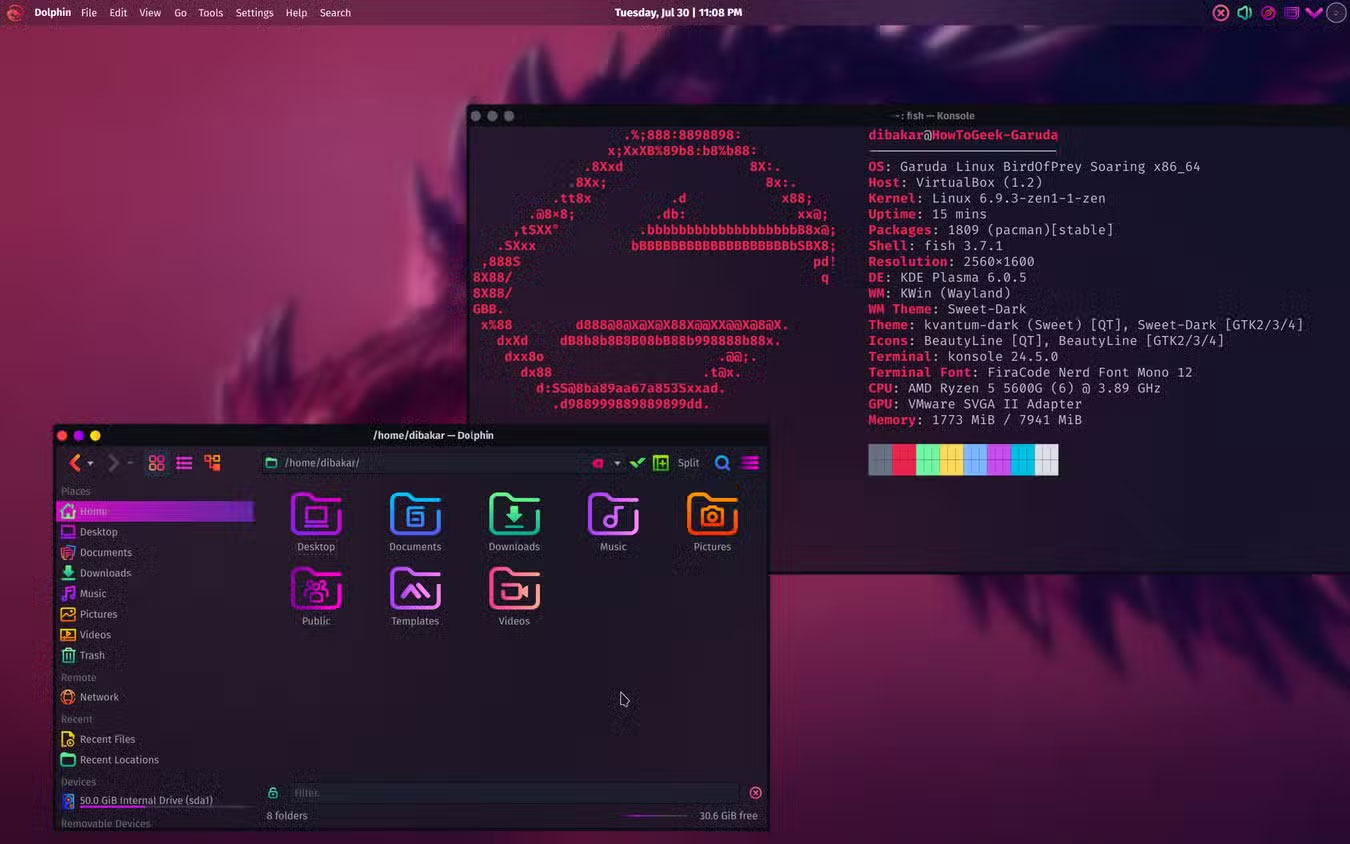
By default, KDE Plasma looks quite similar to Windows 7 with a panel at the bottom. However, it is the most feature-rich and customizable desktop environment on Linux, allowing you to easily turn it into a 'copy' of macOS.
To create a Mac-style layout, simply add a panel at the top, place the clock and system tray to the right, and add the window title widget and Global Menu on the left. This gives you a global application menu similar to macOS – something very few Linux desktops support. For the bottom panel, just keep the Icons-Only Task Manager, resize it, and you'll have a complete application dock.
KDE Plasma also has many features similar to macOS, such as KRunner, which functions like Spotlight, supporting quick search for applications and files, and calculations. The Overview mode helps manage virtual desktops in a way quite similar to Mission Control. Combined with a rich theme system, you can fully replicate most of the visual style of macOS.
Some distros have pre-customized KDE Plasma in a Mac style, such as pearOS or Garuda Linux with Dragonized and Mokka versions.
Cinnamon: a simpler option compared to KDE Plasma
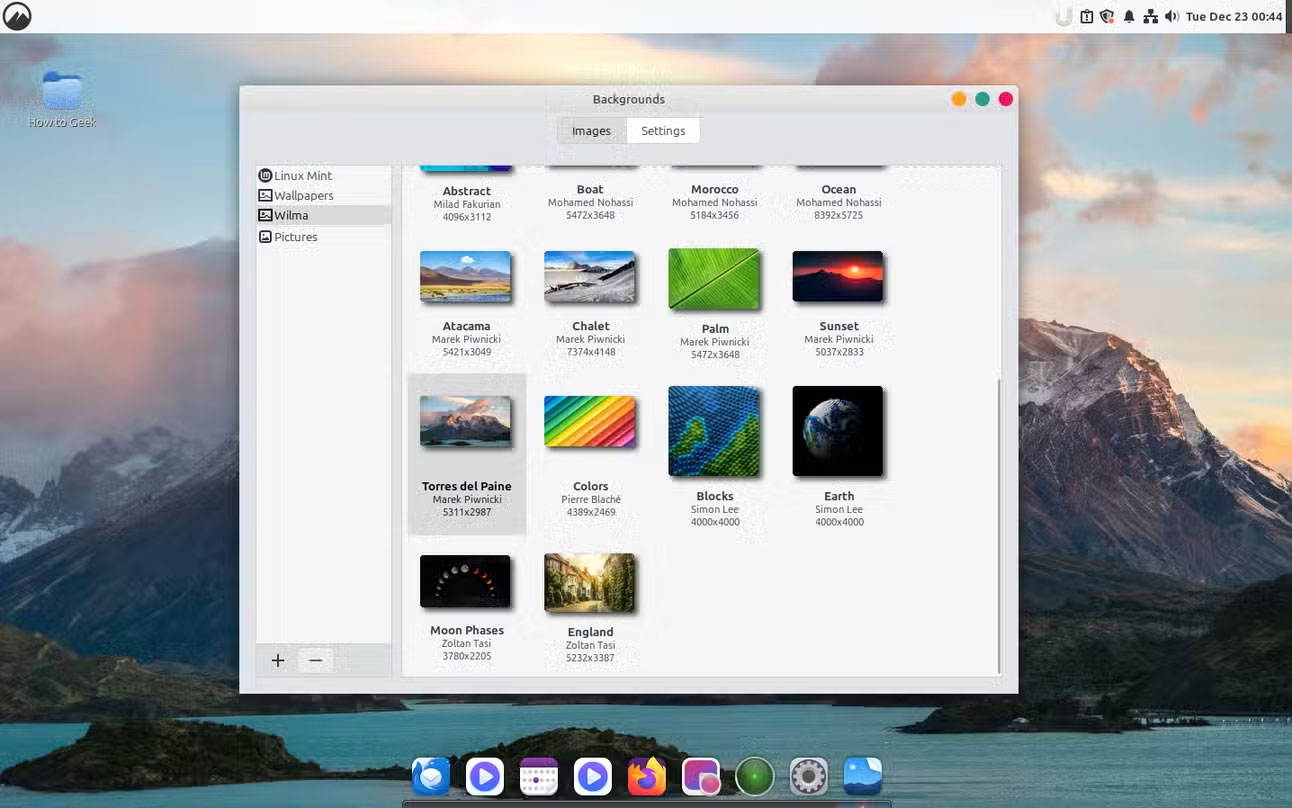
Like KDE Plasma, Cinnamon is a Windows-style desktop environment, but it can also be customized to look like macOS. The difference is that Cinnamon is more beginner-friendly, the customization process is simpler, and it usually only takes about 15 minutes.
You just need to move the bottom panel to the top, remove the application menu, then install Plank and Ulauncher to get a dock and Spotlight-style search. Combined with a macOS-style theme and icons, you'll have a pretty convincing interface.
However, not many distros come pre-installed with Cinnamon and a macOS-like layout. You'll have to set it up manually. Linux Mint is the best option because Cinnamon is the official desktop; alternatively, you can use Fedora, Arch, or openSUSE.
In summary, these are five desktop environments that can help your Linux distribution resemble macOS, while retaining the inherent freedom and flexibility, unconstrained by the familiar limitations of the Apple ecosystem.
Final Thoughts
Understanding 5 beautiful and modern linux desktop environments with macos styling makes it easier to evaluate the information and apply the most relevant recommendations. Focus on the key points above and verify details that may change over time.
FAQ
What is 5 beautiful and modern linux desktop environments with macos styling?
Explore 5 beautiful and modern Linux desktop environments with macOS styling.
What key points does this article cover?
The article focuses on Pantheon: A minimalist, easy-to-use macOS, GNOME: The workflow most similar to macOS, COSMIC: macOS for advanced users, with practical explanations and examples.
How can you use this information in practice?
Use the explanations to compare options, verify important details, and make a more informed decision. Apply the recommendations that best match your goals and situation.
Related Articles
 Linux on the Desktop: Still Not Booming Despite Continuous Wins6 minutes read
 Should I Use Linux Desktop KDE or GNOME: Main Insights15 minutes read
 6 Best Linux Desktop Environments in 20227 minutes read
 6 Top Linux Desktop Environments in 2024: Top Picks and Buying Guide10 minutes read
 Differences in the Types of Desktop Environments on Linux6 minutes read
 5 Reasons Why Linux Distros Create Their Own Desktop Environment8 minutes read
Reader Comments 0
Sign in with email or Google to join the discussion.