Table of Contents
Apple Music can sync your library and playlists across devices, but a synced library is different from a live playback handoff. If you often move from a phone to a computer mid-song, check what your particular devices can share before changing plans.
1. Switch devices without competing for the same stream
If Apple Music says playback is already in use, pause playback on the first device before starting it on the next. A family subscription is designed for separate household members using their own Apple Accounts. It does not automatically transfer the current song or queue between your devices.
2. Keep the library available on both devices
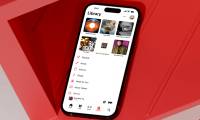
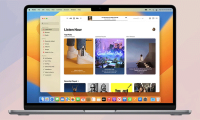
Use the same Apple Account and check that Sync Library is enabled where supported. Keep an album or playlist in the library if you want to find it from another device. For compatible speakers such as HomePod, look for Apple’s handoff or AirPlay controls. Their behavior differs from playback between two independent apps.
3. Use Apple Podcasts for episodes
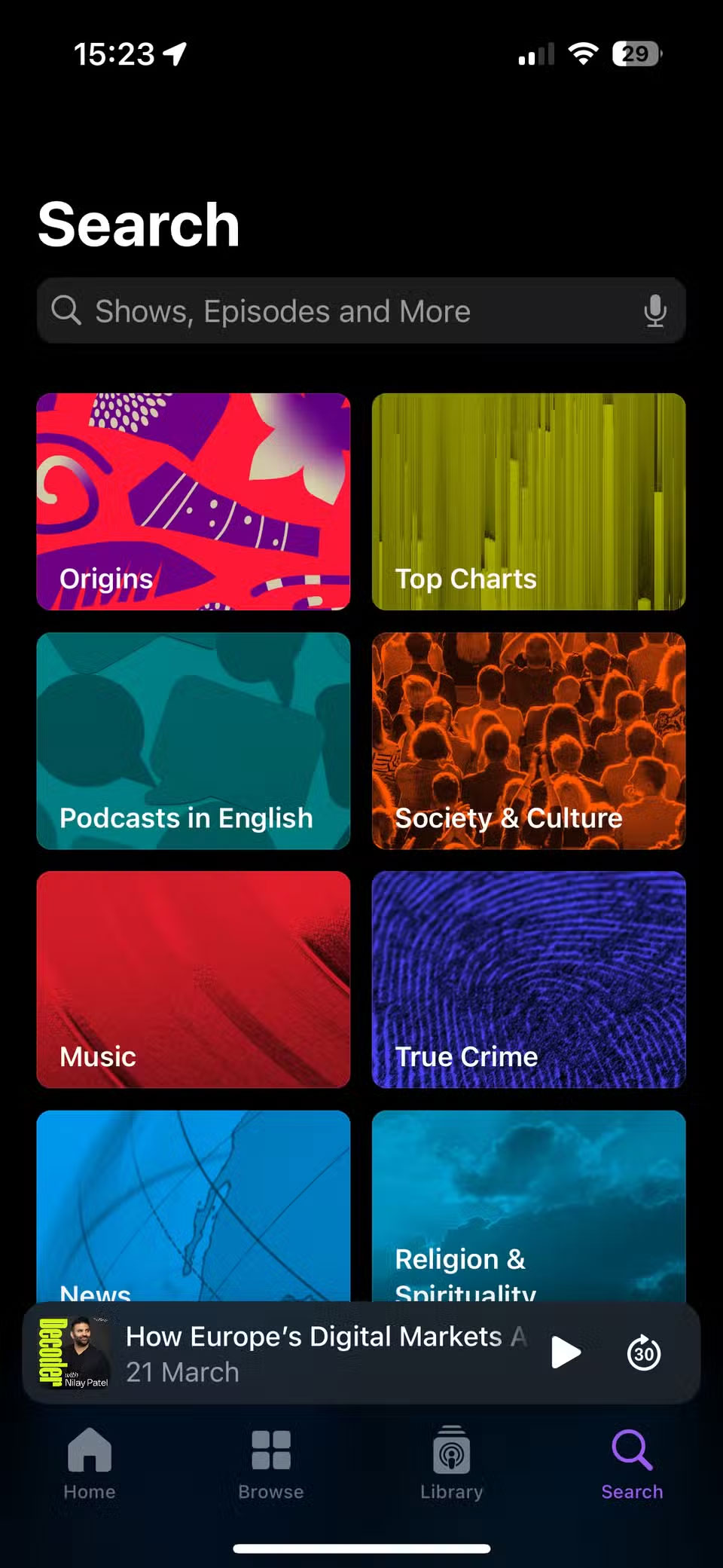
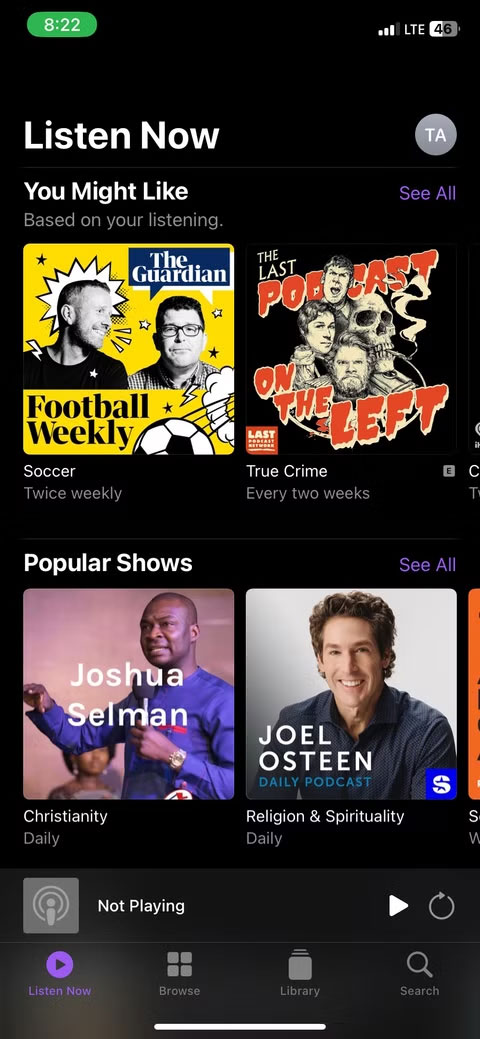
Apple Podcasts has its own subscriptions, library, and listening progress. Keep it separate when you want music recommendations to stay focused on music. If one app for music and podcasts is important to you, compare that workflow before committing to a service.
4. Reorder tracks in the playlist itself
Open the playlist before dragging tracks. Dragging a playlist onto another in the sidebar can add tracks when you intended to rearrange the sidebar. Use playlist folders to organize several playlists without merging them.
5. Find playlists you want to keep
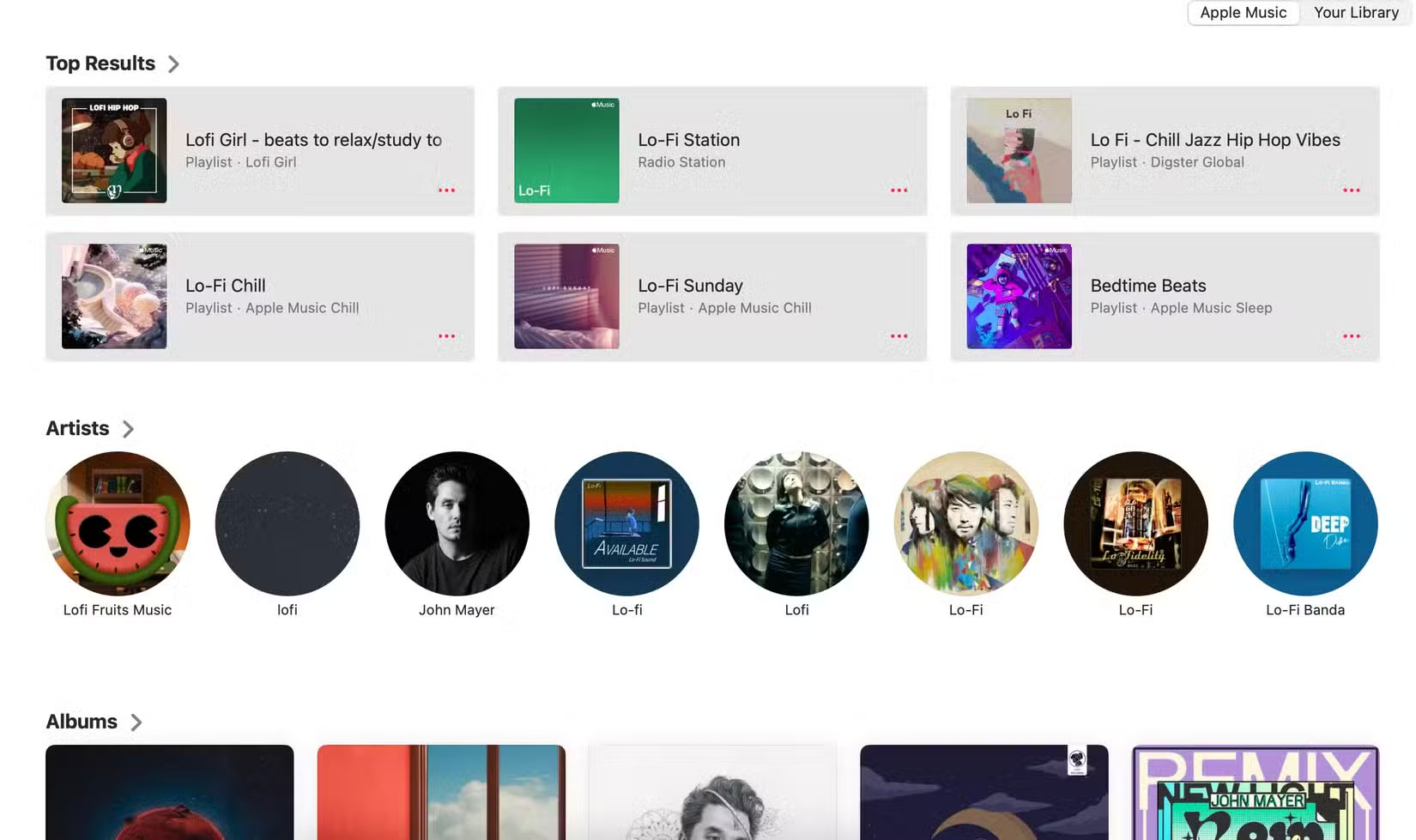
Search by genre, mood, artist, or activity and check the Playlists results. Save useful lists so you can find them again. For a list that updates from rules in your own library, try an Apple Music Smart Playlist.
6. Add tracks after what’s already queued
Touch and hold a song on iPhone, or open its menu on Mac, and check the controls for playing next or adding farther down the queue. The labels depend on the app and version. Open the queue to verify the order and move individual songs if needed. See Apple’s iPhone queue instructions and Mac queue instructions.
Reader Comments 0
Sign in with email or Google to join the discussion.