Table of Contents
This practical guide explains how to pin music in Apple music. Follow the steps in order, review the requirements first, and use the troubleshooting notes when a setting or option does not work as expected.
How to pin music in Apple Music
First, you need to access the Apple Music app and tap on Library. Here you select the content you want to pin, such as a song, playlist, artist, album, music video. We need to press and hold on that content and then select Pin from the displayed list.
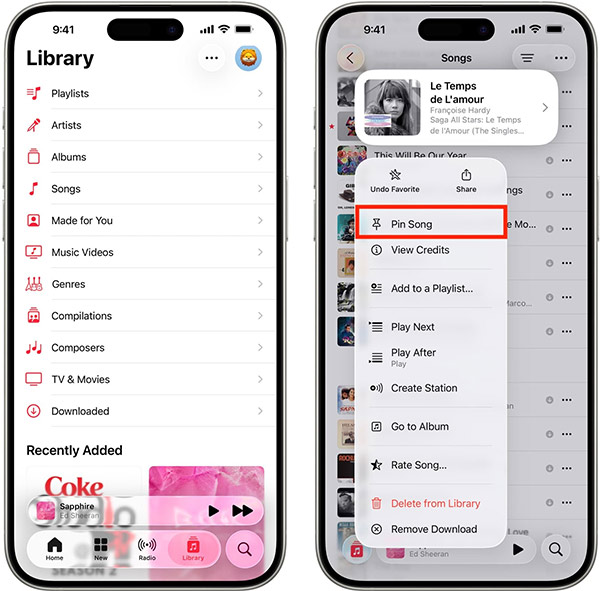
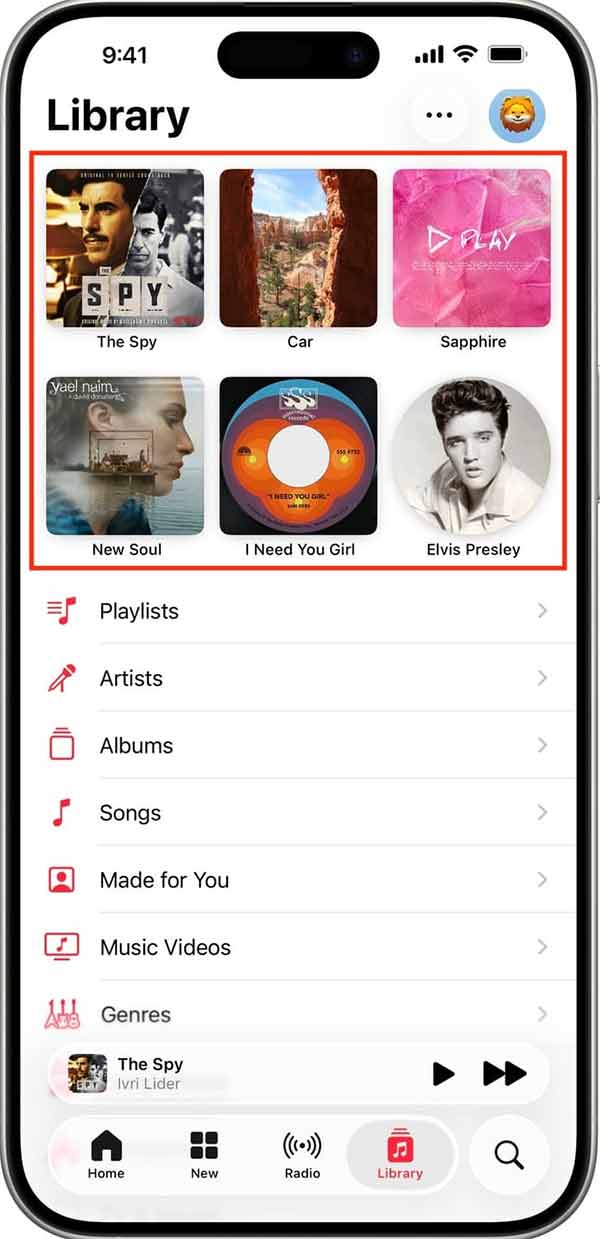
Pinned content always appears at the top of the Library list.
How to remove pinned music in Apple Music
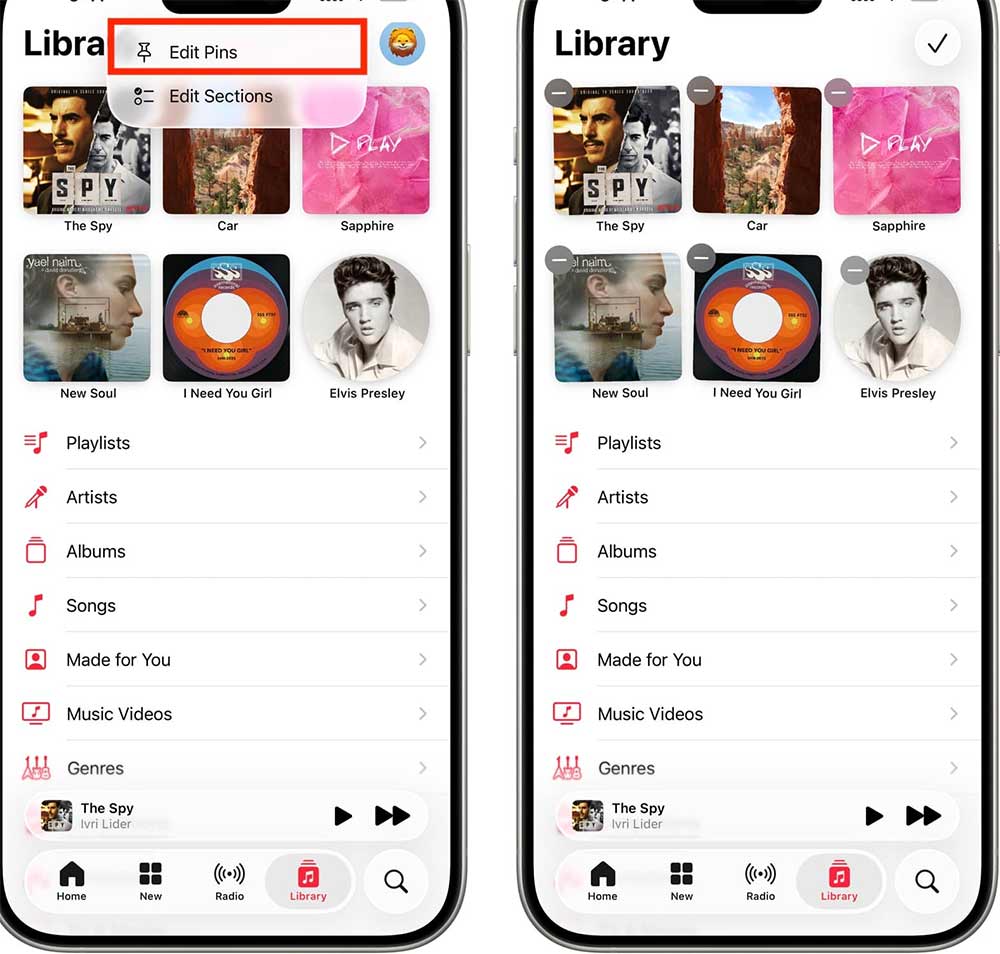
We press and hold on the pinned content in Apple Music, you press Unpin to unpin. Or press the 3-dot icon in the Apple Music app and select Edit Pins to delete the pinned content if needed.
FAQ
How to pin music in Apple Music?
First, you need to access the Apple Music app and tap on Library. Here you select the content you want to pin, such as a song, playlist, artist, album, music video. We need to press and hold on that content and then select Pin from the displayed list.
How to remove pinned music in Apple Music?
We press and hold on the pinned content in Apple Music, you press Unpin to unpin. Or press the 3-dot icon in the Apple Music app and select Edit Pins to delete the pinned content if needed.
What does this guide cover?
This guide explains pin music in Apple music, including the main steps, important details, and practical considerations.
Related Articles
 Instructions for Installing and Using Apple Music on Android7 minutes read
 6 Small Tricks with Apple Music11 minutes read
 Apple Music Launches Web Platform, Beautiful, Intuitive, and5 minutes read
 How to Experience Apple Music on Windows PC9 minutes read
 Cancel Apple Music Access of Third Party Applications5 minutes read
 Apple Music Is Now Available on Amazon Fire TV4 minutes read
Reader Comments 0
Sign in with email or Google to join the discussion.