Table of Contents
Canva Sheets can generate a table from a prompt, fill selected blank cells, and rewrite existing cell text with Magic Write. Start with an empty Sheet or an appropriate selection, and inspect generated data before you insert it. These actions create content; they do not verify figures or sources.
Generate a table from a prompt
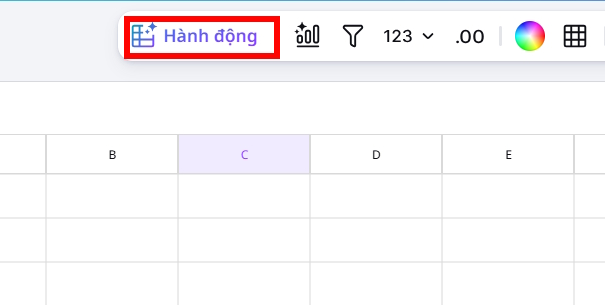
- Open a Canva Sheets file and select the blank cell where the table should begin.
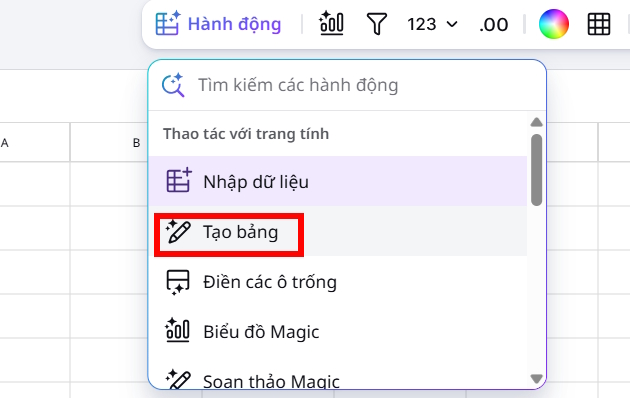
- From the floating toolbar, choose Actions → Generate table.
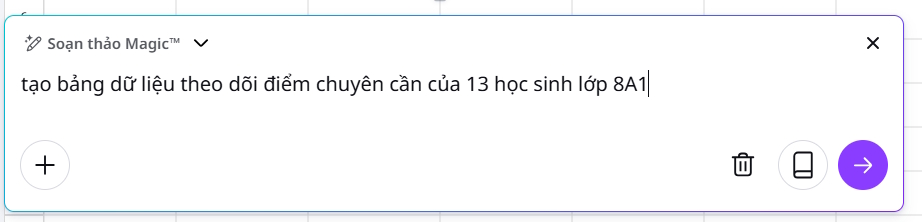
- Describe the columns and purpose, for example: “Create a weekly project tracker with columns for task, owner, deadline, and status. Leave owner and deadline blank.”
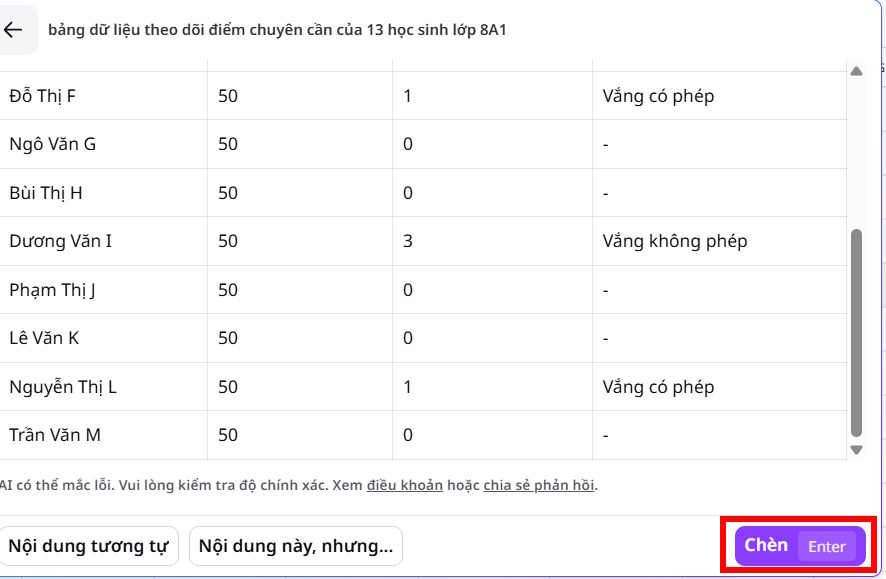
- Click Generate, review the preview, then Insert if it fits. Edit column headings and sample values as needed.
If you already have a file or prefer to build a sheet yourself, see how to create a Canva data sheet.
Fill only the blank cells you want to change
Select a range containing empty cells only, then use Actions → Fill empty cells. Magic Write suggests text based on nearby context. If the suggestion is too broad, use This but… to state a constraint, such as “Use a short action phrase in each row,” and regenerate before inserting. A range that includes filled cells can cause an error.

Rewrite content in existing cells
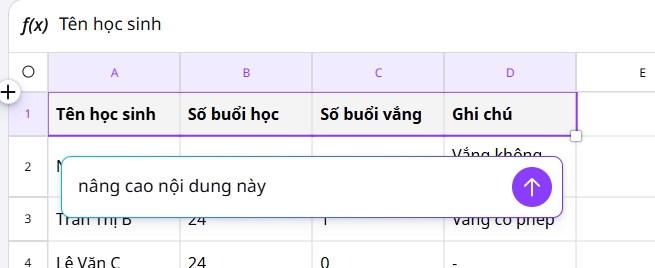
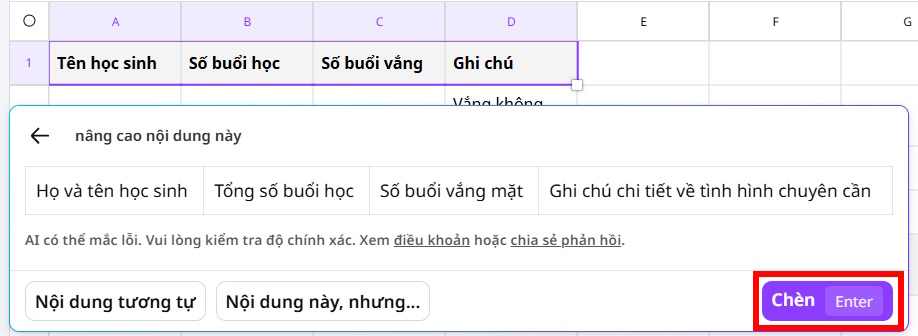
Select the cells to enhance, choose Actions → Magic Write, and enter a specific request. For example, “Shorten each product description to one factual sentence without adding claims.” Review the proposed text and choose Insert only when the meaning is preserved. The older screenshots may label this action differently; Canva's current help page uses “Magic Write.”

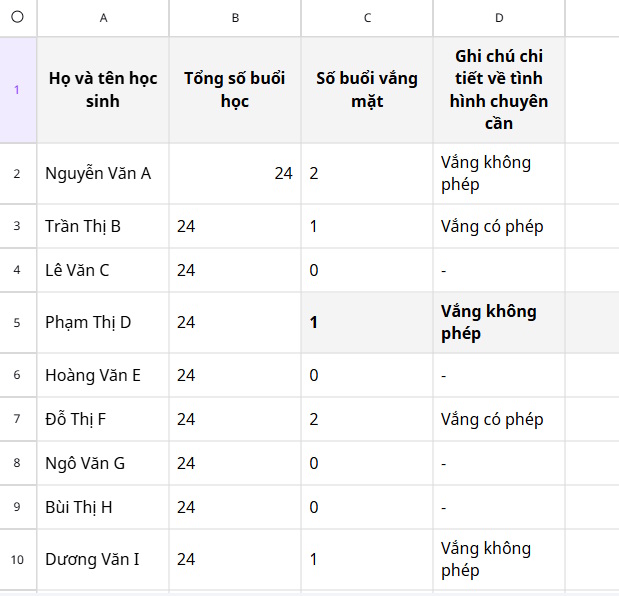
Check names, prices, quantities, and any calculated values against your own data. Generated examples are useful for a template, but should not be mistaken for records. A well-specified prompt with an explicit column structure usually needs less cleanup; see how to request a precise AI output format.
Related Articles
 What Is Magic Write in Canva? Basic Usage of Magic Write: Clear Explanation6 minutes read
 How to Create a Personal Writing Style in Magic Write Canva4 minutes read
 Quickly Create Multiple-choice Questions from Slides4 minutes read
 How to Use AI to Create Functions and Formulas in Canva Sheets5 minutes read
 How to Create a Spreadsheet Chart in Canva Sheets4 minutes read
 How to Use Magic Morph in Canva AI: Step-by-Step Guide4 minutes read
Reader Comments 0
Sign in with email or Google to join the discussion.