Table of Contents
Genspark AI Sheets can create a spreadsheet structure from a natural-language request, add formulas, and help organize or summarize data. It is useful for a first draft, but generated values and formulas must be checked before the file is used for purchasing, budgeting, reporting, or other decisions.
1. Open AI Sheets
From Genspark AI Workspace, select AI Sheets to open a new spreadsheet and its prompt panel.

2. Describe the spreadsheet precisely
State the purpose, columns, units, currency, formulas, categories, and required totals. For example:
Create a weekly grocery-planning spreadsheet for a family of four. Columns: Category, Item, Quantity, Unit, Verified Unit Price, Line Total, Store, and Notes. Use VND. Calculate Line Total as Quantity × Verified Unit Price. Add category subtotals, a grand total, a 2,000,000 VND budget, and the remaining amount. Leave prices blank; do not invent current market prices.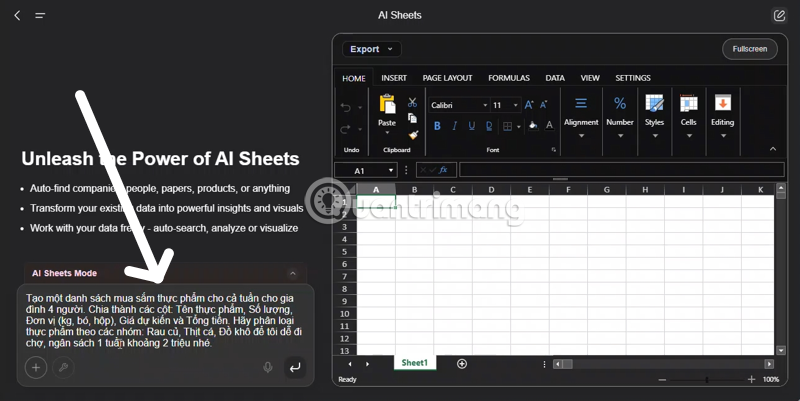
Leaving unknown prices blank is safer than asking the model to guess. If web research is enabled, require a source, date, location, and unit for every value, then verify them independently.
3. Inspect the generated table and formulas
AI Sheets may create a summary and a detailed table.
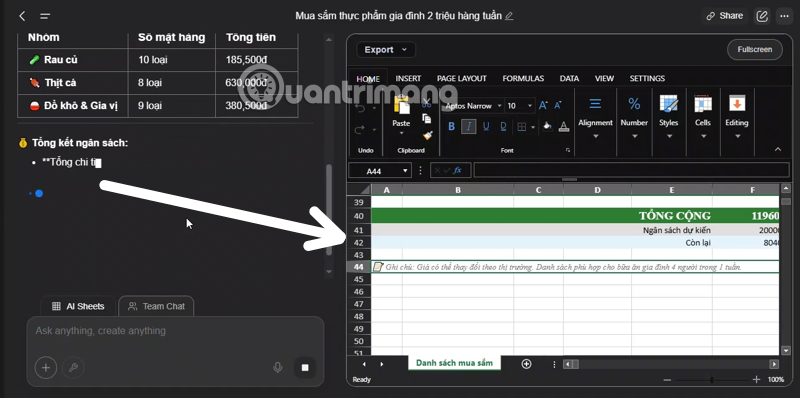
Open representative formula cells and confirm that row and range references are correct. Change a quantity or price and verify that the line total, category subtotal, grand total, and remaining budget all update.
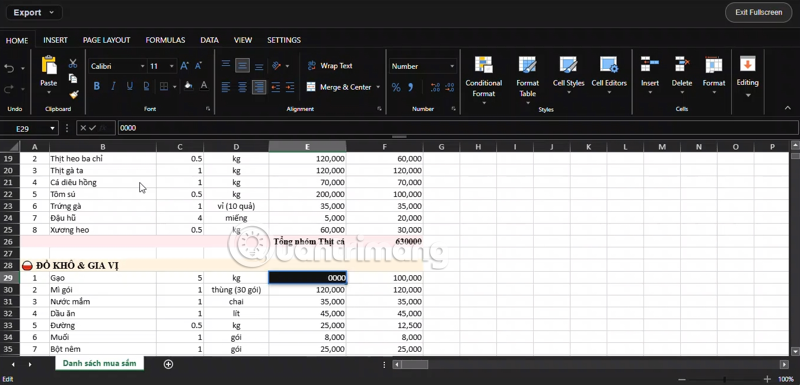
Also check number formats, blank cells, duplicate items, units, and whether newly inserted rows are included in totals. Copying a formula can create incorrect relative references if the layout changes.
4. Export the workbook
After review, select Export and choose the available Excel-compatible .xlsx format.
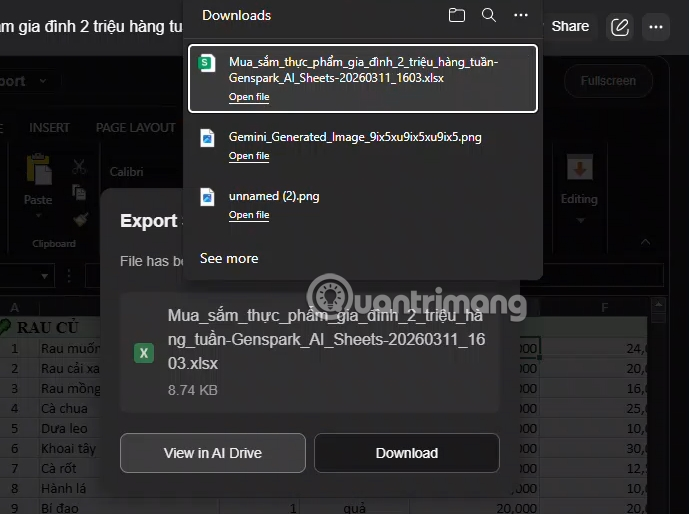
Open the downloaded file in the target spreadsheet application. Recalculate it and check that formulas, formatting, charts, and special features survived the export.
A reusable prompt template
Create a spreadsheet for [objective].

Input data:
[describe or paste non-sensitive source data]

Columns:
- [name, type, unit]
- [name, type, unit]

Rules and formulas:
- [formula in plain language]
- [validation or allowed values]
- [subtotal and total requirements]

Presentation:
- Freeze the header row.
- Apply filters.
- Use conditional formatting for [condition].
- Add five clearly labeled SAMPLE rows only if requested.

Verification:
- Do not invent missing values.
- Add a Source and Source Date column for researched data.
- Add a Checks sheet listing formulas, assumptions, and unresolved fields.

Output:
Show the completed grid and make it ready for XLSX export.
Where AI Sheets helps—and where it does not
AI can reduce setup time, suggest a structure, and generate routine formulas. It does not remove the need to understand what the workbook calculates. Web-sourced prices can be stale, tied to a different location or unit, or simply incorrect.
For important work, keep the source data, review formulas with a second person, protect input and formula cells appropriately, and document assumptions. The goal is a verifiable spreadsheet, not merely one that looks complete.
Related Articles
 Genspark AI: What You Need to Know5 minutes read
 Guide to Creating Free Restaurant and Cafe Menus with Genspark AI8 minutes read
 5 Google Sheets Features You Should Know: Features Google Sheets7 minutes read
 How to Quickly Insert a Google Sheets Spreadsheet into Google Docs4 minutes read
 How to Link Data Between Spreadsheets in Google Sheets4 minutes read
 Instructions on Using Gemini to Create Images in Sheets: Explained5 minutes read
Reader Comments 0
Sign in with email or Google to join the discussion.