Table of Contents
Learn how to remove the Windows product key and transfer it to a new pc with clear steps, practical tips, and troubleshooting guidance for a reliable result.
Remove the Windows Product Key from your old computer
If you plan to sell or give away your computer, it's crucial that you manually remove the Windows activation key from the machine. Even if the computer has been fully restored, the new owner could still extract the product key to activate not only the current computer but also use your key on other computers (which could restrict you).
Even if you don't want to give the computer away, it's best to remove the product key to avoid any future restrictions on the product key due to multiple activated devices. However, you can skip this step if you plan to reuse the old computer for a different purpose; Microsoft usually allows activation on two computers even if the official terms state only one device.
Unfortunately, Windows doesn't have a graphical interface method to remove the product key, as Microsoft wants the license to be stored on the hardware. Instead, you'll have to use commands in Command Prompt to remove it properly:
Note : If you skipped the Microsoft account request and your key is not yet registered with a Microsoft account, you should first find and save your product key before following these instructions. You will need it to activate your new computer offline.
Open Command Prompt and run the following commands:
slmgr /upk slmgr /cpkyThe first command will uninstall the product key from Windows, and the second will remove it from the Registry, preventing anyone from extracting it later. You should immediately restore your computer to its factory settings and avoid logging in with your Microsoft account.
Transfer your Windows Product Key to a new computer
Transferring your product key to a new computer is actually very easy, thanks to the digital license. The retail product key is linked to your Microsoft account, so all you have to do is sign in with the same Microsoft account while setting up the new computer, and it will be activated automatically.
If it's not automatically activated, open Windows Settings and go to System → Activation . Click on Troubleshoot and select I changed hardware on this device recently . Then you can select your old device and click Activate to transfer the product key.
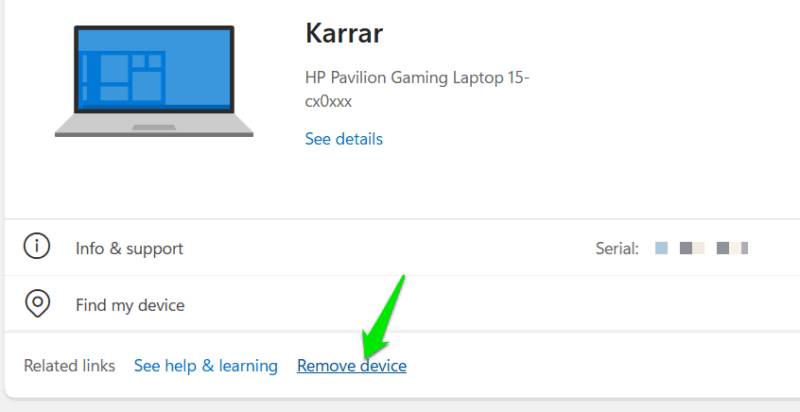
After activation, it's important to remove the old computer from your Microsoft account. Otherwise, Microsoft will automatically activate the old computer when it connects to the network, as its hardware ID has already been registered on Microsoft's servers. Open the Devices section in your Microsoft account and click Remove device under the old device.
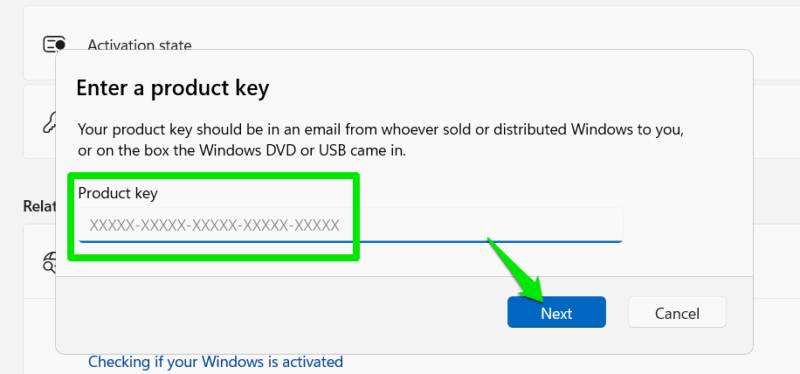
If you're using a new computer without a Microsoft account, you'll need to manually enter the product key you previously recorded to activate it. Simply go to System → Activation and click the Change button next to the Change product key option. Enter the 25-digit product key and click Next to verify and activate.
To avoid license recognition issues, ensure your old computer remains linked to your Microsoft account until the new computer is fully activated. Once the computer is up and running, apply system configurations and install any necessary optimization applications.
Good luck!
Please refer to the following articles for more information:
- Instructions on how to change the Product Key on Windows 10
- No software installation required, here's how to find your Windows Product Key.
- This is how to uninstall a Product Key on a Windows computer.
Final Thoughts
Use this guide as a practical checklist for how to remove the windows product key and transfer it to a new pc. Work through the steps in order, verify each result, and adjust the options to match your needs.
FAQ
What do you need before following this How to Remove the Windows Product Key and Transfer It to a New PC guide?
Review the required tools, accounts, settings, or materials mentioned in the article. Learn how to remove the Windows product key and transfer it to a new pc with clear steps, practical tips, and troubleshooting guidance for a reliable result.
What are the main steps for how to remove the windows product key and transfer it to a new pc?
Follow the sections in order, especially Remove the Windows Product Key from your old computer, Transfer your Windows Product Key to a new computer. Complete each step before continuing and verify the result as you go.
What should you do if the process does not work as expected?
Recheck the prerequisites, update the relevant app or service, review the settings, and repeat the step that caused the issue. Use any troubleshooting notes included in the guide.
Related Articles
 How to Deactivate Windows Product Key and Use It on Another5 minutes read
 Here's How to Uninstall the Product Key on a Windows Computer1 minutes read
 How to Activate Windows XP Without a Genuine Product Key: Clear Instructions9 minutes read
 How to View Product Key on Windows 106 minutes read
 How to Removing DNS Unlocker Adware5 minutes read
 Detailed and Simple Instructions for Transferring Windows from HDD8 minutes read
Reader Comments 0
Sign in with email or Google to join the discussion.