Table of Contents
Learn how to change this registry value to make your Windows 11 computer run faster with clear steps.
Some tweaks require third-party applications—essentially adding code to Windows to make it work the way you want. Others involve disabling features entirely. But this time, there's something much simpler: A single registry edit that makes Windows run significantly faster.
Windows 11 is too slow
Even on good hardware
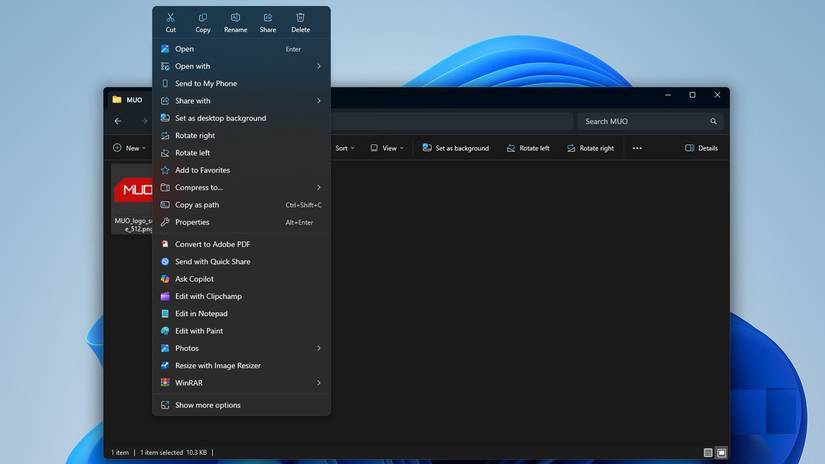
File Explorer doesn't load as quickly as one would like. Right-clicking on anything in Explorer takes at least a second before the menu appears. By now, we all know that games run smoother on Linux than on Windows – but that's not what this article is about. Windows runs slowly on Windows itself. The problem of the cluttered right-click context menu can be fixed with Nilesoft Shell. But even so, the menus are still not as responsive as on Windows XP computers from nearly 20 years ago – despite the superior modern hardware.
As it turns out, that feeling wasn't just imagination. Windows 11 intentionally slows down the appearance of certain menus. Fortunately, that delay is easily reversible.
How to make the Windows menu appear faster
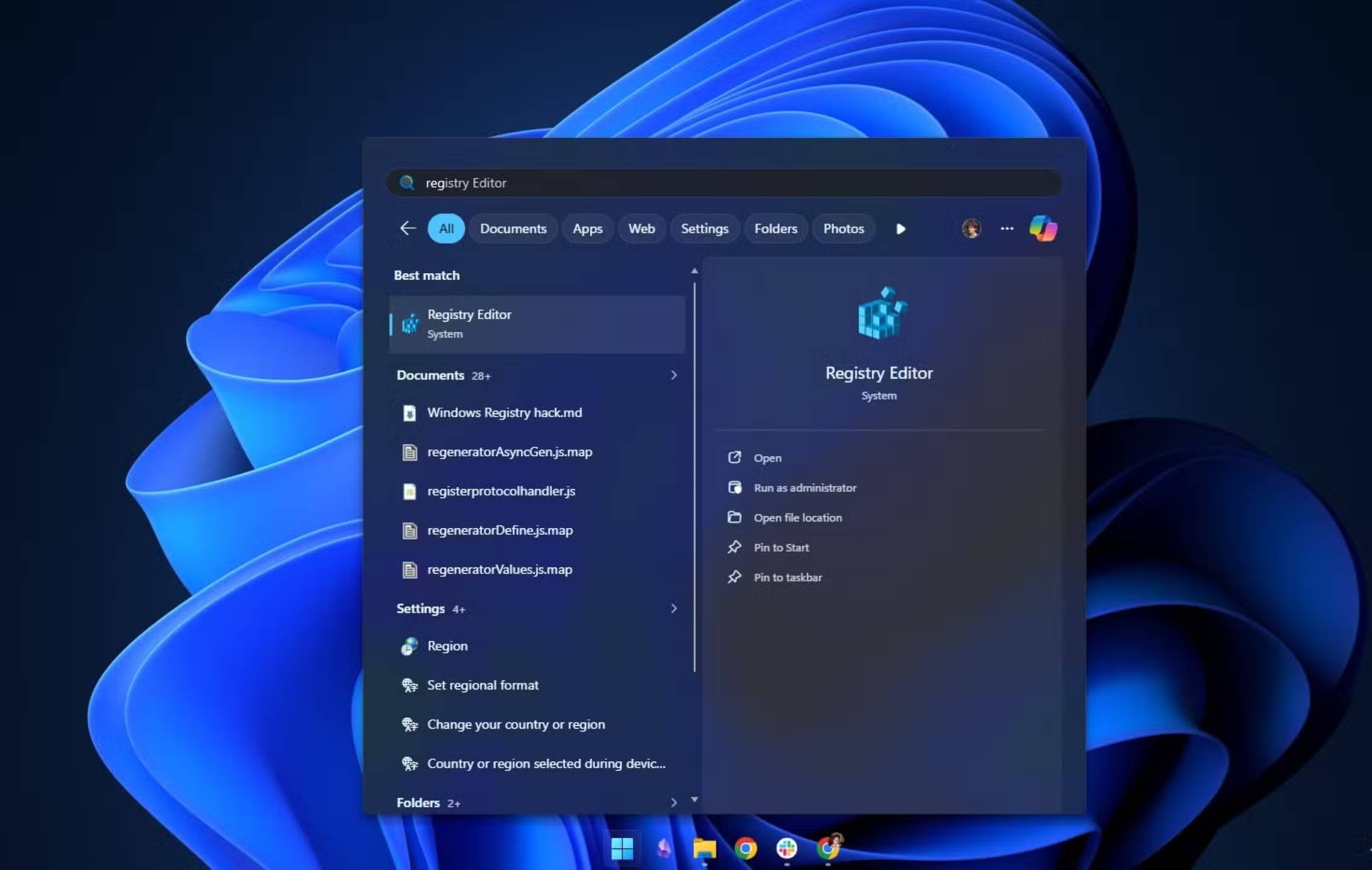
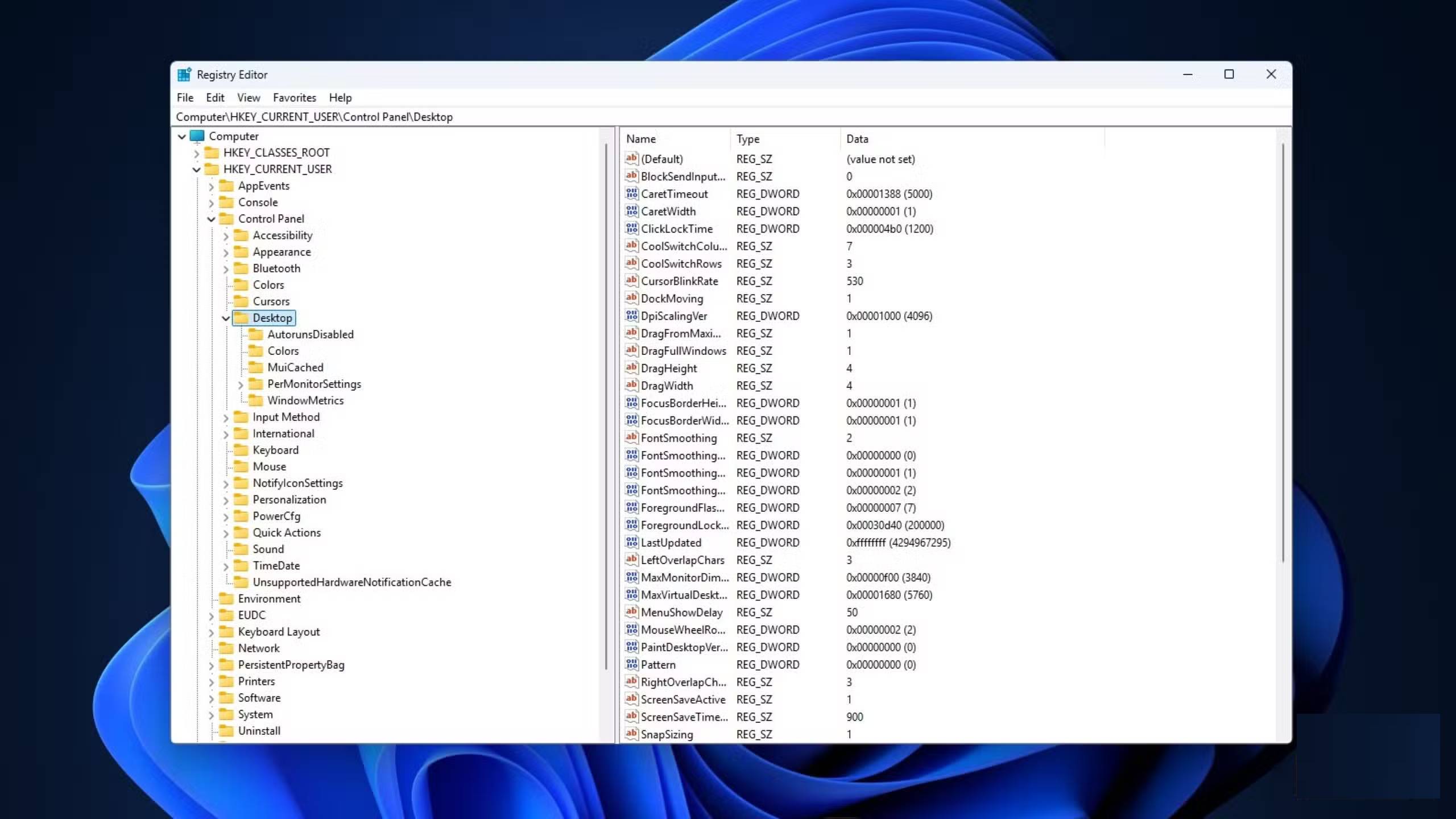
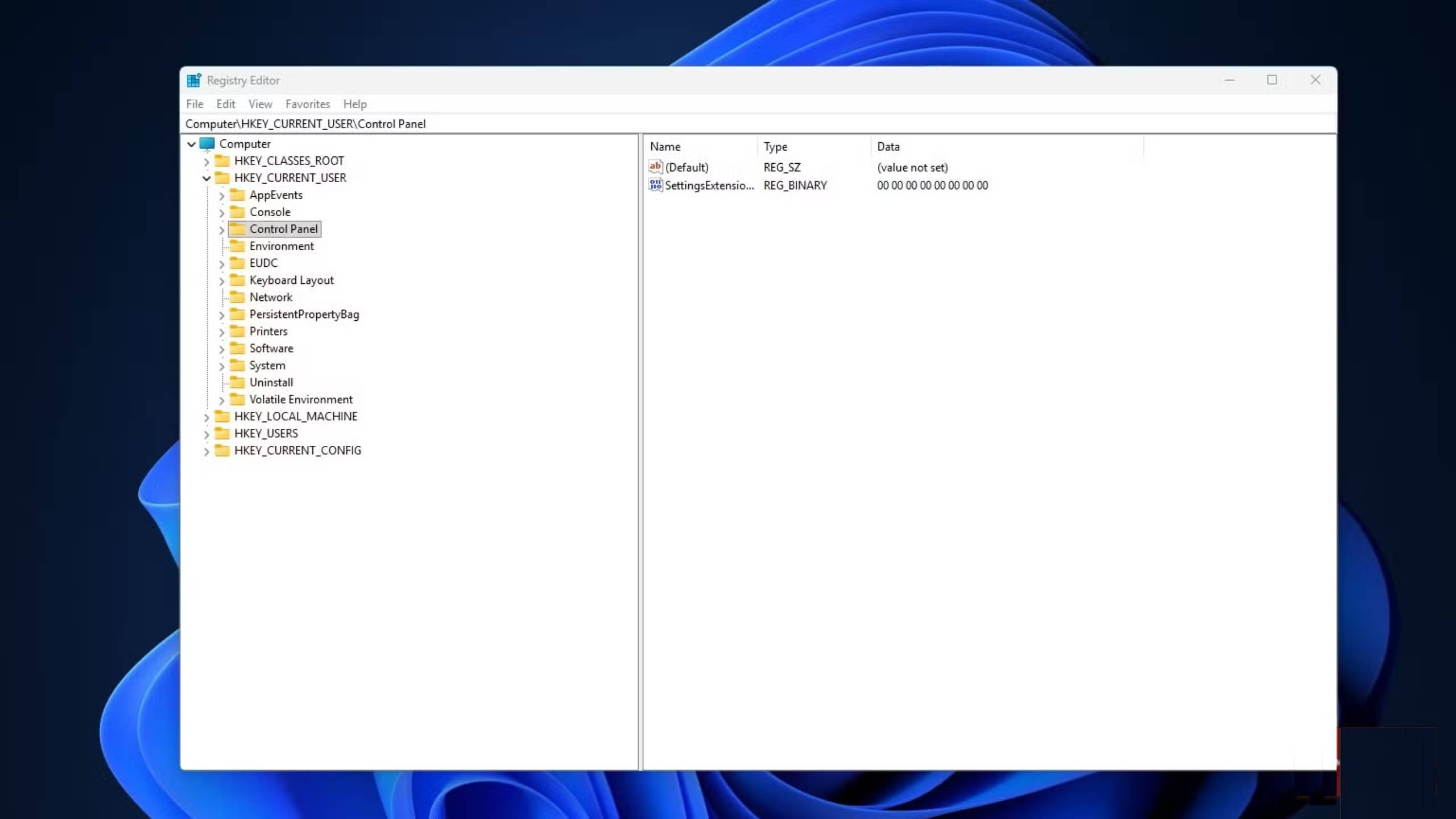
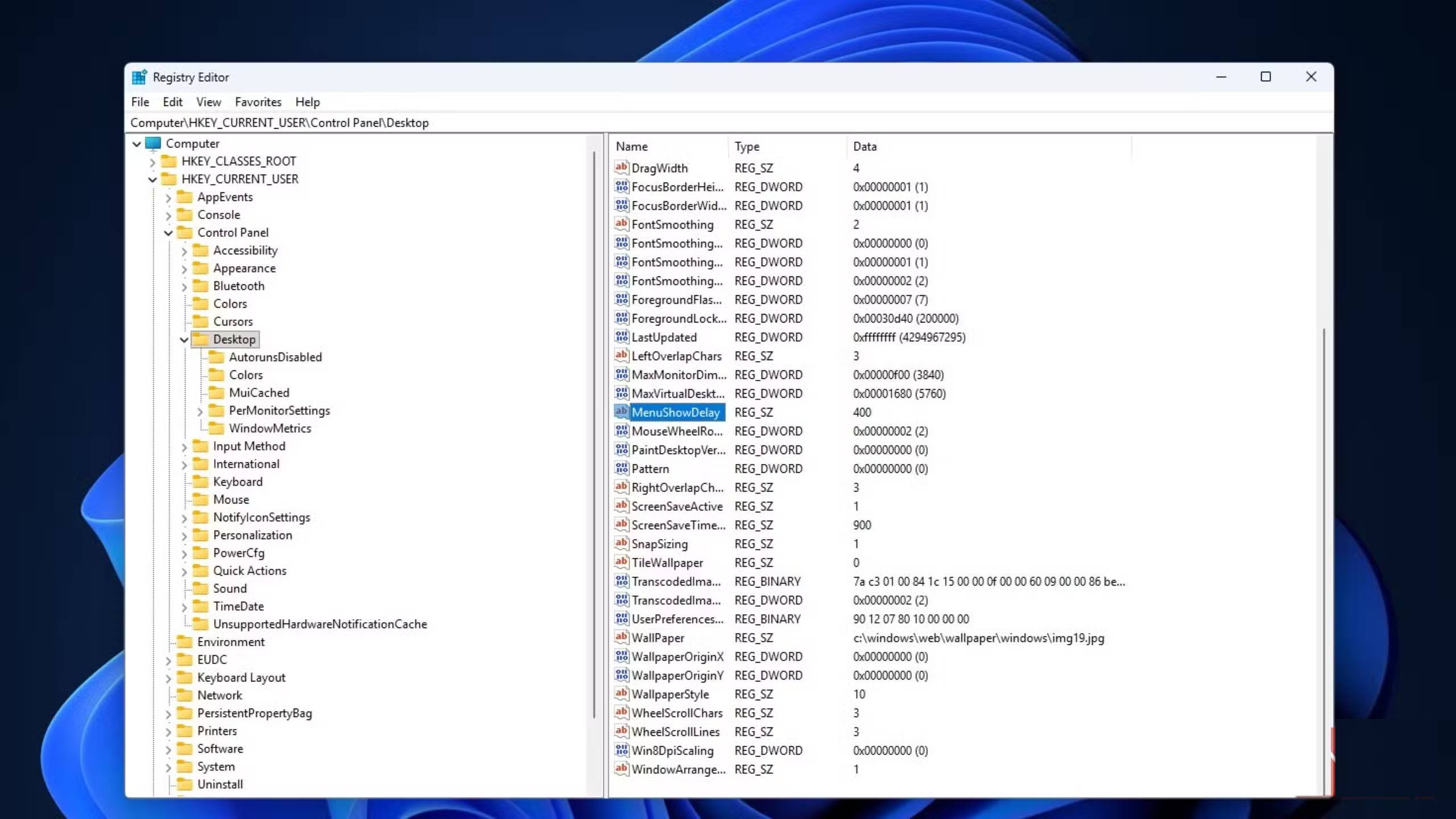
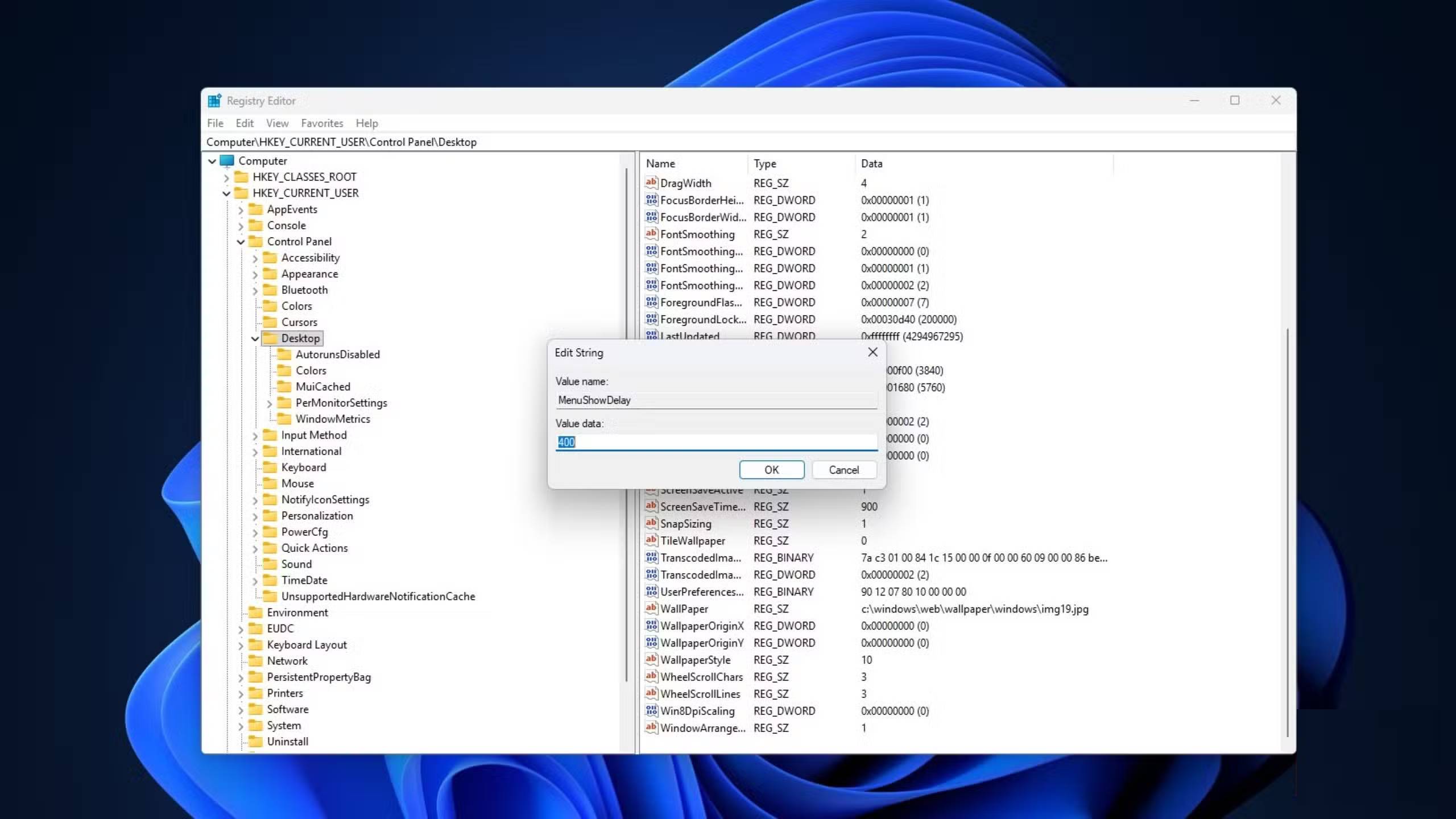
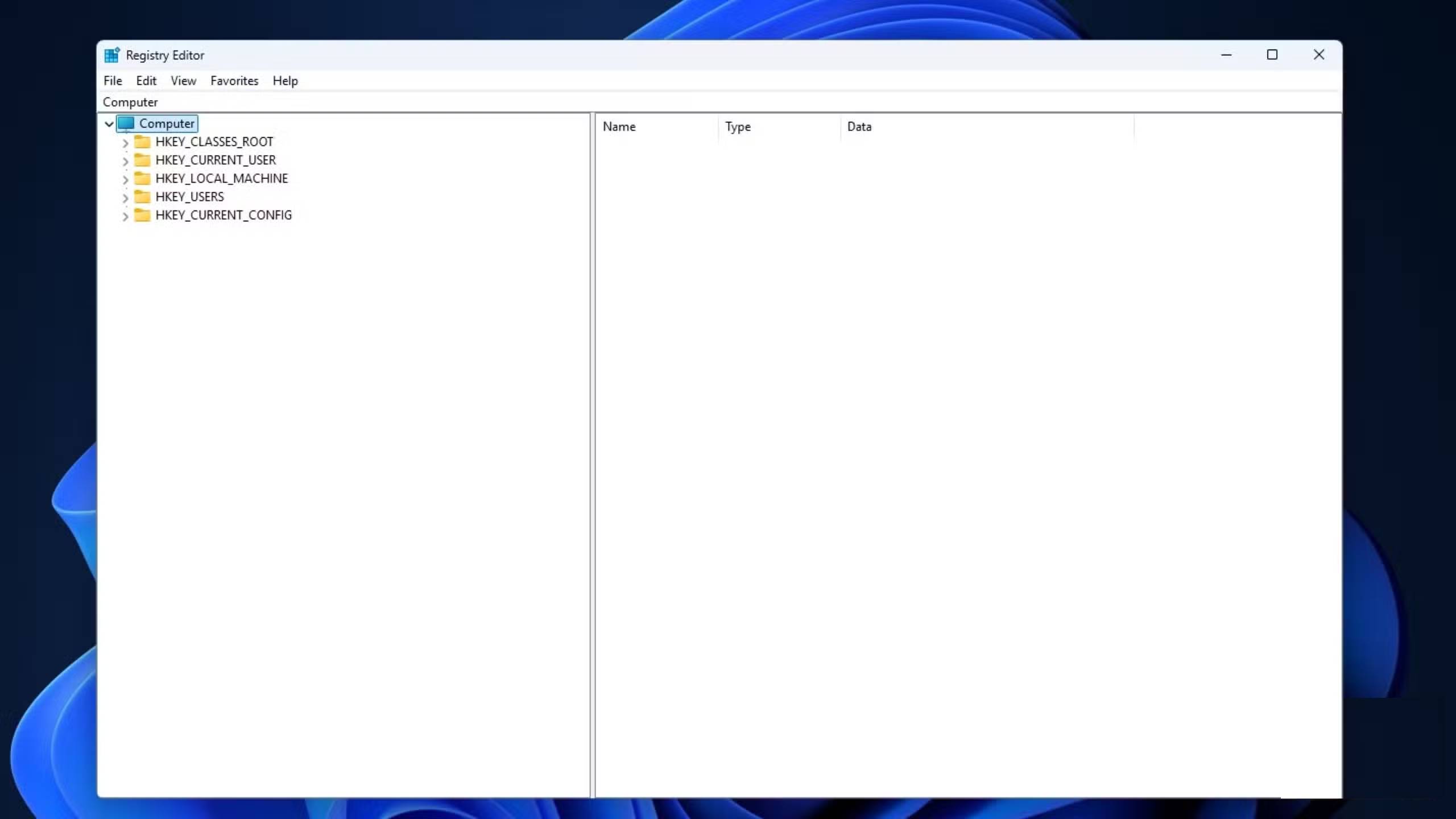
Changing this setting is very simple. Open the Start menu, search for Registry Editor , and launch it. From there, navigate to HKEY_CURRENT_USERControl PanelDesktop .
In the right pane, you'll find an item called MenuShowDelay . By default, it's set to 400 milliseconds. Double-click on it and change the value to whatever you want. The author of this article set his value to 0 ms. That's it! Restart your computer, log back in, and enjoy the results.
Warning : Modifying the Windows Registry can cause errors in subtle or very obvious ways. Changing random values can cause many applications to malfunction or Windows to stop working properly. If you lack experience, follow the instructions precisely; do not experiment on your own and do so at your own risk.
Which menus does this actually affect?
Not all menus have an impact
This Registry entry only affects the old menus—those that still look and function like the Windows 7 menus. That includes the expanded context menu you see when you click Show more options (or if you've reverted to the classic context menu), as well as menus in the Control Panel and similar parts of the system (like choosing the file type when saving). Windows 11 may look modern on the outside, but underneath, it's still Windows 10—and there's no shortage of old user interface elements hidden around.
What this trick doesn't affect is the Start menu. The Start menu isn't based on Win32 and uses Microsoft's newer Acrylic design, so it completely ignores this setting.
Tip : Another way to make the context menu faster is to disable all additional services associated with it using AutoRuns.
However, there are still ways to make the Start menu work faster. Performance improvements are largely achieved through registry editing tricks. After noticing that the Start menu didn't change, many people decided to investigate further.
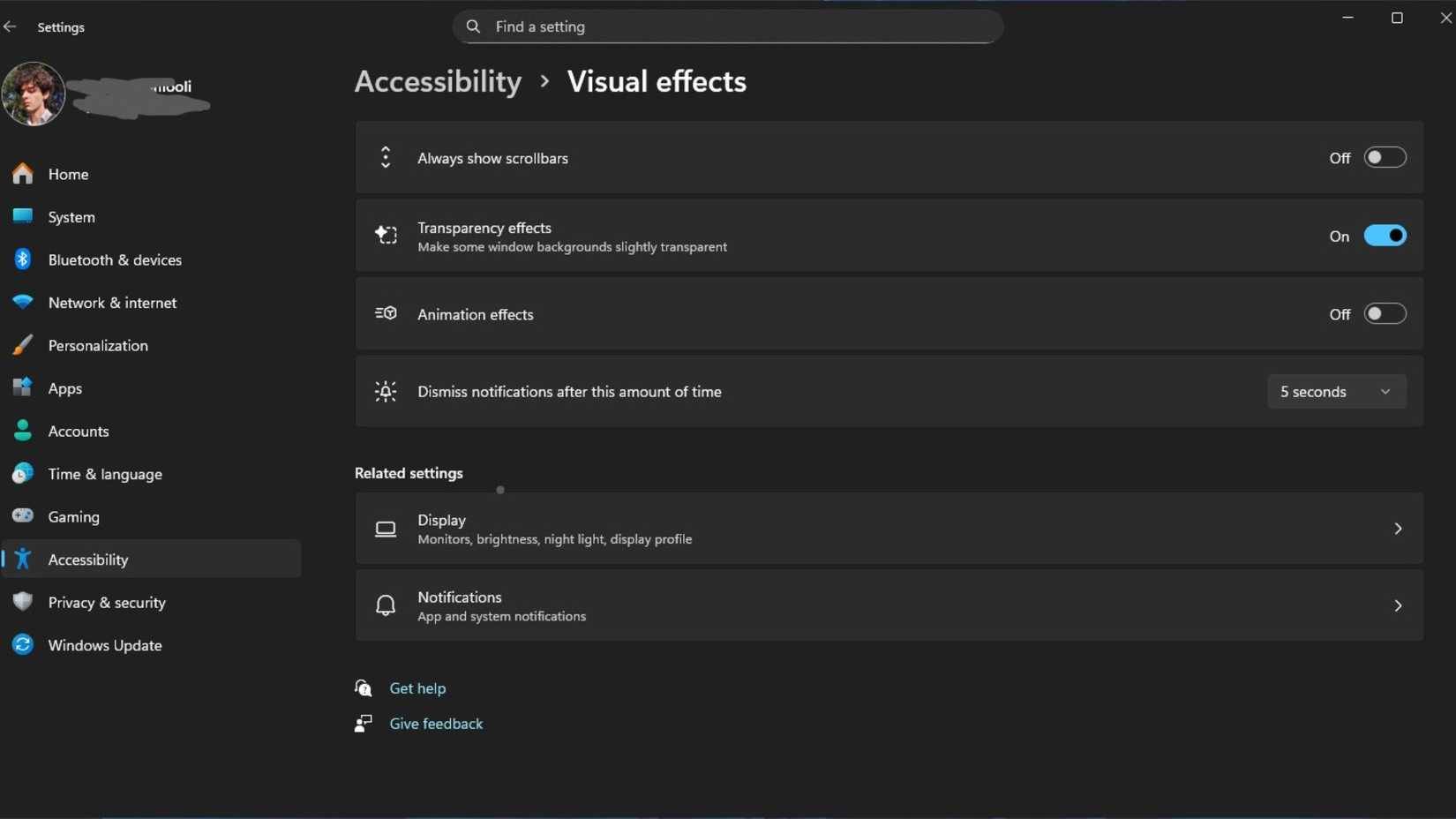
Go to Settings > Accessibility > Visual effects and turn off animations. The process may take a little while, but once it's applied, the difference will be immediately noticeable.
Do you remember the feeling of clicking a toggle switch, menu, or button in Windows XP? The feeling is similar to doing this now.
Note : You can also directly replace the default Windows Start menu with a third-party menu.
Don't get me wrong! This article also appreciates smooth, well-designed animation effects. But if those animations are reducing responsiveness, it's best to ignore them. There's a reason why disabling animations is almost always included in Windows' 'optimization' scripts. Ironically, many animations designed to make Windows run smoother actually have the opposite effect. Remove them, and what you're left with will almost certainly be much faster.
None of these tweaks literally improve performance. They won't make your hardware faster or boost benchmarks. But they do make your computer feel faster.
Final Thoughts
Use this guide as a practical checklist for how to change this registry value to make your windows 11 computer run faster immediately. Work through the steps in order, verify each result, and adjust the options to match your needs.
FAQ
What do you need before following this How to Change This Registry Value to Make Your Windows 11 Computer Run Faster Immediately guide?
Review the required tools, accounts, settings, or materials mentioned in the article. Learn how to change this registry value to make your Windows 11 computer run faster with clear steps.
What are the main steps for how to change this registry value to make your windows 11 computer run faster immediately?
Follow the sections in order, especially Windows 11 is too slow, Even on good hardware, How to make the Windows menu appear faster. Complete each step before continuing and verify the result as you go.
What should you do if the process does not work as expected?
Recheck the prerequisites, update the relevant app or service, review the settings, and repeat the step that caused the issue. Use any troubleshooting notes included in the guide.
Related Articles
 What Is the Registry: Learn About the Windows Registry - Part I10 minutes read
 How to Make SSD Boot Windows Faster3 minutes read
 5 Registry Tricks Speed Up Windows 8 Computer Faster6 minutes read
 Use the .Reg File to Configure the Registry in Winxp9 minutes read
 How to Edit the Windows Registry3 minutes read
 How to Make and Restore a Backup of the Windows Registry2 minutes read
Reader Comments 0
Sign in with email or Google to join the discussion.