Table of Contents
Explore instructions on enabling advanced search in Windows 11.
How to enable advanced search on Windows 11
Advanced search will search across the entire computer, but it will affect battery life and increase CPU consumption.
Step 1
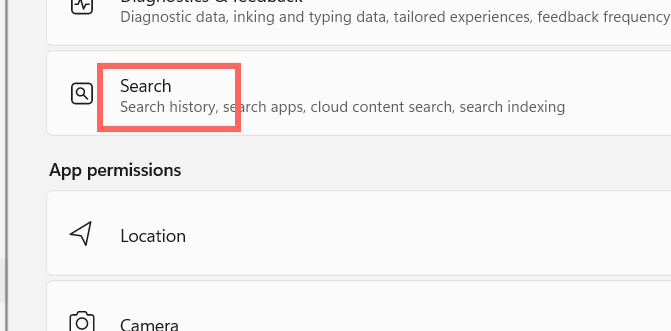
We open the settings on our computer, then click on Privacy & Security on the left side of the interface. Next, look to the side and click on Search .
Step 2
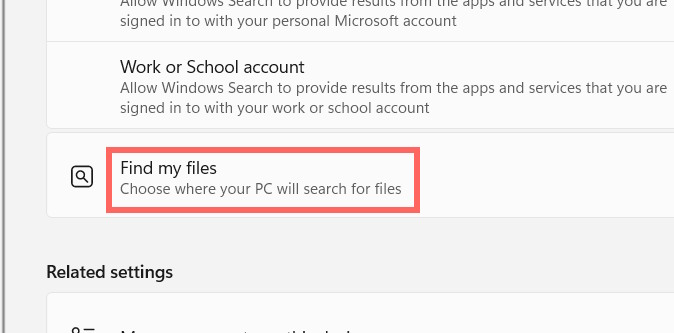
Switch to the new interface, scroll down and find the "Find my Files" section .
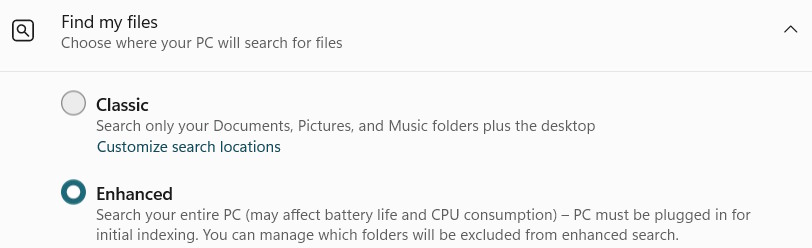
Expanding the settings interface, we select Enhanced instead of Classic.
Step 3
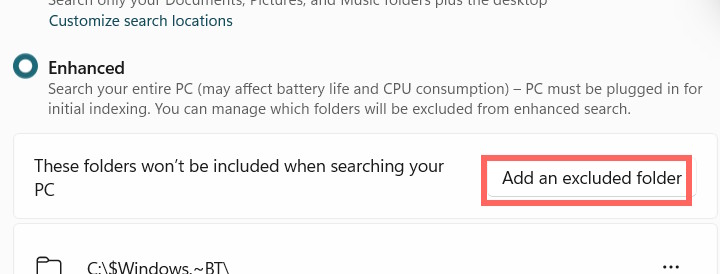
Windows 11 also allows you to add excluded folders that you don't want to be found in the search tool; click "Add an excluded folder" to add them if desired.
Rebuild the Windows search index
If you experience problems after enabling advanced search, you should rebuild your search index.
Step 1
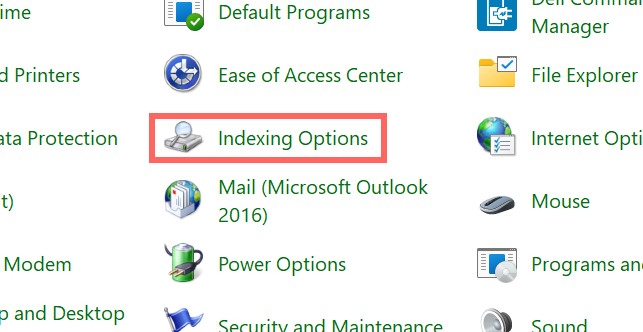
We open the Control Panel and then click on Indexing Options .
Step 2
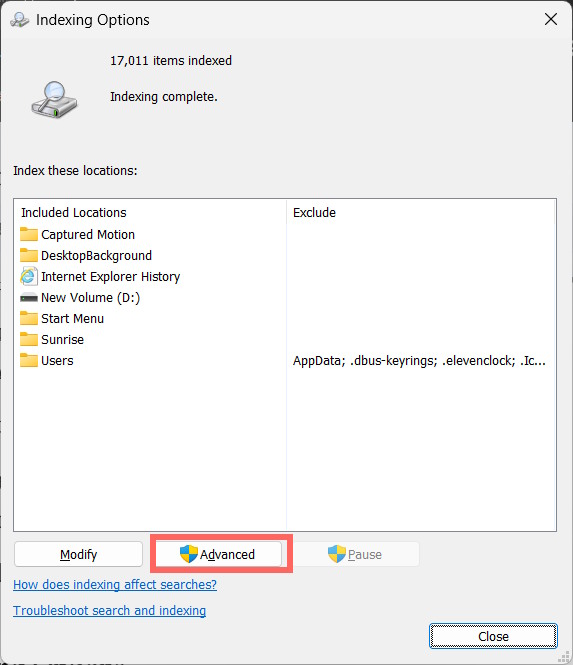
To switch to the new interface, click on the Advanced option below .
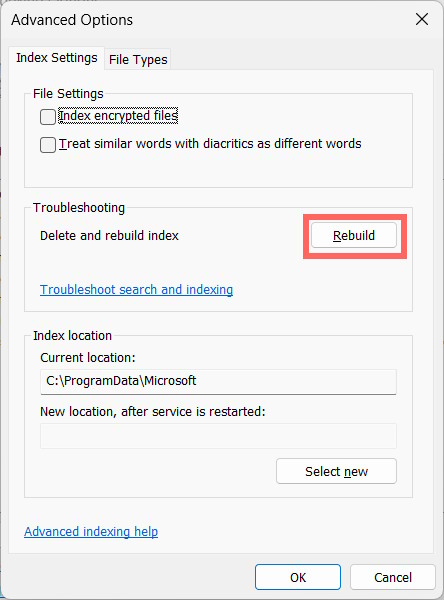
Now, click on Rebuild to rebuild the Windows 11 search index.
Final Thoughts
Understanding instructions on enabling advanced search in windows 11 makes it easier to evaluate the information and apply the most relevant recommendations. Focus on the key points above and verify details that may change over time.
FAQ
What is instructions on enabling advanced search in windows 11?
Explore instructions on enabling advanced search in Windows 11.
What key points does this article cover?
The article focuses on How to enable advanced search on Windows 11, Step 1, Step 2, with practical explanations and examples.
How can you use this information in practice?
Use the explanations to compare options, verify important details, and make a more informed decision. Apply the recommendations that best match your goals and situation.
Related Articles
 Advanced Search in Windows 7 Is Similar to Windows XP7 minutes read
 How to Turn on Advanced Search Mode in Windows 106 minutes read
 How to Use WhatsApp's New Advanced Search Feature4 minutes read
 How to Enable Advanced Search in Windows 112 minutes read
 How to Enable Advanced Settings on Windows 114 minutes read
 11 Advanced Search Tips with Slack4 minutes read
Reader Comments 0
Sign in with email or Google to join the discussion.