Table of Contents
This practical guide explains how to enable advanced settings on Windows 11. Follow the steps in order, review the requirements first, and use the troubleshooting notes when a setting or option does not work as expected.
Instructions to enable advanced settings on Windows 11
Step 1:
You need to download ViVeTool to use Windows experimental features, follow the instructions below.
- What is ViVeTool? How to use ViVeTool to enable hidden features on Windows
Step 2:
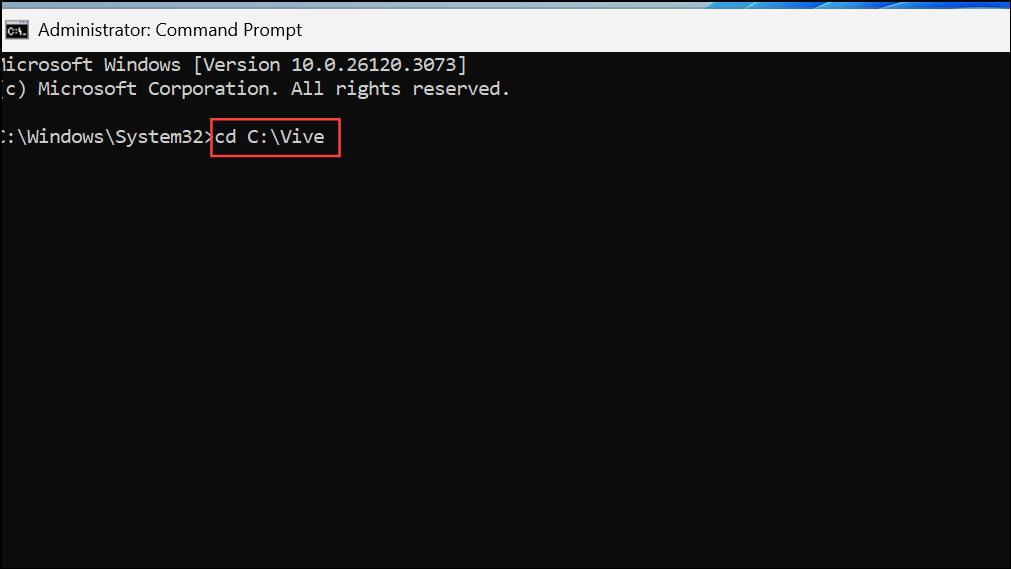
Open Command Prompt with Admin rights, then type cd the folder containing the extracted ViVeTool and press Enter.
Step 3:
Next, to enable Advanced Settings on Windows 11, enter the command below.
vivetool /enable /id:56005157This command enables the hidden Advanced Settings page in supported versions of Windows 11.
Step 4:
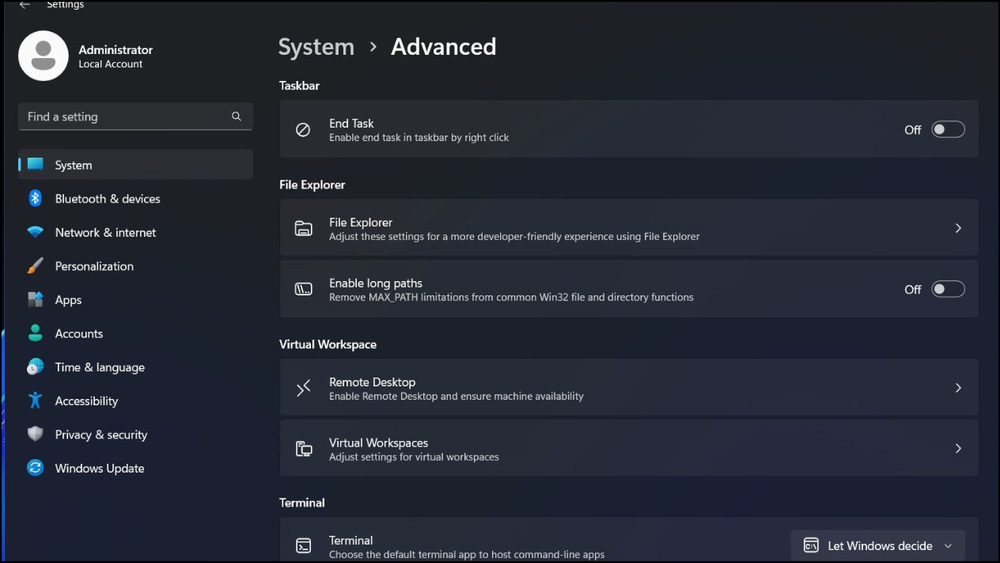
Restart your computer to apply the changes. After restarting, the Advanced settings page will appear under Settings > System > Advanced.
How to enable advanced settings via the Windows Insider Program
Advanced Settings are available for Beta and Dev of the Windows Insider Program. You need to join the Windows Insider Program and select the Beta or Dev channel. Then we will get advanced settings on Windows 11.
- How to sign up for the Windows Insider Program to experience Windows 11 early
Key Features of Windows 11 Advanced Settings
The Advanced Settings page has been redesigned, consolidating and refining some of the previous customization options, notably:
- Show file extensions: Display file types like.txt or.jpg after the file name, helping users better understand the file format.
- Show hidden and system files: Shows files that are normally hidden by Windows, including important system files, for easier troubleshooting and file management.
- Show full path in title bar: Adds the full folder path to the File Explorer title bar, reducing confusion when navigating deep folders.
- Show run as different user option in Start: Adds a right-click menu option to run an application as a different user, useful for system administrators and developers testing different configurations.
- Show empty drives: Show storage devices like USB drives even when they are empty, helping users keep track of all connected hardware.
FAQ
What should you know about instructions to enable advanced settings on Windows 11?
You need to download ViVeTool to use Windows experimental features, follow the instructions below.
How to enable advanced settings via the Windows Insider Program?
Advanced Settings are available for Beta and Dev of the Windows Insider Program. You need to join the Windows Insider Program and select the Beta or Dev channel. Then we will get advanced settings on Windows 11.
What should you know about key Features of Windows 11 Advanced Settings?
The Advanced Settings page has been redesigned, consolidating and refining some of the previous customization options, notably:
Related Articles
 Microsoft Quietly Rolled Out New 'Advanced Settings' Section for Windows 113 minutes read
 How to Change Advanced Settings Hidden in the Browser5 minutes read
 How to Enable Advanced Search in Windows 112 minutes read
 How to Disable / Enable F8 Advanced Boot Options in Windows 105 minutes read
 Instructions on Enabling Advanced Search in Windows 11: Explained3 minutes read
 How to Enable Google Advanced Protection3 minutes read
Reader Comments 0
Sign in with email or Google to join the discussion.