Table of Contents
This guide provides a clear, practical overview of "Instructions to Delete Search History on Search Bar Windows 11". It organizes the most useful details, explains important considerations, and highlights the steps or choices that matter most.
How to delete search history on Search Bar Windows 11
Step 1:
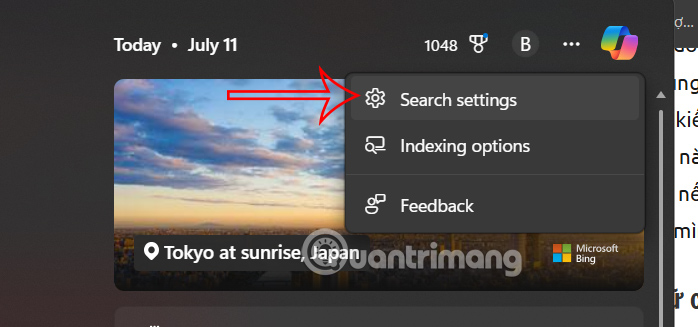
Click on the search bar on Windows , then select the 3-dot icon and select Search Settings as shown below.
Step 2:
Go to the setup interface on the computer. We scroll down below at the Search history on this device section , the user clicks on the Clear device search history button to delete the search content on the Windows 11 Search bar.
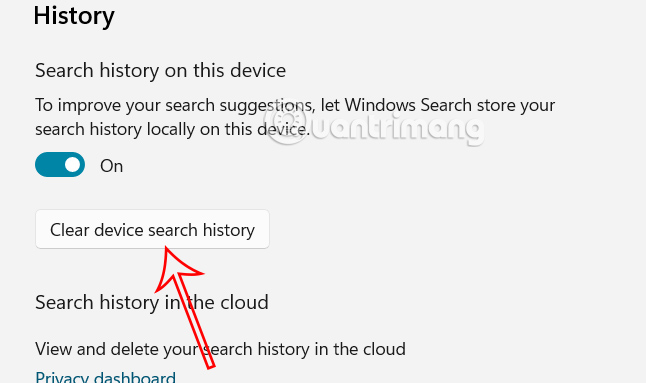
This will delete all search history stored on the local device.
Delete search history stored on the cloud
If you're using a Microsoft account on your Windows 11 computer to sign in and do other things, your search history may also be saved in the cloud.
Step 1:
First, access Microsoft's Privacy Dashboard via the link below, then log in to your Microsoft account.
- Visit Microsoft's Privacy Dashboard
Step 2:
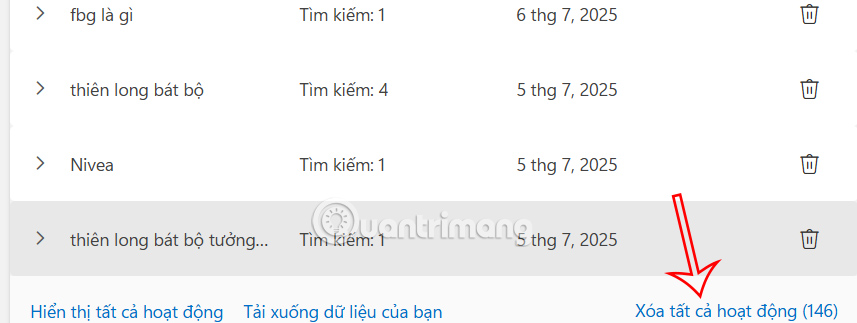
Next in the Privacy interface, we find the Search History setting and then press Delete all activity .
Step 3:
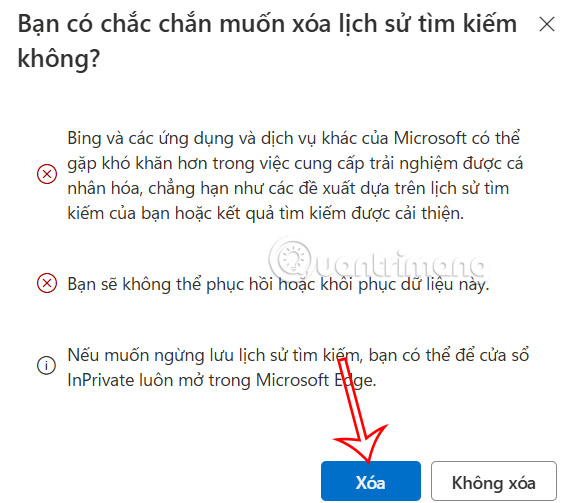
Finally, click Delete to delete the saved search in your Microsoft account.
FAQ
How to delete search history on Search Bar Windows 11?
select the search bar on Windows, then select the 3-dot icon and select Search Settings as shown below.
What should you know about delete search history stored on the cloud?
If you're using a Microsoft account on your Windows 11 computer to sign in and do other things, your search history may also be saved in the cloud.
What does this guide cover?
This guide explains instructions to delete search history on search bar Windows 11, including the main steps, important details, and practical considerations.
Related Articles
 How to Delete Search History on Windows 11: Step-by-Step Guide4 minutes read
 How to Clear Search History on Microsoft Edge3 minutes read
 How to Delete Folder and File Search History on File Explorer6 minutes read
 How to Clear Bing AI Search and Chat History3 minutes read
 How to Delete Search History on Google: Step-by-Step Guide3 minutes read
 How to Delete Copilot History in Edge Windows5 minutes read
Reader Comments 0
Sign in with email or Google to join the discussion.