Table of Contents
Google Sheets’ Timeline view turns task names and dates into an interactive project schedule. When you change a task’s dates in the linked source range, its timeline card updates. This reflects your data changes; it does not automatically reschedule work merely because another day has passed.
Timeline view is available to eligible Google Workspace accounts. If Insert > Timeline is missing, check Google’s eligibility and setup guidance. A timeline view is also different from the timeline chart type in the chart editor.
1. Prepare the source data
Use one row per task with separate columns for Task, Start date and End date. Optional columns can contain status, owner and a short description. This work schedule guide can help you organize the initial sheet.

Enter actual date values, not text that only resembles a date. Make the end date later than the start date for a card with visible duration. Check ambiguous dates against the spreadsheet’s locale.
2. Optionally convert the range to a table
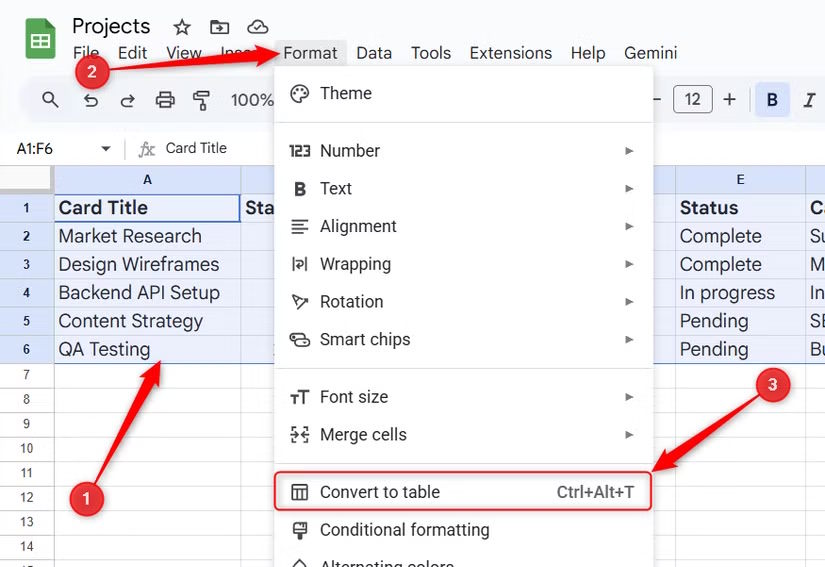
Select the data, including headers, and use Format > Convert to table if available. This can make the source easier to maintain, but converting to a table is not a requirement for creating a timeline.
3. Create the timeline view
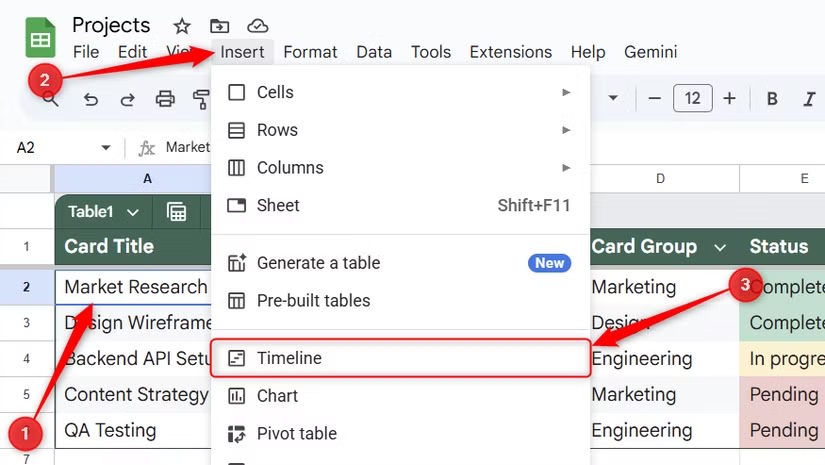
On a computer, select Insert > Timeline. Choose the source range containing your tasks and headers, then select OK.
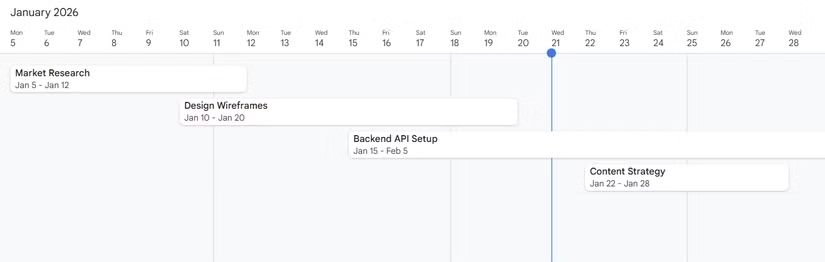
Sheets creates a timeline view tab. Open its settings and map the task-name column to Card title, then select the appropriate start and end date columns. Confirm that the data range covers the intended rows.
4. Set colors and keep the view current
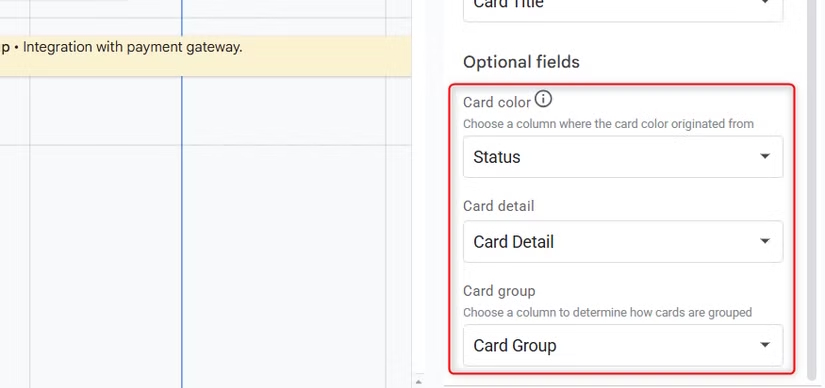
Use the settings panel to choose optional card details, grouping and a card-color source column. Colors can come from that column’s cell backgrounds or conditional formatting; see how to color cells in Google Sheets.
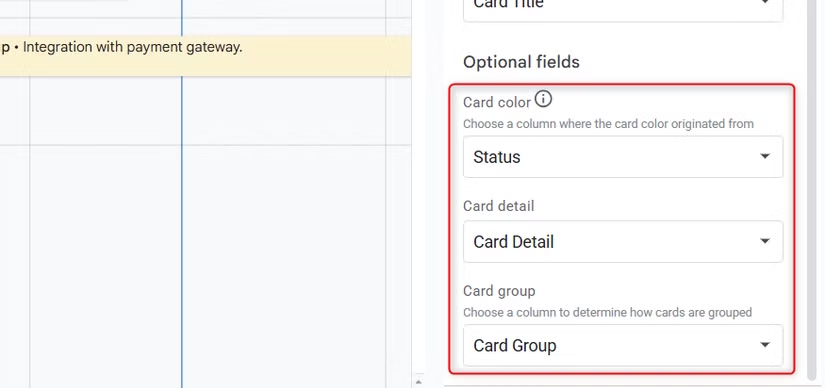
Change one source start or end date and confirm that its card moves. When adding tasks, check that the timeline’s data range includes the new rows. Do not assume that table formatting alone guarantees that every appended row is included.
If a task is missing or has no visible length, check the selected range, date-value types and date order. Keep status updates separate from date changes: marking a task complete does not itself change its scheduled duration.





Reader Comments 0
Sign in with email or Google to join the discussion.