Table of Contents
By default, Windows will not show the entire information column to make the interface neater, and users can add or delete information columns as needed.
Data management in Windows File Explorer will be through columns containing the most basic information for people to easily view and manage. By default, Windows will not display all information columns to simplify the interface and You can add or delete information columns when needed. Below are instructions for adding and deleting columns in Windows File Explorer.
How to add and remove columns in Windows File Explorer
Step 1:
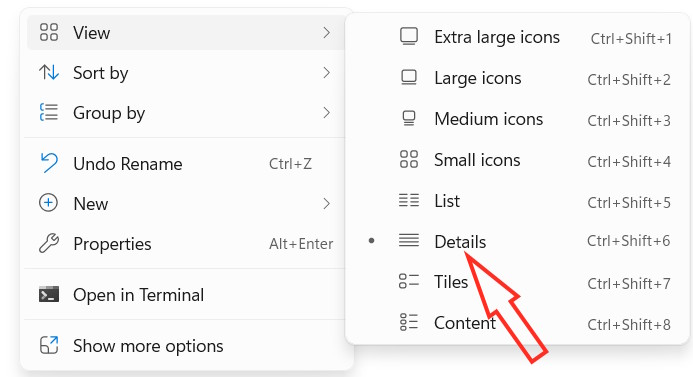
You open Windows File Explorer then open the folder you want to add and delete the column showing data information, folder. Then Right click on the white area, select View, select Details To change the view.
Step 2:
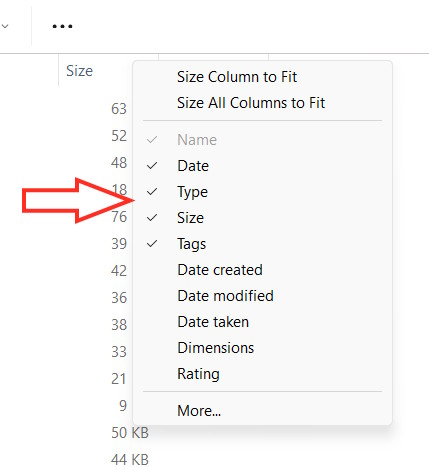
Right-click and hold anywhere on the title bar , and a list of columns of information will appear. The column currently visible in Windows File Explorer will be highlighted.
Step 3:
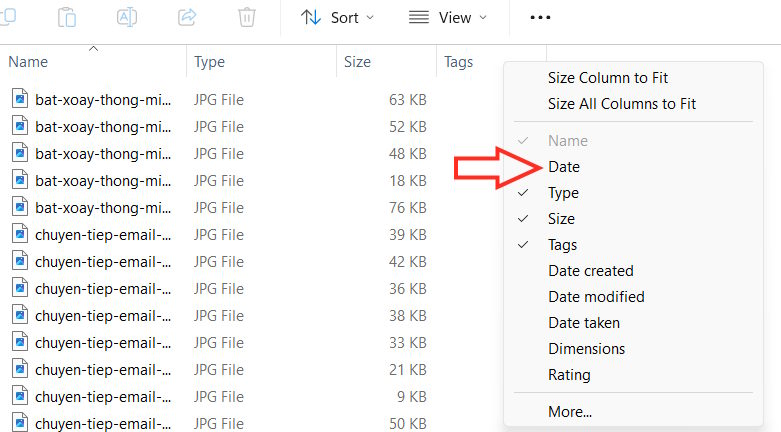
To Show any information column, click to select it . If you want to delete an information column, uncheck it. In addition, you can click More to see all available detailed information.
Step 4:
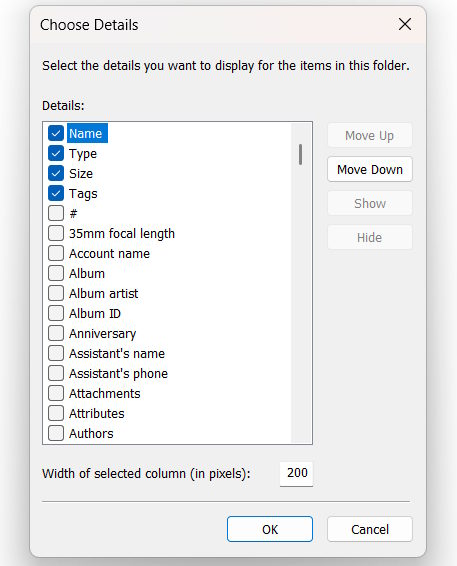
Check (add) or uncheck (remove) the details you want for the columns in the specific folder, then click OK to save your new changes.
FAQ
How do you add and remove columns in Windows file explorer: step-by-step guide?
In practical terms, by default, Windows will not show the entire information column to make the interface neater, and users can add or delete information columns as needed.
What should you check before getting started?
Review the requirements, compatible device or software version, and any warnings described in the guide before making changes.
What should you do if the steps do not work?
Repeat the steps in order, confirm that your app or system is up to date, and review the troubleshooting details provided above.
Related Articles
 How to Rearrange Columns in File Explorer Windows 113 minutes read
 How to Remove Libraries from File Explorer on Windows 11: Step-by-Step Guide3 minutes read
 How to Remove Recommended from File Explorer Windows 113 minutes read
 How to Remove Home Button from File Explorer Windows 113 minutes read
 Is Explorer. Exe a Virus?4 minutes read
 How to Add/Remove Libraries in File Explorer Windows 114 minutes read
Reader Comments 0
Sign in with email or Google to join the discussion.