Table of Contents
This guide organizes the entries in "6 Windows File Explorer Add-ons That Make Life Easier" and explains what each option, idea, or example offers. It also highlights practical details that matter when comparing the choices.
6. Listary
People have tried a lot of File Explorer search tricks over the past decade, but they've always failed over time. That's why so many people have relied on Everything Search for years; nothing beats its lightning-fast file search speed.
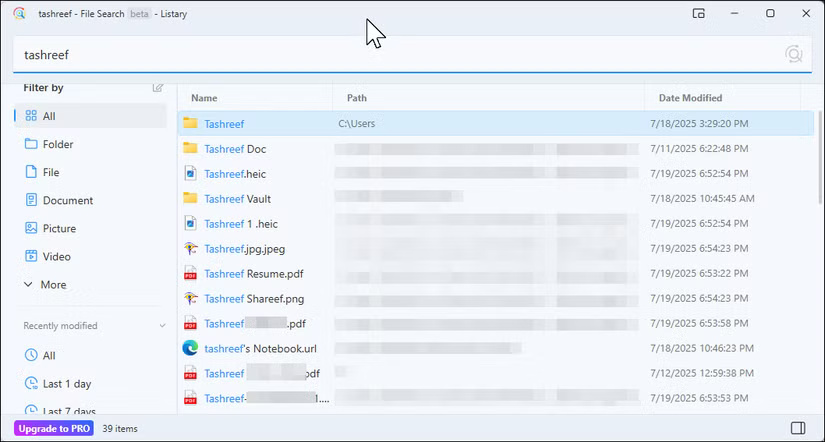
But Listary has recently won over users because it does something Everything can't: It integrates directly into File Explorer and every dialog box in Windows. So instead of navigating to a folder, you can just type in a file or folder name and go directly to it.
5. TeraCopy
While Listary handles searching, copying large files on Windows is still a pain. The progress bar is unreliable, the transfer randomly fails, and while Windows has a pause button, it doesn't always work as expected. Pausing isn't instantaneous, and if your system crashes or reboots, you can't pick up where you left off.
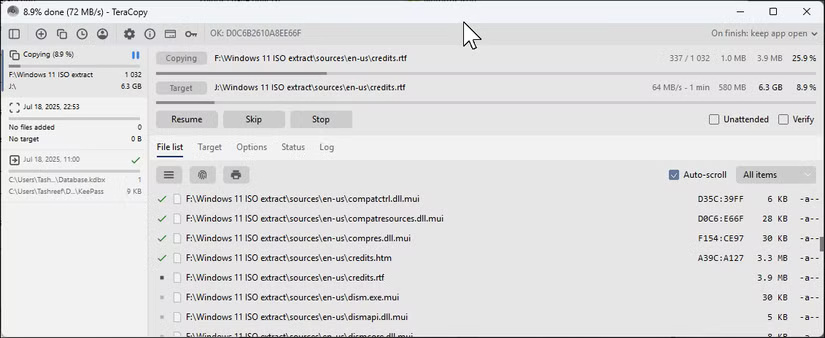
TeraCopy replaces the default copy handler with a more advanced file transfer utility. Whenever you move or copy files on Windows, TeraCopy automatically manages the progress, displaying the actual transfer speed and accurate time estimates. You can easily pause the transfer if you need to free up bandwidth for other tasks.
4. Mountain Duck
People work with cloud storage every day to manage article drafts, code repositories, and research files. But constantly switching between browser tabs and syncing entire folders is time-consuming and clutters your device. Mountain Duck solves this problem by displaying cloud drives like regular storage in File Explorer.
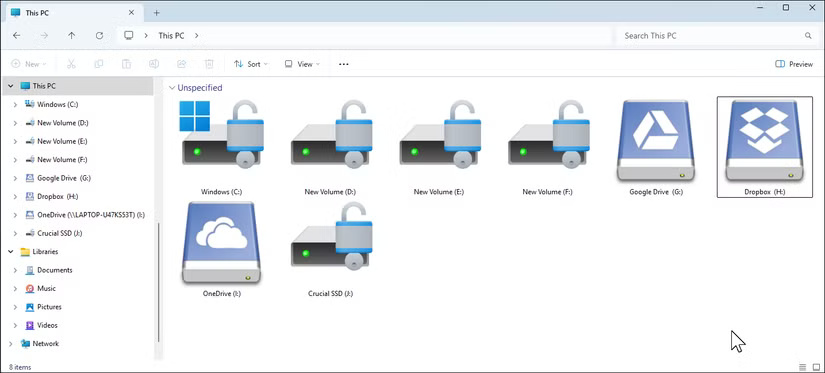
Mountain Duck is compatible with most of the best cloud storage services—not just popular ones like Google Drive, but also FTP servers, WebDAV, and dozens of more technical storage options like Wasabi and Backblaze. The app includes pre-configured templates for these services, so you don't have to figure out the complicated server details yourself.
3. DropIt
If you regularly download research PDFs, client drafts, images, or code samples to your Downloads folder, that folder can quickly become cluttered. While you could manage these files manually by moving them to the appropriate folders, no one does that, especially when you're dealing with dozens of them every day.
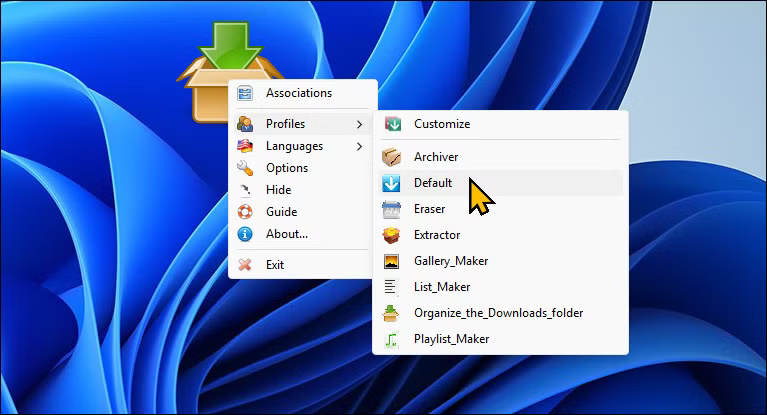
DropIt is one of my favorite Windows automation utilities, even though it hasn't been updated in a while. It makes file management easier by monitoring folders and moving files based on rules you set.
2. QuickLook
Windows File Explorer's Preview pane is a convenient way to view images and text files in the right pane without opening them first. However, this feature only supports basic image formats, plain text, and some Office documents (with inconsistent results). QuickLook is a free utility that lets you preview any file by pressing the spacebar and close the file by pressing Esc .
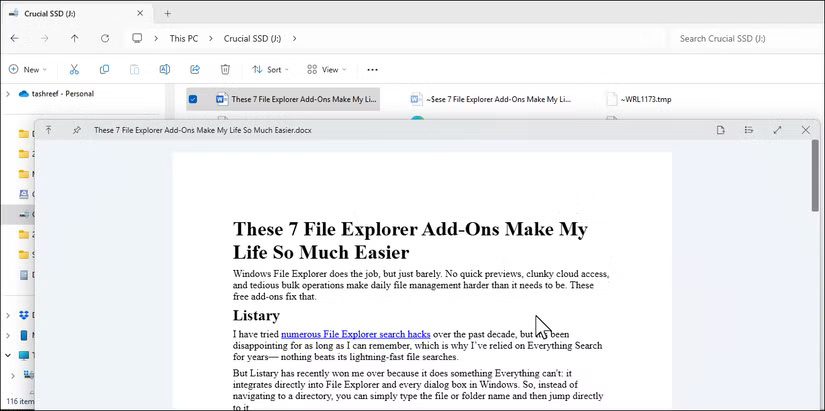
Whether it's a PDF, an image, a video, or even a ZIP file, QuickLook shows the contents instantly. You can flip through multi-page documents, play videos, and even browse folders without opening them. For someone who handles dozens of files a day, this feature lets you browse through files without having to deal with multiple applications and their loading times.
1. Bulk Rename Utility
Bulk Rename Utility handles complex file renaming tasks that File Explorer can't handle. While File Explorer only adds basic sequential numbers when renaming in bulk, this tool can rename multiple files and even entire folders using advanced patterns and rules.
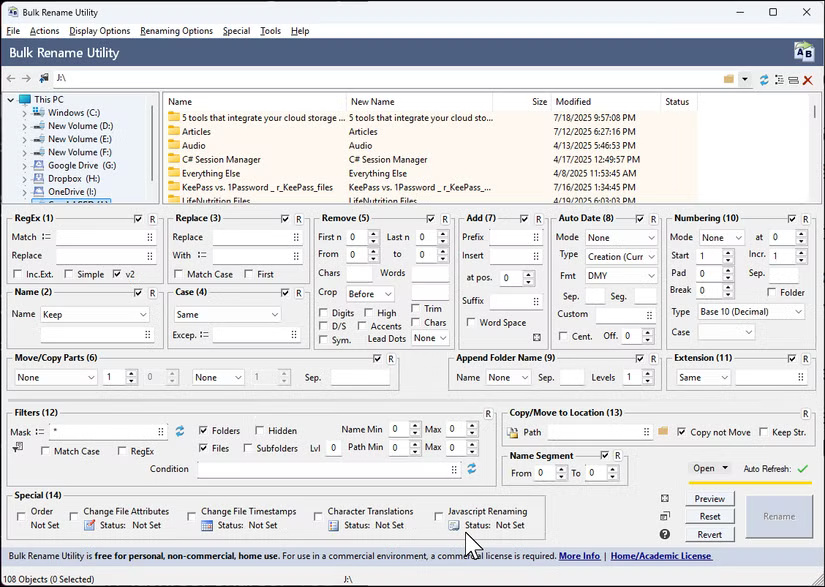
Bulk Rename Utility offers a variety of options to rename files using dates, metadata, change case, insert text at specific locations, update extensions, or use regular expressions. You can extract EXIF data from photos or ID3 tags from music files to create meaningful names based on the actual file contents. Live previews show you exactly what each file will look like before applying changes, so you know what to expect.
FAQ
What should you know about 6. Listary?
People have tried a lot of File Explorer search tricks over the past decade, but they've always failed over time. That's why so many people have relied on Everything Search for years; nothing beats its lightning-fast file search speed.
What should you know about 5. TeraCopy?
While Listary handles searching, copying large files on Windows is still a pain. The progress bar is unreliable, the transfer randomly fails, and while Windows has a pause button, it doesn't always work as expected. Pausing isn't instantaneous, and if your system crashes or reboots, you can't pick up where you left off.
What should you know about 4. Mountain Duck?
People work with cloud storage every day to manage article drafts, code repositories, and research files. But constantly switching between browser tabs and syncing entire folders is time-consuming and clutters your device. Mountain Duck solves this problem by displaying cloud drives like regular storage in File Explorer.
What should you know about 3. DropIt?
If you regularly download research PDFs, client drafts, images, or code samples to your Downloads folder, that folder can quickly become cluttered. While you could manage these files manually by moving them to the appropriate folders, no one does that, especially when you're dealing with dozens of them every day.
Related Articles
 6 Free Tools to Make Windows File Explorer Better: Practical Guide5 minutes read
 7 Useful Changes Microsoft Should Make to File Explorer7 minutes read
 How to Fix File Explorer Lag on Windows 11: Step-by-Step Guide8 minutes read
 This Is the New File Explorer Interface Designed by Microsoft3 minutes read
 Files Is a Windows File Explorer Alternative That Meets All User Needs6 minutes read
 7 Notable Changes in File Explorer Windows 117 minutes read
Reader Comments 0
Sign in with email or Google to join the discussion.