Table of Contents
Explore instructions to turn off auto-fill contact information on facebook.
How to turn off autofill contact information on Facebook
Step 1
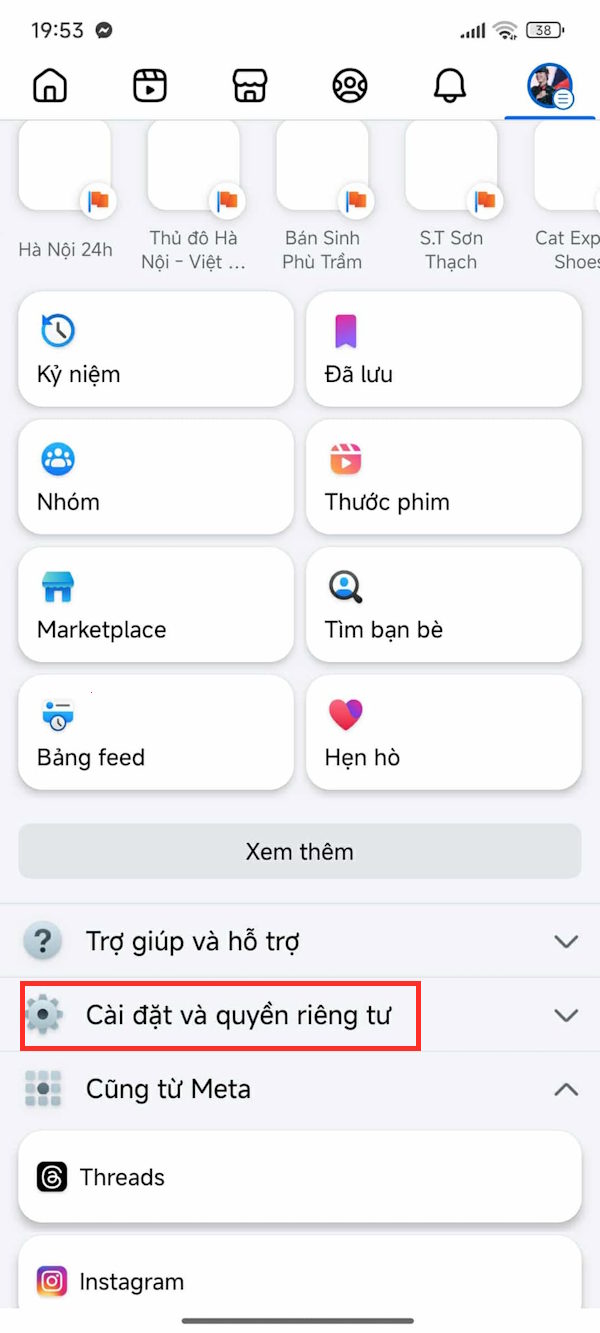
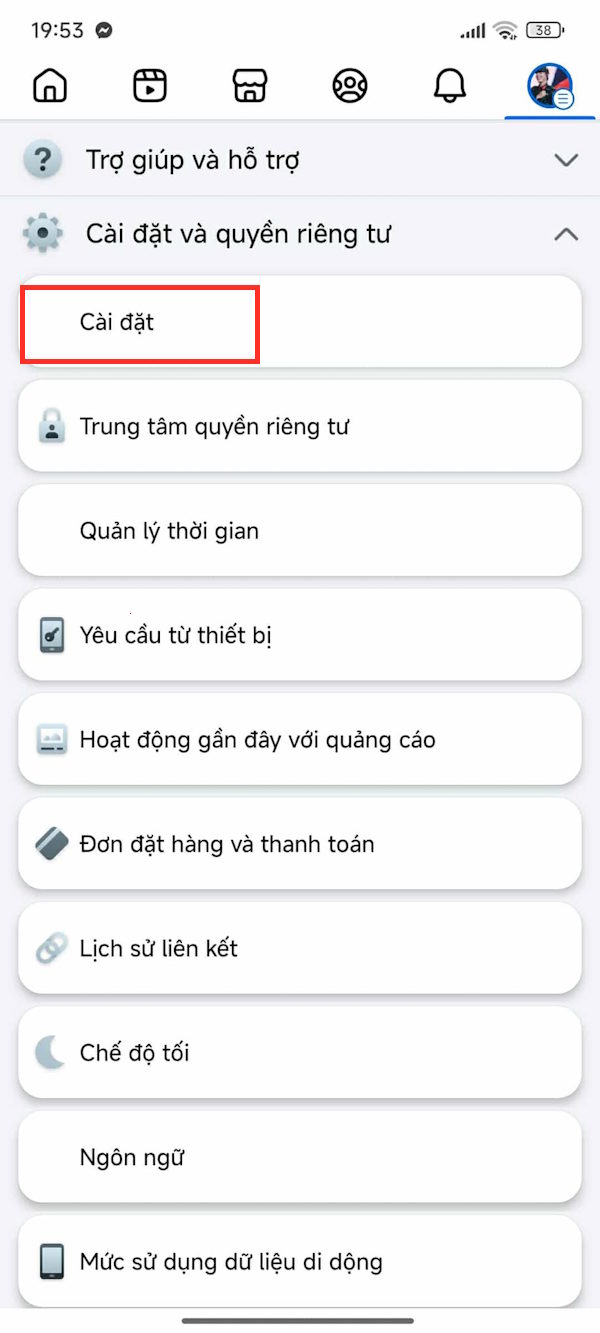
We access the Facebook personal page and click on the 3 dashes icon . Next, click on Settings and privacy , then select Settings .
Step 2
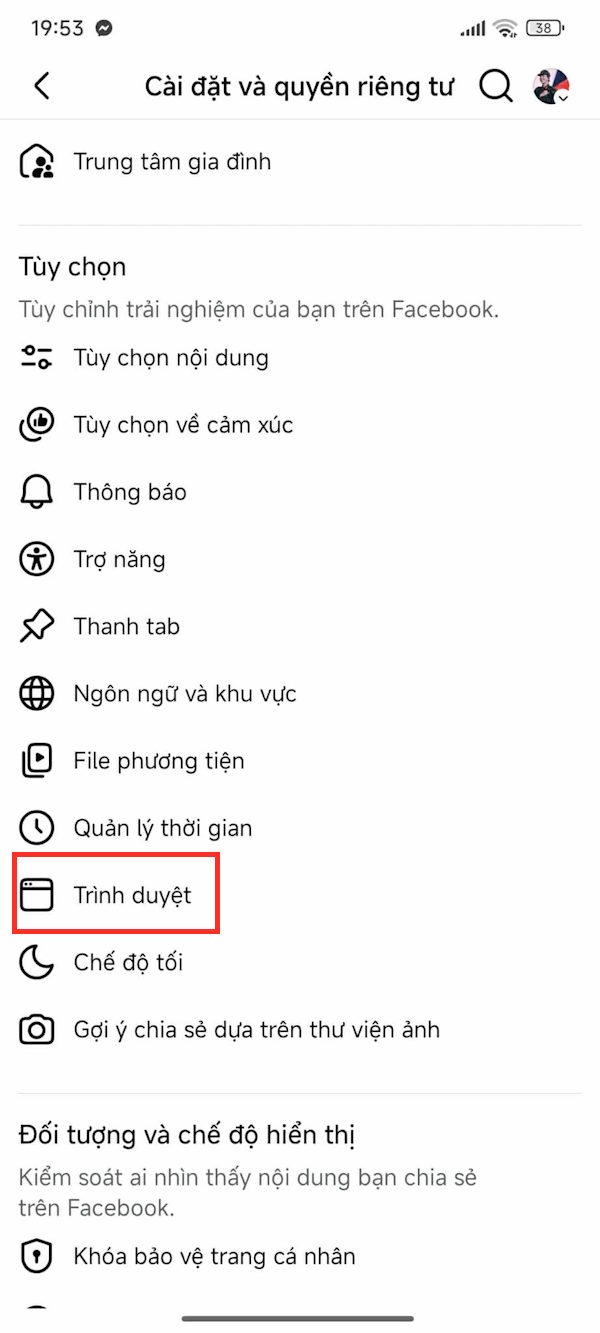
Go to the setup interface, the user clicks on Browser to proceed with adjustment.
Step 3
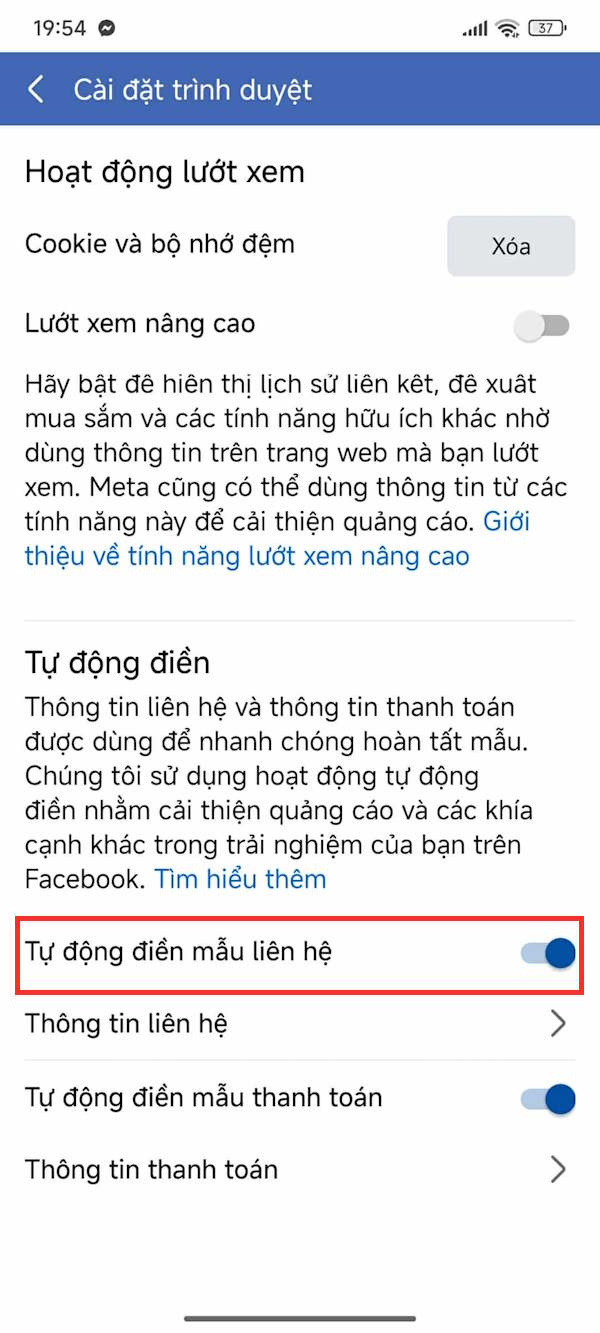
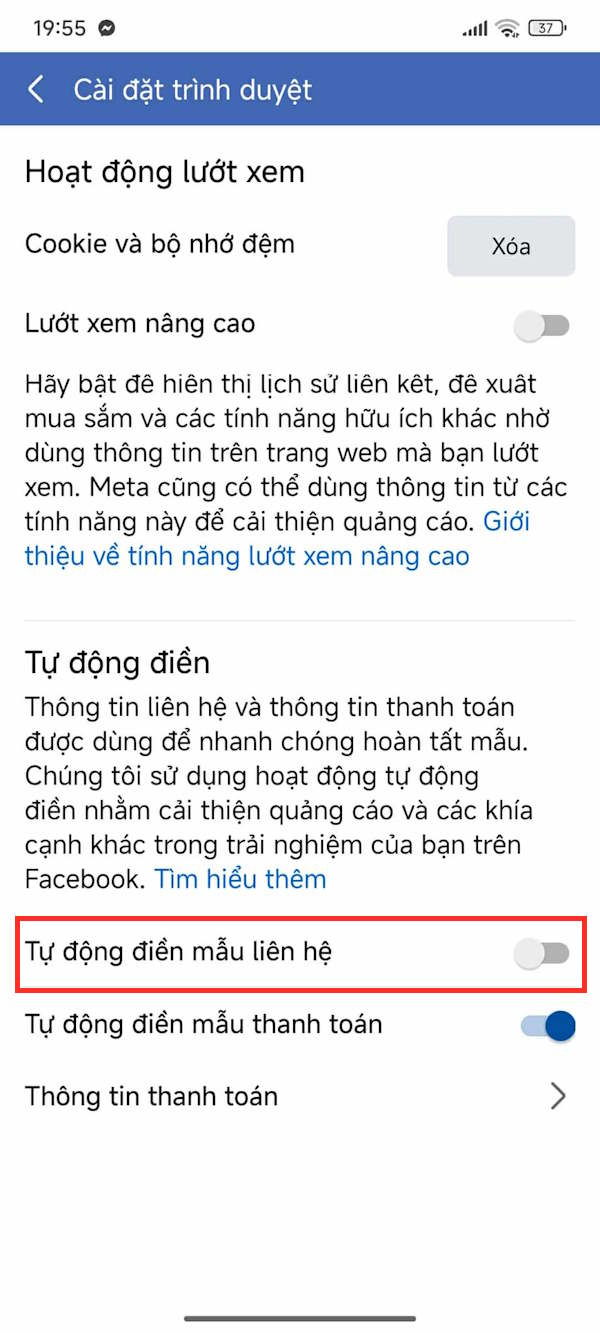
In the new interface, you will see that the Auto-fill contact form mode is enabled by default. You just need to turn off the Auto-fill contact form setting . Then Facebook will no longer display the contact information you have added on the application.
Step 4
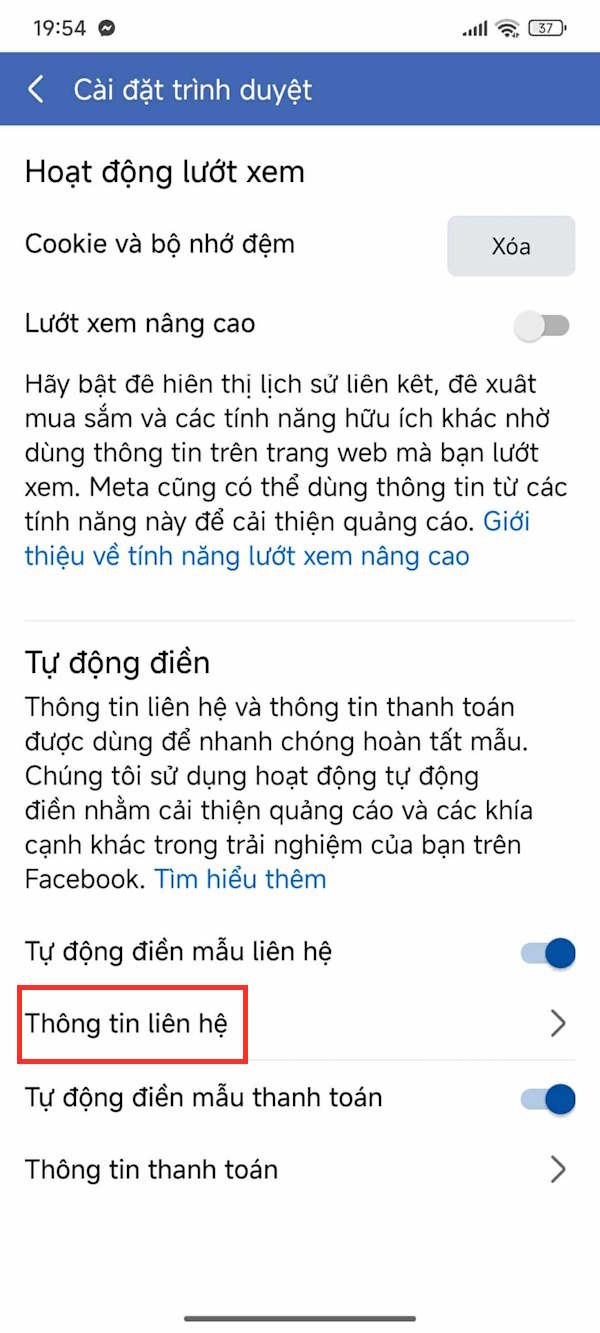
In case you want to use this setting but need to change the information , click Contact Information to edit .
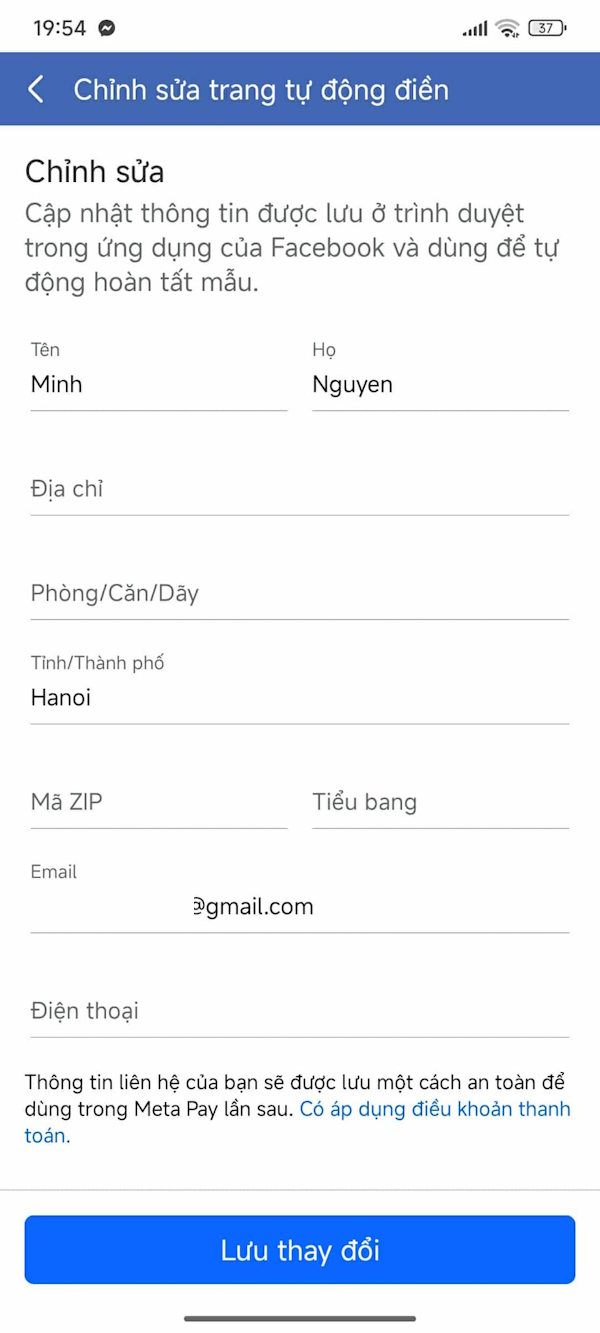
Now you click on the Edit button to change the contact information. Here you can enter new contact information to save.
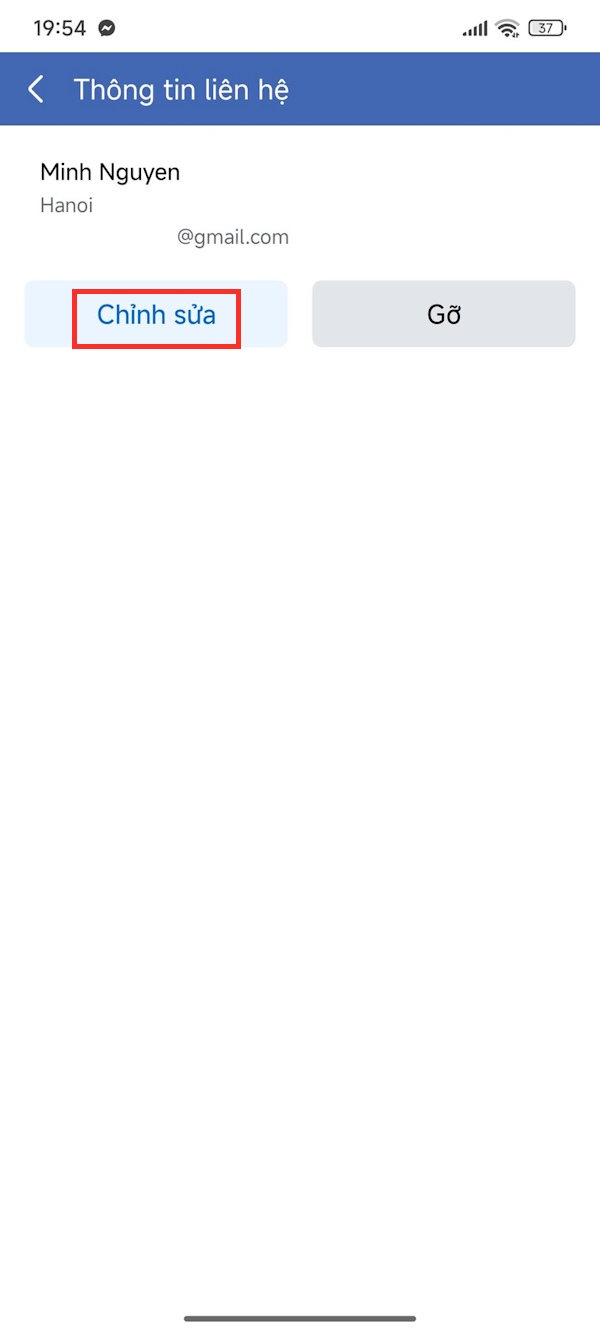
Facebook also has an option to Remove saved contact information.
Final Thoughts
Understanding instructions to turn off auto-fill contact information on facebook makes it easier to evaluate the information and apply the most relevant recommendations. Focus on the key points above and verify details that may change over time.
FAQ
What is instructions to turn off auto-fill contact information on facebook?
Explore instructions to turn off auto-fill contact information on facebook.
What key points does this article cover?
The article focuses on How to turn off autofill contact information on Facebook, Step 1, Step 2, with practical explanations and examples.
How can you use this information in practice?
Use the explanations to compare options, verify important details, and make a more informed decision. Apply the recommendations that best match your goals and situation.
Related Articles
 How to Turn Off Auto-Fill Forms on Chrome: Turn Off Autofill Chrome4 minutes read
 How to Contact Facebook Account Support: Facebook Support Team5 minutes read
 How to Hide Contact Information on Instagram: Step-by-Step Guide3 minutes read
 How to Autofill Verification Codes on Android3 minutes read
 Turn Off Auto Refresh in the Browser4 minutes read
 Why Should You Turn Off the Autofill Feature in the Password7 minutes read
Reader Comments 0
Sign in with email or Google to join the discussion.