Table of Contents
Checking Windows startup and shutdown history can help you find potential problems and fix them more efficiently.
Checking your Windows startup and shutdown history can help you find potential problems and fix them more effectively. It can also help you monitor computer usage with your family and children. Here are some ways to view your Windows startup and shutdown history.
Event ID information you need to pay attention to
Before examining Windows startup and shutdown history, it is important to know what the Event ID represents.
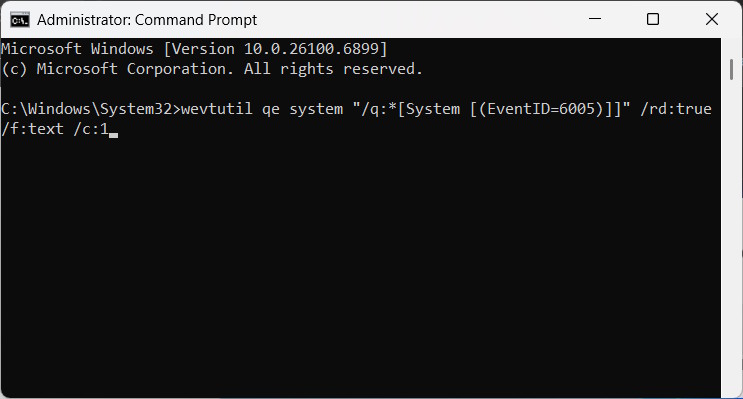
Event ID 6005: This is the boot identifier. If this code appears, it means the system is booting.
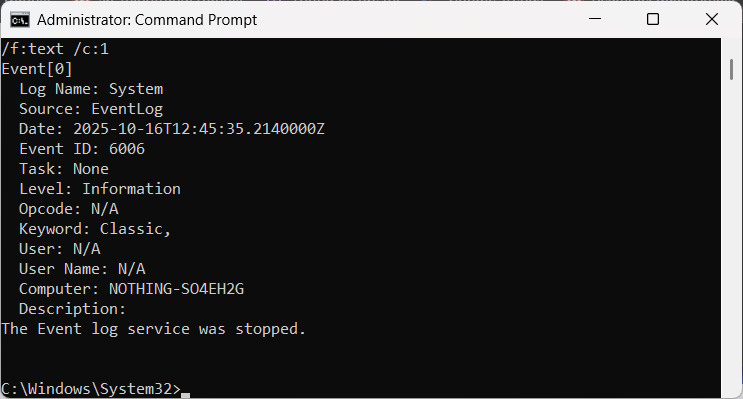
Event ID 6006: This event helps determine when the system shuts down.
Event ID 6008: This is also a system shutdown identifier, but it represents an unexpected computer shutdown.
Event ID 6013: This event ID displays the system uptime in seconds.
Event ID 41: The computer started but did not shut down completely.
Event ID 1074: The application forces the system to restart or when the user restarts/shuts down the computer via the Start menu.
Event ID 1076: Details why the system was restarted or shut down.
How to view startup and shutdown history via Command Prompt
Step 1:
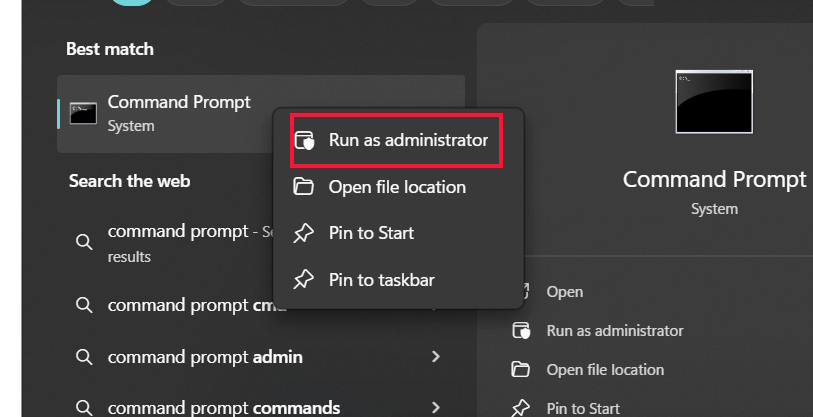
You Enter the keyword Command Prompt In the search bar and select Run as administrator .
Step 2:
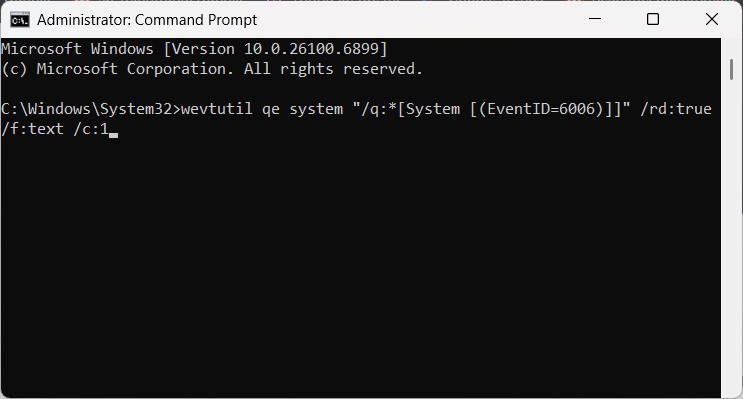
In the new interface, enter the command below and press Enter.
Wevtutil qe system '/q:*[System [(EventID=6006)]]' /rd:true /f:text /c:1
As a result you will see the history of shutdown activities.
Step 3:
To See the startup activity , type the command below and press Enter.
Wevtutil qe system '/q:*[System [(EventID=6005)]]' /rd:true /f:text /c:1
View Windows startup and shutdown history using PowerShell
Step 1:
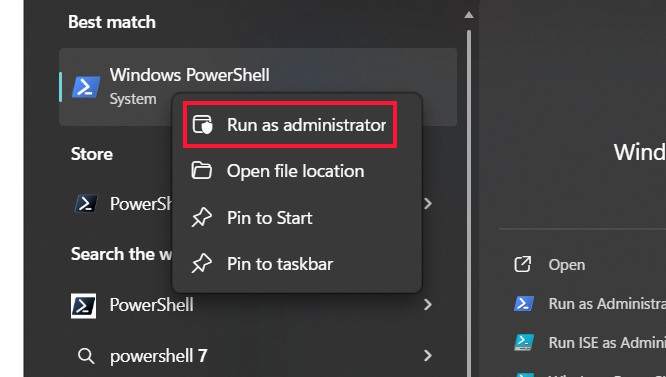
We Type PowerShell in the search bar And also press Run as administrator To launch.
Step 2:
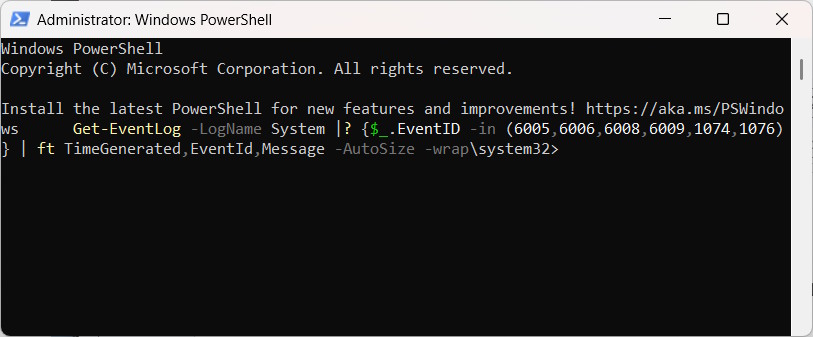
In the new interface, enter the command below and press Enter.
Get-EventLog -LogName System |? {$_.EventID -in (6005,6006,6008,6009,1074,1076)} | ft TimeGenerated,EventId,Message -AutoSize -wrap
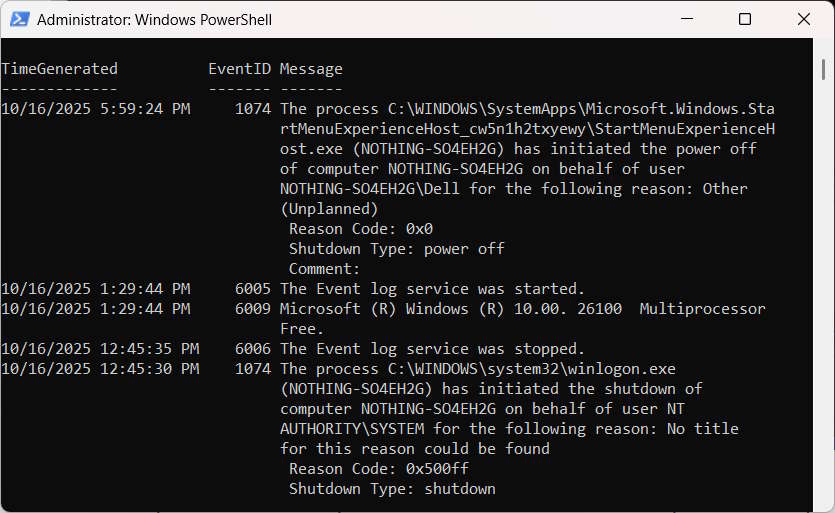
You will now see detailed information about the Event ID you entered in the command. The results will be divided into three columns: creation time, Event ID and Message.
Use Event Viewer to extract startup and shutdown times
Windows Event Viewer is a great tool that helps you keep track of all the activities that are happening on your computer. For each event that occurs on your system, Event Viewer records an entry. Event Viewer is handled by the eventlog service, which cannot be stopped or disabled manually, as it is a core Windows service. In addition, Event Viewer also records the eventlog service's startup and shutdown history. Therefore, you can use this data to know when your computer is started or shut down.
Eventlog service events are logged using two event codes (Event IDs). ID 6005 indicates that the eventlog service was started, while ID 6009 indicates that the eventlog service was stopped. Let's see the entire process of extracting this information from Event Viewer.
1. Open Event Viewer (by pressing Win + R And typing the keyword Eventvwr).
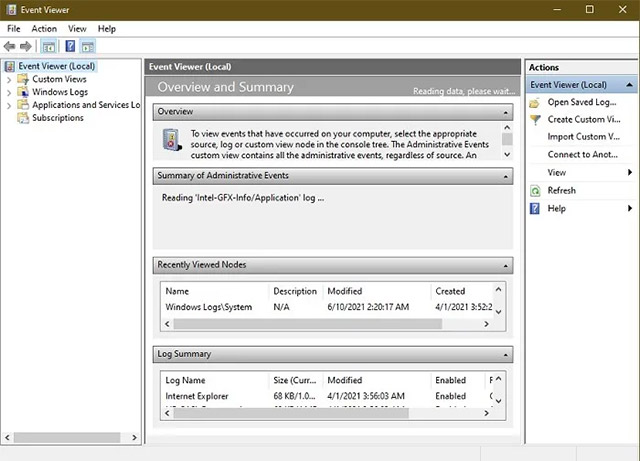
2. Look in the left pane, open ' Windows Logs -> System '.
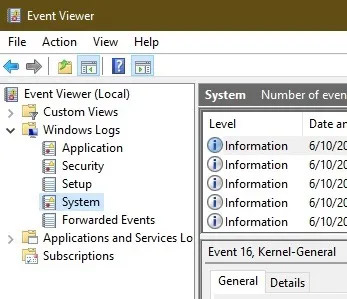
3. In the middle pane, you will see a list of events that occurred while Windows was running. First, sort the event log by the corresponding ID by clicking on the Event ID label. The data related to the Event ID column will be re-sorted.
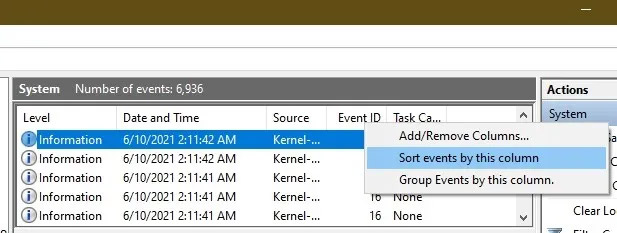
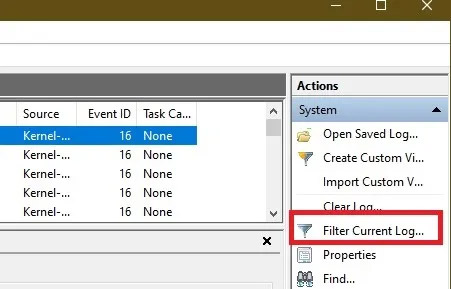
4. If your event log is too large, sorting will not be available. At this point, you can create a filter
Task pane on the right side. Just click ' Filter current log '.
5. Enter 6005 , 6006 In the Event ID Field labeled < All Event IDs >. You can also specify a time period in the Logged Field.
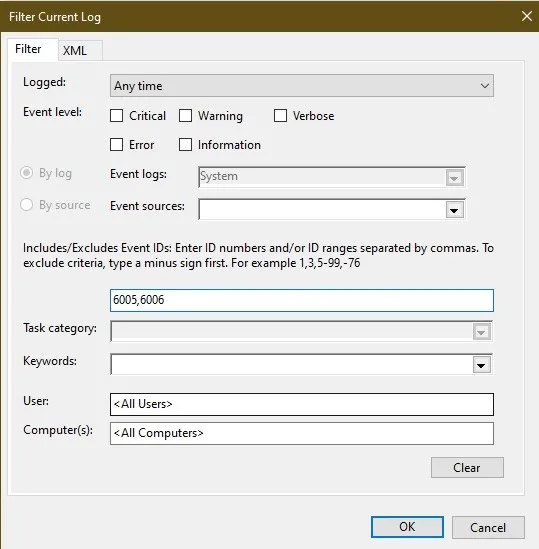
- Event ID 6005 will be labeled as 'The event log service was started'. In practice, a system boot session was performed.
- Event ID 6006 will be labeled as 'The event log service was stopped', which corresponds to a system shutdown.
To investigate further, you can look at Event ID 6013, which shows the computer's uptime, and Event ID 6009, which shows processor information detected during boot time. Event ID 6008 will tell you that the system booted after not being shut down properly.
Using the TurnedOnTimesView utility
TurnedOnTimesView is a simple tool that you can use to check the startup and shutdown history. This utility helps view a list of shutdown and startup times for local computers or any remote computers connected to the network.
To use it, you will simply need to unzip and execute the TurnedOnTimesView.exe file. The application will immediately list for you the boot time, shutdown time, the amount of time between each power-on and shutdown, as well as the reason for the shutdown.
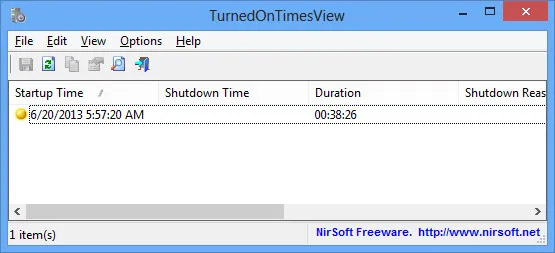
To view the startup and shutdown times of a remote computer, navigate to 'Options -> Advanced Options' and select 'Data source as Remote Computer'. Specify the IP address or name of the computer in the Computer Name field, then click OK. A list will appear showing the details of the respective computer, including the startup and shutdown times as mentioned above.
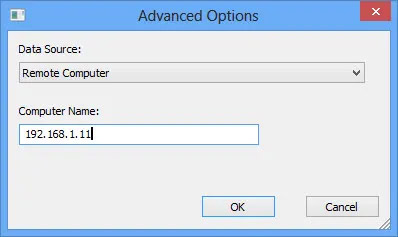
While you can always use Event Viewer to get a detailed breakdown of your startup and shutdown times, TurnedOnTimesView has the advantage of being straightforward in its interface and exceptionally easy to use. Which method you use is up to you.
FAQ
How do you view Windows startup and shutdown history: step-by-step guide?
In practical terms, checking Windows startup and shutdown history can help you find potential problems and fix them more efficiently.
What should you check before getting started?
Review the requirements, compatible device or software version, and any warnings described in the guide before making changes.
What should you do if the steps do not work?
Repeat the steps in order, confirm that your app or system is up to date, and review the troubleshooting details provided above.
Related Articles
 Steps to View Startup and Shutdown History in Windows 106 minutes read
 How to View Windows 10 Computer Startup and Shutdown History4 minutes read
 Boost Windows 10 Startup Speed by Enabling Fast Startup3 minutes read
 How to View Update History on Windows 113 minutes read
 Disable Hybrid Boot and Shutdown on Windows 85 minutes read
 Steps to View Logs and Usage History of Windows 10 Computers4 minutes read
Reader Comments 0
Sign in with email or Google to join the discussion.