Table of Contents
You can limit how Grok uses your X activity and Grok conversations by changing separate training and personalization settings. You can also restrict the Grok or X app's access to photos stored on your phone. These controls affect different data paths; none can guarantee that an image of you will never be generated from a photo already public elsewhere.
1. Turn off training and personalization on X
- In X, open Settings and privacy > Privacy and safety. Find Data sharing and personalization, then Grok & Third-party Collaborators.
- Under Data Sharing, turn off the option allowing your public X data and your Grok interactions, inputs and results to be used for training and fine-tuning.
- Under Grok Personalization, turn off the option allowing X to personalize your Grok experience. Check both settings separately; disabling personalization alone does not express the same choice as the training control.
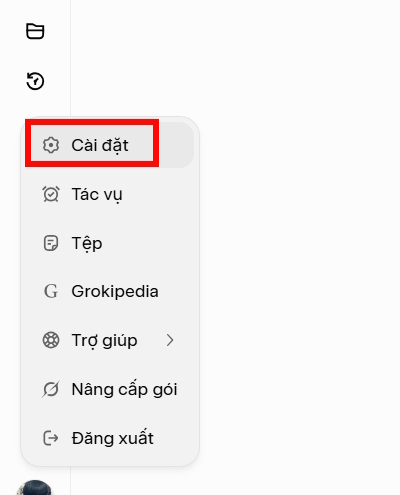
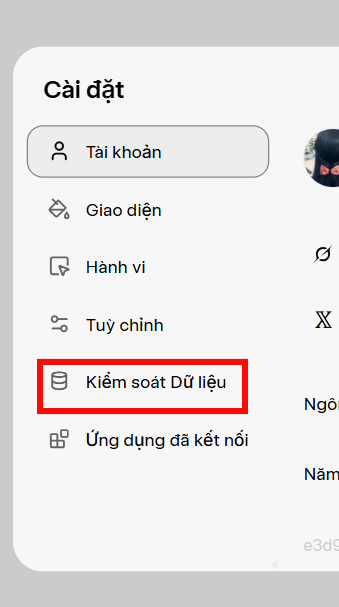
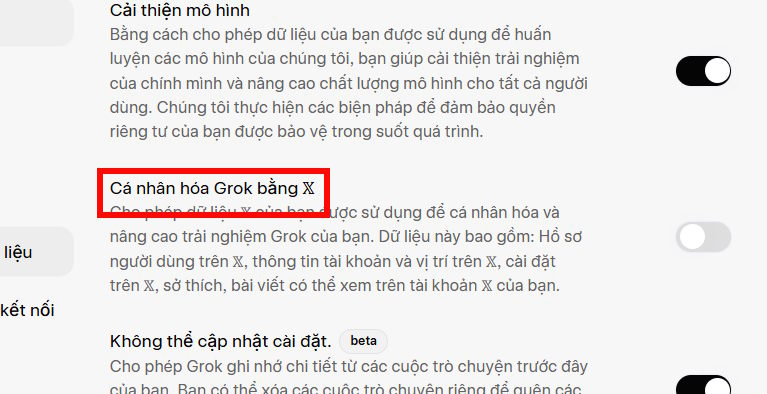
Menu labels and layout can change. X's Grok help page lists the current path and explains that training opt-out does not stop every form of ordinary product processing. X also notes that voluntarily submitted conversation feedback may be used to improve its models.
2. Check the separate Grok app or grok.com controls
If you use Grok outside X, review its own data settings too. According to xAI's consumer FAQ, the Grok mobile app has Settings > Data Controls > Improve the model; grok.com has Settings > Data > Improve the Model. Turn that option off if you do not want new conversations used for model training. The same FAQ describes a separate Personalize Grok using X control and a Private Chat option where available. These are account and product settings, so review each place you actually use Grok.
For comparable controls in other assistants, TipsMake's AI chatbot training opt-out guide explains the difference between training settings and keeping sensitive data out of prompts.
3. Restrict access to photos on your device
On an iPhone, open Settings, find Grok and X in the app list, and review Photos and Camera permissions for each. Choose no photo access or a limited selection if the operating system offers it, and disable camera access if you do not need it. TipsMake also has a guide to checking camera access on iPhone.
On Android, open Settings > Apps, select each app and review Permissions for photos, videos and camera. The exact names vary by Android version. Revoking a permission prevents the app from using that local permission going forward; it does not remove photos you previously uploaded or photos posted publicly on X.
4. Review public photos and conversation history
If you do not want your future X posts visible to everyone, consider Privacy and safety > Audience and tagging > Protect your posts. Review existing public posts and their attached images separately. A protected account cannot recall copies that other people saved or shared while a post was public.
X and grok.com also provide conversation deletion controls in their respective settings. Deletion and training opt-out have different effects and may not erase material immediately. The strongest practical habit is to avoid uploading sensitive photos, identifiers or confidential documents unless the task truly requires them and you understand the destination's settings.





Reader Comments 0
Sign in with email or Google to join the discussion.