Table of Contents
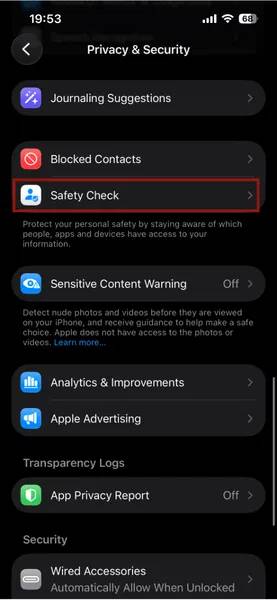
Safety Check puts Apple sharing, app permissions, connected devices, and key account controls in one guided review. On an iPhone with iOS 16 or later, open Settings > Privacy & Security > Safety Check. Choose Emergency Reset to stop supported sharing broadly, or Manage Sharing & Access to make selective changes.
Consider your safety before changing access
Changes to location or other sharing may be noticed by the other person. If that could put you at risk, plan when and where to make them, consider using a device the other person cannot access, and record any information you may need before removing it. If you are in immediate danger, move to a safer place and contact local emergency services.
Apple's personal-safety guidance also notes that ending a sharing relationship can remove your access to information or tools you still need. Safety Check saves each completed change as you go, so you can stop without finishing the entire review.
What Safety Check can change
Safety Check requires iOS 16 or later, an Apple Account using two-factor authentication, and that account signed in on the iPhone. It can help you:
- review or stop Apple-based sharing with people, including supported location and shared content;
- review information that apps can access and reset system privacy permissions;
- review devices connected to your Apple Account and trusted phone numbers;
- change the iPhone passcode or Apple Account password;
- review emergency contacts and, on supported iOS versions, synced computers or iPhone Mirroring connections.
Screen Time restrictions, mobile device management, and Stolen Device Protection can change which options appear or require extra authentication.
Use Emergency Reset for a broad, urgent reset
- Open Settings > Privacy & Security > Safety Check.
- Tap Emergency Reset, authenticate when asked, then select Start Emergency Reset.
- Follow every screen. Review people and apps, connected devices, trusted phone numbers, emergency contacts, and account-security options rather than assuming the first tap completes every step.
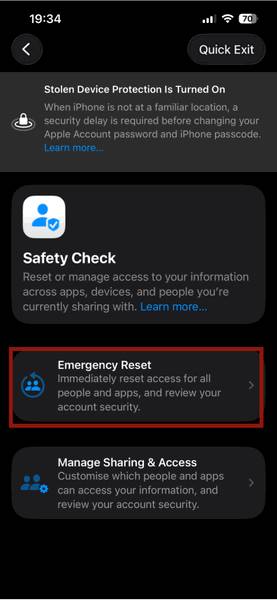
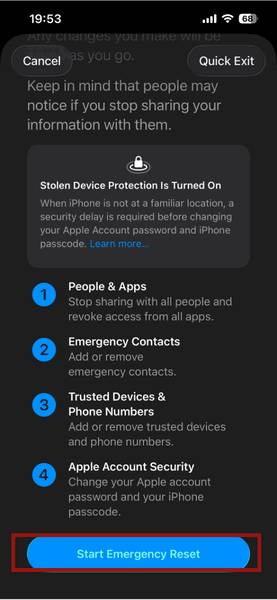
Emergency Reset does not erase photos, messages, apps, or other personal content. It stops supported sharing with people and apps, resets app privacy access, and guides you through account controls. It lets you review and remove other devices; it does not silently sign out every device without showing you the choices.
Afterward, reopen Safety Check and verify the people, apps, and devices shown. You can resume a sharing relationship later from the app or service where it originated.
Use Manage Sharing & Access for selective changes
Choose this option when you can take time to identify what should remain. It proceeds through three main areas.
1. Review people and shared information
Select a person to see supported information shared with them, or switch to the information view to see everyone with access to a category. Remove only the relationships you intend to end, then continue.
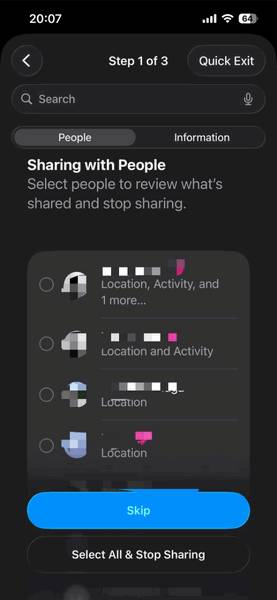
For an individual location share, you can also use Find My. TipsMake's guide to location sharing on iPhone shows where to start or stop a specific share.
2. Review app permissions
Safety Check groups apps by the information they can access, such as Location, Photos, Camera, Microphone, Contacts, Bluetooth, or Health. Revoke access that an app no longer needs. A permission does not by itself prove that the app is malicious; identify the app and consider why you granted it before removing it.
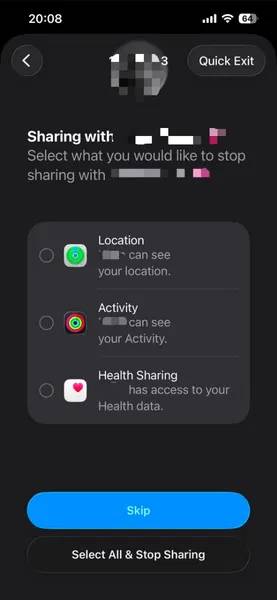
You can fine-tune individual permissions later under Settings > Privacy & Security. TipsMake's overview of iPhone privacy and communication settings provides additional checks.
3. Review device and account security
Inspect every device connected to the Apple Account and remove only devices you do not control. Review trusted phone numbers, change the Apple Account password if someone else knows it, and choose an iPhone passcode that the other person cannot guess. Check Face ID or Touch ID enrollment as prompted.
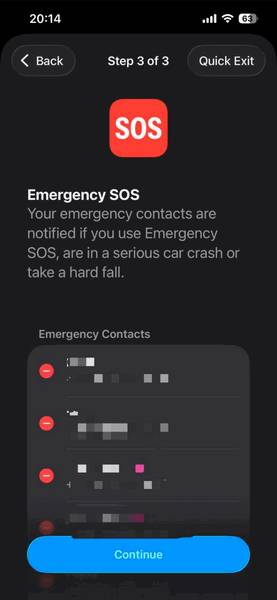
Review emergency contacts carefully. Emergency SOS may notify those contacts and share your location after an emergency call. Keep trusted contacts who should receive that information and remove a contact only when the safety effect is clear.
Use Quick Exit if you need to leave the screen
Quick Exit appears in the upper-right corner throughout Safety Check. Tapping it immediately closes Settings and returns to the Home Screen. Changes already completed remain saved.
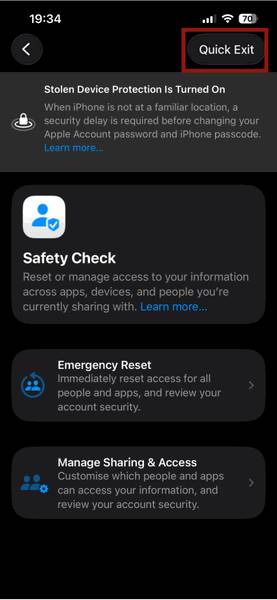
Quick Exit hides the current Safety Check screen; it does not erase system records, Screen Time activity, notifications, browser history, or evidence that settings changed. Treat it as a fast way to leave the menu, not a guarantee that phone use is invisible.
What Safety Check does not cover
Safety Check is not a complete scan for tracking or account compromise. Apple's current Safety Check guide says it cannot review or change some information, including:
- non-Apple accounts and passwords;
- sharing inside social-media and other third-party services;
- devices signed in to a different Apple Account;
- sharing configured in some apps on an iPad or Mac.
Also review shared email, carrier, banking, messaging, smart-home, cloud-storage, and password-manager accounts. Check Find My for unfamiliar items or unwanted location sharing, review configuration profiles under Settings > General > VPN & Device Management, and update every Apple device you control. Do not delete the only evidence of suspicious activity if you may need it for support, legal advice, or a safety plan.
If someone knows your Apple Account password, changing sharing alone is not enough. Change the password, verify trusted numbers and devices, keep two-factor authentication enabled, and secure the recovery methods connected to the account.
Related Articles
 How to Stop Windows 11 from Tracking You: Step-by-Step Guide4 minutes read
 How to Prevent Google from Tracking Your Location8 minutes read
 Check the Safety of Links, Web Pages7 minutes read
 Prevent Web Pages from Stopping You on Your Firefox Browser with5 minutes read
 The Germans Will Check Elevator Safety at the 246m High Tower5 minutes read
 How to Build a Local DNS to Prevent Tracking from Isps: Step-by-Step Guide7 minutes read
Reader Comments 0
Sign in with email or Google to join the discussion.