Table of Contents
When I first heard about LiDAR and 3D scanning apps for iPhone, many people were skeptical that it was just a gimmick. But they were completely wrong.
Having no previous experience with 3D scanning, some people decided to experiment with the iPhone 16 Pro and a few popular apps like Polycam and KIRI Engine. They started scanning everything from a small collectible toy on a shelf to an entire room. The results were amazing, especially when using the free versions of the apps and not paying much attention to any technical details.
How 3D scanning works on iPhone
Learn about technology
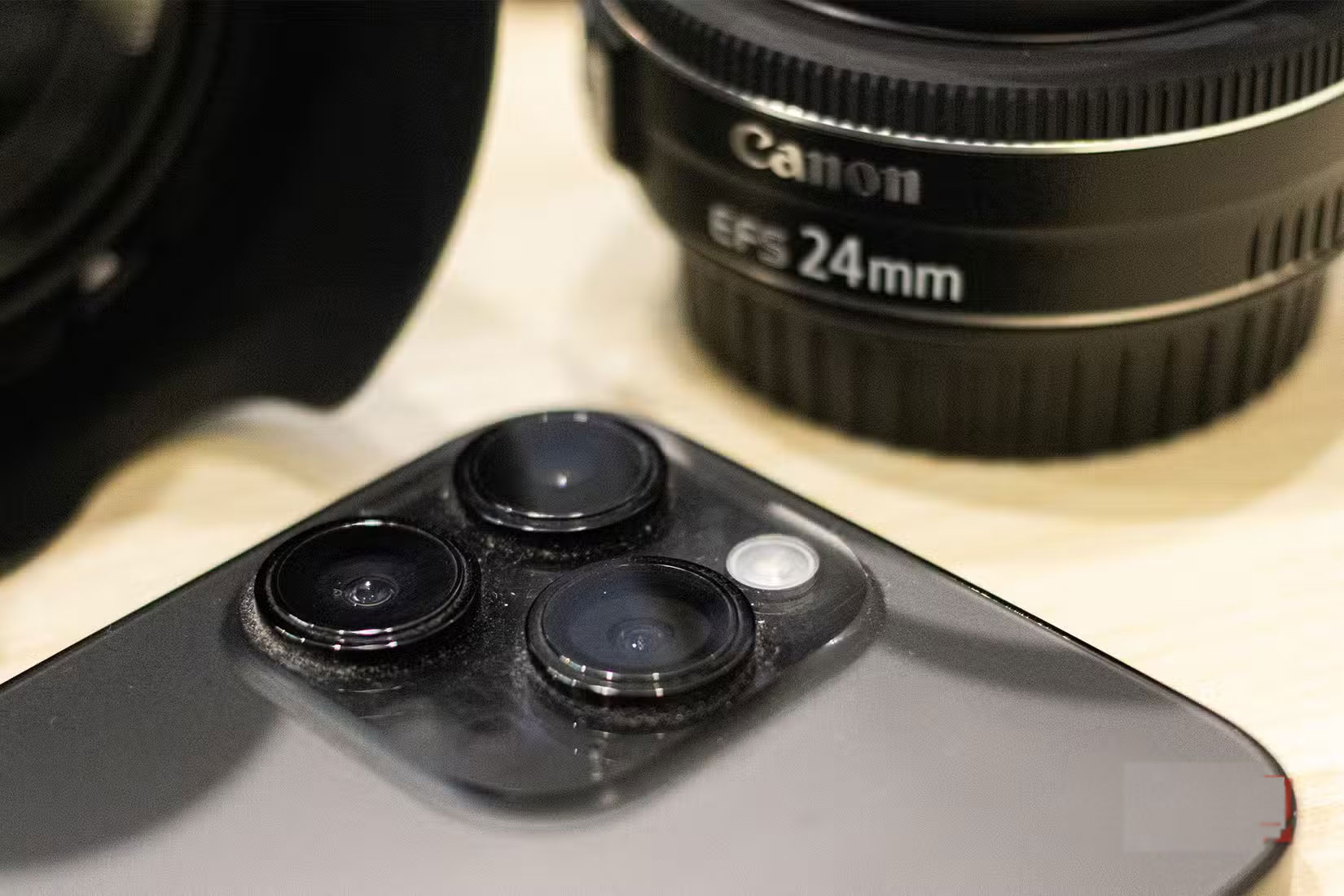
At the heart of this 3D scanning technology is the iPhone's LiDAR sensor, which stands for Light Detection and Ranging. Apple first introduced the technology on the iPad Pro and later added it to the iPhone Pro models. If you have an iPhone 12 Pro or any newer Pro model, you can already use this feature.
The LiDAR scanner emits thousands of tiny pulses of light and then measures how long it takes for each beam to bounce back. The real magic happens when the iPhone combines this depth information with its high-resolution camera. The LiDAR scanner records the structure of the object, while the camera adds texture and color. Together, they create a realistic 3D model that you can rotate, zoom in on, and view from any angle.
These 3D scans are accurate enough to capture the delicate folds in a piece of clothing or the delicate curves of a ceramic vase. Sure, the iPhone can't match the precision of a dedicated 3D scanner, but for enthusiasts and everyday users, the convenience and quality are more than enough to rival dedicated devices.
Scan objects with iPhone
Bring many surprises
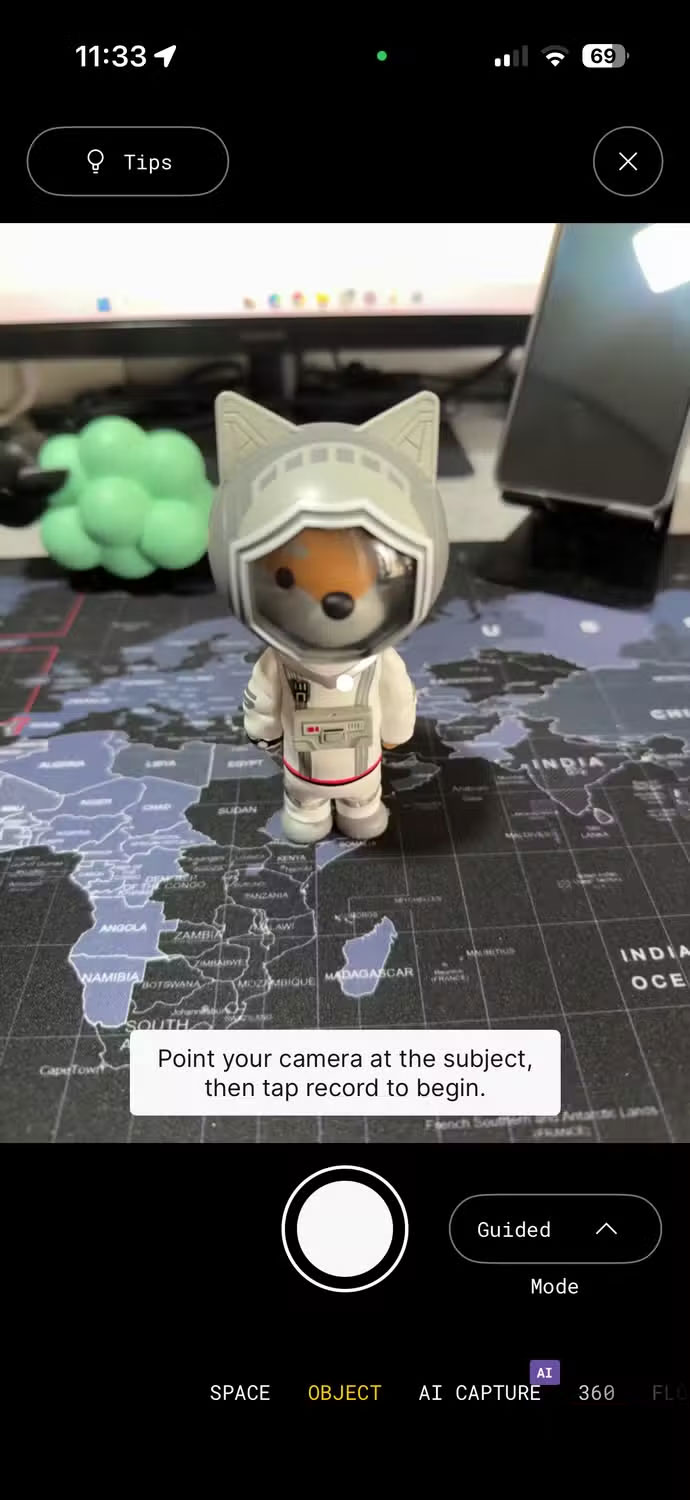
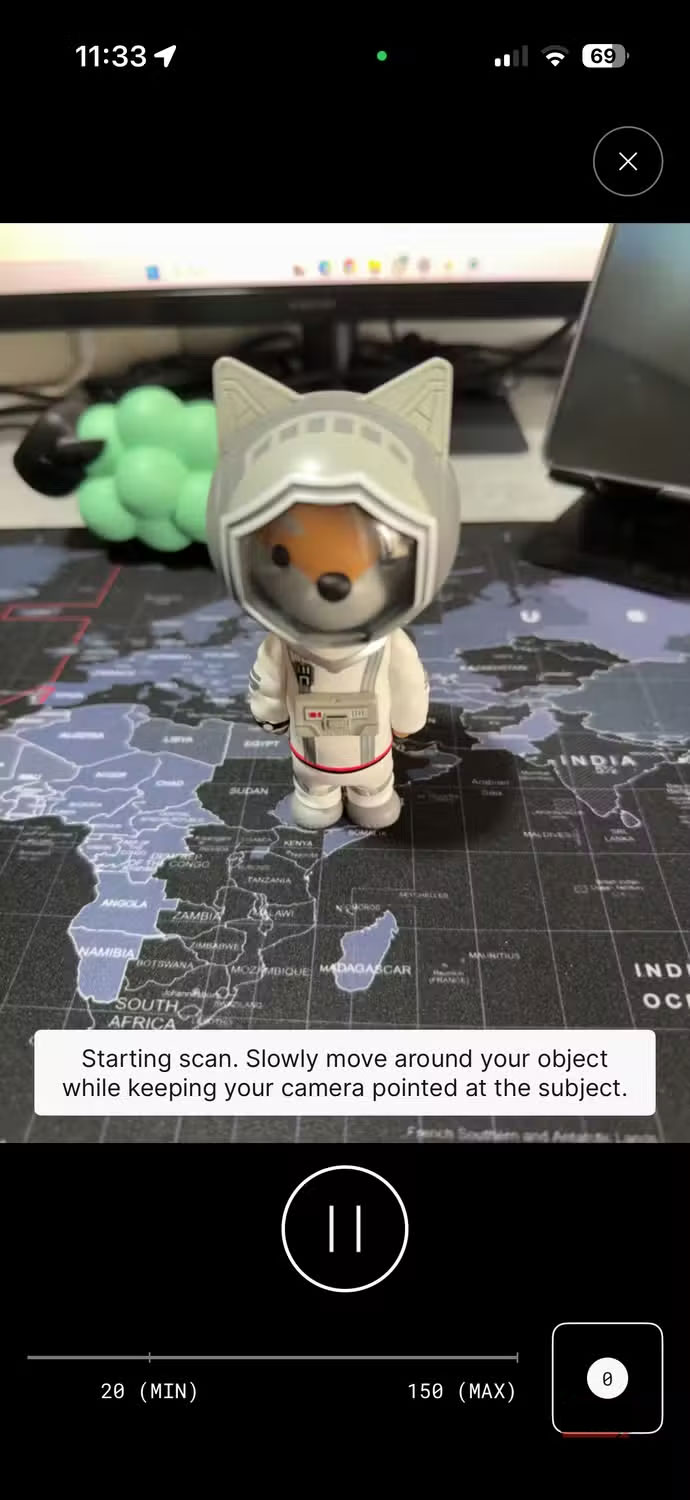
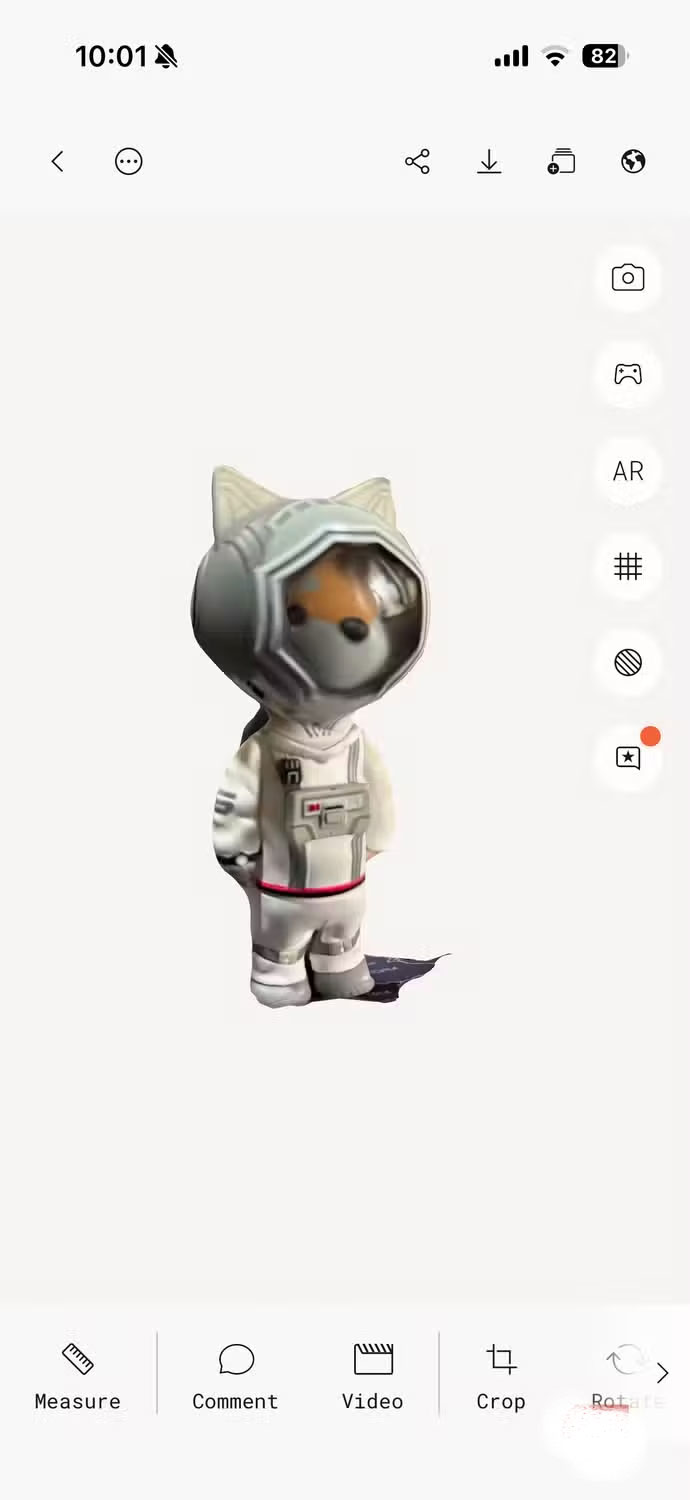
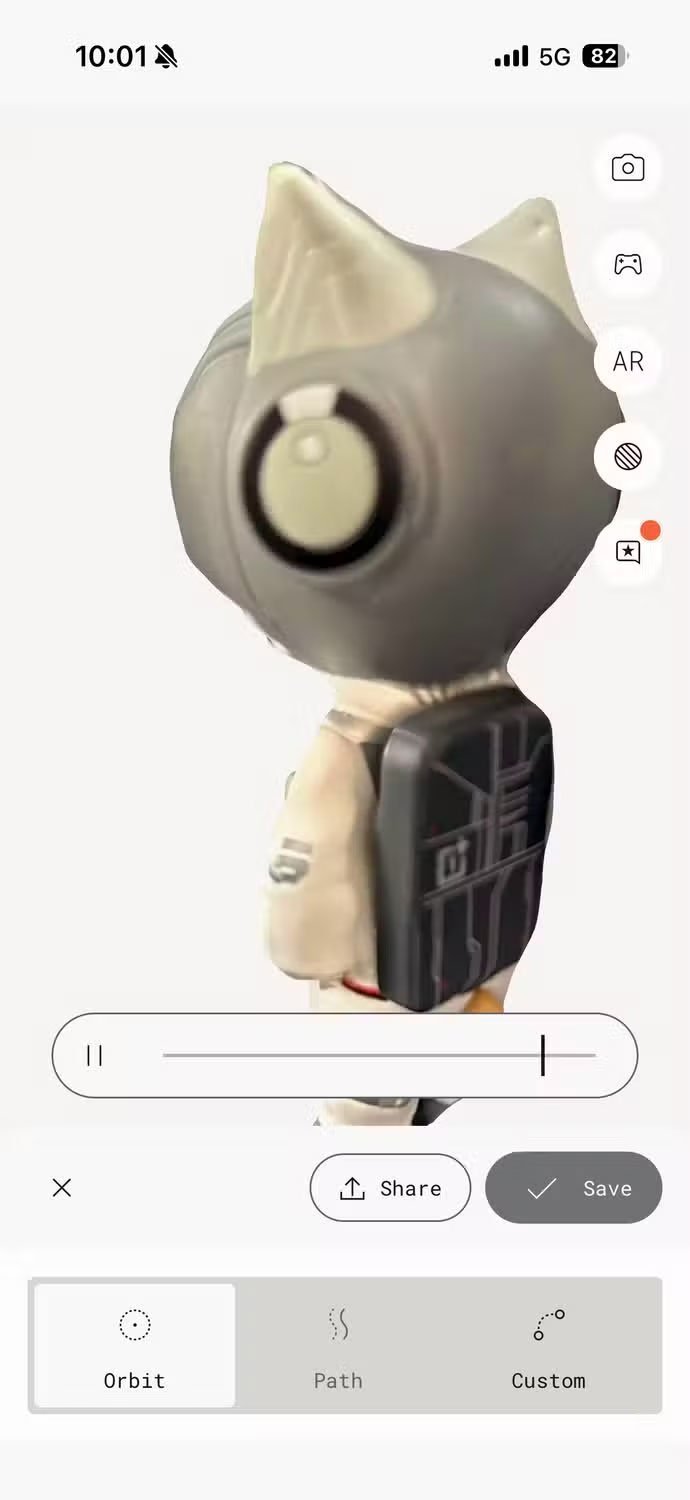
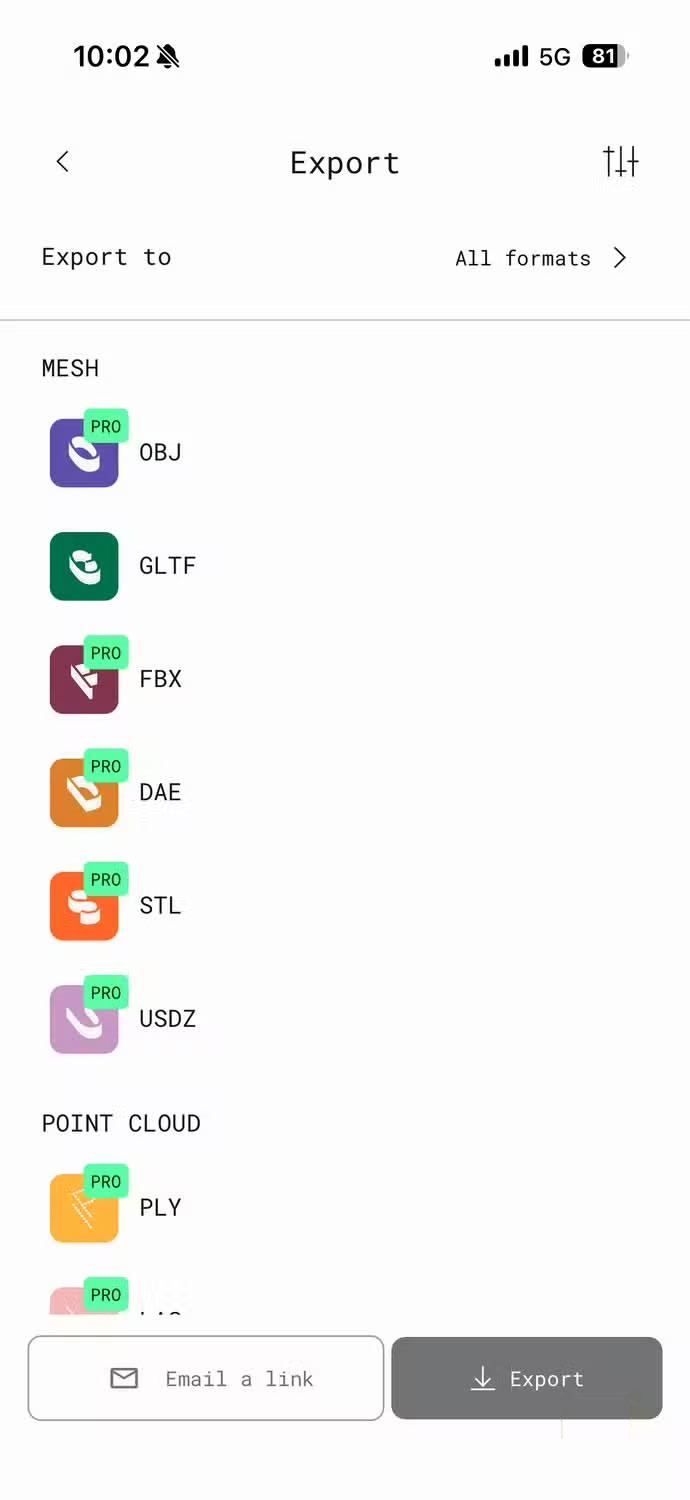
With the iPhone 16 Pro in hand, many people couldn't resist testing it out. A quick search led them to Polycam, a popular app among those testing LiDAR. It's technically a paid app, but it does offer a free trial, giving you the perfect opportunity to test it out.
For my first scan, I used a small OnePlus collectible toy that was sitting on my shelf. It was the perfect test case because it was compact, curvy, and challenging enough to really test the iPhone's LiDAR scanning capabilities.
The scanning process is surprisingly simple. Place the toy on the table, open Polycam, select the LiDAR scan mode, and press record. Then, slowly move the toy in a circle while keeping it in the frame. The app will take a photo and map the shape as you move.
Honestly, the first scan isn't perfect, but that's subjective. If you're planning on scanning something yourself, there are a few things to keep in mind.
First, lighting is important. While the LiDAR sensor maps depth, texture and color come from the camera, so good lighting will help make the results more realistic. Second, move slowly and steadily, as moving quickly around the object can create gaps or blur. Third, scanning is most effective when you place the object on a stable surface and have enough space to move around it comfortably.
Use iPhone to scan room
Give you a blueprint of your room
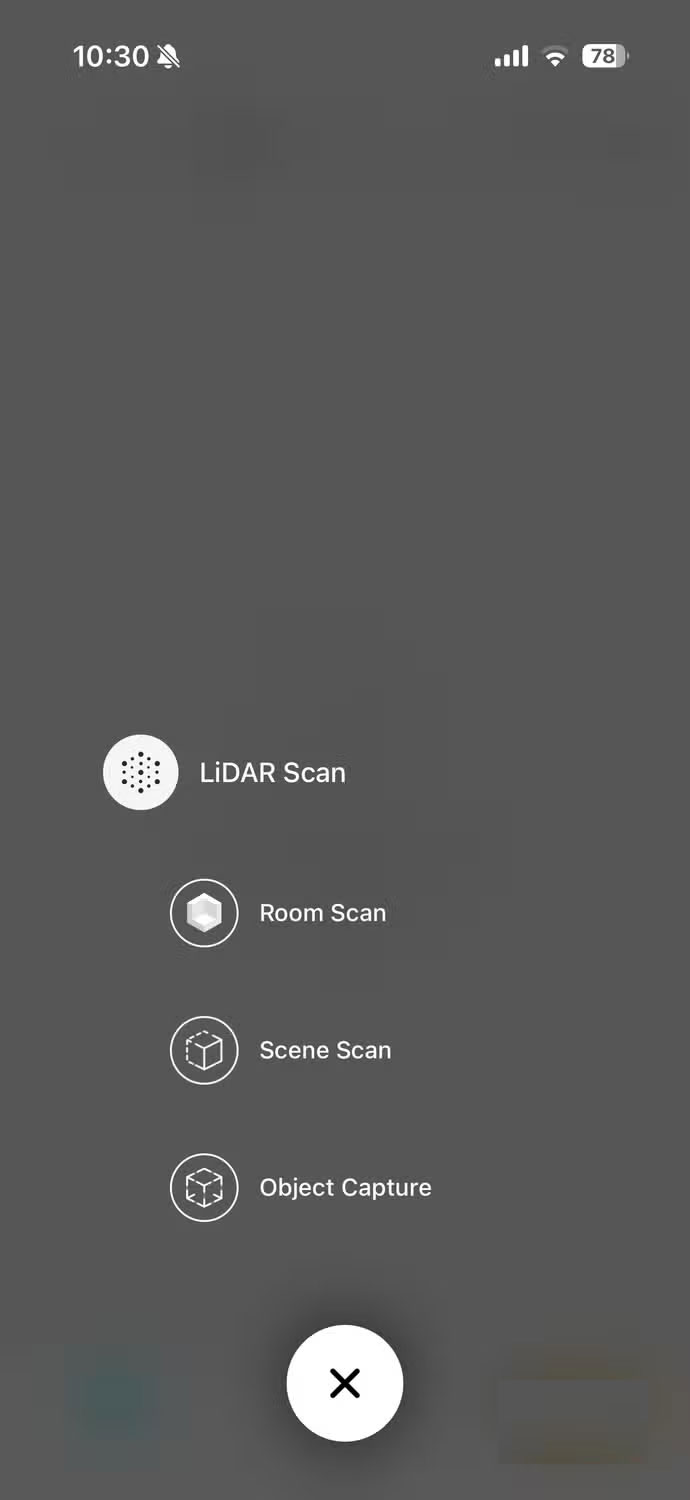
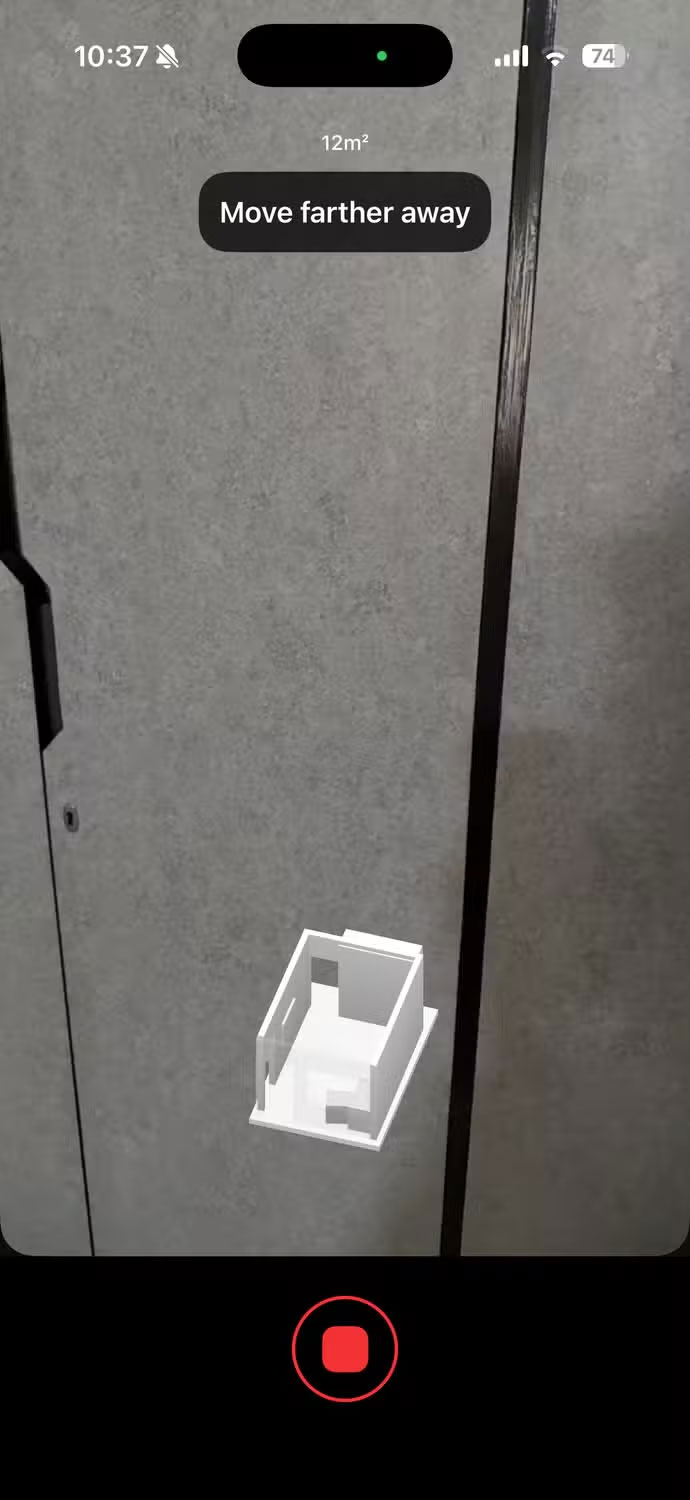
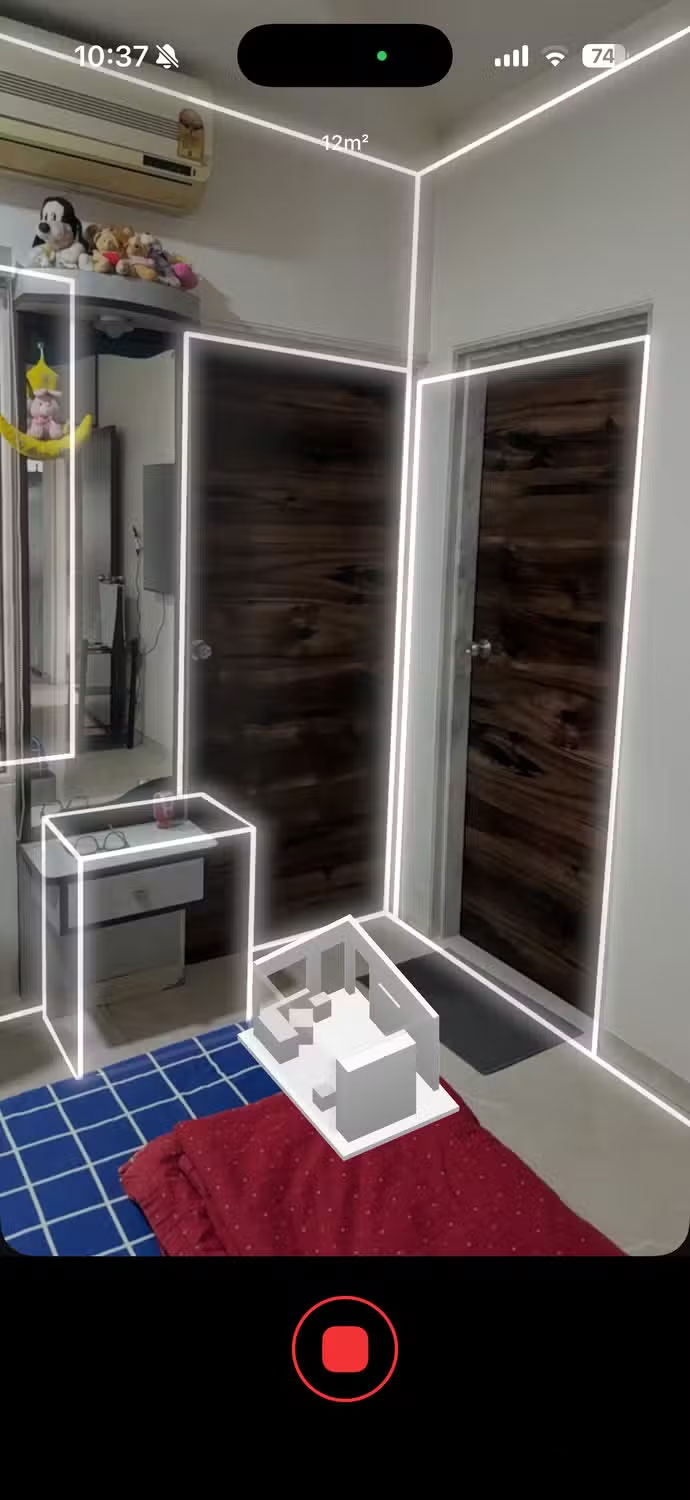
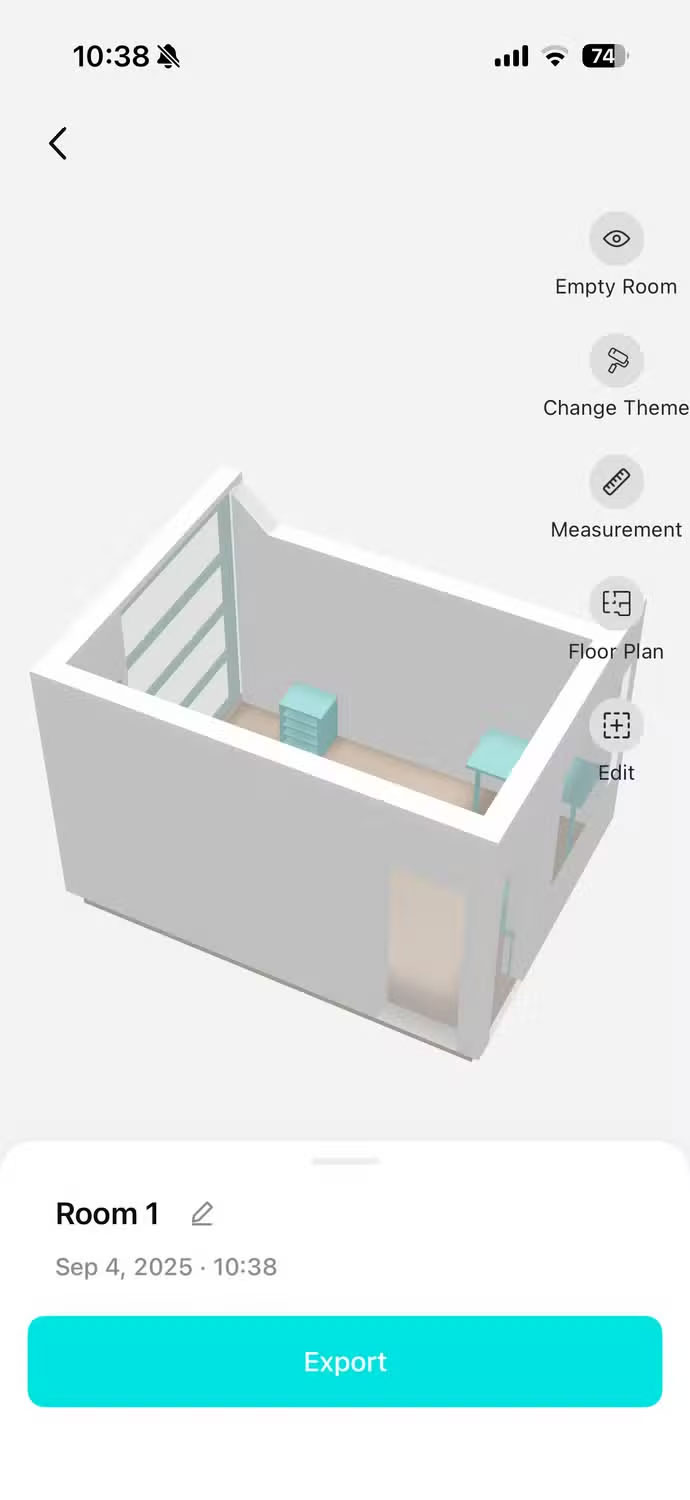
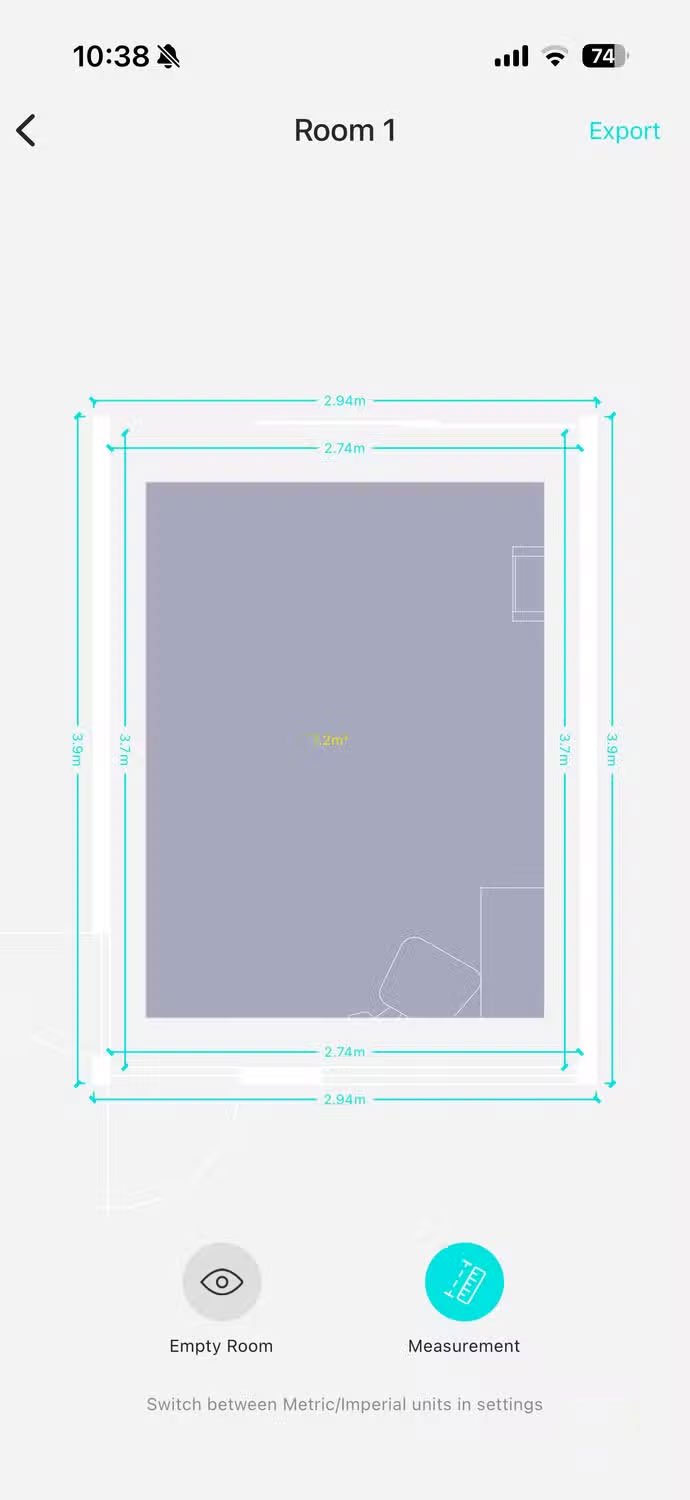
After experimenting with small objects, I was curious to see what my iPhone could do on a larger scale. I used the KIRI Engine app and decided to scan an entire room. This was even easier than scanning a single object.
All you have to do is follow the in-app instructions and record a video of the room. As you record every corner of the room, the KIRI Engine automatically detects distances, heights, and even furniture to create a detailed 3D map in real time.
A phone camera can be used for measuring, but seeing it create a full 3D model — and even a floor plan — of a room in under a minute is really cool.
Final Thoughts
Following the steps in order and checking version-specific settings should make it easier to Use iPhone for 3D Scanning. If an option looks different, verify the device, app, or operating-system version before changing additional settings.
FAQ
What is the best way to Use iPhone for 3D Scanning?
Start with the requirements described in the article and follow the steps in order. When I first heard about LiDAR and 3D scanning apps for iPhone, many people were skeptical that it was just a gimmick. But they were completely wrong.
What should you know about Learn about technology?
At the heart of this 3D scanning technology is the iPhone's LiDAR sensor, which stands for Light Detection and Ranging. Apple first introduced the technology on the iPad Pro and later added it to the iPhone Pro models.
What should you do if the instructions do not match your screen?
Check the device, software version, account permissions, and regional settings. Interfaces can change after updates, so use the closest matching option and consult the official support documentation when necessary.
Related Articles
 4 Very Simple Ways to Scan QR Codes on iPhone: Best Options Compared7 minutes read
 Free Online Virus Scanning Tools Online8 minutes read
 Enable // Disable Periodic Scanning Feature on Windows 105 minutes read
 8 Port Scanning Tools for Windows // Linux Systems10 minutes read
 6 Best Document Scanning Applications for Android7 minutes read
 How to Scan Documents and Manage Documents with Zipscan6 minutes read
Reader Comments 0
Sign in with email or Google to join the discussion.