Table of Contents
A web page that says your iPhone has a virus, your Apple Account was hacked, or you must call support immediately is usually a scam. Seeing the page by itself does not mean the iPhone is infected. Do not call the number, tap the alert's buttons, install an app or profile, or enter a password or verification code.
Close the fake alert safely
- Open Safari's tab view and close the tab that displayed the warning. If the page prevents you from using Safari, open the App Switcher and swipe Safari away, then reopen it without returning to that tab.
- If Safari offers to restore the problem page, cancel or open a new tab instead.
- Open Settings > Apps > Safari. Make sure Block Pop-ups and Fraudulent Website Warning are enabled.
Apple's guidance on phishing and fake support messages says browser pop-ups that warn about viruses or security problems are usually fraudulent advertisements. Apple will not ask you to call a number in such a pop-up or disclose your password, device passcode, or two-factor authentication code.
Clear the site's Safari data if the pop-up returns
Closing the tab is often enough. If the same page reopens or redirects repeatedly, remove its stored website data:
- Go to Settings > Apps > Safari > Advanced > Website Data.
- Search for the site's domain and delete that entry, or tap Remove All Website Data if you cannot identify it.
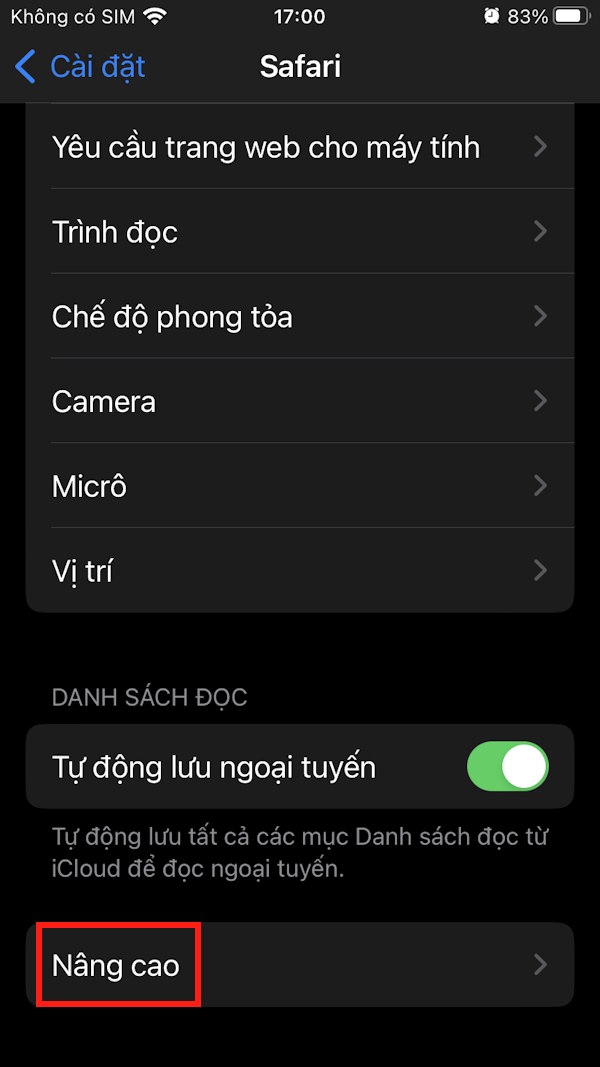
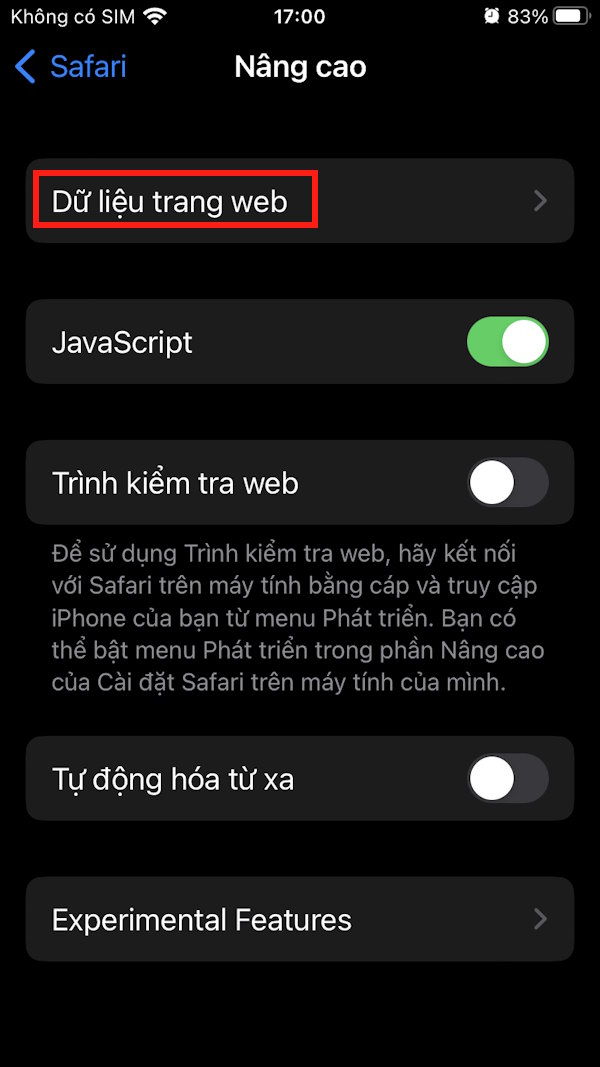
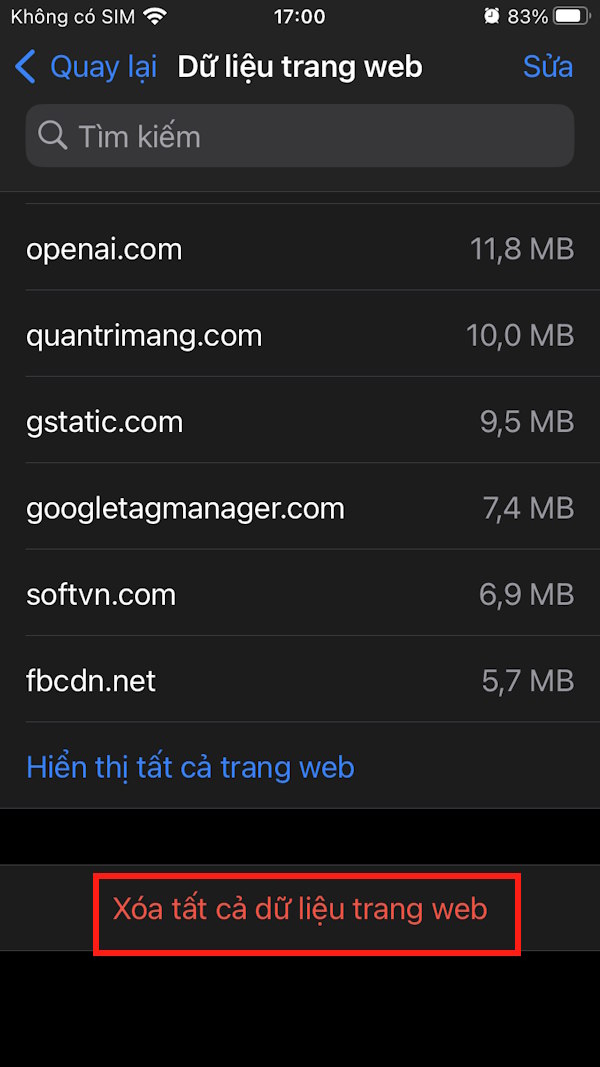
Removing all website data can sign you out of websites. To clear browsing history as well, use Settings > Apps > Safari > Clear History and Website Data, choose a time range, and confirm. Apple notes that this does not change AutoFill information. TipsMake's iPhone troubleshooting guide explains the same Safari cleanup options and when to use them.
Remove a spam calendar subscription
Alerts that appear as Calendar events are handled in Calendar rather than Safari. Open Calendar, tap Calendars, select the unfamiliar subscribed calendar, then choose Unsubscribe or Delete Calendar. On supported versions, use Unsubscribe and Report Junk when offered. Do not tap links inside the events.
If the calendar came from an account you do not recognize, review Settings > Apps > Calendar > Calendar Accounts and remove only the unwanted account. The current options vary slightly by iOS version.
Review Safari extensions
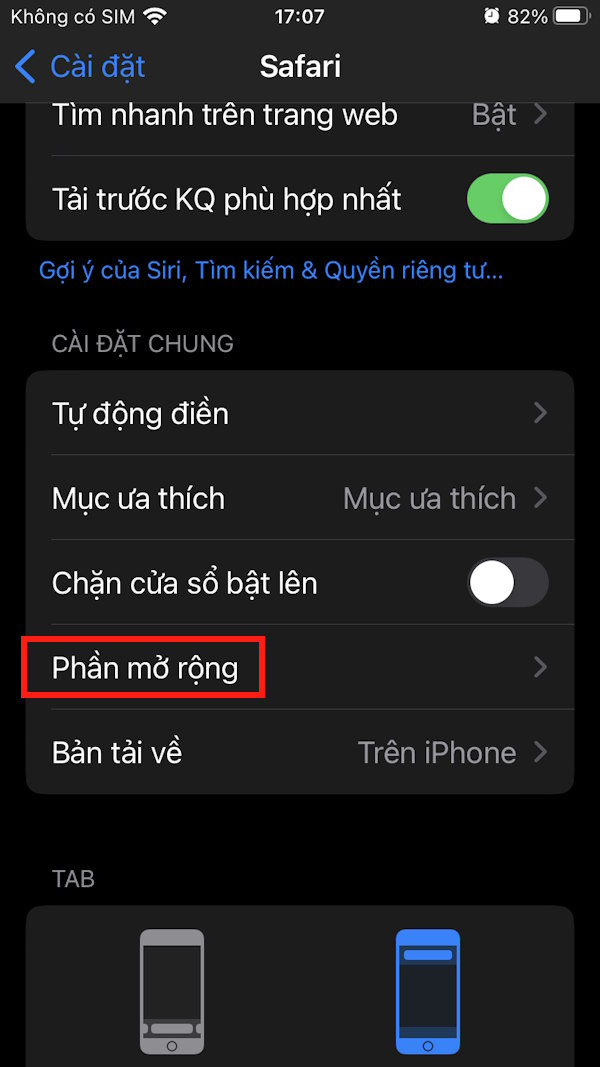
Go to Settings > Apps > Safari > Extensions. Turn off an extension you do not recognize, then remove its companion app from the Home Screen or App Library. A legitimate content blocker or password manager that you installed yourself can remain enabled.
For safer ways to reduce web advertising without installing questionable profiles, see TipsMake's guide to blocking ads on Android and iPhone.
Check configuration profiles and VPNs
A website cannot silently install a configuration profile; iOS requires your approval. If you accepted an installation prompt, go to Settings > General > VPN & Device Management and inspect the listed profiles.
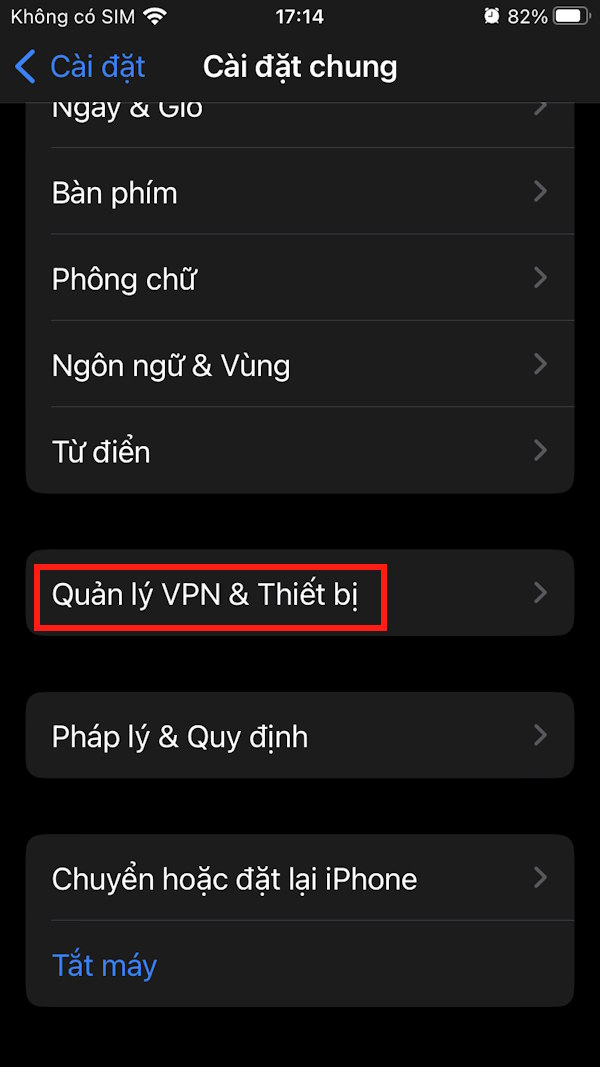
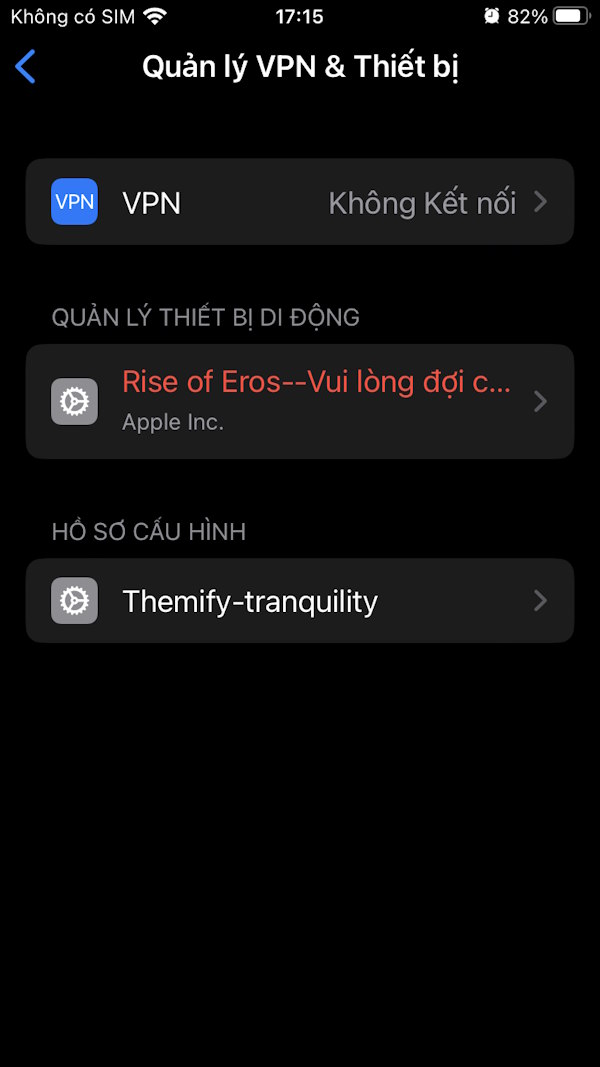
Delete an unfamiliar profile only after confirming that it is not required by your employer, school, mobile carrier, or a service you intentionally use. Apple warns that removing a profile also removes the settings, apps, or data managed by it. Restart the iPhone after deleting an unwanted profile. Review configured VPN apps separately and remove one only if you are sure it is untrusted.
If you interacted with the scam
- You entered your Apple Account password: change it immediately from Settings > [your name] > Sign-In & Security > Change Password. Review the devices on your account and remove any you do not recognize. Make sure two-factor authentication remains enabled.
- You approved an unexpected sign-in request: reject any new prompts, change the password, and follow Apple's compromised Apple Account steps.
- You entered a card number or sent money: contact the card issuer or payment provider using the number on its official app, website, or the back of the card.
- You installed an app: delete it if it came from the scam, update iOS from Settings > General > Software Update, and review its permissions under Privacy & Security.
- You called the displayed number: end the call. Do not install remote-control software, share a verification code, buy gift cards, or disable security features at the caller's request.
How to recognize a real account warning
A genuine Apple notification can report an unfamiliar sign-in, password change, purchase, or two-factor authentication request. Verify it without using the alert's link: open Settings and review your Apple Account directly, or type account.apple.com into the browser yourself. A genuine warning does not need a phone number in a web pop-up, a gift-card payment, or your verification code.
You can report an Apple-impersonation email by forwarding it to reportphishing@apple.com. For a suspicious text, Apple recommends taking a screenshot and emailing it to the same address. Include no passwords or verification codes.
Related Articles
 Before the Launch of iPhone 6, Apple Began Sending Icloud Alerts4 minutes read
 Instructions to Remove the Fake Desktop Security 2010 Application6 minutes read
 What Are Important Warnings on iPhone and iPad? and How to Turn Them On?5 minutes read
 How to Enable Facebook Login Alerts3 minutes read
 Instructions to Remove Fake Antivirus Pro 2010 Security Software3 minutes read
 Instructions to Remove Fake Security Program Cyber Security3 minutes read
Reader Comments 0
Sign in with email or Google to join the discussion.