Table of Contents
Learn how to fix iPhone messages not forwarding on mac with clear steps, practical tips, and troubleshooting guidance for a reliable result.
Check your Apple account on each device
Make sure your iPhone, iPad, and Mac are using the same Apple account. If you're using a different account, sign out and sign back in with the same account.
Check your internet connection
The Messages in iCloud and Text Message Forwarding features both require your device to be connected to the internet via Wi-Fi or cellular data.
Restart the device
Try restarting your Mac and iPhone to fix the issues that are preventing you from forwarding iPhone messages to your Mac.
Check out the iPhone message forwarding feature
iPhone messages will only show up on your Mac or iPad if you have enabled Messages in iCloud or Text Message Forwarding.
On your iPhone , access your Apple account, select iCloud , then select Messages , and then enable Use on this iPhone .
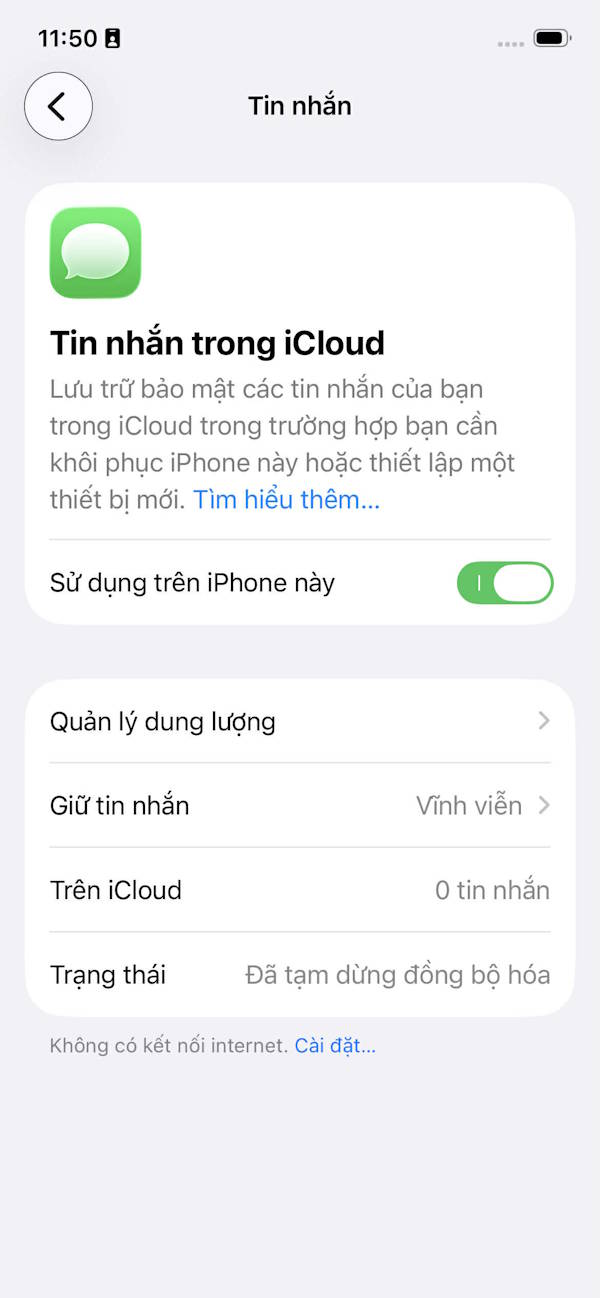
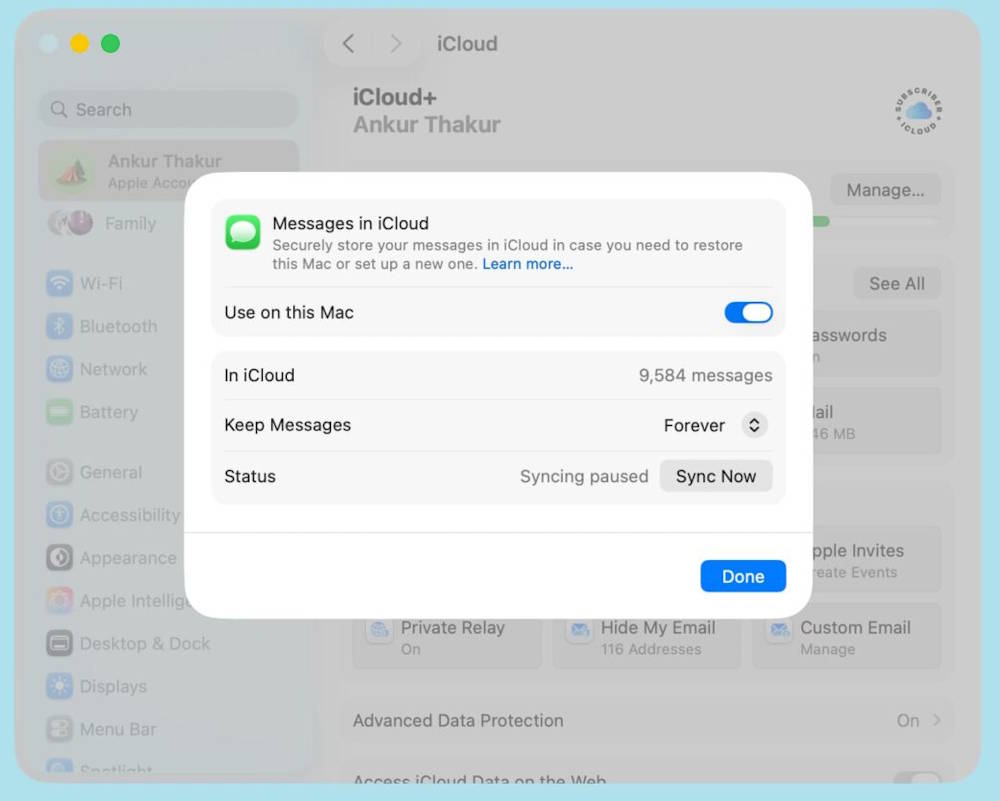
On macOS , go to System Settings , then select Apple Account name > iCloud > Messages . Next, click on Use on this Mac , and you'll see that syncing is enabled.
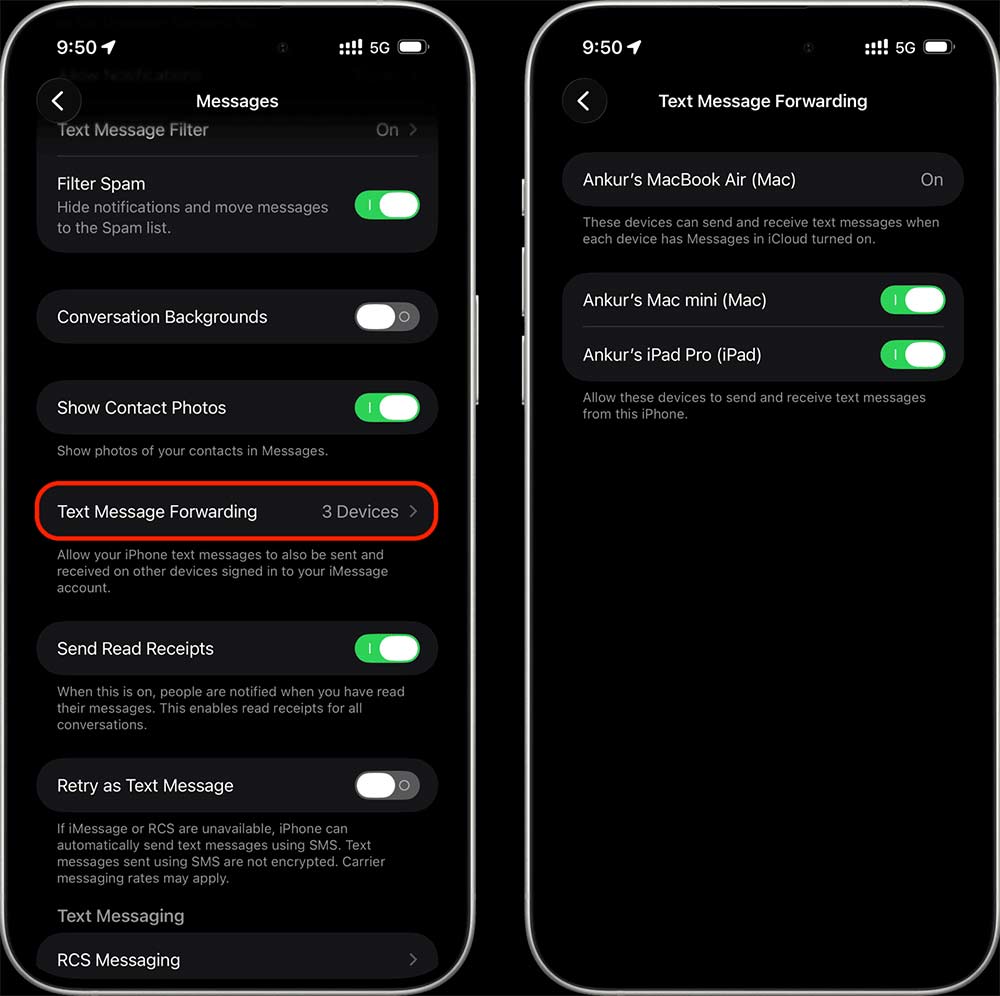
On your iPhone , go to Settings > Apps > Messages > Text Message Forwarding . Turn on the Mac and iPad devices you want to receive SMS, MMS, and RCS messages from your iPhone.
Refresh iMessage
Go to Settings > Apps > Messages and tap Send & Receive .
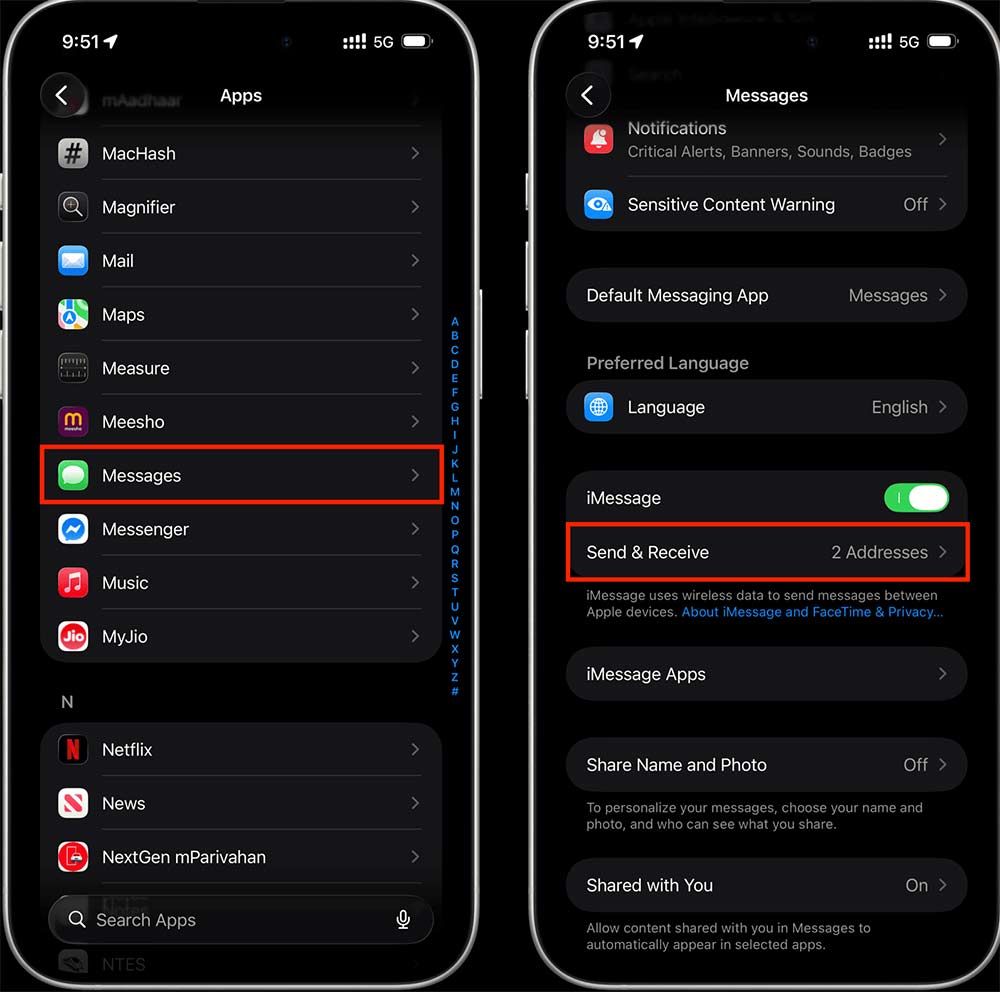
Next, you'll see your phone number, Apple ID email address , and any other email addresses you've added for iMessage and FaceTime. Tap the selected phone number and press Delete to unregister it from iMessage . Also, deselect any other email accounts except your primary Apple account email address .
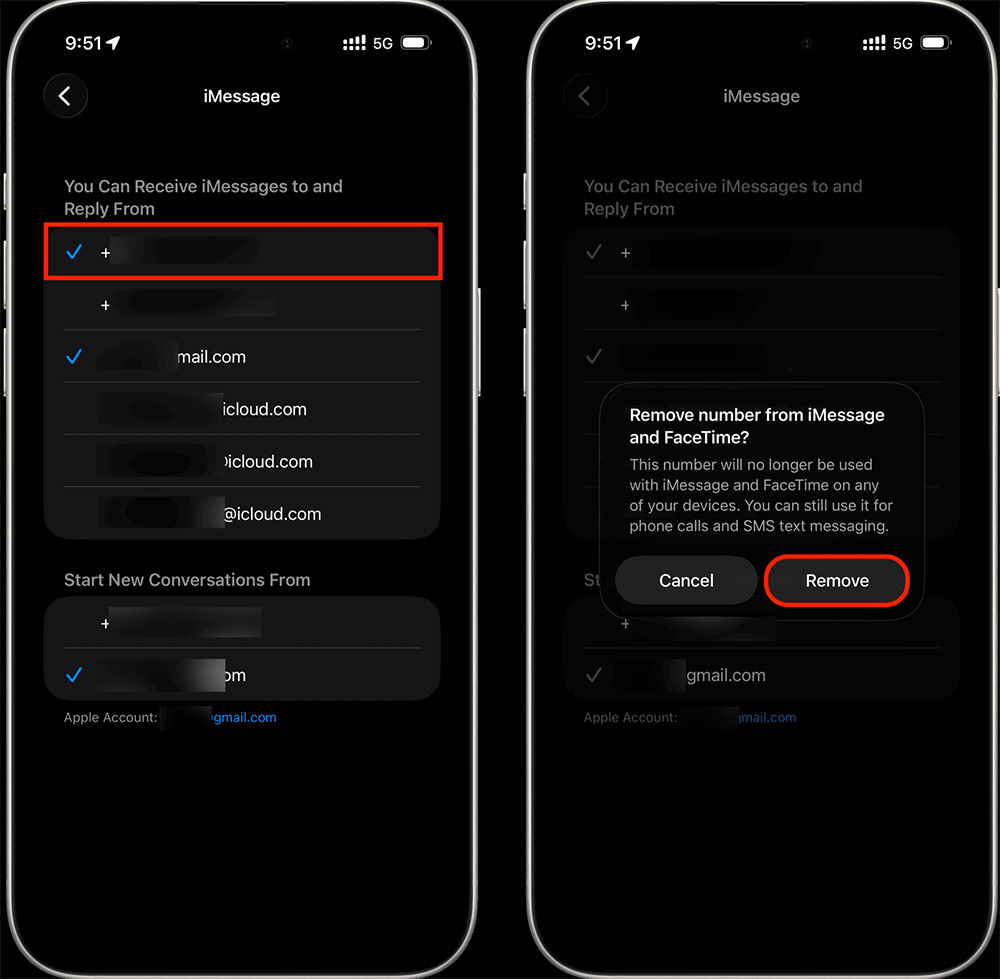
Wait about 15 seconds, then return to the previous screen. After that, close iMessage and wait another 30 seconds.
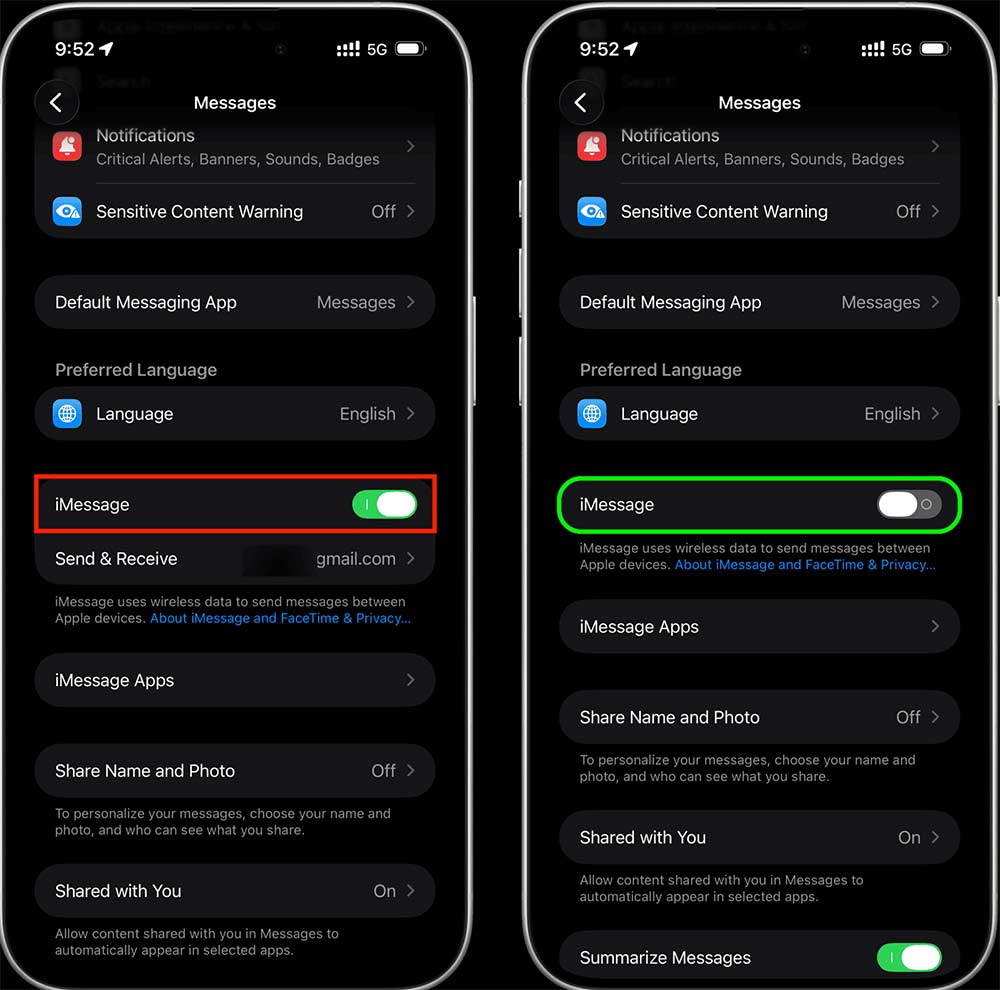
Go back to the iMessage settings in the Messages app on your Mac , and you'll see your phone number has been removed .
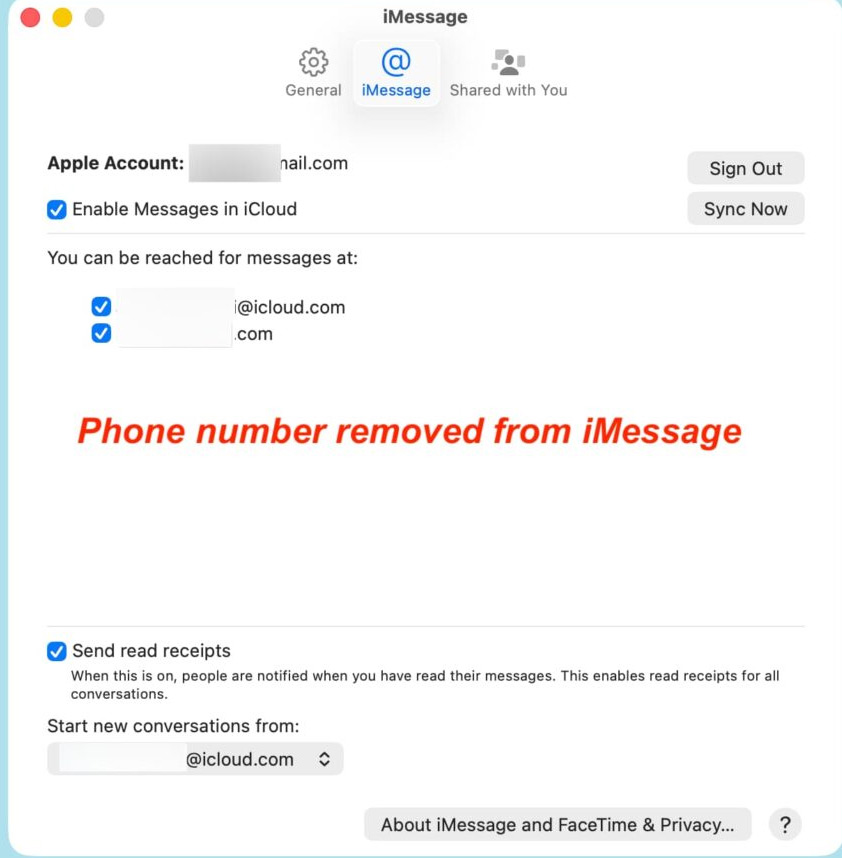
Go back to your iPhone iMessage app settings and re-enable iMessage . You'll see that the Send & Receive section only displays your Apple Account email address .
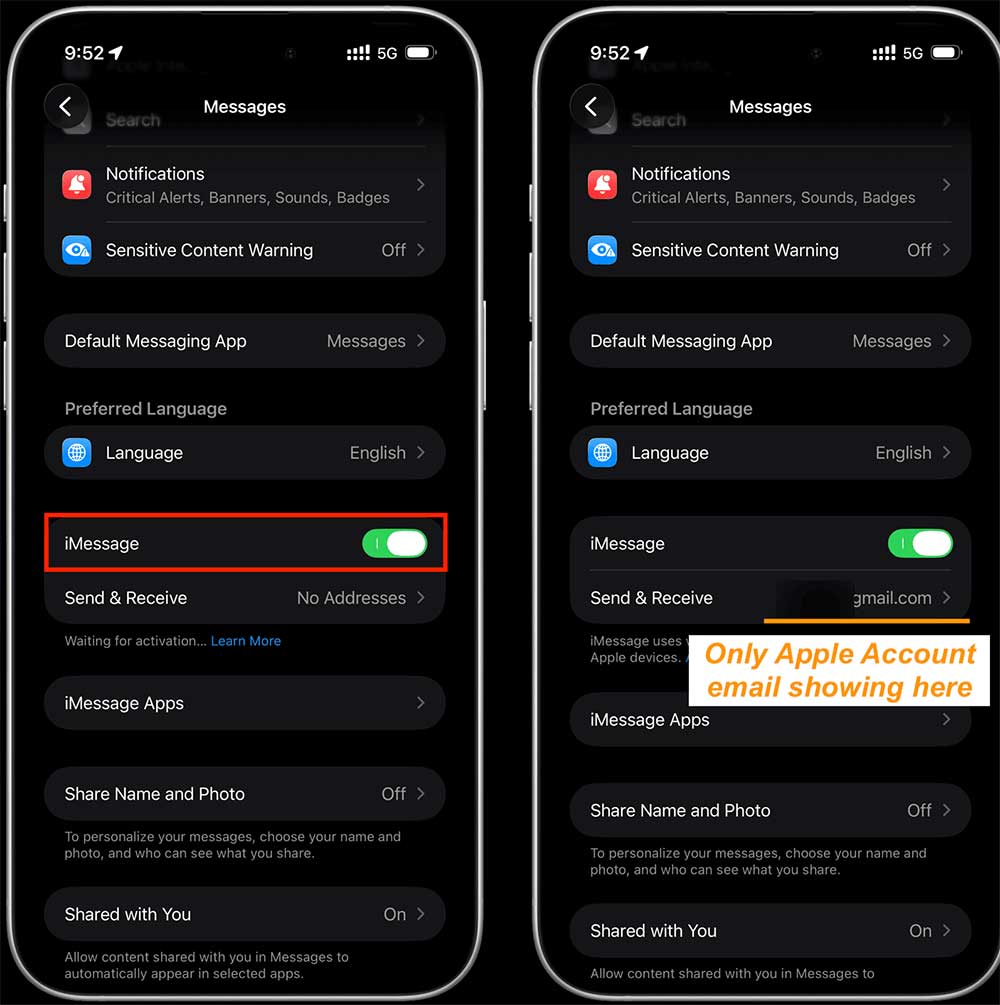
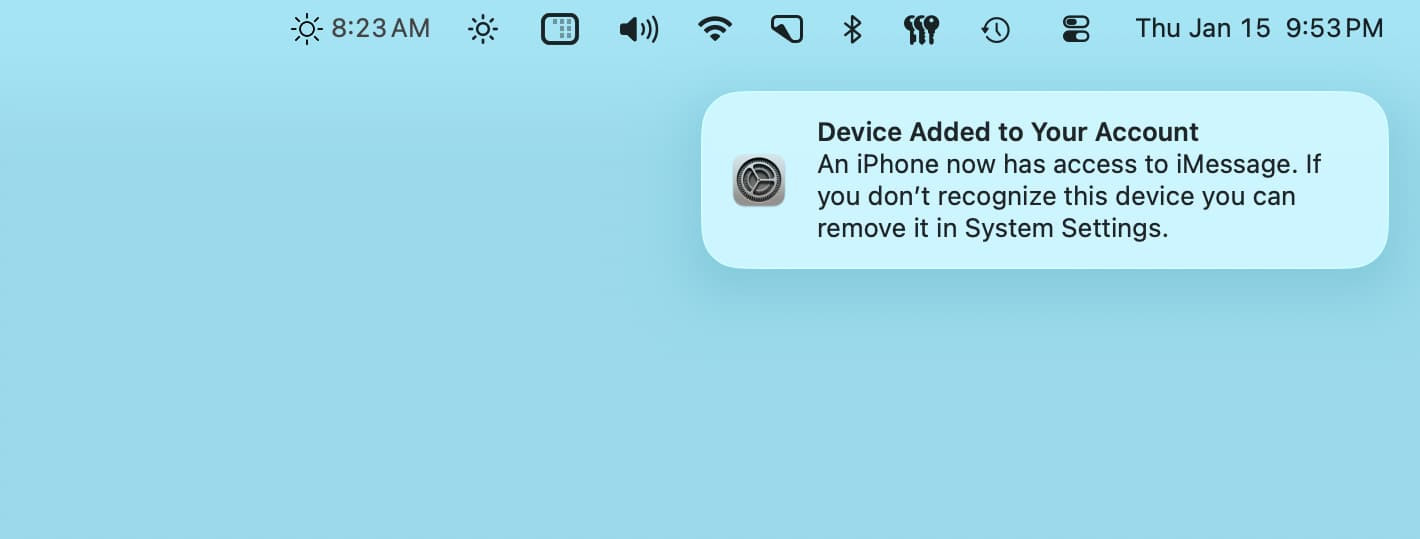
Wait until you see the message on your iPhone, iPad, and Mac that says: 'Device Added to Your Account. An iPhone now has access to iMessage. If you don't recognize this device, you can remove it in Settings .'
Tap Send & Receive in the Messages app settings on your iPhone and tap your phone number to re-register it with iMessage . You'll need to wait a moment while this process completes.
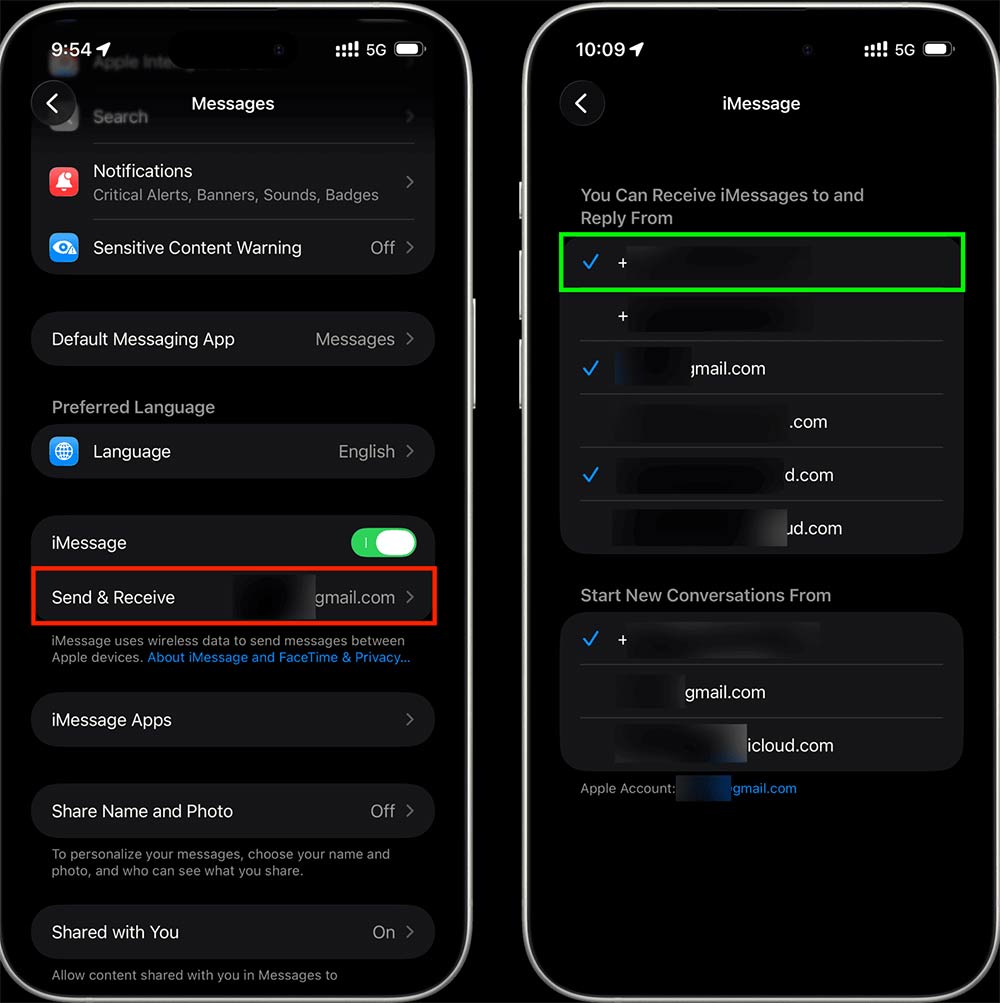
After refreshing iMessage, check that your iPhone, iPad, and Mac are connected to the internet, and that your iPhone phone number and Apple account email address are selected in the iMessage settings on your Mac.
Final Thoughts
Use this guide as a practical checklist for how to fix iphone messages not forwarding on mac. Work through the steps in order, verify each result, and adjust the options to match your needs.
FAQ
What do you need before following this How to Fix iPhone Messages Not Forwarding on Mac guide?
Review the required tools, accounts, settings, or materials mentioned in the article. Learn how to fix iPhone messages not forwarding on mac with clear steps, practical tips, and troubleshooting guidance for a reliable result.
What are the main steps for how to fix iphone messages not forwarding on mac?
Follow the sections in order, especially Check your Apple account on each device, Check your internet connection, Restart the device. Complete each step before continuing and verify the result as you go.
What should you do if the process does not work as expected?
Recheck the prerequisites, update the relevant app or service, review the settings, and repeat the step that caused the issue. Use any troubleshooting notes included in the guide.
Related Articles
 How to Use Call Forwarding on iPhone and Android8 minutes read
 6 Simple Steps to Install Port Forwarding on the Router17 minutes read
 What Is Port Forwarding?14 minutes read
 IP Forwarding? How It Works and How to Check IP Forwarding6 minutes read
 How to Set up Port Forwarding in Windows5 minutes read
 How to Set Up Port Forwarding on Draytek Router5 minutes read
Reader Comments 0
Sign in with email or Google to join the discussion.